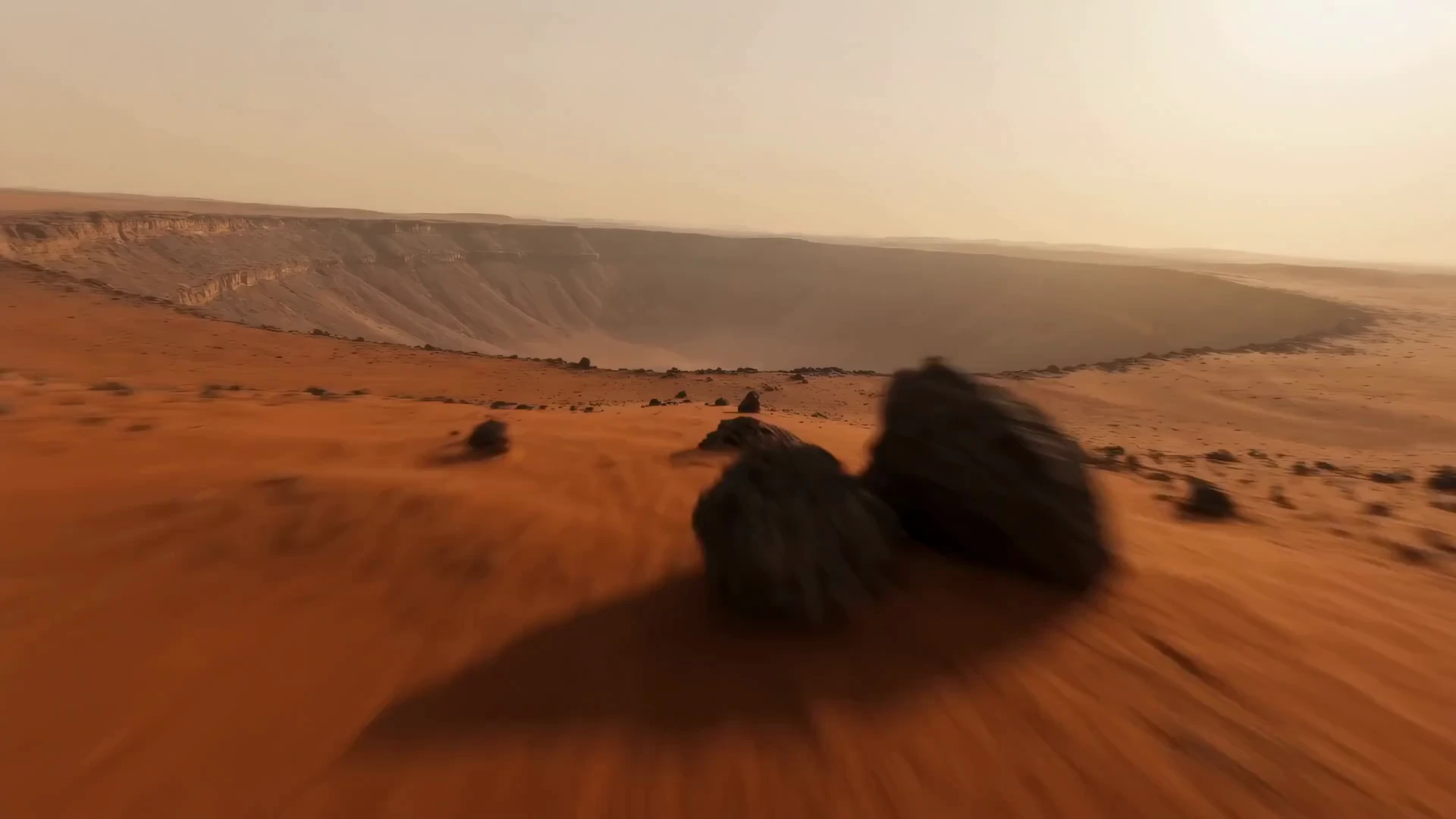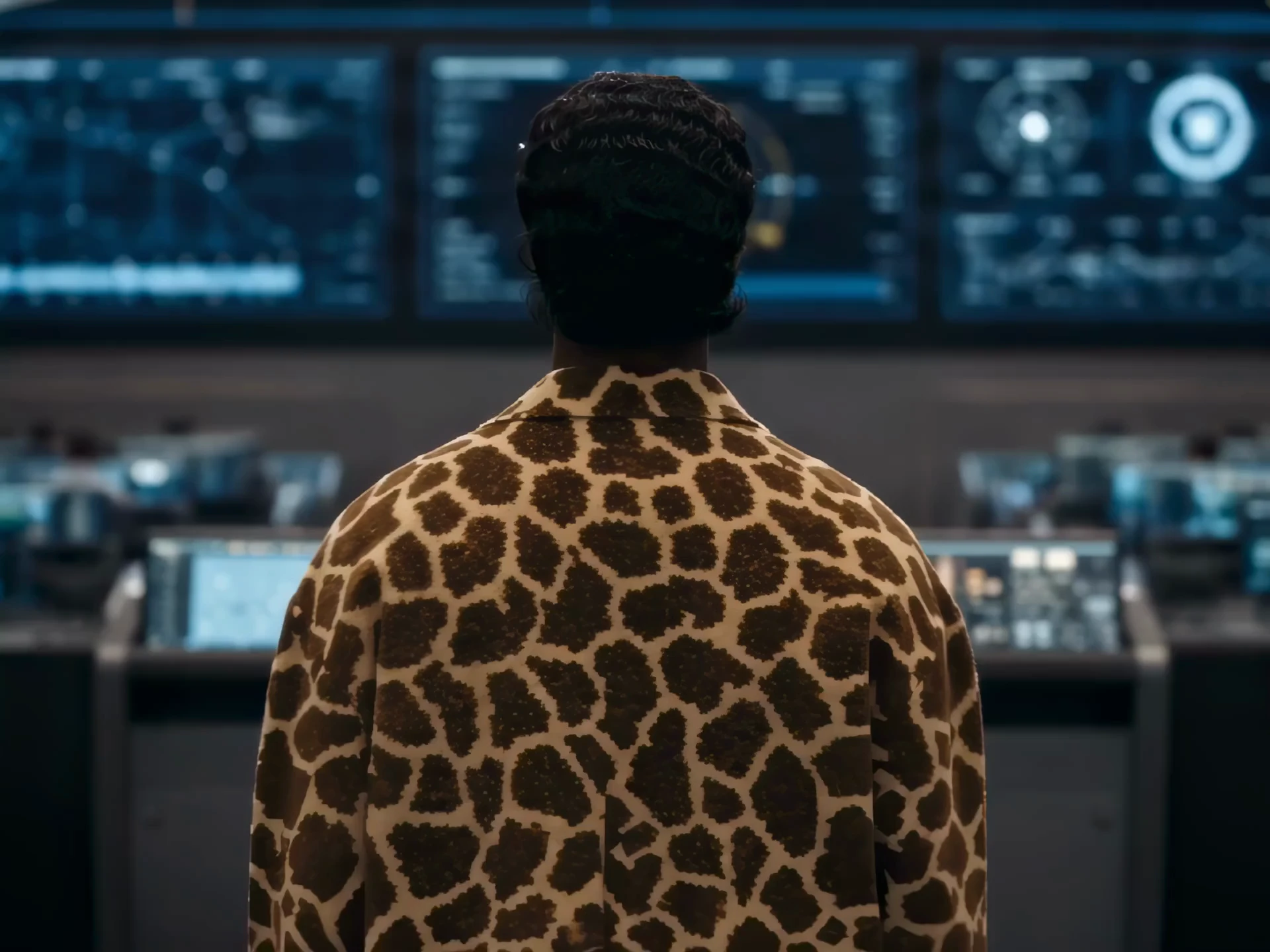
A whole creative team in one chat
A director, scriptwriter, and production crew live in your agent.
A whole creative team in one chat
A director, scriptwriter, and production crew live in your agent.
Share your idea, and Nim will take it from there
From product visuals and ads to short films.
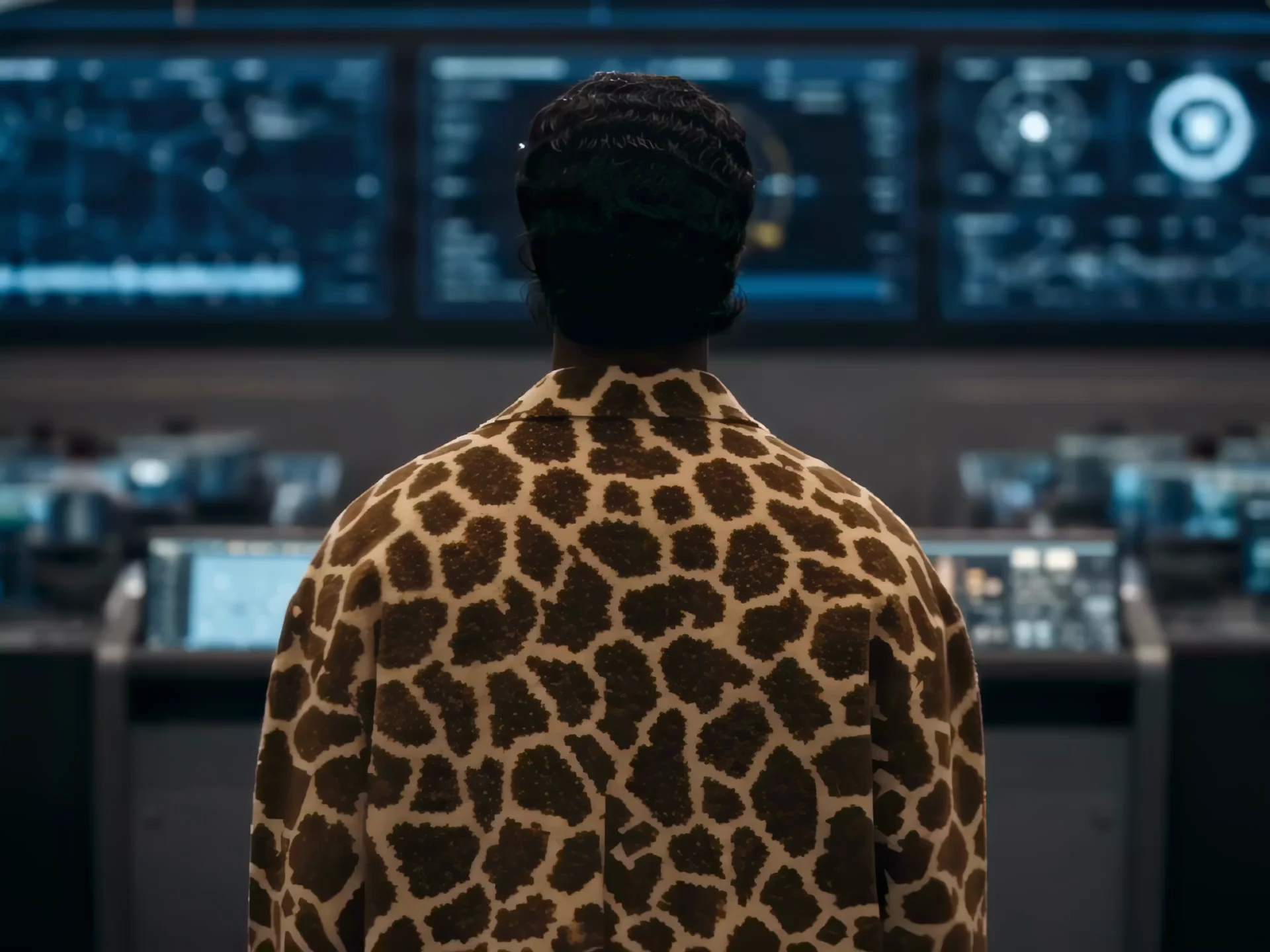
Create a cinematic ad for my perfume with a romantic love story
I’ll create a romantic perfume ad, opening with a close-up of the bottle before following a young couple on their first date, from playful glances to a slightly awkward first kiss.
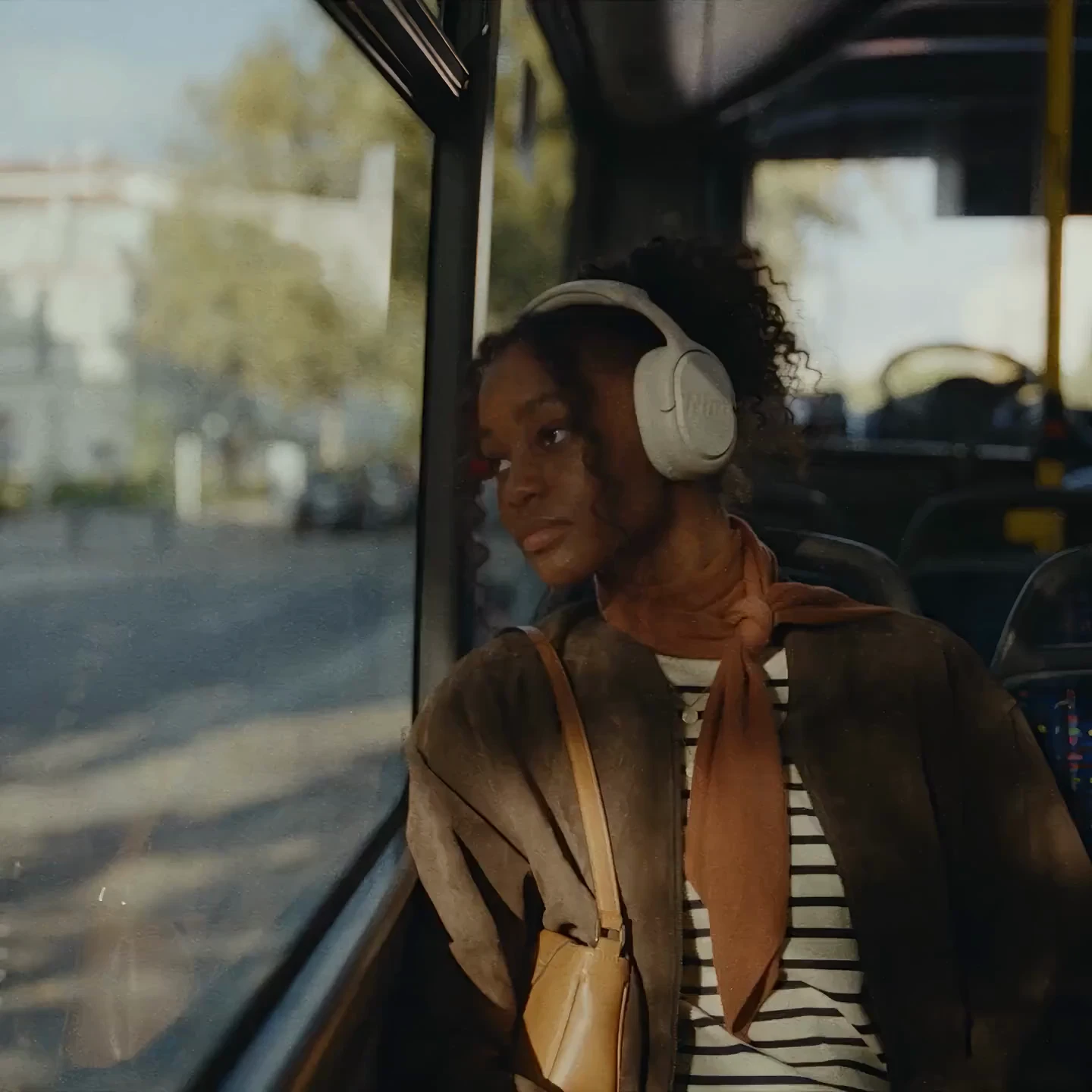
Generate a headphone ad concept where two strangers meet in an unexpected setting because they’re wearing the same headphones
I’ll create a story where a girl gazes out of a bus window, lost in music. At a stop, a young guy jogs past wearing the same headphones. Their eyes meet, and they share a smile.
Share your idea, and Nim will take it from there
From product visuals and ads to short films.
Create a cinematic ad for my perfume with a romantic love story
Creative skills, built into your agent
A growing library of skills for results worth sharing.
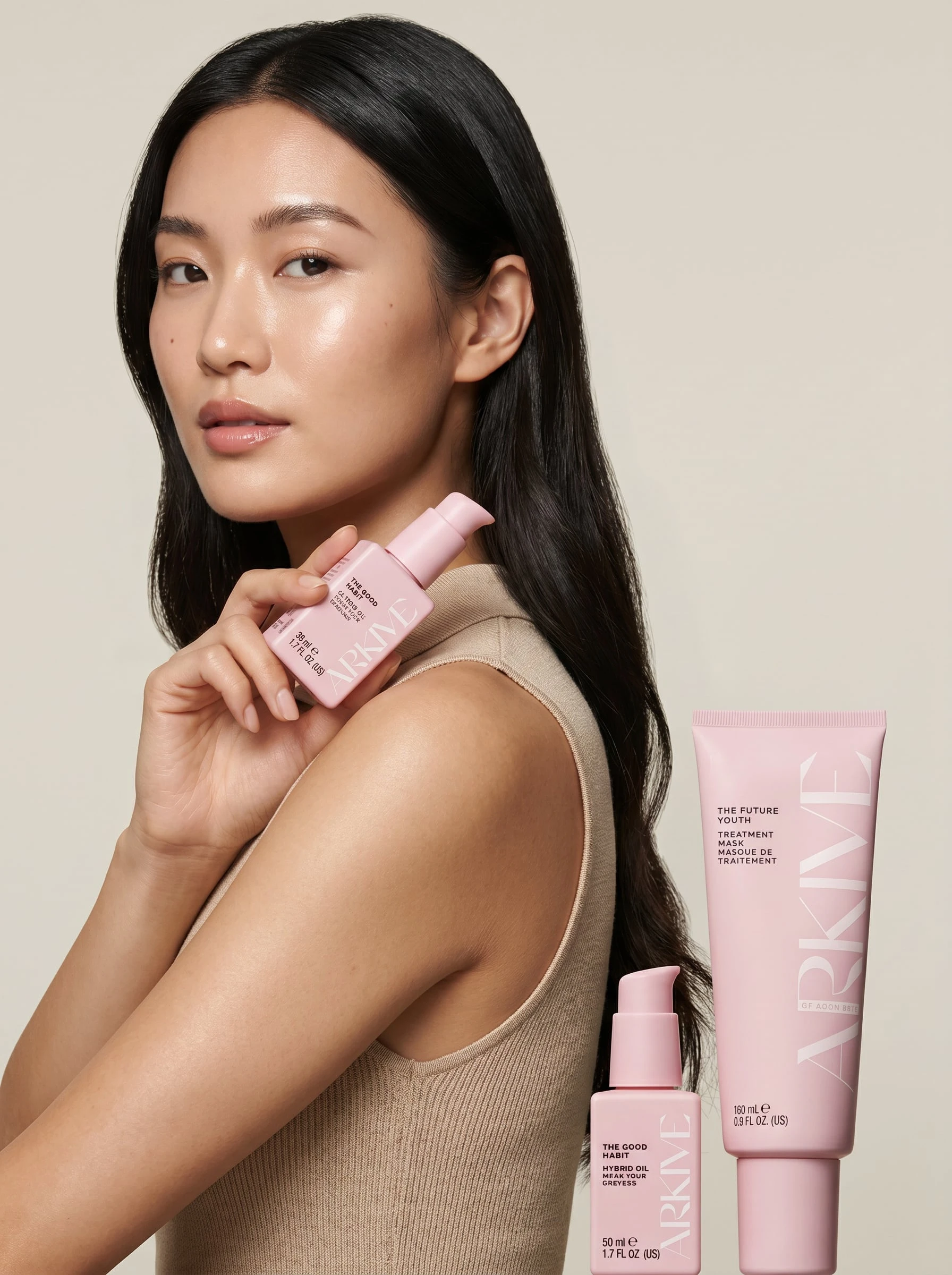
Product creatives
Professional static and video ads.
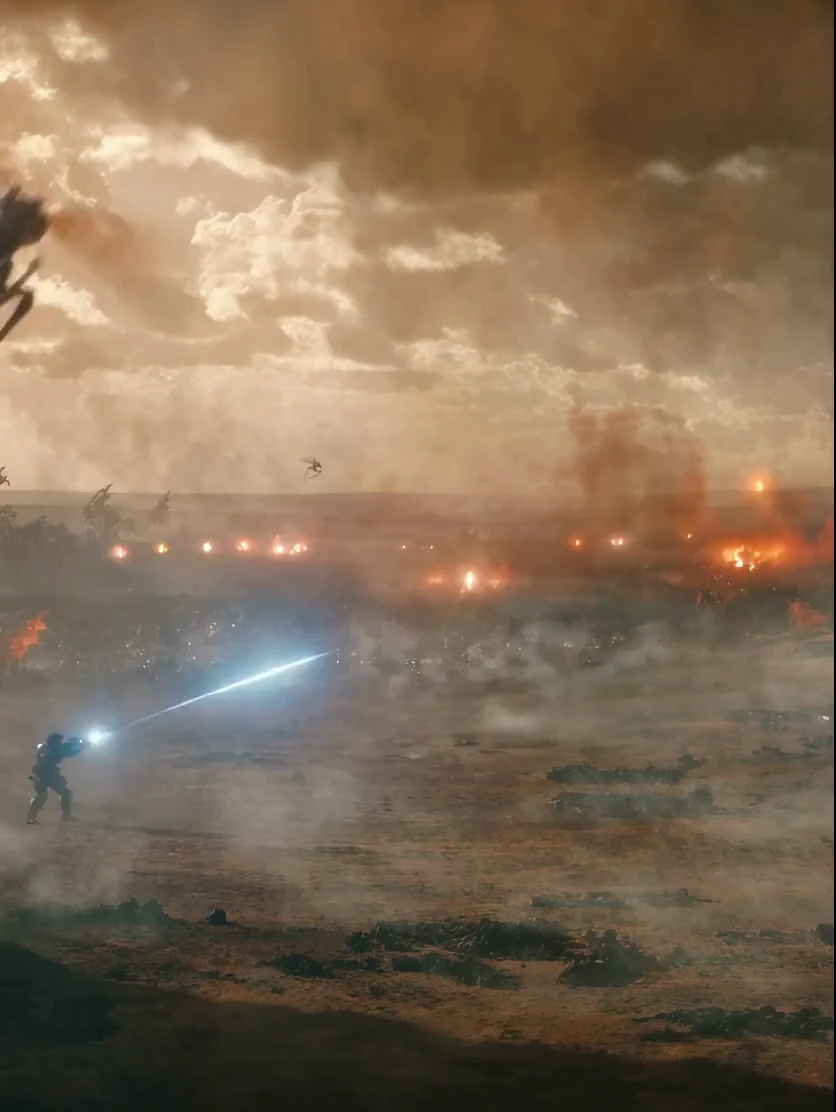
Long videos
Videos up to 5 minutes long with consistent characters and settings.
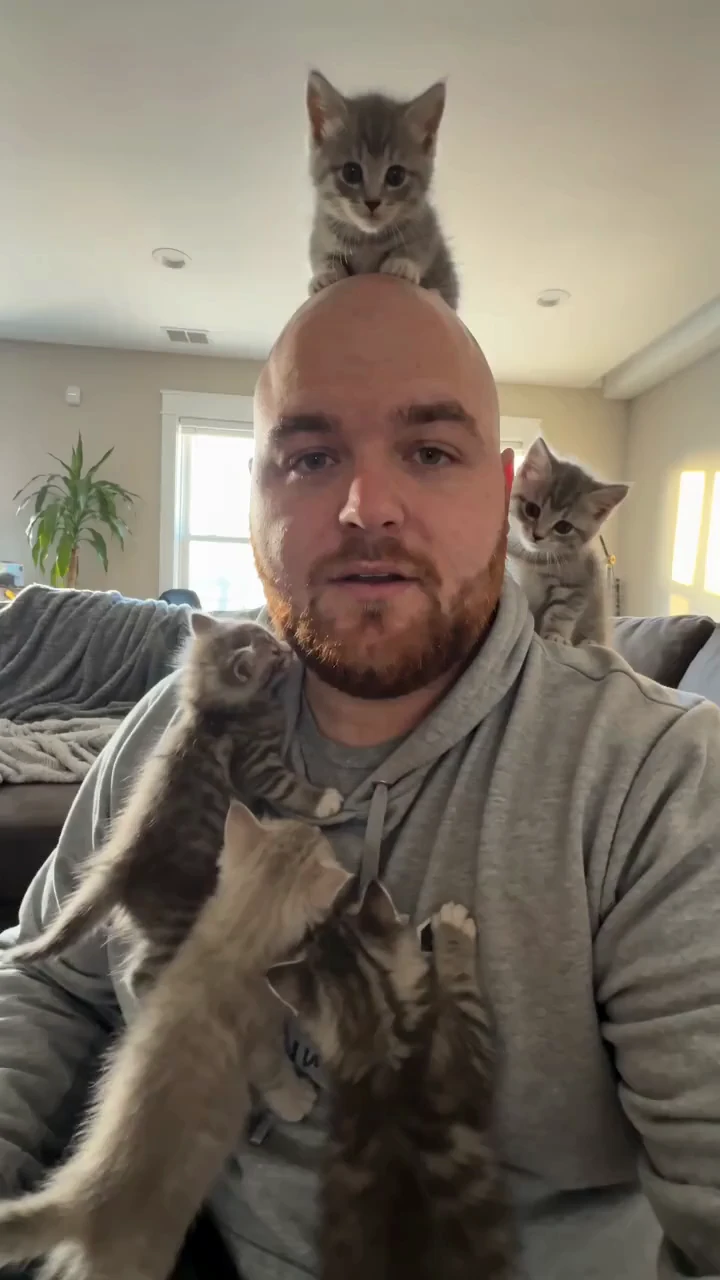
Hooks
Opening lines that stop people from scrolling past your video.
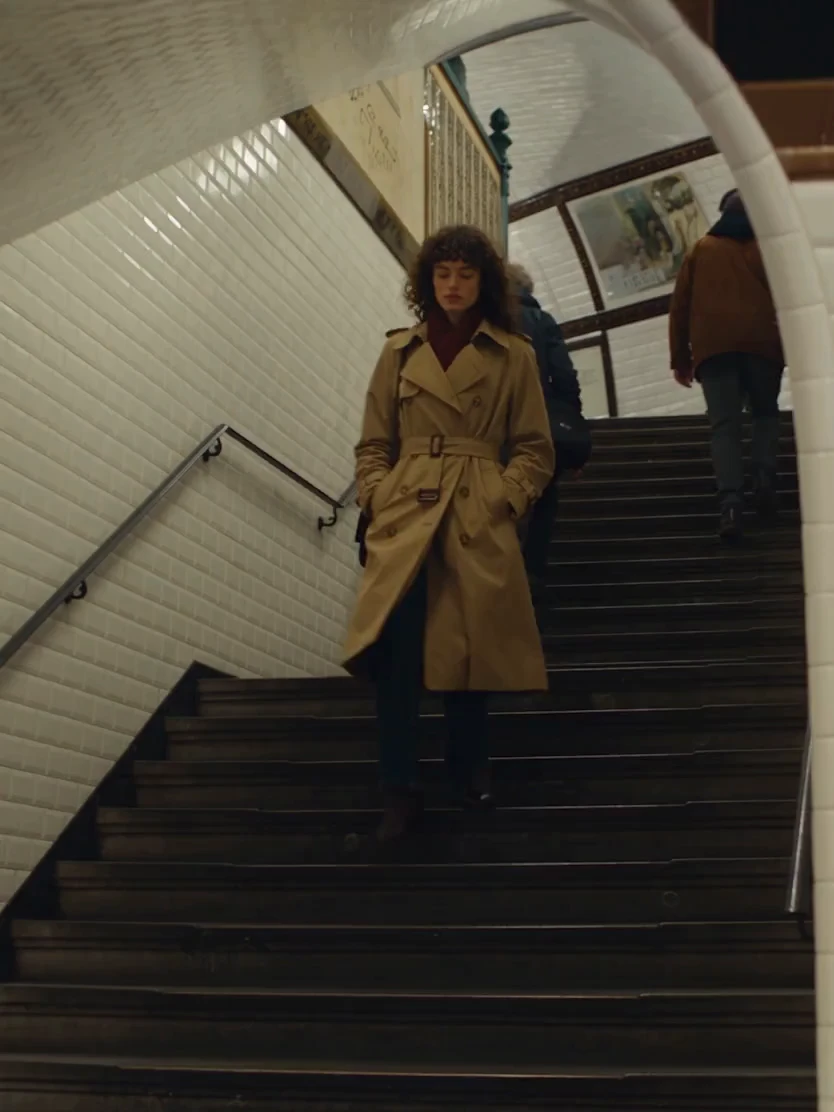
Characters
Realistic people based on your preferences, ready for your next generations.
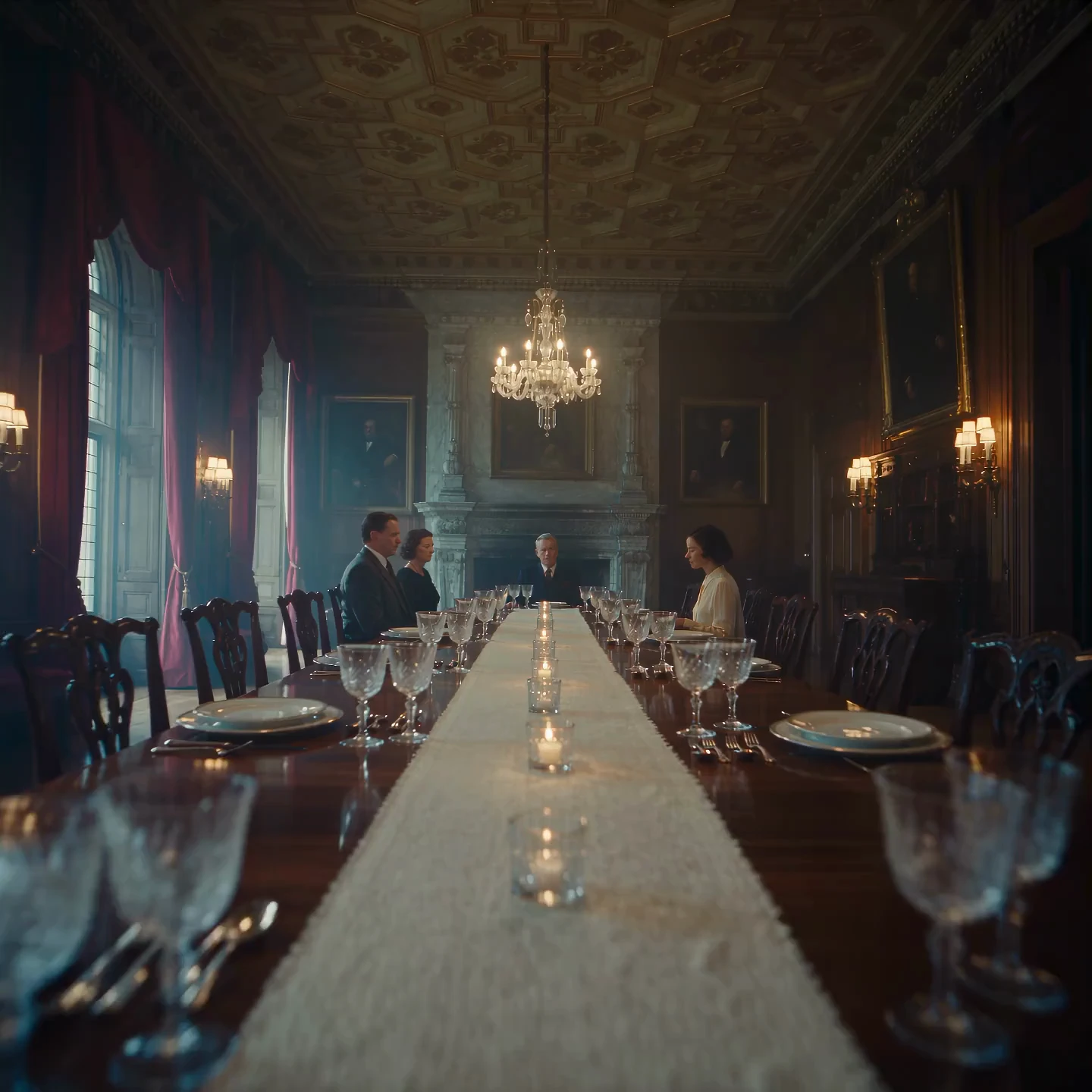
Locations
Realistic interior and exterior images to use as backgrounds.
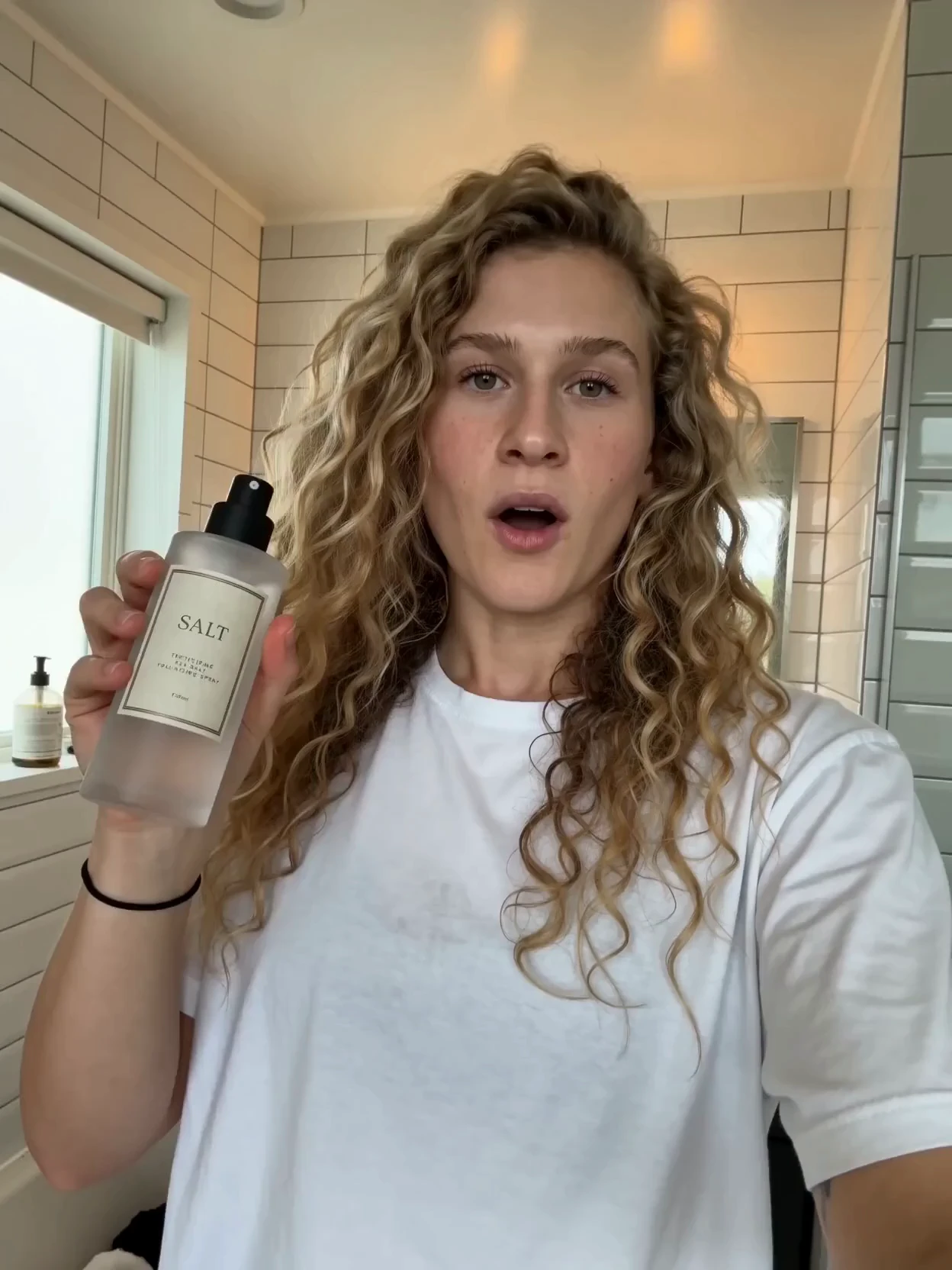
UGC
Authentic creator-style videos.
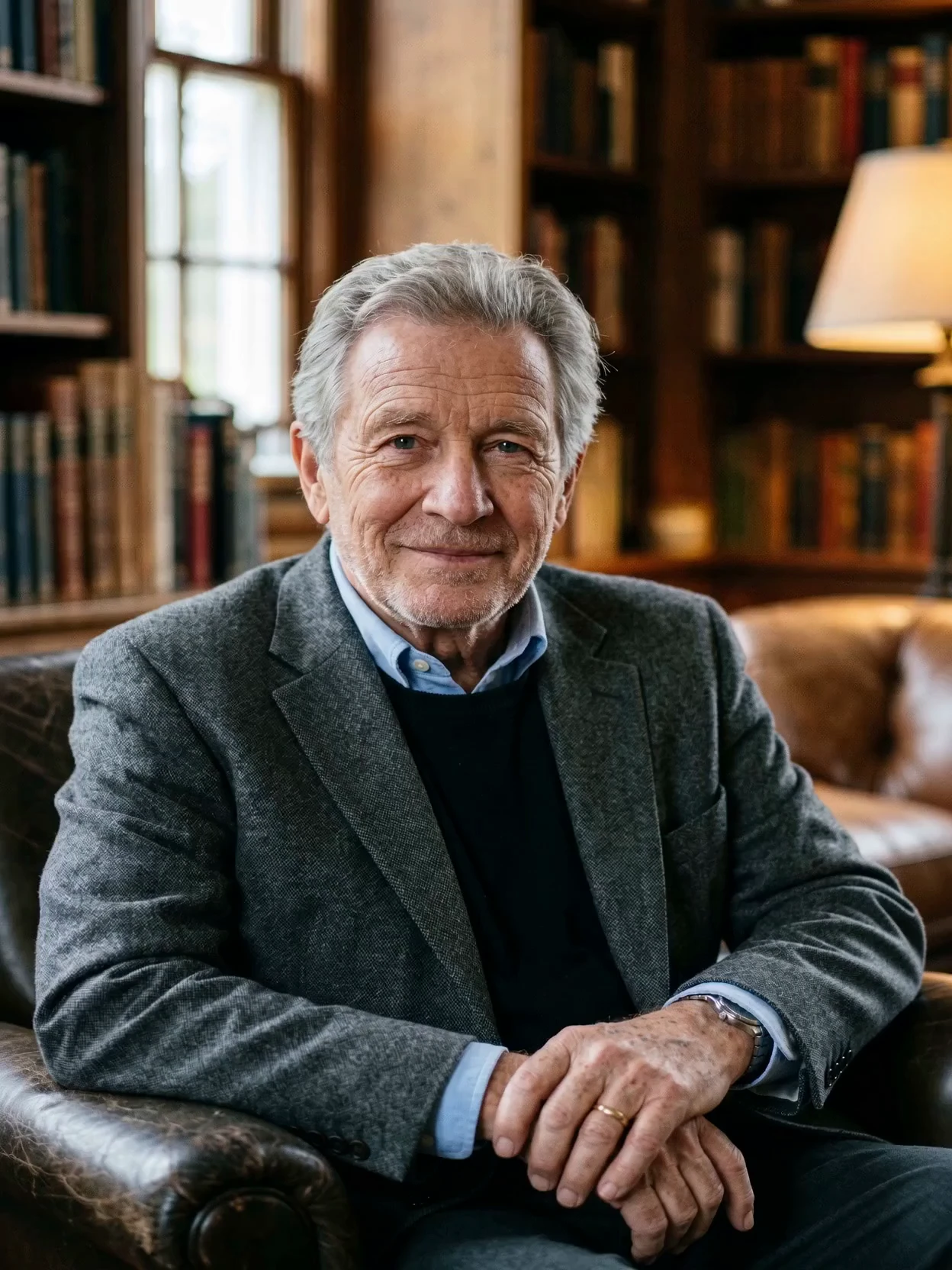
Voices
A natural voice picked to fit your character, ready for lip sync and videos.
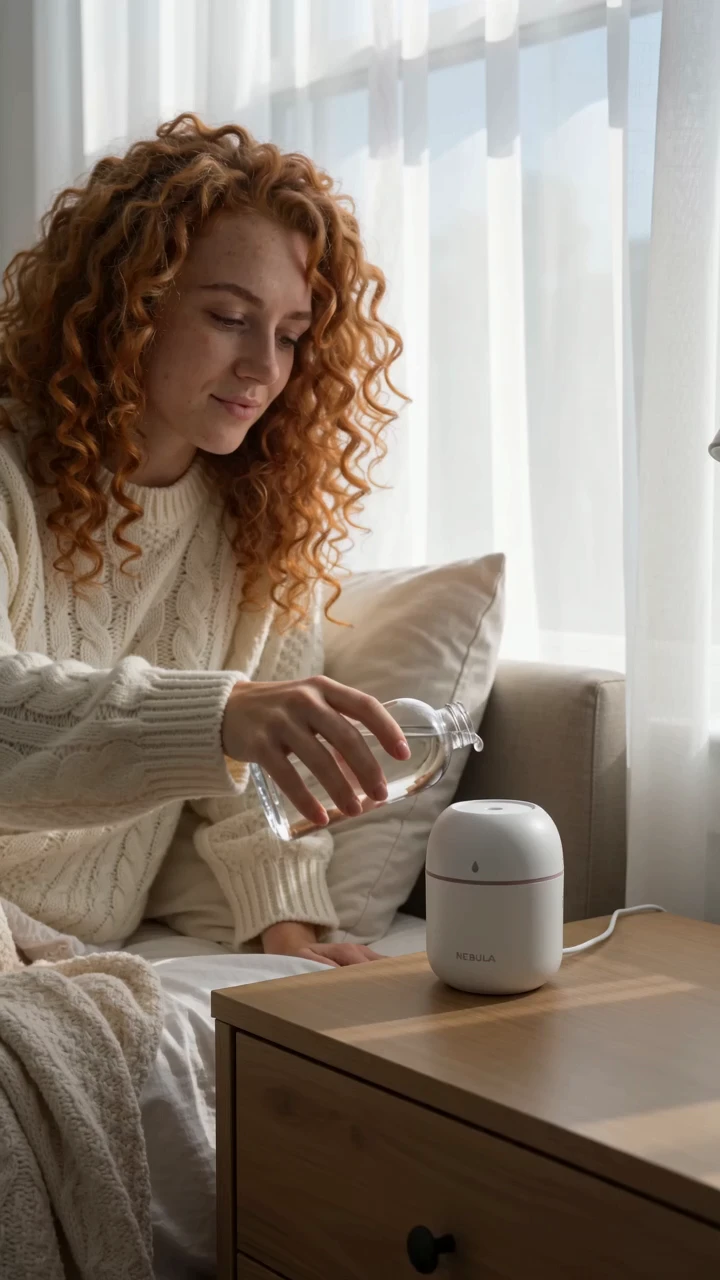
B-rolls
Product and lifestyle footage.
Creative skills, built into your agent
A growing library of skills for results worth sharing.
Product creatives
Professional static and video ads.
Long videos
Videos up to 5 minutes long with consistent characters and settings.
Hooks
Opening lines that stop people from scrolling past your video.
Characters
Realistic people based on your preferences, ready for your next generations.
Locations
Realistic interior and exterior images to use as backgrounds.
UGC
Authentic creator-style videos.
Voices
A natural voice picked to fit your character, ready for lip sync and videos.
B-rolls
Product and lifestyle footage.