How to Animate a Photo Without Losing Its Detail
Learn how to animate a photo with AI templates, parallax motion, and cinemagraphs. Step-by-step workflow, export tips, and fixes for common artifacts.
By Nim
A still product shot can look polished in a catalog and completely lifeless in an ad. A portrait can feel more engaging with a small shoulder shift, while the same amount of movement can make a product label wobble and destroy trust. How to animate a photo well depends less on adding motion than on choosing motion that supports the image's job.
The reliable process is straightforward: define the placement, select an animation style, prepare a clean source image, generate a short clip, inspect identity and edges, then download the accepted take. Nim's templates library is useful when the required motion pattern already matches the business brief, but the creative decision still comes first.
Choosing the Right Animation Style for the Job
The choice isn't “which effect looks impressive?” It's which movement helps the viewer understand or feel the subject faster. A DTC product hero needs stable packaging and readable text. A property image needs depth and spatial clarity. A portrait for a social ad needs life in the person without changing the person's identity.
Start with the delivery surface before opening an animation tool. Decide whether the clip belongs in a product page, a paid social placement, a vertical short-form feed, a property listing, or a brand film. Record the planned aspect ratio, approximate loop length, and the point where the viewer's eye must land. A product label, a face, and a room's architectural feature each need different protection during generation.
Then choose the least aggressive motion that can communicate the idea:
- Catalog or e-commerce asset: Use a locked frame, gentle drift, steam, fabric movement, or a restrained push-in. The product stays dominant and the image remains credible.
- Product hero or lifestyle frame: Use parallax or a slow push to separate the subject from the background. This creates depth without asking the model to redesign the product.
- Mood-driven social creative: Use a cinemagraph effect when one moving detail, such as a flame, drink ripple, or drifting light, carries the atmosphere.
- Cinematic advertisement: Use a broader camera move only when the source image has enough spatial information and the scene can tolerate invented geometry.
- Portrait or creator hook: Keep the face stable and animate secondary details such as hair, shoulders, fabric, or background light.
A useful decision aid is the AdManage.ai alternative insights, which places motion tools in the wider context of creative production choices. The practical lesson is simple: motion should serve the placement, not become the entire concept.
Practical rule: If the viewer needs to read, recognize, or trust something, reduce motion around that element.
This approach also prevents a common production mistake. Teams often start with a popular effect and force every image into it. A task-first decision tree works better because it connects animation style, source-image requirements, business outcome, and failure risk before generation begins.
Four Animation Styles and What Each One Does Best
A catalog image, a social ad, and a property opener need different kinds of motion. Choosing the style by business task keeps the subject clear and limits the visual errors that make an animated asset unusable.
| Style | Best For | Source Image Needs |
|---|---|---|
| Subtle motion | Product pages, catalog assets, restrained portraits | Clear subject, stable edges, simple lighting, minimal background clutter |
| Parallax or 2.5D | Product heroes, lifestyle scenes, social ads | Distinct foreground and background separation, visible depth cues |
| Cinemagraph | Food, hospitality, atmospheric social ads | A strong still composition with one clearly defined area that can move |
| Full camera move | Brand spots, property exteriors, cinematic scenes | High-resolution detail, spatially coherent surroundings, room for believable perspective |
Subtle motion
Subtle motion suits placements where legibility matters more than spectacle. Add a restrained light drift to a bottle, slight movement to a fabric edge, or rising steam to a product scene. The still gains activity without requiring the system to invent new anatomy or packaging geometry.
Its main weakness is insufficient energy. If the movement is too quiet for the placement, the result may resemble a static image with random noise. That is usually easier to correct than a warped label or unstable face, so commercial production often starts with this option.
Parallax or 2.5D
Parallax builds depth by moving visual layers at different apparent speeds. The product stays in front while the background shifts gently, giving a hero image dimension without reconstructing the entire scene. It performs well when the subject has a clean outline and the background can tolerate limited movement.
Check the edges closely. Thin packaging details, transparent objects, hands, and hair can reveal the artificial layering quickly. A busy background or weak separation between planes also reduces the effect.
Cinemagraph
A cinemagraph keeps most of the frame still while one defined area moves. It works for a drink ripple, candle flame, curtain, steam plume, or reflected light. The fixed areas create focus, while the moving detail supplies atmosphere.
The source composition must support that control. If several regions begin moving unpredictably, the intended mood disappears and the viewer's attention scatters.
Full camera move
A push, orbit, or dolly-style move can turn a property exterior or brand scene into a cinematic opening. It creates the strongest sense of scale, but it also requires the system to infer the most missing spatial information.
Use it selectively for commercial stills. Motion guidance for image-to-video generation generally favors short, simple movement because large deformation can damage hands, fine anatomy, packaging text, and complex interactions. The image-to-video animation guidance also supports restrained camera behavior when the source image must remain commercially credible.
Walking Through a Nim Template From Image to Clip
A practical Nim workflow stays short: open a suitable template, prepare the image, generate the clip, review it, and download the accepted result. The important decision happens before upload. The template should match the motion pattern already selected for the brief.
For a product hero, a parallax-oriented treatment is more appropriate than a dramatic scene transformation. A moody portrait can use restrained facial or environmental movement. An interior may benefit from a slow camera push that adds depth without changing the room's layout.
A concrete starting point is the Nim e-commerce animated collage template. It fits a product-led brief where several still product visuals need motion and composition should remain commercially controlled.
Prepare the source image before opening the template:
- Choose the cleanest original. Use a clearly visible subject with clean boundaries, good lighting, and enough resolution for the intended placement.
- Match the planned composition. If the final asset needs a vertical layout, select or prepare an image that can survive that framing without cutting off the product.
- Keep the motion brief focused. One visual beat is easier to review than a request that combines camera movement, object deformation, text changes, and interaction.
- Provide the image to the template. Upload the prepared source image through the selected Nim template.
- Generate the clip. Let the template create the motion from the supplied still.
- Review before downloading. Check the subject, edges, label, background, and overall motion intensity. If the result changes the product or moves too aggressively, generate another take rather than accepting it automatically.
- Download the accepted result. Any trimming, captions, color adjustments, sound, or final assembly should happen afterward in a regular video editor, not as an assumed step inside this template workflow.
The screenshot below illustrates the type of image-animation task being prepared for a generated clip.
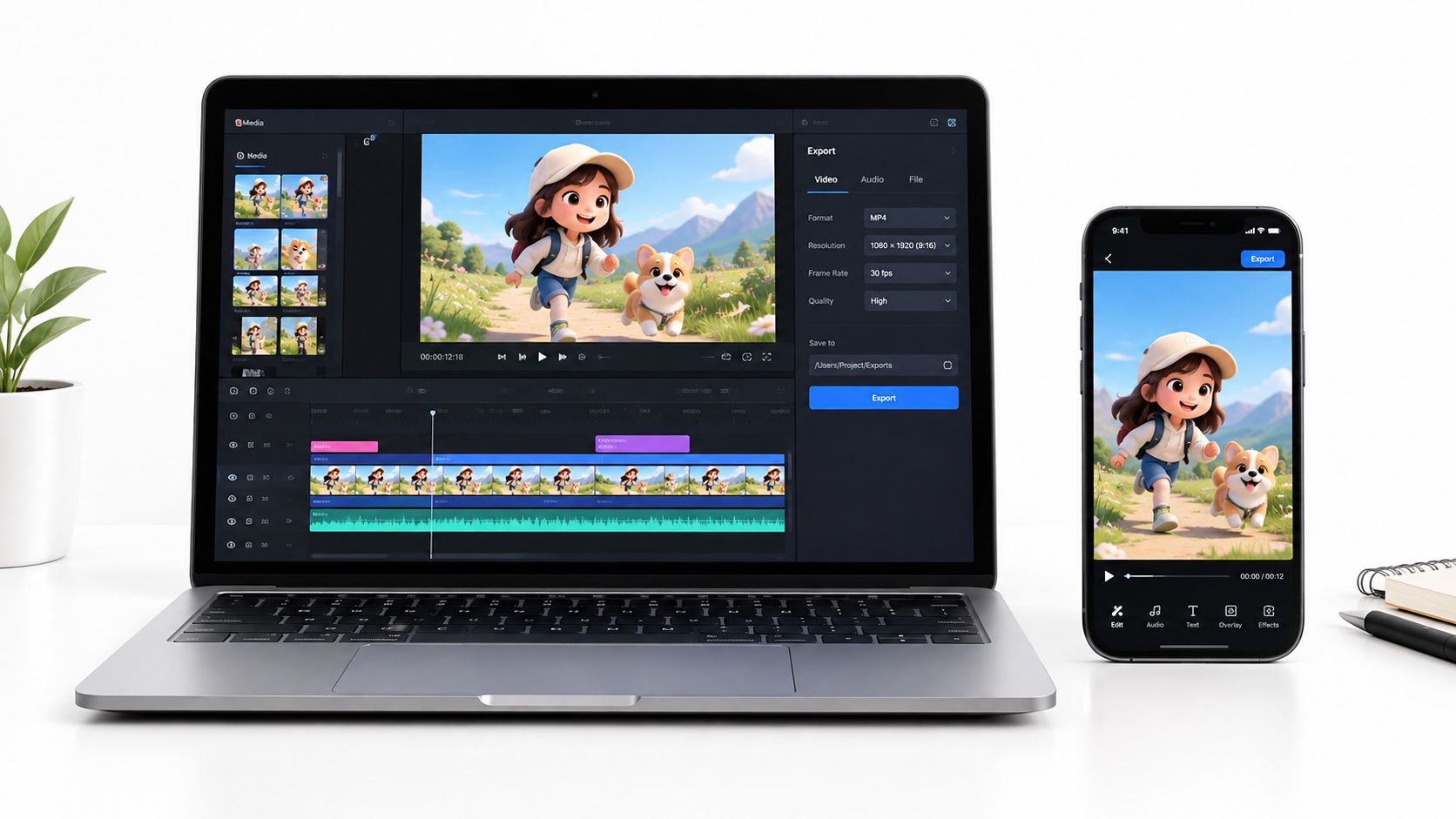
The review stage deserves as much attention as generation. A clip can look acceptable in a thumbnail but reveal drifting edges, changing text, or unstable facial features when played repeatedly. The Nim guide to product video animation provides a related production reference for turning product imagery into more active visual content.
Three Real Tasks Done With This Workflow
The same input, generate, review, and download process can support very different briefs. The motion pattern changes because the commercial risk changes.
A DTC skincare product hero
A skincare brand has a frosted glass bottle on a beige background. The source is a straight-on product image at 2000 pixels on the long edge, with the bottle fully visible and the label facing the camera.
The suitable treatment is restrained parallax. The background can drift slightly while the bottle remains stable, giving the product page a sense of movement without making the label unreadable. The accepted clip can sit above the fold on a Shopify product page, where clarity matters more than cinematic spectacle.
The review should focus on the bottle silhouette, cap, reflective glass, and label text. If the logo bends or the glass edge melts into the background, that take should be rejected.
A fitness creator's portrait hook
A fitness creator has a studio portrait with even lighting and a clean background. The face is fully visible, the shoulders are unobstructed, and the source contains no distracting props.
Here, a subtle portrait animation works better than a broad camera orbit. The desired result is a portrait that appears to breathe, with slight movement in the hair and shoulders while the face holds steady. That clip can open a TikTok-style short-form ad or creator hook, where the first visual impression needs energy but the person still needs to look like the source image.
The quality check should prioritize facial identity, eyes, mouth shape, hair boundaries, and shoulder continuity. Any invented facial expression that changes the person's likeness is a failure, even if the movement looks smooth.
A real-estate living-room still
A property agent has a wide living-room photograph with clear architectural lines and a visible window treatment. The source is bright, uncluttered, and composed so the room's major features remain inside the frame.
A slow camera push with gentle light drift across the curtains can make the image feel more suitable for a reel-ready walkthrough. The movement should support the room's depth rather than suggest that the walls, furniture, or windows are changing shape.
The downloaded clip can then be assembled with other approved property assets in a regular editor. The still remains the reference for the room's actual appearance, so the generated movement must not introduce furniture, alter openings, or imply details that aren't present.
Commercial judgment: The best take is the one that makes the original image easier to watch, not the one that changes it the most.
Preparing the Source Image and Reviewing the Result
Source preparation determines how much the animation system has to guess. A strong image has a clear subject, good lighting, minimal motion blur, and enough separation from the background. A practical recommendation is at least 1024 pixels on the shorter side, with 2048 pixels or higher preferred, according to this photo-animation preparation guide.
Avoid heavy JPEG compression, noisy shadows, busy backgrounds, and transparent edges that blend into nearby objects. Product packaging with small text deserves special care because generated motion can alter letters, logos, and label boundaries. Human hands, fingers, reflective surfaces, and complex interactions also create more opportunities for visible artifacts.
A preparation checklist
- Subject visibility: Keep the complete main subject inside the frame.
- Edge quality: Look for a clean boundary around hair, bottles, furniture, and transparent objects.
- Lighting consistency: Prefer even illumination over harsh highlights that can shimmer during movement.
- Background control: Remove visual clutter where possible and avoid patterns that can drift.
- Source clarity: Start with a sharp, high-resolution original rather than a screenshot or compressed repost.
- Composition: Leave enough surrounding space for the selected camera behavior and intended crop.
A practical image-to-video workflow guide also recommends clear subject boundaries and source images at 720p or above for more consistent results. That guidance doesn't replace visual judgment. A technically large image can still fail if the subject is blurred, cropped, or surrounded by ambiguous edges.
Review the clip at three speeds
Watch the generated result once at normal speed for obvious distortion, then slow it to 0.25x to inspect edge warping around the subject. A closer review at 200% helps reveal changes in faces, fingers, labels, and small logo details. These review points are useful because some artifacts appear only during transitions, not in the first frame.
Check the following before approval:
- Subject stability: Does the face, product, or room retain its shape?
- Edge integrity: Do outlines remain clean throughout the movement?
- Text legibility: Do labels, logos, and signs stay readable?
- Background coherence: Does the background remain attached to the scene?
- Motion fit: Does the intensity match the business brief?
- Invented details: Are there extra fingers, shifted text, missing logos, or new objects?
For older portraits, the old-photo animation guide from Nim is a relevant reference for handling the preservation problem. The same principle applies to commercial assets: animation should clarify the still image, not replace its identity.
Export, Performance Habits, and Common Mistakes
Minimal motion often beats dramatic animation in commercial work. A locked or nearly locked movement survives compression more gracefully, crops more cleanly, and keeps product details readable across placements. Larger camera moves can look attractive in a controlled preview but expose warped geometry when the clip is resized or viewed on a phone.
After downloading the accepted Nim result, finish the asset in a regular editor such as a desktop, mobile, or browser-based video editor. The production team can trim the clip, add captions or sound, adjust color, and assemble it with other footage. Those are post-production tasks, not steps that should be assumed inside the Nim template workflow.
Match the final export to the placement. A vertical social placement commonly uses 1080 × 1920 at 30 frames per second, a square feed post uses 1080 × 1080, and a horizontal landing-page or YouTube asset uses 1920 × 1080. A short loop between 4 and 8 seconds is often easier to place in an advertisement than a long, slow animation. These are delivery conventions from the production brief, not claims about guaranteed performance.

Mistakes that make a clip unusable
- Over-animating a small subject: Large movement gives the model too little stable information and can warp the object.
- Starting with a compressed JPEG: Compression artifacts can shimmer or become part of the generated motion.
- Ignoring brand-safe framing: A product may look fine in the original crop but lose its label when adapted to a new placement.
- Trusting the preview alone: A clip that works on a large monitor can reveal broken details on a phone.
- Accepting the first take automatically: Multiple generations are useful when the initial result changes identity, edges, or text.
- Using motion to hide a weak source: Animation won't reliably repair blur, poor lighting, or an unclear subject boundary.
A Nim guide to making a video from pictures for Instagram offers a related way to think about still-image assets in social placements. The operational habit matters more than the effect: review the downloaded clip on the device where the audience will see it, then reject anything that makes the subject less trustworthy.
The strongest answer to how to animate a photo is therefore restrained and specific. Choose one motion beat, protect the image's important details, and judge the result as a commercial asset rather than as a technical demonstration.
Open Nim and choose a template that matches the job, such as a product-focused animated composition or a restrained scene movement. Upload a clean source image, generate the clip, review identity and edge stability, then download the take that preserves the original detail.
- animate photo
- photo animation
- AI image to video
- cinemagraph
- Nim templates