How to Change Face on a Photo with AI Safely
Learn how to change face on a photo with AI in Nim. Get the face swap workflow, consent tips, and quality fixes for realistic results.
By Nim
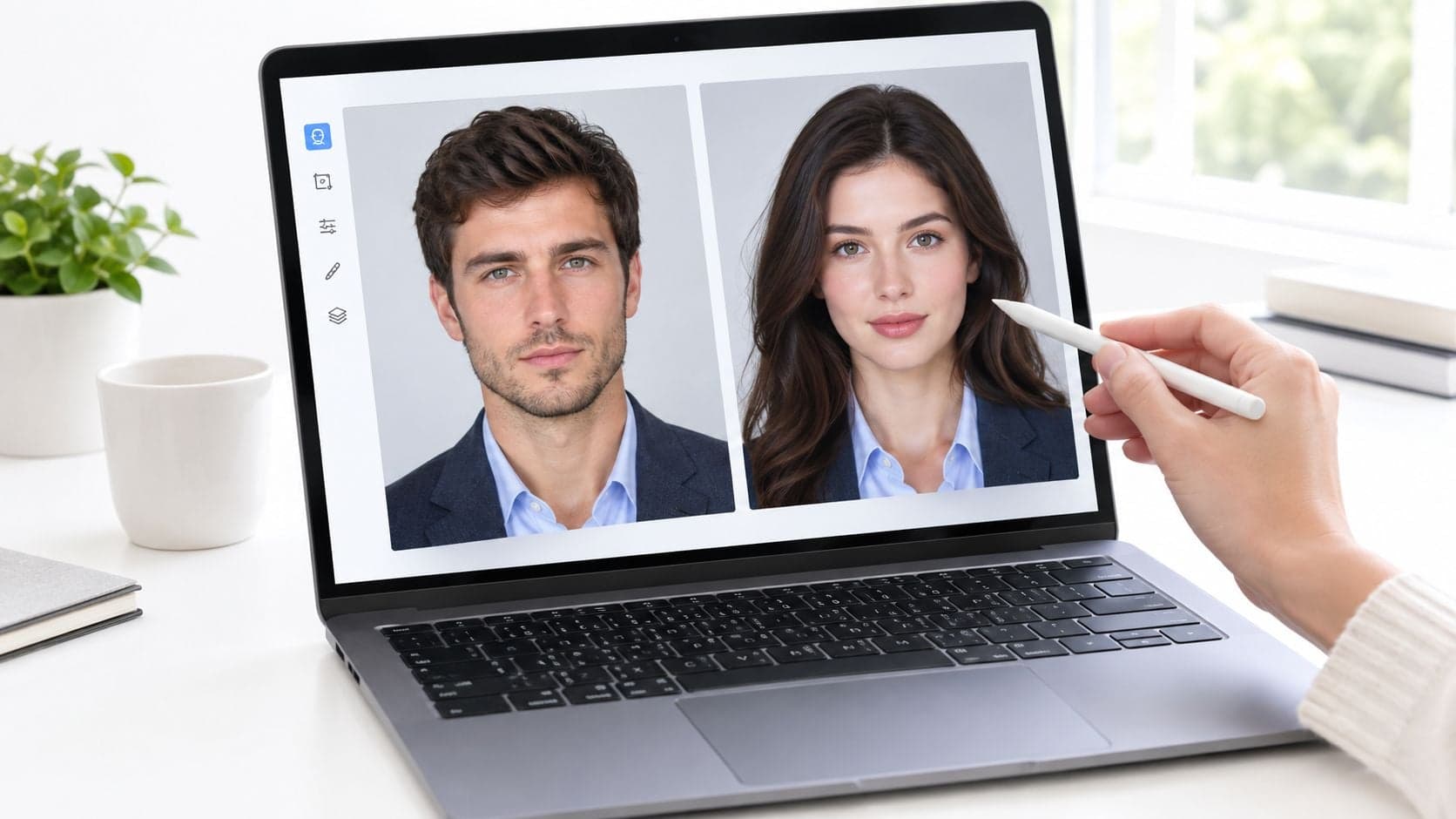
Changing a face on a photo works best when the editor uses two images at at least 512×512 pixels: a target photo to replace and a clear source face to transplant. In practice, the cleanest workflow is to use a face-swap template with a simple upload, generate, review, download flow, and only use faces when permission is already in place.
That's usually the exact situation behind this search. Someone has a product photo, a social post, a promo mockup, or a joke image that almost works, except the wrong face is in it. The technical part is easy enough now. The decision points that matter are earlier: whether the subject agreed, whether the inputs are good enough, and whether a swap is the right edit at all.
Face swapping has been around long enough that it's no longer a niche trick. A widely cited milestone came in December 2017, when the first broadly recognized deepfake face-swapping video pushed the method into mainstream awareness, and early benchmark datasets soon followed with 4,310 images total, including 2,300 real and 2,010 fake images in SwapMe and FaceSwap research material (academic summary). That history matters because modern face swaps still rely on the same core process: map one face onto another image, then blend identity, lighting, and texture so the result looks plausible.
The rest comes down to preparation and judgment. A strong source image can save a weak swap. A bad source image can ruin even a simple one.
Introduction to Changing a Face on a Photo in Nim
You have a photo that would work if the face were different. That might be a campaign mockup, a thumbnail, a team visual, or a joke image you plan to share. The first question is not whether Nim can swap the face. The first question is whether you should do a face swap at all.
A good swap in Nim depends on three decisions made before upload: do you have permission to use the person's likeness, do you have clean enough images, and is a face swap the right edit for the problem you are trying to solve. I have run enough swaps to say this plainly. If any one of those answers is weak, the result usually looks weak too, or creates a problem that editing cannot fix.
Nim handles the fast version of this job well. You bring in a target photo and a source face, generate a result, then review it closely before using it. That works best when the goal is visual plausibility, not perfect identity reconstruction.
Where face swaps usually hold up
Face swaps tend to work well in situations like these:
- Creative mockups for social posts or ads
- Light promotional edits where a realistic first impression is enough
- Concept visuals for thumbnails, pitches, or short-form assets
- Controlled portrait swaps where both photos are clean and shot from similar angles
The limits matter just as much.
If the target face is blocked by hair, hands, glasses glare, motion blur, or a hard side angle, the swap often starts to look synthetic around the eyes, jawline, or skin edges. If the need is to fix expression, remove an object, change pose, or retouch a portrait, a different edit usually gets a cleaner result than forcing a face replacement.
Practical rule: A face swap can fix identity. It usually cannot fix bad lighting, bad angle, or missing facial detail.
Consent belongs at the start of the workflow, not at the end. If the photo includes a real person, get clear permission before you upload, edit, publish, or share it. If that permission is missing, stop there. If the use case is sensitive, private, or likely to mislead viewers, choose a different kind of edit or do not make the image at all.
What You Need Before You Swap a Face
A believable swap is decided before you click Generate.
In Nim, the face-swap template does its part when the inputs give it enough usable facial detail. The job here is to choose the right target photo, choose the right source face, and stop early if the photo should not be swapped at all because you do not have permission or the edit will likely mislead people.
You need two images:
- Target photo: the base image that keeps the body, background, clothing, framing, and scene
- Source face photo: the image that supplies the replacement face
If either file is blurry, heavily compressed, badly cropped, or missing clear facial detail, the result usually breaks around the eyes, mouth, jaw, or hairline. Higher-resolution images help, but usable detail matters more than raw pixel count.
Choose images the model can actually match
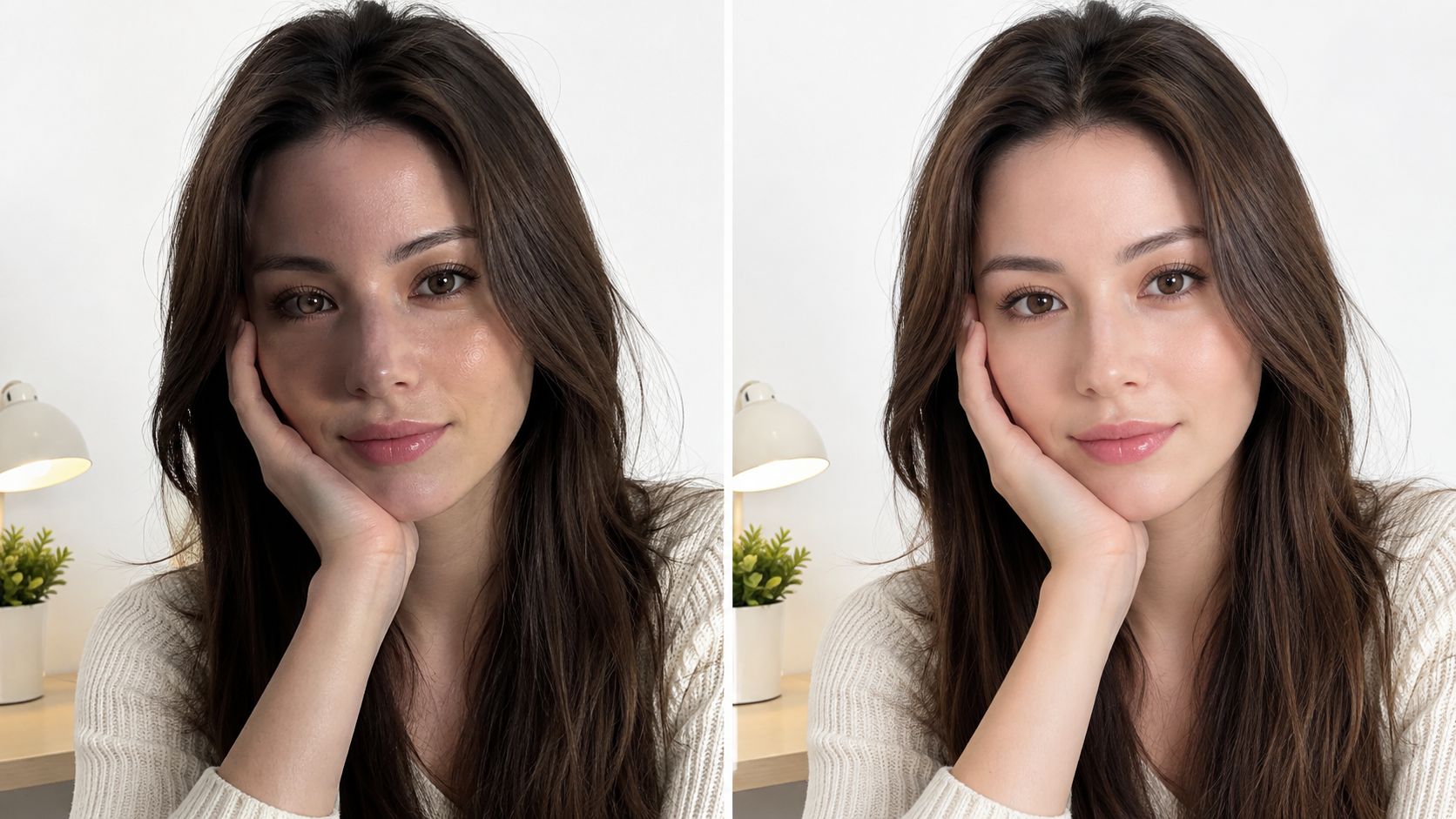
The cleanest swaps usually come from photos that agree on four things: angle, lighting direction, expression, and visible facial structure. If one photo is front-facing and evenly lit while the other is a hard side angle with deep shadow, Nim can still generate something, but it often looks synthetic once you zoom in.
Use this pre-check before uploading:
- Angle. Keep both faces close in pose. Front-facing to front-facing is safest.
- Lighting. Match the light direction and contrast as closely as possible.
- Expression. Neutral-to-neutral or smile-to-smile holds up better than forcing a grin onto a serious face.
- Obstructions. Avoid hair across the face, glasses glare, hands, microphones, and heavy shadow.
- Skin detail. Pick files that still have pores, edges, and natural texture instead of smeared compression.
- Crop quality. Do not use a tiny face pulled from a group shot if the target is a close portrait.
I reject a lot of source images for one reason. They look fine at thumbnail size, then fall apart at full view.
Decide whether a face swap is the right edit
This matters as much as image quality. If the problem is expression, pose, closed eyes, bad retouching, or a distracting object near the face, a face swap may be the wrong fix. Use the face-swap template when identity is what needs to change. Choose a different edit when the person should stay the same and only the portrait needs cleanup.
Consent and privacy belong in this decision, too. If you do not have clear permission to use someone's face, do not upload the image for swapping. If the image is sensitive, private, or likely to be taken as real documentation, stop and choose a different concept.
Source photos that usually work best
A plain portrait beats a dramatic one. Clean background, centered face, open eyes, natural skin texture, and even light give Nim more to work with than a stylized photo with filters or motion blur.
If you need to create a cleaner portrait before the swap, this guide to creating a mug-shot-style source image helps with the kind of straight, controlled face capture that usually produces better results.
How to Change a Face on a Photo in Nim
You have two photos ready, the person has agreed to the edit, and the question is simple. Is this a clean identity swap, or are you trying to fix a photo that needs a different edit?
Use Nim for the first case. If the source and target already match reasonably well, the workflow is fast. If they do not, forcing the swap usually creates the fake look people notice right away.
The working sequence
-
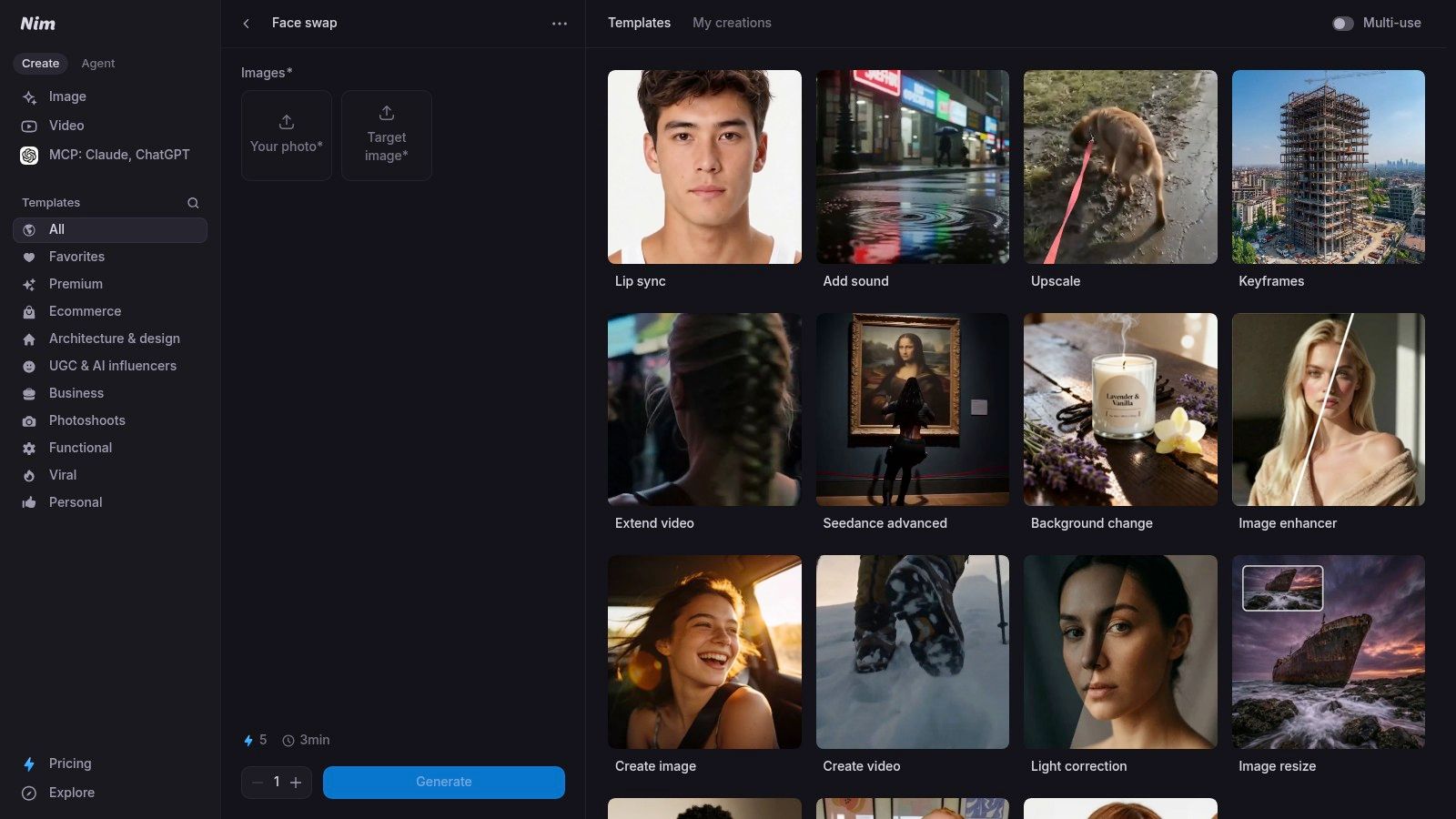
Open the face-swap template
Have both images ready before you upload. I do this every time because small mistakes at the input stage waste more runs than the actual generation step. -
Upload the target photo and the source face
The target is the base image you want to keep. The source provides the replacement identity. Make sure you do not reverse them. -
Run the swap
Let Nim process the pair once without trying to outsmart it. The first result tells you whether the image pair is workable. -
Check the full face area, not just the center
A swap can look fine around the nose and eyes, then fail at the jaw, ears, hairline, or neck. Those edge transitions decide whether the result holds up. -
Save only the versions that survive a close check
If the face looks believable at normal size and still looks coherent when you zoom in, keep it. If not, retry with a better source image instead of settling.
What I check before I keep a result
Good swaps usually pass a few basic tests at once:
- Skin tone match between the face and the surrounding neck or body
- Eye placement that sits naturally in the head angle
- Jaw and cheek shape that fit the target pose
- Hairline blending without a cutout look
- Expression fit so the face matches the body language of the shot
One mismatch can ruin the image.
In practice, the best review habit is strict rejection. If the swap looks questionable on first inspection, it rarely becomes convincing later through minor patching. Replace the source, rerun it, and compare again.
When to retry, and when to stop using face swap
Retry when the identity is right but the output looks stretched, waxy, off-angle, or poorly blended into the original skin. That usually means the source photo was close, but not close enough.
Stop and choose a different edit when the target face is blocked by hair, hands, glasses glare, heavy motion blur, or an extreme side profile. I also stop when the image is sensitive enough that a realistic swap could mislead people about what really happened. In that case, the quality question and the ethics question point to the same answer. Do not force the swap.
Make the Result Look Realistic and Fix Common Issues
You run the swap, zoom in, and the face looks right for half a second. Then the problems show up. The skin is too plastic, the jaw does not sit naturally on the neck, or the expression feels disconnected from the body.
That usually means the photo pair was a weak match before Nim even started processing. In practice, realism comes more from input choice than from repeated reruns. I get the most believable results when the source and target already agree on three things: head angle, lighting direction, and expression intensity.
Common failure patterns and what fixes them
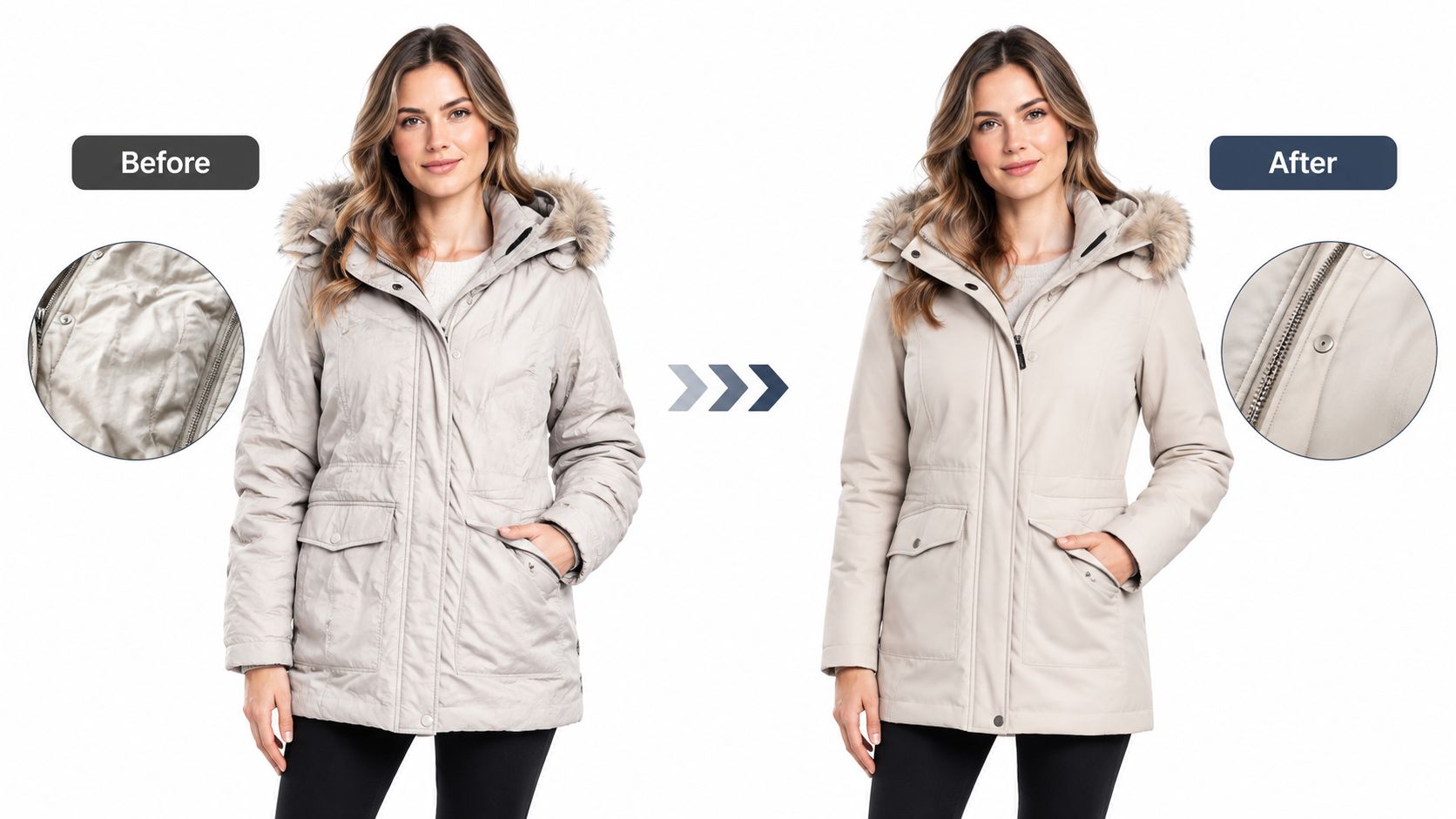
| Problem | What usually caused it | Best fix |
|---|---|---|
| Face looks pasted on | Light on the source face does not match the target scene | Pick a source portrait with similar light direction and contrast |
| Features look warped | Head tilt or camera angle is too different | Use a source face that matches the target pose more closely |
| Skin looks blurry or waxy | Input image is soft, compressed, or too small | Start over with a sharper, higher-detail photo |
| Jawline looks wrong | Chin, cheek, or ear area is cropped or blocked | Use a full face with clear edges |
| Expression feels fake | Smile, mouth tension, or eye shape does not fit the body | Choose a source with a similar expression, not just similar identity |
One hard truth helps here. Some files will never look convincing, even with careful setup. Tiny faces, heavy blur, strong backlight, thick shadows across the face, and partial occlusion all push the result into uncanny territory.
Fix the image only after the face geometry works
Do not retouch too early. If the eyes, mouth, and jaw placement are off, skin cleanup only makes a bad swap look cleaner, not more real.
Use cleanup after the structure is believable. A pass like realistic skin enhancement can smooth texture transitions and reduce that cutout look when the swap already fits the head and scene. If the base alignment is wrong, go back to the source image instead.
Compression also ruins good work late in the process. If you want a quick checklist for preserving detail, this guide on how to swap faces without compression issues is useful.
Know when to stop
The fastest way to improve quality is often to reject the edit early. If a realistic result would require hiding artifacts, forcing identity onto the wrong pose, or pushing a sensitive image into misleading territory, do not keep polishing. Choose a softer edit, use a less realistic treatment, or skip the face swap entirely.
That decision belongs before final export because quality, privacy, and consent are tied together. If the image only works when it looks deceptively real, it may be the wrong edit to make.
Consent Privacy and Disclosure Rules You Must Follow
You finish a swap, the likeness is convincing, and the edit looks ready to post. That is the point where many bad decisions happen.
Run the consent check before you upload anything to Nim, not after the result looks good. A realistic face swap changes identity, which raises a different set of risks than normal retouching.
Get clear permission first
Use a real person's face only with explicit approval for the edit and for the way the image will be used. If other people are clearly identifiable in the photo, their approval matters too when the image will be shared publicly, used commercially, or placed in a context they did not agree to.
I treat three questions as hard filters:
- Did the person agree to this specific use of their likeness?
- Could the finished image mislead someone about what happened?
- Would the subject still be comfortable if the image spread beyond the intended audience?
If any answer is unclear, stop and choose a different edit.
For anyone who needs a practical reminder that facial images can be traced, matched, and reused far beyond the original post, this overview of face search for OSINT is worth reading.
Treat uploads as sensitive material
Privacy decisions belong at the start of the workflow. Do not upload sensitive client photos, private family images, minors, or anything that could cause harm if copied, shared, or taken out of context.
This is also where quality limits and ethics meet. If a project only works when the subject is unaware, the audience is misled, or the source image contains personal material that should stay private, a face swap is the wrong tool. Use a different Nim edit, or skip the edit entirely.
Even playful concepts need the same discipline. A tool like a future baby generator can feel harmless, but it still relies on facial likeness and family-related imagery, so consent and privacy come first there too.
Disclose manipulated images when realism could mislead
If viewers could reasonably read the final image as a real photo of a real event, label it. A short note such as "AI-edited image" or "face-swapped portrait" is usually enough.
The goal is simple clarity. Good disclosure protects the subject, protects the publisher, and keeps a realistic edit from turning into accidental deception.
Next Steps and Smart Alternatives in Nim
You review the first result and the problem is obvious. The face technically changed, but the image still looks wrong because the angle is off, the skin texture does not match, or the base photo was weak from the start.
That is the point to decide whether a face swap is still the right edit.
In Nim, a face swap works best when the original photo already has good lighting, a believable pose, and enough detail to carry the replacement. If identity is the only thing that needs to change, the template is efficient and usually gets you there faster than rebuilding the image from scratch. If the source files are soft, heavily filtered, or shot from mismatched angles, forcing the swap usually creates the familiar fake look around the eyes, hairline, and jaw.
A simple rule helps here.
- Use a face swap when the composition already works and you only need to replace the person.
- Use a new portrait workflow when the face source is too weak, too small, or too different in angle and expression.
- Use background or quality edits when the issue is clutter, lighting, sharpness, or overall polish.
- Use manual compositing outside the template only when the image needs layered corrections that a quick swap will not handle well.
Consent, privacy, and disclosure still decide the workflow before speed does. If permission is unclear, the image is sensitive, or the result would be read as a real event without context, stop and choose a different edit. A technically clean swap can still be the wrong choice.
Face-swapped content is now common across everyday visual production, which is exactly why standards matter more, not less. If you need policy context beyond basic disclosure, this explainer on how the EU AI Act applies to synthetic-media obligations is a useful reference.
Nim offers web-based AI templates for image and video creation, including a face-swap workflow for changing a face on a photo with a target image and source face. If the photos are clean and permission is in place, it is a direct way to generate, review, and save a usable result.
- how to change face on a photo
- AI face swap
- photo editing guide
- Nim templates
- AI image editing