Lip Sync Guide: Create Talking Clips in Nim
Lip sync guide for Nim's template. Learn what inputs to prepare, how to review the render, and download a clean talking video for any image.
By Nim
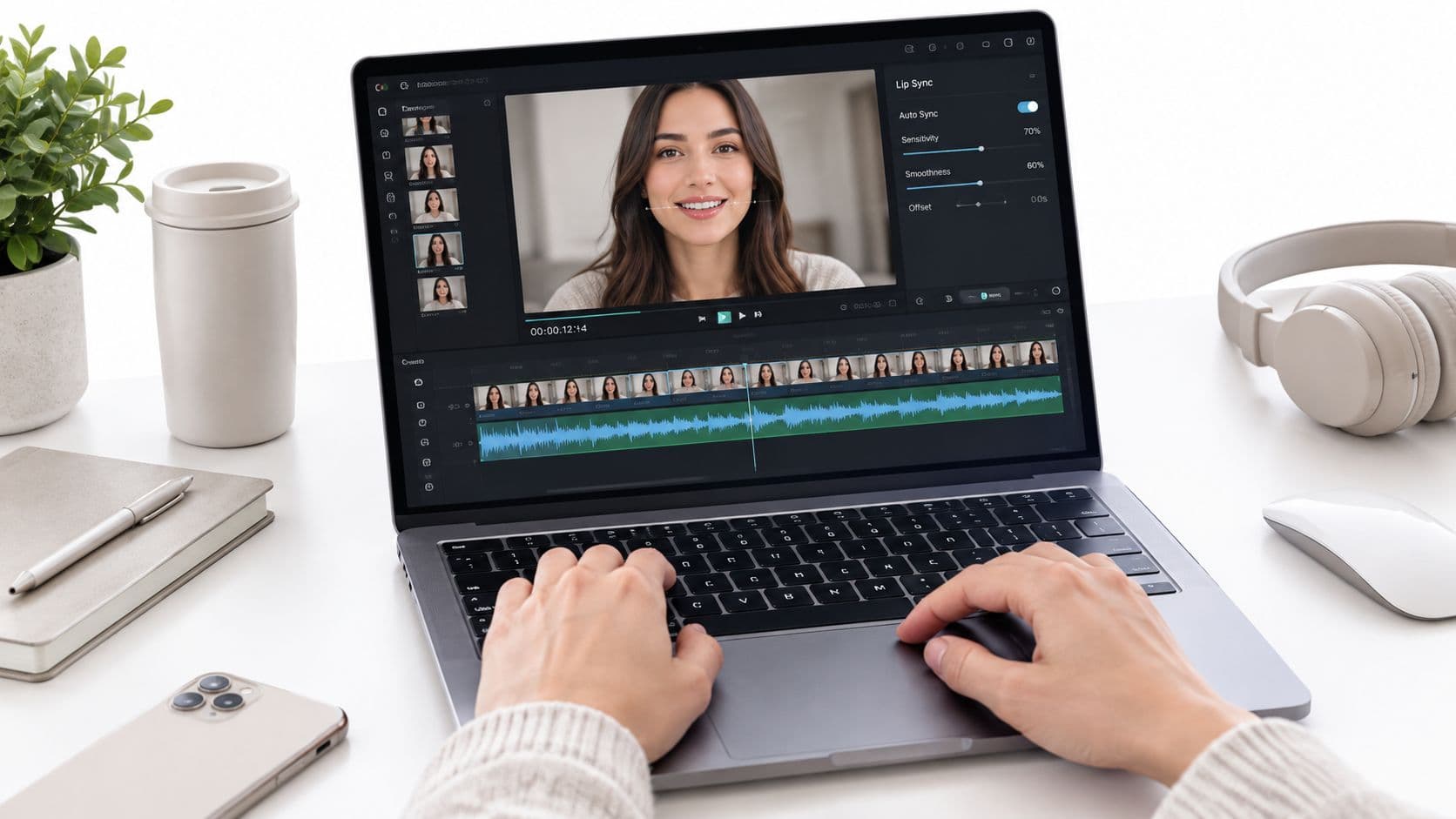
A static portrait, mascot, or product character is ready, but it still needs to deliver a spoken line. The reliable way to create that clip is to treat lip sync as a two-stage craft: prepare a face or object and clean speech first, then generate and inspect the result rather than accepting the first render automatically. In Nim's Lip Sync template, the finished workflow produces a talking clip that can be reviewed and downloaded if that option appears in the result view.
The reason many renders look subtly wrong is simple: the source image and audio weren't chosen for synchronized animation. A visible mouth, a clear angle, and speech without distracting noise give the system better material to interpret. Creators who also need a broader release workflow can explore resources for how to stream and sell your music when a talking clip forms part of a larger media project.
What This Lip Sync Guide Helps You Produce
The finished asset can be a short social ad, a product explanation, a presenter-style message, or a character clip built from a still image. A typical example starts with a front-facing portrait and a line such as, “The new collection is now available.” Another might use a clearly framed product character saying, “Press the button to begin.” In both cases, the viewer should see mouth movement that supports the speech rather than a still image with unrelated audio.
The process has two distinct stages:
- Prepare the source. Select a frontal, well-lit face or an unobstructed talking object, then pair it with clean speech.
- Run and inspect the template. Open the Lip Sync template, provide the requested inputs, generate the clip, and review the result with audio and visible mouth movement together.
This separation prevents a common mistake. If the mouth is hidden by hair, a hand, or a microphone, regeneration may not solve the underlying problem. If the recording begins with silence or contains competing voices, the timing can appear wrong even when the image itself is suitable.
Why the mouth shape matters
Lip sync systems don't normally create a completely different visible mouth for every speech sound. They map phonemes, the smallest meaningful sound units, to visemes, visible mouth configurations associated with those sounds. Because several sounds can share a similar mouth shape, believable timing and smooth transitions matter more than expecting every consonant to look visually unique. Research on phoneme-to-viseme mapping explains why the same visible configuration can represent multiple sounds.
Human viewers also combine what they hear with what they see. The McGurk effect demonstrates that mismatched mouth movement can influence what a listener believes was spoken. The original 1976 experiment reported that 98% of participants experienced an illusory fused percept in the tested pairing, while later research found much wider variation across people and experiments, including an overall fusion rate of 20.1%. These findings are documented in the review of McGurk effect research.
The practical outcome is clear. The generated clip should be judged as an audiovisual performance, not as a mouth animation viewed in isolation. A quick review at reduced speed will reveal issues that ordinary playback can hide.
Inputs to Prepare Before You Open the Template
The strongest improvement usually happens before the template opens. A usable source image should show a frontal face or a clearly framed talking object, with enough light to distinguish the mouth area. Hair, hands, microphones, glasses, and props shouldn't cover the region that needs to move.
Choose an image with a stable identity and limited competing motion. A product character can work when its front-facing features are easy to read, but a heavily angled object or a design with a small, hidden mouth gives the animation less visual information. The same principle applies to a person whose face is turned sharply away from the viewer.
Prepare speech that is easy to interpret
The speech track should contain one clear speaker with minimal background noise, room reverberation, music, or interruptions. A steady recording is easier to align than a line recorded beside machinery, in a crowded room, or beneath loud background audio. These are source-preparation choices, not claims about specific cleanup controls inside the Nim template.
A practical recording checklist looks like this:
- Use one speaker: Avoid overlapping voices and dialogue that changes speaker unexpectedly.
- Keep the line focused: Short, clearly spoken sentences make early testing easier.
- Remove unnecessary silence: Leading silence can make the entire performance seem late.
- Preserve natural delivery: Extremely fast speech, exaggerated pronunciation, or uneven volume can create difficult transitions.
- Check the mouth in the image: The face or object should remain visible throughout the source material.
A speech animation pipeline relies on timestamped phoneme segments. It extracts speech timing, maps sounds to visemes, and schedules those shapes against the video timeline. Some newer systems can place visemes using millisecond timestamps at video rates from 25 to 60 frames per second, as described in research on timestamped speech animation. That makes clear audio a core input, not a cosmetic enhancement.
Keep the source folder orderly
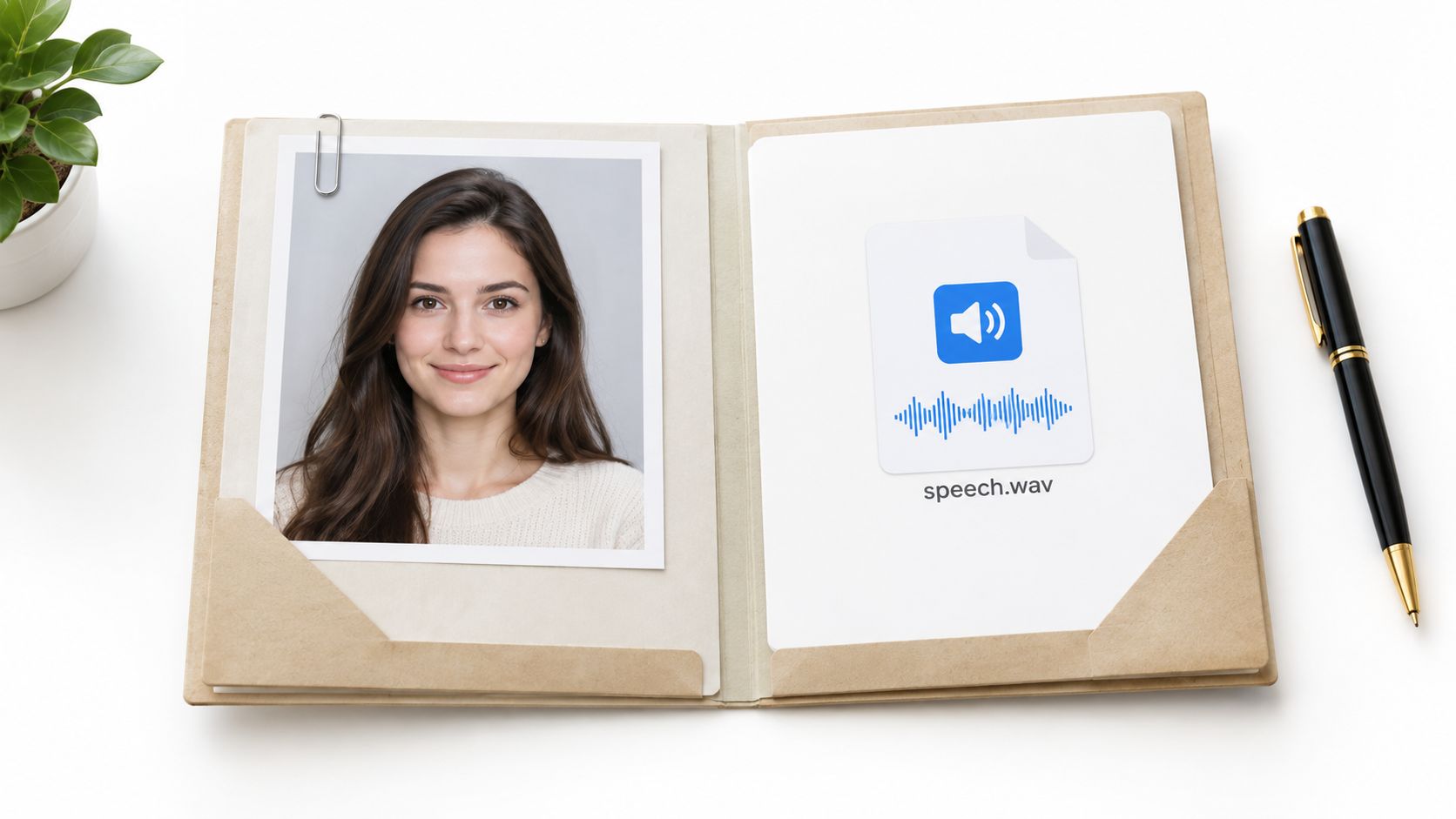
Before opening the template, place the chosen image or source visual and the intended speech recording together in a clearly named folder. If several versions exist, identify the selected portrait and voice track plainly so the first test doesn't accidentally use an outdated asset.
For additional guidance on preparing a talking portrait, see Nim's AI talking photo guide. The relevant preparation principle remains straightforward: give the template a readable subject and speech that can be followed without competing signals.
Running the Lip Sync Template in Nim
Open Nim's Lip Sync template and provide the inputs requested by the form. The exact controls shown there should determine what gets supplied. This guide doesn't assume button names, file types, duration limits, export settings, or audio-editing features that aren't confirmed by the template itself.
The first render should be treated as a test, not automatically as the final asset. A short line makes it easier to identify whether the face reads clearly, whether the mouth follows the audio, and whether a source problem needs correction. Generate the result, watch the preview presented by the template, and use the download option if it appears there.
| Source | Role in the render | Preparation tip |
|---|---|---|
| Face or talking-object image | Provides the visible subject whose mouth movement will be generated | Use frontal framing, good light, and an unobstructed mouth area |
| Speech audio | Provides the spoken timing and sound pattern | Use one clear speaker and reduce competing noise |
| Short test line | Reveals timing and articulation issues quickly | Include ordinary words and at least a few clear consonant sounds |
The template's role is to generate the synchronized result from the requested inputs. It shouldn't be treated as a complete audio studio, caption editor, or final publishing timeline. Audio cleanup, music mixing, captions, and final cutting can remain optional post-production steps outside Nim.
Practical rule: Generate a short test before committing a longer spoken asset. A small, known problem is easier to diagnose than a full render with several possible causes.
The same test-first discipline helps in other creator workflows, including projects involving crowdfunding with live metrics, where a short proof of concept can clarify what needs revision before a larger production is prepared.
Reviewing the Render at Reduced Speed
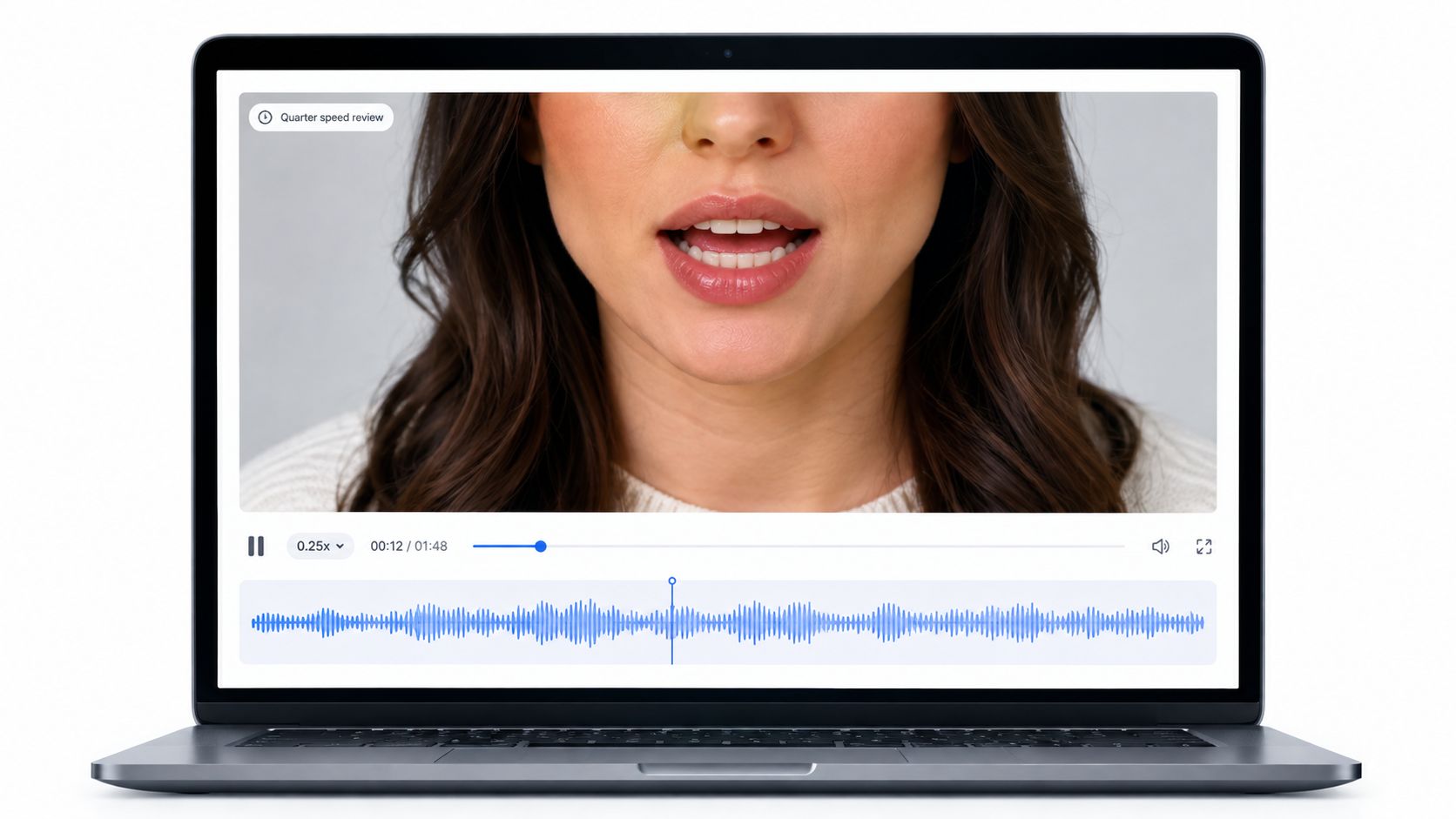
Generation is only the midpoint. Replay the result at quarter speed, keeping the audio on, and watch whether the mouth opens and closes in a way that supports the spoken words. Reduced-speed review exposes timing errors that can disappear during normal playback.
Start with plosive sounds such as /p/, /b/, and /m/. These sounds usually involve a visible mouth closure, so they provide useful checkpoints. If the audio says “paper,” “blue,” or “more,” the relevant closure should occur in the corresponding moment, not noticeably before or after it.
Read the result as sound and movement
Muted playback can reveal frozen lips or awkward transitions, but it can't tell whether the visual action supports the actual line. Viewers process the mouth and voice together, so the review should include both channels. A mouth that looks smooth may still feel wrong if it closes late on a strong consonant or remains open during a pause.
Check these points in order:
- Repeated closures: Compare several /p/, /b/, and /m/ moments, not just one.
- Vowel transitions: Watch whether the mouth changes smoothly between open shapes.
- Fricatives: Inspect sounds such as /f/ and /v/, where the mouth may appear to move less dramatically.
- Pauses: Confirm that the face doesn't continue making strong speech movements during silence.
- Fast phrases: Look for lag, frozen lips, or exaggerated articulation where sounds change quickly.
Natural speech movement isn't perfectly locked to the instant a sound begins. One animation study places viseme boundary frames approximately 120 milliseconds before and after the phonation interval, while perceptual research reports that visual speech can begin about 150 milliseconds earlier than the corresponding acoustic representation. These findings support smooth co-articulation rather than abrupt shape changes, as described in research on vocal animation timing.
Mark the time regions that fail. A note such as “mouth closure late on ‘blue’” is more useful than “the sync feels off.” That distinction helps determine whether the next attempt needs a different source image, cleaner audio, or a shorter test.
Why Your Lip Sync Looks Wrong and How to Fix It
A failed render doesn't always mean the template needs another blind attempt. The visible symptom often points to a source-side cause.
Diagnose the shape of the error
A fixed offset appears when the mouth is consistently early or late from the beginning. Leading silence, an unintended timing shift, or an audio alignment problem can create this pattern. Shortening unnecessary silence at the start of the recording and testing the revised audio can address the source issue.
Cumulative drift looks different. The opening may seem correct, but the mouth gradually falls further out of alignment later in the clip. That pattern points toward a mismatch between clip duration, timing, or frame interpretation. Testing a short segment first helps isolate the problem before a longer asset is processed.
| Visible symptom | Likely source-side explanation | Practical response |
|---|---|---|
| The whole line feels early or late | Leading silence or a fixed timing offset | Trim the unnecessary opening and test again |
| Sync worsens over time | Duration or frame-rate mismatch | Use a short segment and compare several points |
| Lips barely move | Occlusion, side angle, poor lighting, or unclear source features | Replace the image with a cleaner, more readable source |
| Mouth shapes look frantic | Fast speech or unusually exaggerated delivery | Use a calmer, clearly articulated recording |
| Audio sounds clear but movement is wrong | Visual source and speech were not suited to each other | Change the source image or voice track, then rerun a short test |
Noisy or reverberant speech can obscure the timing the system needs. Side-facing subjects, hands over the mouth, competing facial motion, and inconsistent source identity or lighting can also produce plausible-looking but semantically incorrect mouth shapes. These conditions are reasons to improve the source, not evidence that a hidden in-app control will fix everything.
For broader face-focused video work, Nim's face-change workflow provides related context, but a lip-sync correction should remain targeted to the speech and visible mouth relationship.
Use evidence instead of smoothness
A smooth face isn't automatically a synchronized face. Inspect consonant transitions, pauses, and words with noticeable closures before judging the overall polish. Academic evaluations commonly combine landmark-based mouth measurements with audio-visual metrics, including LMD for mouth-region landmark distance, LSE-C for correspondence confidence, and LSE-D for the distance between learned audio and lip representations. Lower LSE-D indicates better synchronization, while higher LSE-C indicates stronger correlation, as described in the relevant synchronization study.
Creators don't need to calculate those metrics for every short clip. The useful lesson is methodological: identify whether the problem is global timing or local articulation, change one source variable, and run a short test before producing the final version.
Downloading and Reusing the Result
Once the mouth and audio align at reduced speed, review the clip again at normal speed. The full-speed check confirms that the movement reads naturally in the intended viewing context, while the reduced-speed check confirms that individual transitions don't conceal a timing problem.
Return to the result preview presented by the Lip Sync template and look for the download option shown there. The available export behavior should be judged from the current template view, rather than assumed from another Nim workflow. Save the approved result with a clear filename that identifies the subject, spoken line, and revision.
Post-production can happen separately if the project needs it. A creator may add captions, clean the audio further, combine the clip with music, or place it inside a longer edit using an external editing workflow. Those steps shouldn't be treated as confirmed controls inside the Lip Sync template.
The right next template depends on the intended use. A talking product may lead naturally to the Talking Object template, while a presenter clip intended for advertising may fit the UGC Ads templates. In either case, the approved lip-sync clip should be checked again after it is placed into a larger composition, because new cuts, music, or timing changes can affect how clearly the speech reads.
For multilingual versions, translation length and speech rhythm deserve their own review. A longer or shorter dubbed line can make mouth timing look awkward even when the translated words are accurate. Pronunciation-heavy names, consonant closures, and disclosure of altered or synthetic speech should be checked before publishing, especially when a real person's likeness or voice is involved.
Nim provides a Lip Sync template for turning a prepared image or talking object into a speech-synchronized clip, with the final result reviewed before download. Visit Nim to prepare a short test, inspect the mouth at reduced speed, and build the approved version into the next creative asset.
- lip sync guide
- ai lip sync
- talking photo
- nim templates
- video creation