How to Change a Face in a Video with Nim
Learn how to change a face in a video using Nim's Face Swap template — the inputs to prepare, the workflow, how to review results, and consent rules.
By Nim

A creator has a short presenter clip, a replacement portrait, and a simple goal: change a face in a video without ending up with flicker, warped expressions, or a result that misleads viewers. The transformation itself is only one part of the job. The quality of the source footage, frame-by-frame consistency, consent, and disclosure determine whether the finished clip is usable.
What Face Swapping in Nim Involves
A typical starting point is simple. You have a presenter clip that works, one replacement face that looks clean, and a specific reason to make the change. In Nim, that process begins in the Face Swap template, where you upload the requested inputs, generate a version, and then judge the full result frame by frame instead of trusting the thumbnail.
Face swapping means replacing the face in a target image or video with a face from another image or video. That basic definition matches an academic survey on face swapping. The same survey cites a real-time method from 2018 with an 87.9% swap-success rate under its own evaluation measure, a research benchmark, not a Nim performance figure.
In practice, the workflow is less about one click and more about four decisions that affect whether the clip will hold up across the whole shot:
- Prepare the inputs. Choose a target video where the face stays readable, and a source face with lighting and angle that do not fight the footage.
- Open the Face Swap template. Check the current fields so you know exactly what Nim is asking for before you upload anything.
- Generate the clip. Submit the source face and target video, then create the altered version.
- Review before use. Watch the entire sequence. Problems often appear during turns, blinks, partial occlusion, or sudden light changes.
That review step matters more than many tutorials admit. A face swap can look convincing on the first second and still drift later when the subject moves, smiles, or crosses a shadow. Video is a chain of frames, so one weak stretch can make the whole result feel unstable.
The same standard applies to commercial work. A marketer exploring creating video ads with AI still needs to treat a swapped face as a deliberate effect and disclose it clearly when the clip could be mistaken for a real person speaking on camera.
If you have only worked with still images, start with this guide to changing a face on a photo. The source and target logic is similar, but video adds timing, motion, and continuity checks that still images do not.
Choosing Source Footage and a Target Face
The most important preparation happens before any upload. A face replacement needs visible facial information across the sequence, not merely one sharp portrait at the beginning.
A workable target video usually has:
- A visible face for most of the shot. A presenter looking toward the camera gives the system more consistent information than a subject who turns away repeatedly.
- Even lighting. Stable illumination helps the replacement blend with the surrounding skin, hair, and shadows.
- Limited motion blur. Fast movement can obscure landmarks and make the replacement jump between frames.
- Broadly compatible angles. A source portrait facing forward is a poor match for a target who remains in profile.
- Minimal occlusion. Hands, hair, glasses, microphones, and foreground objects can cover the features needed for alignment.
The target face and replacement face don't need to be identical photographs, but they should provide comparable visual information. A clear portrait without sunglasses, extreme shadows, or aggressive filters is more useful than a dramatic image with half the face hidden.
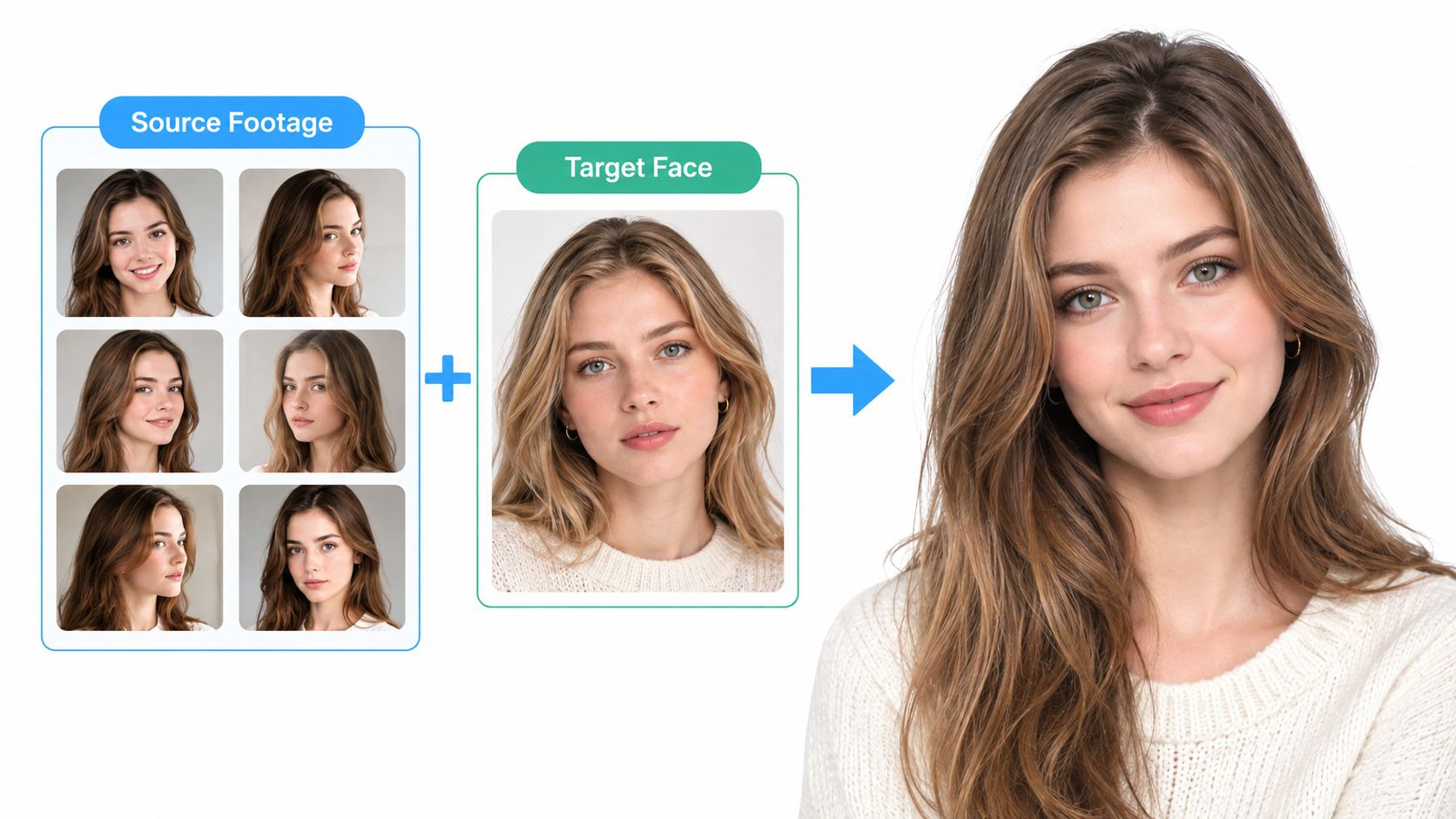
A simple selection test
Before opening Nim, inspect the intended clip at several points. Check a neutral expression, a blink, a head turn, and any moment where the subject speaks or smiles. If the face becomes a blur or disappears behind an object during those moments, the generated result may show identity drift or unnatural transitions.
A useful example is a short UGC-style product introduction. A presenter standing in steady light and speaking toward the camera is a reasonable candidate. A presenter walking past a window, turning sharply, and covering the mouth with a hand is a risky candidate, even if the first frame looks excellent.
For broader creative planning, a resource on how to choose an AI tool by scenario can help separate the visual objective from the input problem. The key preparation principle remains the same: the template page determines the exact requested fields, while footage quality determines how much reliable facial information is available.
Running the Face Swap in Nim
You upload a clip, add the replacement face, and get a result back. That part is quick. The work is choosing inputs that survive motion, then checking the output frame by frame before anyone sees it.
Prepare the two inputs
The target video keeps the original body movement, background, timing, and performance. The source face provides the identity that will be mapped onto that performance. If either file contains a recognizable person, get permission before generation.
Open the Face Swap template and add the source face and target video requested on the current form. The fields can change over time, so follow the template as it appears instead of assuming every run uses the same controls. This step is simple, but it helps to treat the upload like casting. A strong face photo paired with weak footage usually produces weak motion.
Generate a representative result
A practical test case is a short presenter clip for a product ad. The body performance stays the same, but the visible identity changes. After generation, watch whether the new face stays attached while the presenter talks, blinks, turns, and crosses small lighting changes.
That stability problem happens frame by frame. Video face swapping works like fitting the same mask to a moving head over and over, and tiny alignment errors can accumulate into identity drift, edge halos, and expression mismatch (video-to-video face-swapping research). In one tested protocol, subject consistency dropped to about 92% under attribute shifts, while stronger methods reached about 98% overall. Those are research benchmarks, not Nim performance guarantees.
Treat the generated clip as a draft. Do not publish from the first preview. Play it once at normal speed, then revisit any suspicious moment frame by frame, especially around blinks, mouth shapes, and turns.
The same habit applies to other motion-sensitive edits. A lip-sync video workflow for moving faces shows why a still preview can look fine while motion reveals the problem.
Reviewing the Result Before You Use It
A thumbnail can look convincing while the sequence fails. Face replacement is judged by continuity, and continuity only becomes visible when the clip plays through turns, blinks, mouth movement, and changes in light.

Inspect the face in motion
Watch the complete clip once without pausing. Then review the moments most likely to reveal instability:
- Jawline and hairline: Look for flicker, halos, or a boundary that changes shape between frames.
- Eyes and blinks: Check whether the eyes blink naturally or freeze briefly during movement.
- Mouth and teeth: Speaking and smiling can reveal warped teeth, frozen expressions, or a mouth that doesn't follow the performance.
- Turns and profile angles: Watch whether the replacement stays attached as the head rotates.
- Lighting transitions: Compare the face with the neck, ears, hair, and surrounding scene when the subject moves through shadow or brighter light.
- Identity continuity: Confirm that the source identity doesn't gradually drift back toward the original face.
This review matters because manipulated media is published at significant scale. A 2019 estimate counted 14,608 deepfake videos online with more than 134 million associated views, while another measurement reported 85,047 videos by December 2020, with the total roughly doubling every six months at that time (scholarly literature on manipulated video scale). Those figures describe the broader context, not Nim's output, but they reinforce why provenance and careful review matter.
Accept or reject the draft
A clip is closer to publishable when the replacement remains stable, expressions follow the performance, facial edges blend with the scene, and lighting stays plausible throughout. A clip should be rejected when the face flickers, teeth warp, expressions freeze, skin boundaries break, or the identity changes during ordinary movement.
The review should happen before the clip enters an advertisement, UGC creative, property walkthrough, or product video. If viewers could reasonably mistake the altered identity for an authentic recording, disclosure becomes part of the creative workflow rather than a later correction.
When the Footage Is the Problem
A face-swap template can't reliably reconstruct facial information that the source video never captured. The most common problems come from temporal instability, caused by blur, occlusion, compression, changing pose, and inconsistent lighting.
Research on how detectors hold up in real-world conditions found accuracy falling from 94.7% on clean material to 67.8% on distorted material, with JPEG compression and motion blur producing reductions of up to 35% (research on deepfake robustness). These measurements concern detection, not Nim's generation quality, but the underlying warning is practical: degraded frames make both analysis and replacement less reliable.
Diagnose the source before repairing the output
| Footage condition | Likely artifact | What to do |
|---|---|---|
| Heavy motion blur | Flickering features or unstable edges | Choose a sharper shot or reshoot with slower movement |
| Repeated hand, hair, or object occlusion | Missing facial detail and identity drift | Use footage with fewer obstructions |
| Strong compression | Blocky boundaries and uneven blending | Start with the least compressed source available |
| Rapid head turns | Profile distortion or expression mismatch | Select a shot with steadier movement |
| Changing light | Skin-tone and shadow mismatch | Prefer stable lighting across the clip |
| Small or distant face | Weak replacement detail | Choose footage where the face occupies more of the frame |
Testing a short, representative clip can prevent wasted work on a longer creative. The test should include the movement that matters in the final asset. A calm opening won't validate a sequence that later includes a fast turn, a hand gesture across the face, or a lighting change.
Reshoot permission: If the face disappears, blurs heavily, or remains covered for important moments, improving the footage is usually more responsible than expecting the template to invent what isn't visible.
Background changes can solve a separate compositing problem, but they won't restore missing facial landmarks. The AI video background remover is relevant when the environment is the issue, not when the face itself is unusable.
Consent and Disclosure Before You Publish
You have a clean-looking swap, the motion holds up, and the clip feels ready. Publication is still the point where many creators make the biggest mistake. A convincing result does not give you permission to use someone's likeness, and it does not remove the need to tell viewers when they are watching manipulated footage.
Get permission from every recognizable person involved. That means the person in the target footage and the person whose face is used as the replacement. The permission should match the actual use. A joke shared privately is different from an ad, branded UGC, or other commercial content.
Treat the finished clip as altered media. If it makes a real person appear to say or do something they did not say or do, viewers need that context before they form the wrong impression. This matters even when the swap looks harmless at first glance, because realistic edits are often judged as if they were camera-original footage.
Platform rules reflect that risk. YouTube says creators must disclose realistic altered or synthetic content when it shows a real person appearing to say or do something different, changes footage of a real event or place, or presents a realistic scene that never happened. Its upload flow includes an “Altered content” disclosure, and the platform says it may label qualifying videos if creators do not disclose them (YouTube's altered-content policy).
A practical check helps:
- Permission: confirm consent from each recognizable face subject.
- Accuracy: do not present a face-swapped performance as an authentic recording.
- Disclosure: label the alteration where viewers could reasonably mistake it for real.
- Originals: keep the unaltered footage separate from the generated version.
- Platform rules: complete any upload disclosures that apply.
For European audiences, the transparency rules are broader. The European Commission explains that Article 50 requires providers generating or manipulating synthetic video to apply a machine-readable mark, and deployers must disclose clearly, no later than first exposure, that the content was artificially generated or manipulated. These obligations are scheduled to apply from 2 August 2026 (European Commission guidance on Article 50)).
Treat consent and disclosure as pre-production decisions, not cleanup after upload. If either one is unresolved, the clip is not ready to publish.
- change a face in a video
- face swap video
- AI video editing
- face swap template
- video effects