AI Video Background Remover Guide for Ads
AI Video Background Remover. Learn how to remove video backgrounds with Nim's AI tools. Step-by-step guide for preparing clips, compositing ads
By Nim
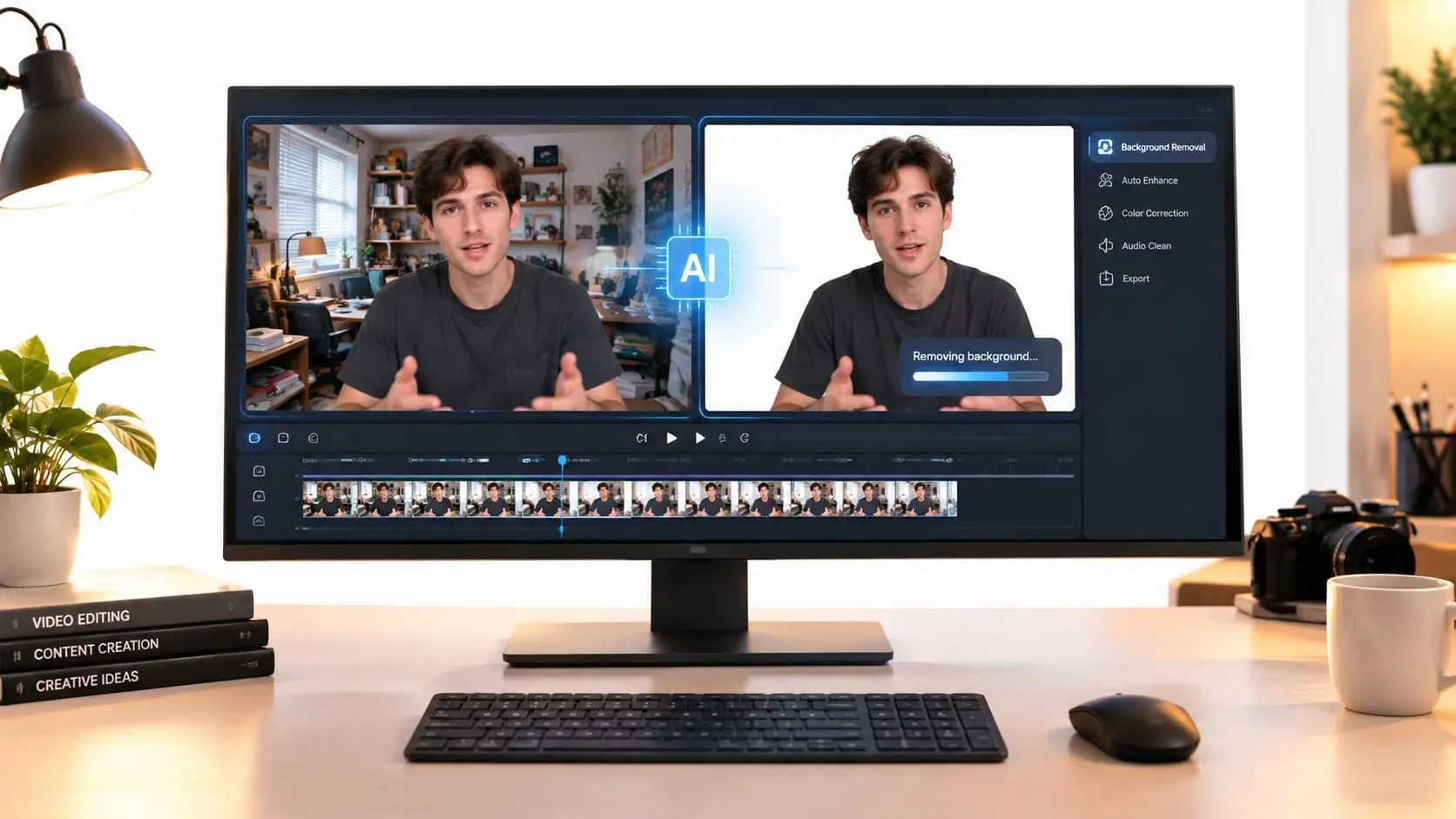
You can remove video backgrounds in Nim by uploading your clip to the Background Replace template, letting the AI isolate the subject, and compositing it into a new scene or template; the video background replacement AI market was estimated at $2.4 billion in 2025 and is projected to reach $8.7 billion by 2034. The practical question isn't whether an AI video background remover can create a result, but whether the result stays clean around hair, motion blur, low light, and difficult color separation.
A product clip may look fine in the camera preview, then fall apart when the subject turns, a loose strand of hair crosses the background, or a dark shirt blends into a dark wall. A reliable workflow treats background removal as a production decision, not a one-click effect. The source clip, the isolation pass, and the final composite all need inspection before the asset goes into an ad campaign.
Removing Video Backgrounds with Nim AI
A cluttered room, distracting shelves, or an inconsistent location can weaken a useful product video. Start with Nim's Background Replace template, upload the prepared clip, let the AI isolate the subject, and inspect the moving result before placing it in a new scene.
Start with the footage, not the background
The subject needs a visible boundary, sufficient light, and enough contrast for the system to follow it across frames. The original setting can remain informal. A studio wall is not required, though competing colors and poor lighting make edge decisions harder.
A talking-head clip for a social ad is relatively straightforward when the speaker is evenly lit and separated from the wall. Product demonstrations require closer inspection. Reflective surfaces, transparent packaging, loose hair, fast hand movement, and motion blur can create unstable edges or partial cutouts. Similar colors cause the same problem, especially when clothing, products, and surrounding surfaces blend together.
Use this workflow:
- Prepare the source clip. Choose a clear video in a common format, with the subject visible during the important action.
- Upload the clip to the Background Replace template. The template runs the AI isolation and background-change process.
- Generate the result. Process the footage instead of judging performance from a single still frame.
- Review the moving output. Watch turns, gestures, walking, product handling, hair movement, and moments affected by blur.
- Place the result in a new scene or ad composition. Treat the isolation pass as the foundation for the creative, not the finished decision.
Practical rule: Call the replacement production-ready only after the subject stays stable during movement and difficult edge conditions. A convincing paused frame does not establish that standard.
Check the composite at its intended delivery size. Halos, clipped strands, flickering edges, and background-colored gaps may be easy to miss in a large editor preview. They become obvious in motion, especially against a bright or highly contrasting replacement background.
Nim can suit short product ads and creator-led clips that need a cleaner setting. The final decision remains a production judgment: approve the result only when its edges, motion, and overall separation meet the campaign's quality requirements.
Preparing Your Source Clip for Best Results
Input quality determines how much repair the final result will need. A clear subject that stands apart from its surroundings gives an AI video background remover more useful visual information than a dim, backlit clip with overlapping colors. Guidance for video background removal also recommends checking the boundary around hair and clothing because the subject can become difficult to track in individual frames. Pixelcut's source guidance makes the same practical point: the subject should be clear and visually distinct from the background.

Choose separation over visual complexity
A simple background isn't mandatory, but it reduces ambiguity. The following preparation choices usually make review easier:
- Light the subject consistently. Avoid a bright window behind a person when the face and shoulders are darker than the background.
- Create color contrast. A black shirt against a dark wall, or pale packaging against a bright counter, gives the system fewer reliable edge pixels.
- Control fast movement. Quick turns and motion blur can soften the boundary that the remover needs to follow.
- Keep fine detail visible. Loose hair, thin straps, transparent packaging, and furry textures deserve special attention before recording.
- Use a standard video file. Common workflows accept formats such as MP4 and MOV, as documented in format guidance for video background removal.
The best source for a talking-head ad has even illumination, a steady camera, and enough space around the person for the full outline to remain visible. A weaker source has a subject moving through shadows, wearing colors similar to the wall, or passing behind foreground objects.
Inspect the boundaries before upload
A short preview can reveal a problem that a full render won't solve cleanly. Scrub through the clip and look at the first movement, the fastest gesture, and the frame where the subject overlaps the most complicated part of the background. If the outline disappears in those moments, a new take may save more time than post-production repair.
Input preparation also affects the creative result. A clean silhouette leaves room to place the subject over a product scene, a color field, or a more editorial background without obvious halos. For related visual preparation ideas, the AI product photo generator guide can help teams think about subject clarity and scene separation before creating supporting assets.
Running the Background Removal in Nim
Once the clip is prepared, open the Background Replace template and upload the video. The template isolates the subject and generates a background-replaced result. The operator then checks whether the moving matte remains stable throughout the shot.
Review movement, not just the first frame
A still image can hide temporal defects. Watch the output as a sequence, with close attention to direction changes, raised arms, head turns, fast gestures, and moments when the subject crosses a detailed area. Independent evaluations of video background removers identify edge quality, hair and fine detail, lighting adaptation, motion handling, and temporal consistency as core checks for difficult clips. The testing criteria are described in this independent review.
Use a focused review pass:
- Check the opening frame. Look for clipped contours, unwanted background patches, or a visible halo before the first movement.
- Follow the fastest action. Inspect hands, loose hair, clothing edges, and any product that changes position quickly. Motion blur can cause the matte to lag or expand.
- Watch similar-color areas. A shirt against a wall with a similar tone may lose detail as the subject moves. Check whether the outline fades, breaks, or absorbs part of the background.
- Inspect changes in light. Movement from bright light into shadow can produce inconsistent isolation, especially around the face and shoulders.
- Check the boundary for flicker. Crawling edges, sudden holes, and repeated contour changes are more distracting than a consistently soft edge.
- Preview the intended composite. A matte that looks acceptable over a pale background can reveal halos or missing detail over a dark, textured, or high-contrast scene.
Short clips still require this inspection. Video quality depends on continuity between frames, so one missed frame may be harmless while repeated edge changes make the entire shot look artificial.
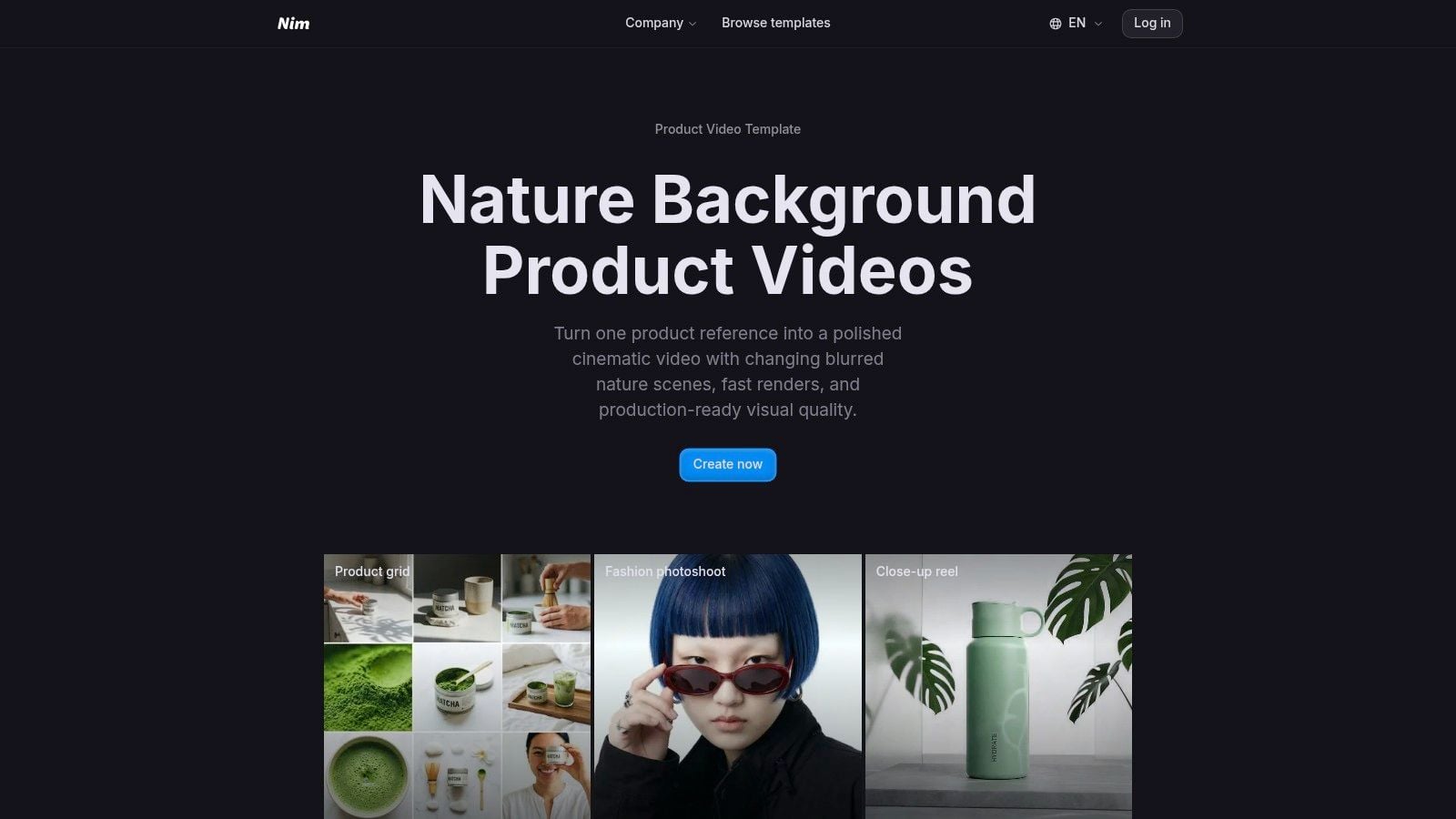
Decide whether to revise the source
If hair flickers, motion blur breaks the silhouette, or the subject disappears against a similar-colored background, a new recording may be faster than repairing the result. Stronger separation, even lighting, and controlled movement usually give the remover a cleaner sequence to track.
Technical benchmarks use measures including dtSSD, a consistency metric associated with flicker across frames, alongside error and edge-quality measures. An open-source implementation also reports that processing speed depends heavily on model input size and hardware, with one published setup using a 1024×1024 model input on an L4 GPU with batch size 1. These implementation details reinforce a practical production limit: fine hair, blur, and low-contrast edges remain difficult conditions. The benchmark and implementation details are available in this technical reference.
Compositing into Ad Templates
A presenter recorded in an ordinary room can become the focal point of a consistent social ad once the room is removed. The new background should reinforce the product message and brand setting while keeping attention on the speaker. This workflow works best when the composition is planned around the subject's recorded movement, not added as an afterthought.
Build the new scene around the subject
Open Nim's UGC Talking Head on Green Screen template for a talking-head workflow that uses the isolated footage as its main visual input. Provide the required video, generate the composition, and inspect the subject's placement and boundary before downloading it.
Match the scene to the footage. A centered speaker can sit over a simple brand color or a product-focused environment. A presenter gesturing toward one side needs open space there for a product, headline, or supporting visual. Keep the subject's scale and position consistent with the original framing, especially when the clip includes movement toward or away from the camera.
For a product demonstration, use a focused production pass:
- Prepare the demonstration clip. Keep the product visible, and watch for hands or packaging blending into similarly colored surfaces.
- Remove the original setting. Inspect frames as the product is picked up, rotated, opened, or placed down.
- Generate the new composition. Choose the relevant Nim template and provide the isolated footage as the source.
- Check visual continuity. Confirm that scale, position, contact with the scene, and motion all feel intentional.
- Download the result for campaign assembly. Treat any editing outside Nim as a separate post-production step.
The replacement scene may be a solid color, image, video, or other supplied background when the selected workflow supports that input. The exact choices depend on the template, so the operator should follow the inputs shown by the selected Nim page. The guide to adding backgrounds to videos provides related compositing context.
Edge cases deserve a deliberate preview. Hair and loose clothing can produce thin halos or unstable boundaries, while motion blur can make a fast gesture look clipped. Similar colors between the subject and the replacement scene can also weaken separation after compositing. Vendor guidance on background removal also notes that results can decline around hair and clothing, and recommends previewing the output before assuming the first generated result is ready.
For teams developing additional product footage around the same campaign, ClipNova's video generation platform may provide a separate resource for supporting video concepts. It does not replace isolation review. A convincing ad still depends on a clean subject boundary, believable scale, and placement that matches the recorded action.
Understanding Market Context and Quality Limits
A clip can look clean in an editor and still fail once it plays against a new scene. Fine hair may turn into a hard edge, a blurred hand may lose its shape, and a shirt that matches the replacement background can partly disappear. Production readiness depends on how the result holds up in motion, not only on a still preview.
Background replacement has become a substantial production category because e-commerce teams, advertisers, and creators need one recording to work across multiple visual contexts. The video background replacement AI market was estimated at $2.4 billion in 2025 and is forecast to reach $8.7 billion by 2034, with a reported 15.2% compound annual growth rate over that period. Software accounted for $1.49 billion in 2025, or 62.3% of global revenue, while cloud deployment held $1.72 billion and a 71.8% share, according to the video background replacement AI market estimate.
Demand doesn't remove the quality threshold
A separate estimate placed the global AI background remover market at about US$111 million in 2025, with a projection of US$309 million by 2032 and a 16.0% CAGR from 2026 to 2032. The separate market analysis identifies video background removal as the fastest-growing sub-segment at 28% CAGR, compared with 16% for static images, and projects that video removal will surpass static image removal in revenue by 2029. The separate market analysis explains the video-first demand.
These figures show adoption and market direction. They do not guarantee a clean result for every clip. A tool may perform well on a stable, well-lit presenter yet struggle with translucent materials, low light, hair crossing a detailed scene, motion blur, or surfaces with nearly identical colors.
A web-based workflow suits flexible advertising production when review remains part of the process. Test the exported result at the campaign's intended size and against its actual replacement scene. Teams exploring related creator workflows can review Nim's AI UGC video generator guide, while treating background isolation and scene generation as separate quality decisions.
Troubleshooting Common Issues and Next Steps
A clean first frame can still hide a production problem. Hair may vanish as the subject turns, motion blur can remove part of an arm, and similar colors can make the mask drift. Diagnose the failure across the full shot, not from a single frame.
Match the failure to the corrective action
| Visible problem | Likely cause | Practical response |
|---|---|---|
| Edge flicker | Unstable contrast or difficult motion | Re-record with clearer separation and steadier movement |
| Hair looks clipped | Fine detail blends into the background | Improve lighting and inspect the hairline before processing |
| Limbs disappear | Low contrast or motion blur | Use a simpler background and reduce abrupt movement |
| A halo surrounds the subject | Strong backlight or uncertain boundaries | Move the light source, increase separation, and test again |
| The subject changes shape | Frame-to-frame tracking failure | Review the entire movement and consider a new take |
Review the hairline, clothing edges, hands, and any fast movement before approving the result. The background-removal guidance covers these review limits and recommends checking the preview rather than treating the first generated output as final.
Know when AI is enough
Automated removal can work well for short-form digital production, social ads, creator clips, and many product demonstrations when the footage has clear separation and stable edges. The main production benefit is reduced manual masking. The subject starts isolated, so the team can spend more time checking the composite instead of drawing every boundary.
Manual rotoscoping remains the better choice when a project needs precise control over each frame, particularly in broadcast or feature-film work. Workflow analyses of AI removal versus rotoscoping describe AI removal as useful for short-form and commercial production while retaining traditional rotoscoping as the standard when frame-level precision is essential. The same analysis projects video-specific background removal growth above 24.1% CAGR from 2026 to 2034, which signals demand for practical workflows, not reliable results on difficult footage. The analysis of AI removal and rotoscoping trade-offs is available here.
Use Nim to test a prepared product or talking-head clip through the Background Replace workflow. Inspect the hardest movement, especially hair, blurred limbs, and color-matched edges, before placing the subject in an ad scene. If the mask remains stable at the campaign's intended size, continue with a suitable Nim template. If it breaks down, change the source footage before spending more time on compositing.
- ai video background remover
- video editing
- nim
- ad creatives
- compositing