Lip Sync Video Ai
Step-by-step guide to creating a lip sync video AI project in Nim, from preparing inputs to reviewing and downloading a finished talking-head clip.
By Nim
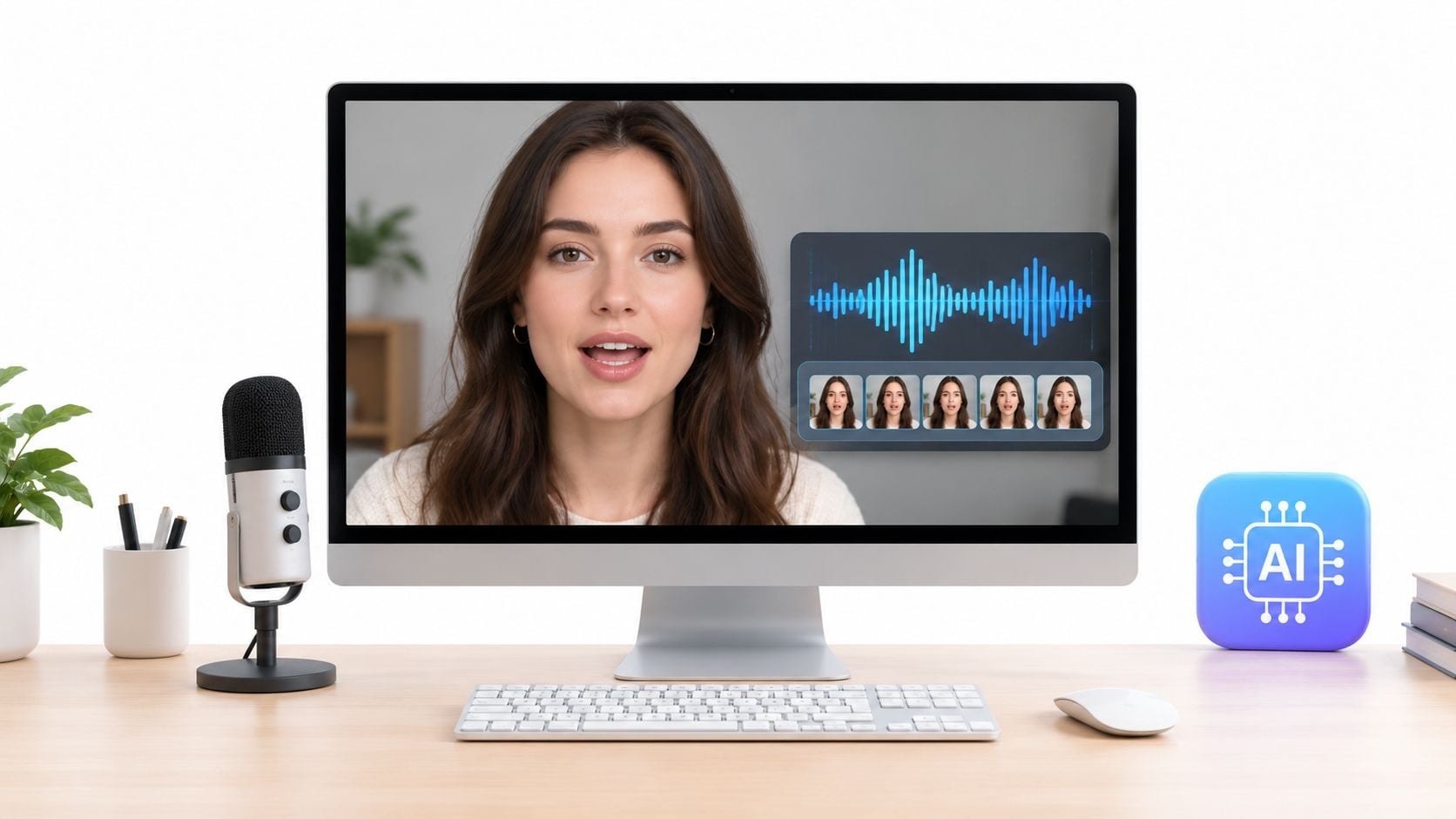
A product team has a polished face image, a clean script, and a voice recording ready for a campaign. The first lip sync video AI render looks promising, but one syllable lands late, the jaw shifts during a pause, and the face starts to feel less like the original person. The problem usually isn't the generate step. It starts with the source image and audio, then becomes visible during review.
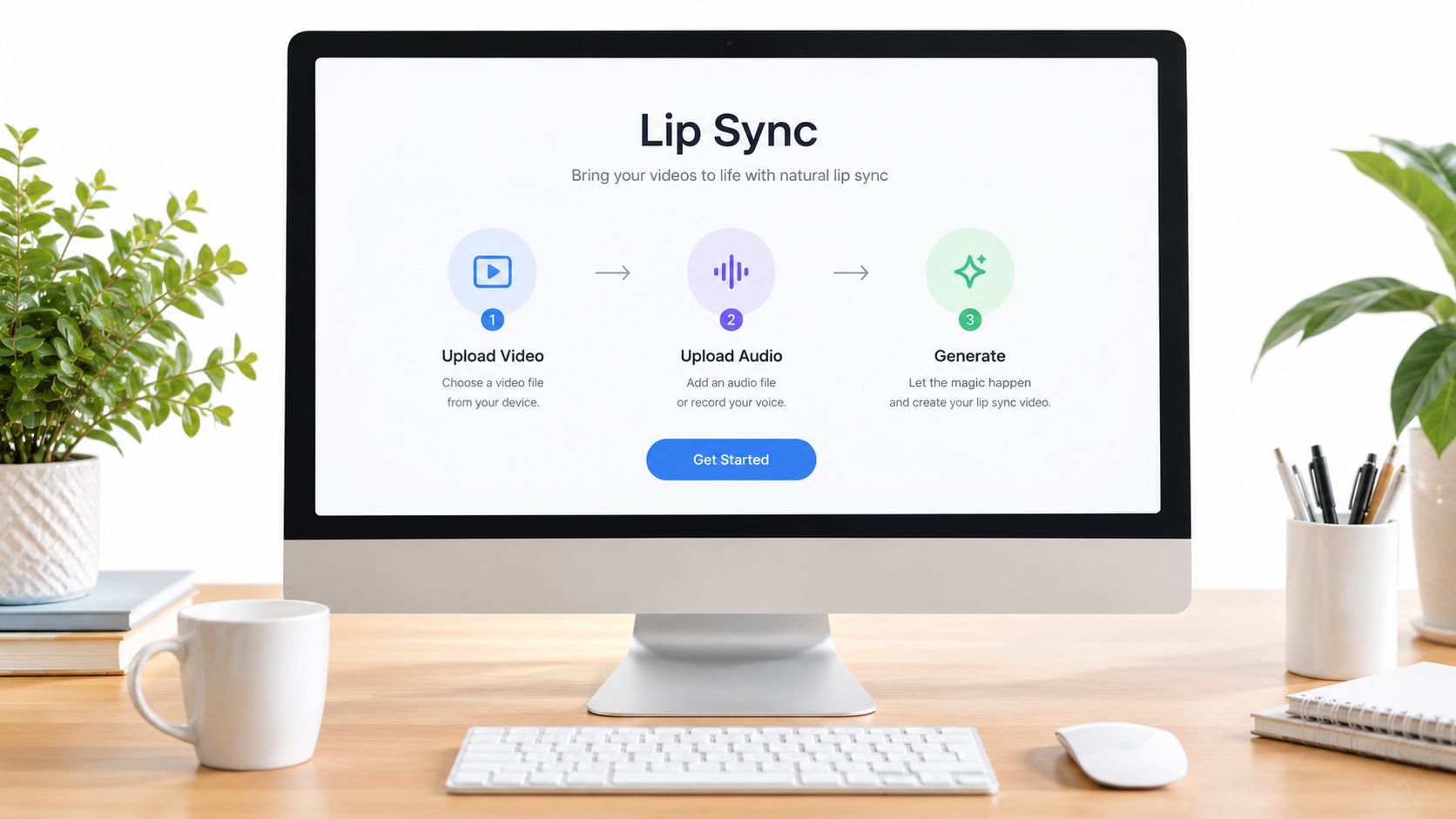
Nim's Lip sync template is useful for this exact job, provided the inputs are chosen carefully. The workflow is intentionally focused: provide a face image and audio, generate the clip, inspect the result, and download it when the motion holds up. The quality ceiling comes from asset preparation and screening, not from repeatedly submitting identical files.
What the Nim Lip Sync Template Actually Does
A talking-face draft starts with two assets, not a full editing project. The Nim Lip sync template combines a face source with spoken audio, generates a clip, and lets you review and download the result. Treat it as one production step, then complete campaign assembly and finishing work elsewhere.
The confirmed inputs are limited:
- Face source: A still image or video with a visible face.
- Audio source: An audio file containing the speech to synchronize.
- Output: A generated clip with mouth movement matched to the supplied audio.
For a first render, a frontal face image gives the system a clear view of the mouth and nearby features. Use dialogue that is easy to distinguish, rather than a finished soundtrack containing competing music or effects. These choices affect the quality ceiling more than repeated clicks on Generate.
The template page shows an upload, generation, review, and download flow. It does not establish that the workflow includes advanced facial settings, an editing timeline, selectable output specifications, or custom synchronization parameters. Do not plan a production process around controls the page does not show.
That boundary matters when a team approaches lip sync video AI through a broader creation platform. Nim offers multiple generative workflows, while this template serves one defined purpose. SleekPost's guide to AI content tools provides broader context for deciding which creation tasks belong in a generator and which belong in post-production.
The useful question after generation is not just whether the file exported. Check whether the mouth movement fits the speech, whether the face still looks consistent, and whether visible artifacts are acceptable for the intended use. The template can produce a usable talking-face draft from the supplied assets. It does not decide whether the expression matches the audio's emotional tone or whether the clip is ready to publish. Those decisions remain with the reviewer.
Preparing Your Face Source and Audio Before You Start
A usable lip-sync clip usually depends more on the files you submit than on the click that starts generation. Before opening the template, inspect the face source and audio as production inputs. Use at least 512 pixels, even lighting, and a front-facing or three-quarter view with facial features unobstructed, as outlined in this AI lip sync guidance.
Run this face-source check before uploading:
- Choose a steady expression. A neutral expression with the mouth closed gives the generated movement a predictable starting point.
- Keep the lower face clear. Hair, hands, microphones, masks, and heavy shadows can cover features the system needs to interpret.
- Check the lighting across the lips. Strong side lighting or a bright patch on the mouth can make movement appear uneven.
- Reduce background distraction. A plain or softly blurred background makes facial artifacts easier to spot during review.
- Match expression to speech. A broad smile paired with restrained dialogue may look unnatural even when the syllables broadly align.
The audio needs the same preflight check. A face source and an audio track are the two core inputs, and dialogue with minimal background noise is recommended in this guide to creating AI lip sync videos. Trim unnecessary silence from the beginning and end, keep loudness reasonably consistent, and remove music beds during synchronization. Room echo, heavy compression, overlapping effects, or unclear consonants make timing harder to judge.
Listen to the file once before submission. Ask whether every spoken word is clear and whether pauses sound intentional. The template processes the uploaded track, but it cannot determine whether a noisy gap belongs to the performance or the recording. Keep the selected image and audio together with clear filenames so a later render can test a specific change instead of becoming an unexplained retry.
The Nim guide to AI talking photos offers related context on why a still portrait deserves careful preparation before generation. That preparation sets the quality ceiling. Post-generation review then determines whether the result is usable.
Running the Lip Sync Workflow in Nim
The Nim workflow is deliberately short, which makes asset discipline more important. A first-time user shouldn't begin in a generic video tool and search for a lip sync function later. The direct route is to open the Lip sync template from the Nim library.
Start with the two source files
Prepare the face image and audio before entering the workflow. The template exposes the inputs needed for the job, so upload the selected image and the clean audio file into their respective input areas. There is no benefit in starting with several unreviewed assets and hoping the generator will identify the strongest combination.
The face source determines the visible identity and framing. The audio determines the speech pattern that the mouth needs to follow. Keeping both files in an identifiable folder also helps when a second render is needed, because the revised attempt should change a specific input rather than become an unexplained retry.
Generate one draft
After the image and audio are supplied, trigger the generation flow. The first result should be treated as a screening draft, even when it appears convincing in the preview. A rendered mouth can match the broad rhythm of speech while still missing sharper consonants, pauses, or transitions between sounds.
The workflow page confirms the core sequence, but it doesn't establish every possible editing or customization option. It is safer to describe the process as upload, generate, review, and download, rather than promise controls for timing, expression, camera movement, captions, or audio mixing.
The workflow is also useful for a small product demonstration where a still presenter image needs to deliver a short spoken line. It is less suitable as a substitute for a complete edit when the brief requires several scenes, substantial pacing changes, or extensive sound design.
Review before downloading
Watch the generated clip inside Nim before downloading it. Check whether the mouth changes follow the audio, whether the face remains stable from beginning to end, and whether a visible defect appears only for one sound or continues through the clip.
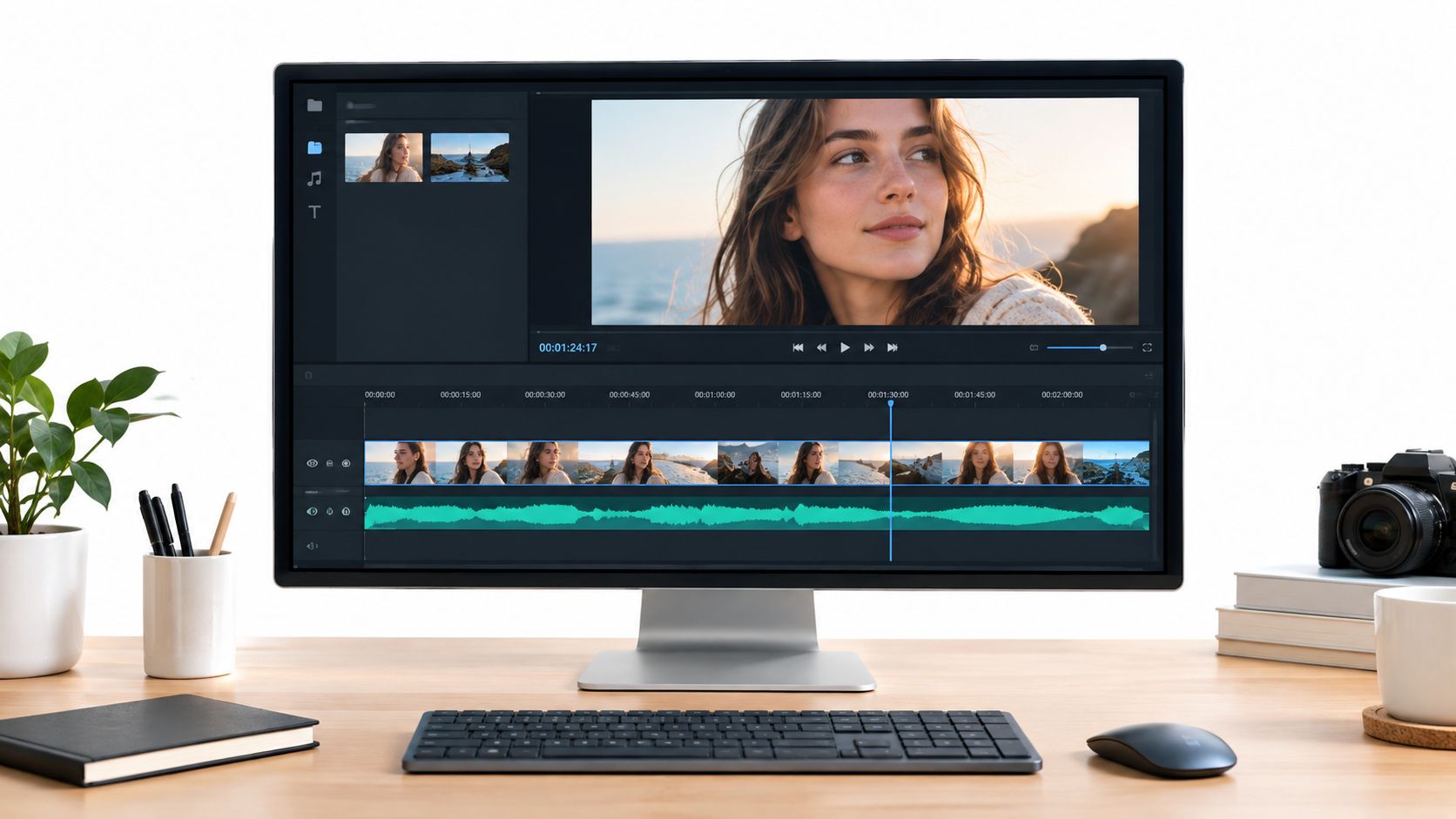
If the result passes that inspection, use the template's download step to save the generated clip. The supplied template information confirms the download flow, but it doesn't verify a particular output format or resolution. Those details should be checked in the current workflow rather than assumed from another video process.
Keep the original image and audio after downloading. A quick re-render is only useful when the source change is deliberate, such as replacing an obstructed portrait or cleaning a noisy audio section.
Reviewing the Generated Output
A first render can look acceptable in a quick glance and still fail once you inspect the mouth, eyes, and face movement separately. Treat the clip as a screening cut. The main quality bottleneck is not clicking generate. It is feeding Nim a strong source asset, then reviewing the result closely enough to catch defects before they reach an edit.
Start at normal speed and listen for exposed points in the speech. Consonants, short pauses, quick word transitions, and shifts in vocal intensity often reveal timing problems that a casual visual check misses. Then watch the face without reading the transcript. The mouth may follow the audio while the jaw, cheeks, eyes, or hairline move in distracting ways.
What to inspect
- Mouth timing: Check whether the lips lag behind consonants or close before the sound ends.
- Jaw movement: Watch silent pauses for unnatural jaw drift. That alone can make a shot unusable.
- Eye behavior: A frozen, repeated, or badly timed blink can weaken an otherwise aligned mouth.
- Identity stability: Compare the cheeks, chin, and hairline with the source image. Small shifts become obvious when the clip loops.
- Frame consistency: Examine transitions between open and closed mouth shapes, especially on stressed words.
Slow the clip in an external player to roughly quarter speed around any line that felt wrong. Use slow motion to locate micro-misalignment, not to replace normal-speed viewing. The normal pass shows whether a viewer would notice the defect naturally, while the slower pass helps identify what caused it.
Practical rule: Judge every scene independently. One usable clip does not make every generated clip in a batch usable.
A benchmark workflow described by Dubly's lip sync benchmark uses a fixed corpus of 1,000 videos, 5 independent blind raters per clip, and 5,000 total judgments. Its estimated statistical uncertainty is about 3 points, so gaps smaller than 3 points should be treated as ties rather than meaningful wins. The practical lesson for a Nim review is straightforward: small apparent quality differences are difficult to trust without human inspection.
When a defect repeats, change the input most likely to have caused it. Replace the face source if the mouth is obscured or the angle is poor. Replace or clean the audio if the same phrase remains unstable. Retrying identical assets gives you little useful information.

Matching Lip Sync Clips to Your Real Use Case
Start with the source assets, then match the format to the job. The right use case is one where clear audio and a stable face matter more than elaborate acting. A product promo can work well when a presenter needs to deliver one focused message over a clean visual. A short-form ad benefits from quick concept iteration, while a creator explainer becomes harder to manage as the script grows and the face must sustain believable motion for longer.
Market forecasts point to expanding use of lip-sync technology. The Market.us's AI lip-sync market report and this AI lip sync trends forecast describe market growth, but those figures do not predict the quality of an individual Nim render. For a production team, the practical question is narrower: does the source face stay readable, does the audio support clear mouth movement, and can the finished clip pass a normal-speed review?
| Use Case | Audio Demand | Face Demand | Verdict |
|---|---|---|---|
| Product promo | Clear, measured product explanation | Stable portrait with visible mouth | Strong fit for a focused talking shot |
| Short-form ad | Clean delivery with a direct hook | Still face that remains readable quickly | Good fit for testing concise creative directions |
| Creator explainer | Sustained clarity across a longer script | Consistent identity and natural facial motion | Use shorter segments and review each one |
The table is a starting point, not an automatic approval. For each intended use, define the viewer's required action before generating. A product clip may only need a clear explanation. An ad needs a readable hook in the opening moment. An explainer needs consistent identity across several usable segments. If the output is meant for paid distribution, screen the selected version at its final crop and playback size, not only in the editor.
Avatar-led campaigns also require a consistent creative system around the mouth animation. The overview of synthetic avatar campaigns can help place a generated talking face within a wider campaign plan. Keep the role specific: one clip can deliver a message, while the surrounding edit, captions, and offer carry the rest.
A talking object or character may need a different treatment from a human portrait. The Nim talking object guide is useful when the creative depends on an animated product or object rather than a conventional face. If the audio is weak or the face source is heavily compromised, captions over a still image may communicate the message more clearly than forcing a talking-head format.
Where AI Lip Sync Still Falls Short
A clean first sentence can hide problems that appear later in the clip. Lip sync video AI can produce a convincing result, but fast code-switching, strong regional accents, whispered delivery, and shouted lines give the system less reliable visual information. The speaker may remain easy to hear while the mouth shapes become difficult to reproduce.
Long monologues expose these weaknesses over time. Small shifts in the jaw, cheeks, eye blinks, or head pose can accumulate after an opening that looks acceptable. Short clips can mask a minor defect through pacing. A sustained talking shot gives viewers more time to notice it, so source selection and post-generation review set the practical quality ceiling.
High-risk source conditions
An off-axis face shows less of the mouth. A hand, microphone, strand of hair, or another object can block the same details. Stylized characters and unusual lighting add another risk because the reference features are less conventional or less clearly defined. Inspect the face source before generating. If the mouth, cheeks, or jaw are already difficult to read, the render has less information to work with.
Recent research benchmarks test difficult conditions such as profile views, variable lighting, occlusions, large facial motion, and stylized characters, with reported improvements on public test sets. A research benchmark covering challenging facial conditions reflects that broader evaluation focus, but benchmark progress does not make every source reliable.
For a Nim workflow, keep difficult material short and review the output closely. Watch for mouth shapes that drift from the audio, unstable identity, unnatural blinking, or facial edges that change between moments. Scrub frame by frame when a defect is hard to judge at normal speed. If the same artifact remains, replace the source rather than repeatedly submitting it. The guide to changing a face on a photo helps when the creative needs a different portrait before the lip sync step.
Wrapping Up and Your Next Step in Nim
A usable lip sync clip depends less on the click-to-generate step than on the files you submit and the review that follows. Start with a face source that presents the features clearly, pair it with clean dialogue, and treat the first render as a test rather than a finished asset.
The Lip sync template covers the basic upload, render, and download flow. The supplied workflow information does not confirm advanced controls, so plan around what you can verify in the output. Check that the mouth follows the audio, the person remains recognizable, and facial movement does not introduce distracting artifacts.
Keep these checkpoints beside your workstation:
- Face: Choose a clear image with visible facial features.
- Audio: Use understandable speech without competing background sound.
- Render: If a defect repeats, change an input instead of resubmitting identical files.
- Review: Watch once for timing, then again for facial stability.
- Decision: Approve the clip only if its artifact level suits the intended use.
Run one low-stakes test before placing the result in a product promo or short-form ad. Open the Nim Lip sync template from the Nim library, prepare one face image and one short audio clip, and complete the workflow. That test gives you a practical read on source quality and output reliability.
Nim provides a focused workflow for combining a face image or video with an audio track, generating a talking clip, reviewing it, and downloading the result. Visit Nim to open the creation workflow and test a carefully prepared clip.
- lip sync video ai
- ai lip sync
- talking head video
- nim video generator
- ai video templates