How to Lip Sync a Video in Nim: Step-by-Step Guide
Learn how to lip sync a video in Nim: prepare a clear face and clean audio, generate with the Lip Sync template, and check timing before download.
By Nim
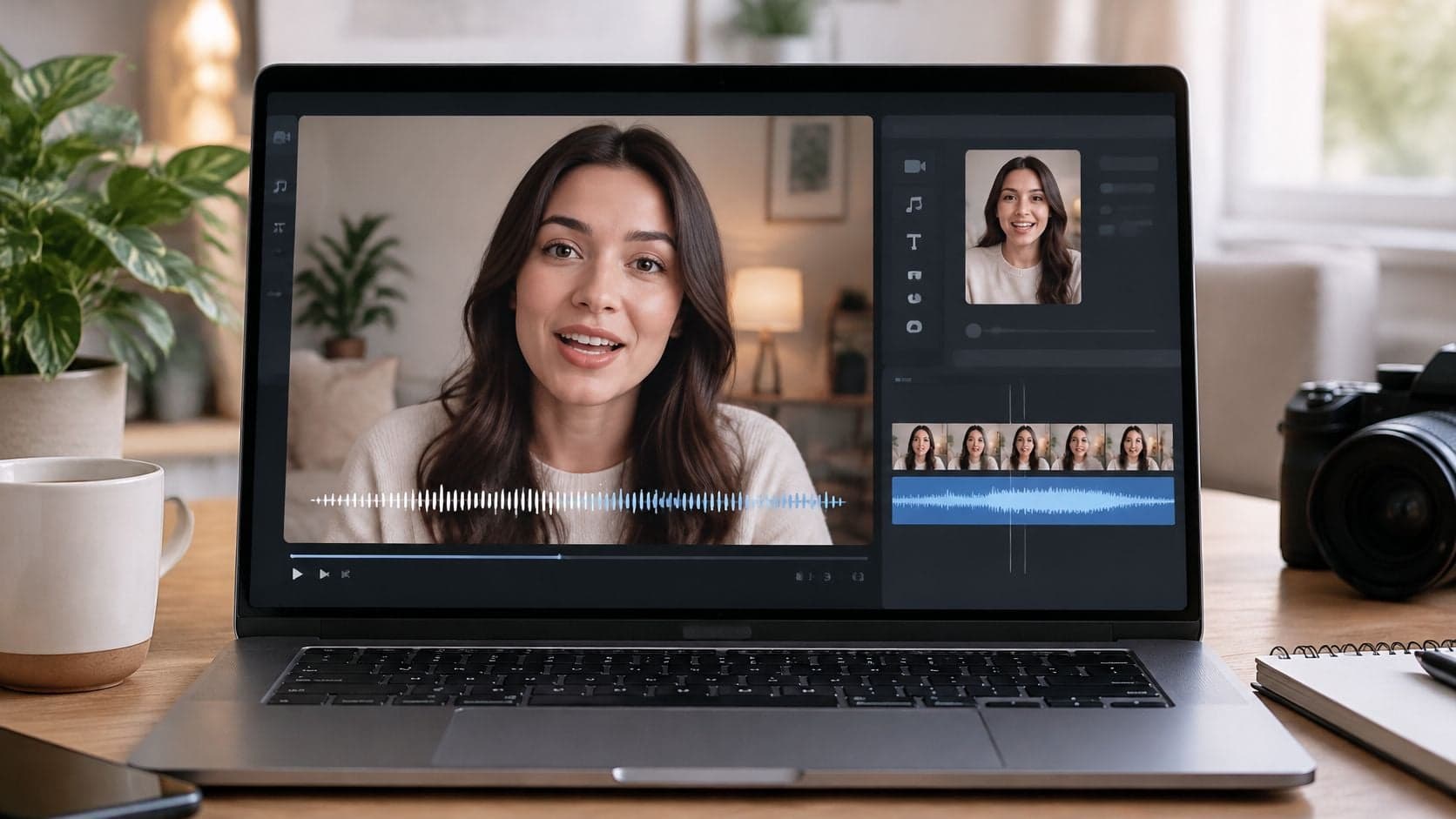
To lip sync in Nim, provide one face image and one clean speech track to the Lip Sync template, generate the clip, then check its timing before downloading. Treat the result as a timing problem: even a sharp face can look dubbed if mouth movement starts early, lags behind speech, or stutters.
A convincing clip depends on mouth changes matching the speech, especially where the lips close or take a distinct shape. Review a few points across the clip, including the first spoken phrase, and judge whether those movements appear aligned within a few milliseconds. If the timing feels off, check the inputs before adding polish.
Prepare a Source Face and Clean Speech Track
A lip synced video needs one clear source visual of a face and one clean speech track. Most failed results trace back to one of those two inputs, not to the generation step itself. Checking both before opening any template saves regenerations later.
Input requirements for a lip synced clip
| Input | What works | What to avoid |
|---|---|---|
| Source face | Frontal or near frontal face, mouth unobstructed, even lighting, minimal motion | Profile angles, hands or objects over the mouth, heavy motion blur, small face in frame |
| Speech audio | Clean, intelligible take with minimal background sound and no clipping | Long leading silence, abrupt cuts, competing music or noise |
| Speaking region | Mouth area kept clear of logos and packaging text | Fine product details or text inside the mouth area |
| Accepted formats, durations, resolution | Confirm the accepted values in the live template before uploading | Assume limits; confirm in the live template |
Get the Face Right First
A frontal or near frontal face gives the generator a stable target for the mouth region. Even lighting helps because harsh shadows across the lips can hide closures that need to stay visible. Minimal head motion matters for the same reason. A face that drifts, turns, or blurs forces the mouth movement to compete with movement that has nothing to do with speech.
Size in frame matters too. A small face leaves few pixels for teeth, lips, and the transitions between sounds, so detail smears quickly. A larger, sharply framed face holds up better, particularly in short product explainers where viewers watch on phones and notice mouth errors fast.
Clean the Speech Before Generating
The speech track should be a single intelligible take with minimal competing sound. Clipping, room echo, and background music don't just sound rough. They blur the exact start of words, and that start is what the mouth has to match.
Practical rule: The first visible mouth opening should line up with the first spoken sound, so unintended silence at the start gets trimmed before generation, not explained away after it.
Product and character visuals need one extra check. Logos, packaging text, and fine details should stay away from the speaking region, because generated mouth motion can alter anything inside that area. File formats, durations, and resolution aren't confirmed in this guide and must be checked in the live template. The action at this stage is simple. Both inputs get checked against the table before the template opens.
How to Generate a Lip-Synced Video in Nim
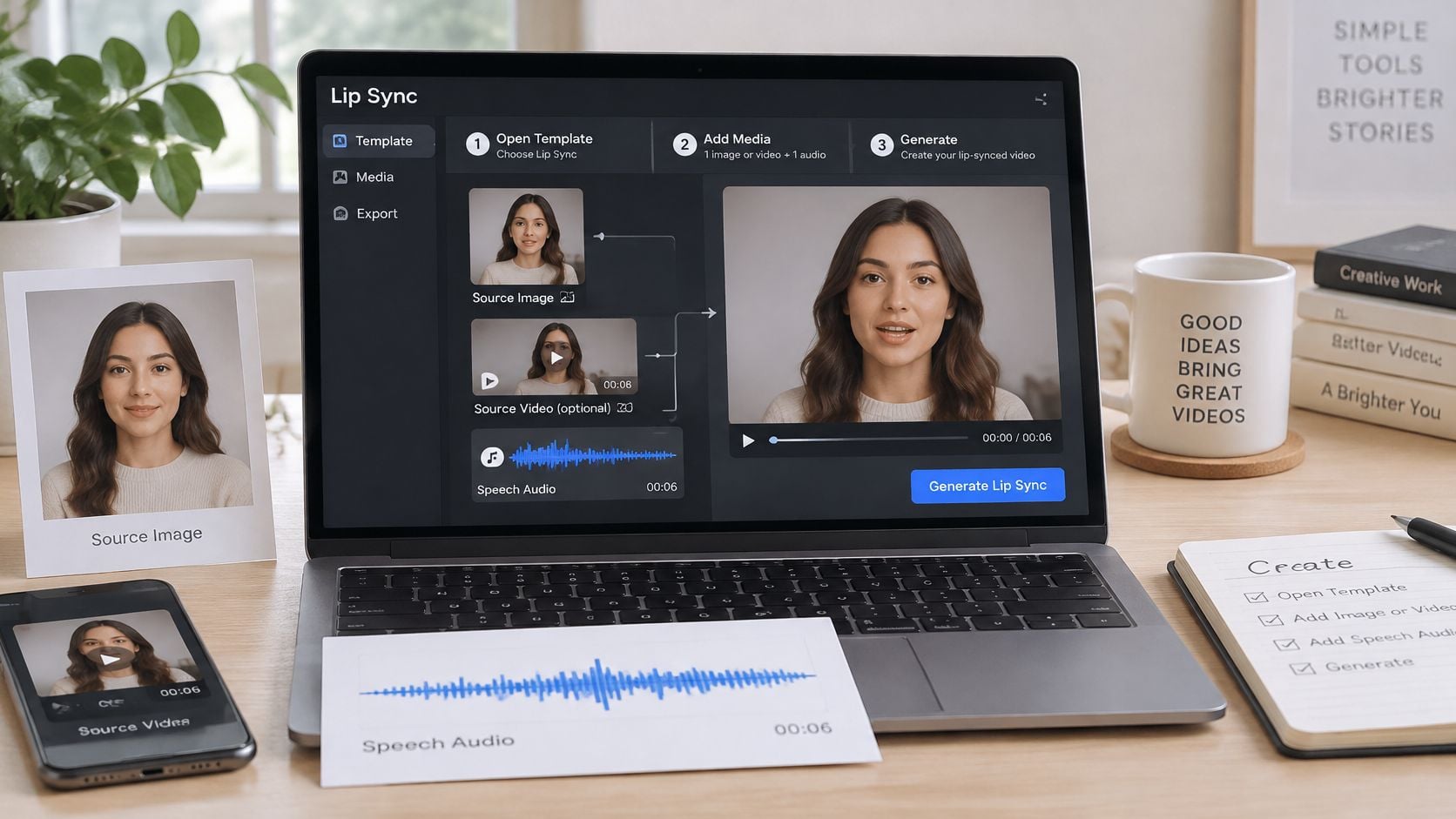
A face can look sharp and the speech can sound clean, yet the clip still fails if the mouth starts late. In Nim, start with one source face and a speech audio track, then generate and inspect the result before downloading.
The Five Steps
- Open the Lip Sync template: Go to Nim's Lip Sync template, the relevant starting point for generating a video with mouth movement aligned to speech.
- Provide the inputs: Add the source face and speech audio in the form the live template requests. Check its accepted formats, durations, and resolution there rather than assuming limits.
- Generate the clip: Run generation with the supplied speech track. The audio provides the timing reference, so unclear speech can make synchronization harder to assess.
- Inspect the result: Compare mouth movement with the sound, including at the start and end of the speech. A completed generation still needs a timing review.
- Download after review: Download when the mouth movement tracks the speech. If it does not, revise the inputs and generate again.
The same image-and-audio workflow appears in Nim's guide to talking object videos, which describes preparing a source image and speech track, generating, and inspecting the video. Sounds such as /p/, /b/, /m/, /f/, and /v/ make timing easier to judge because they involve visible lip closures or lip-to-teeth contact. If the mouth seems early or late, check the speech track before changing the source face.
For a still image, explore AI photo animation tools for related approaches to adding motion. Lip sync has a narrower test: does the mouth movement correspond to the speech? Editing the finished file, mixing music, adding captions, and adjusting loudness are separate post-production tasks outside this generation workflow.
Review Timing Before You Download
A clip can look polished and still feel dubbed if the mouth consistently leads or trails the speech. Review timing at the start, end, and across several phrases before downloading. A middle-only check can miss errors that vary through the clip.
Start at the Edges, Then Sample the Middle
Check the first and last spoken sounds, then sample phrases from the early, middle, and late parts of the clip. The mouth should move with speech at the boundaries and stay aligned throughout.
Use consonants to judge articulation. For p, b, and m, look for visible lip closure. For f and v, check for lip-to-teeth contact. Open vowels are a weaker test on their own because they can look plausible even when consonant timing is off.
Timing checks and pass criteria
| Check | Pass when | Fails when |
|---|---|---|
| First and last seconds | Mouth starts and stops with the first and last spoken sounds | Mouth moves before the voice or keeps moving after it ends |
| Bilabial closures (p, b, m) | Lips visibly close on each sound | Closure is missing, late, or early |
| Fricatives (f, v) | Lip-to-teeth contact is visible on each sound | Contact is missing or delayed |
| Global offset | No consistent lead or lag across phrases | The same lead or lag repeats throughout |
| Muted pass vs audio pass | Mouth timing and audio agree when watched and heard together | Clipped syllables or unnatural pauses become apparent when listening |
Use Millisecond Thresholds, Not Impressions
The W3C media synchronization review reports that mismatches of 20 milliseconds or less may be imperceptible in high-quality audiovisual material. It also describes research in which intelligibility declined noticeably when audio led video by 40 milliseconds. The review notes that the effect can be asymmetric: intelligibility may remain relatively stable when video leads audio by roughly 160 to 200 milliseconds, as visible facial movement can provide predictive information.
Use frame duration as a practical review reference. At 25 frames per second, one frame lasts 40 milliseconds. Aim for speech and visible articulation to coincide within about one frame, while checking more closely when a closure or speech onset looks wrong.
A clip that feels dubbed usually has a timing problem, not an image quality problem.
Review the clip in three ways. Watch it muted to track mouth movement, then listen without looking for clipped syllables or unnatural pauses. Finally, watch and listen together at normal speed. Inspect individual frames only where a mismatch is noticeable.
For subtle errors, record the first audible consonant and first visible mouth opening in the same mm:ss.ttt format, such as 00:02.250. A consistent lead or lag across phrases indicates a global offset; a difference that changes through the clip points to variable timing. Pass the clip only when the boundary checks, consonants, and audio review agree.
Fix Late, Early or Stuttering Mouth Movement
Most lip sync failures repeat in recognizable patterns, and each pattern points back to a specific input. Matching the symptom to its likely cause prevents random regenerations that change nothing. The fix almost always happens before generating again.
Lip sync symptoms, causes and fixes
| Symptom | Likely cause | Fix before regenerating |
|---|---|---|
| Mouth moves before the voice | Leading video or poorly trimmed audio start | Trim audio start so the first sound begins at the intended point |
| Mouth lags behind the voice | Long leading silence in the speech track | Remove leading silence from the audio |
| Mouth moves during pauses | Motion continues through silence | Shorten or cut pauses in the audio |
| Blurred teeth or lips | Small face, motion blur or weak lighting | Use a larger, evenly lit, minimal motion source |
| Face shifts across the clip | Unstable framing or heavy motion in source | Use a steadier source with a near frontal face |
| Consonant closures missing | Source mouth partly hidden or audio unclear | Clear the mouth region and clean the speech take |
Fix the Audio Before Touching the Image
The speech track is the control signal for the whole result, so it gets revised first. Long leading silence, abrupt cuts, clipping, and heavy background sound all distort where words appear to begin. Removing those problems and regenerating once usually resolves a consistent lead or lag without any change to the visual.
Effort check: An audio trim usually costs one regeneration, while replacing the source face means starting the visual side over, so the cheaper fix goes first.
Image problems look different. Blurred or duplicated teeth, unstable face geometry, and motion leaking into hair or nearby objects point to the source visual rather than the voice. A larger face, steadier framing, and even lighting address those defects. Creators working from still portraits can apply the same source discipline described in guidance on animating a photo into motion, since a weak still rarely improves once movement is added.
No in app timing control is assumed in this workflow. That constraint is useful, because it keeps the fix path honest. Every correction is an input revision, either an audio edit or a better source visual, followed by a fresh generation and a fresh timing review.
Knowing when to stop matters as much as knowing what to change. If two regenerations with cleaner inputs still fail the consonant checks, the source face or the speech take is the problem. Replacing that input beats a third attempt with the same material, and it protects the schedule on longer projects where one weak clip can hold up an entire batch of product videos or ad variants.
Consent, Disclosure and the Final Publish Decision
A clip may pass its timing review and still be unsuitable for publication. Before sharing it, confirm that the person shown agreed to the use of their likeness and that viewers will not mistake synthetic speech for a genuine statement. This check matters especially for testimonials, ads, and spokesperson videos.
Permission Comes Before Generation
Get written permission from the presenter before generating a video with their likeness. If the speech is synthetic or the performance has been altered, disclose that clearly when viewers could reasonably misunderstand who said the words.
Approve the script before generating product demonstrations or brand-character videos. That approval helps prevent unapproved claims, prices, or promises from appearing to come from a spokesperson. Apply the same consent check when changing a face in a video.
The Two Decision Rules
- Publish only after a full pass: Timing checks pass, permission is documented, disclosure is clear, and a second person confirms that the video preserves the intended identity and meaning.
- Regenerate when an input can fix the problem: If the review finds a timing fault, revise the source material before generating again.
Check captions and disclosure text against the approved script before release. Keep caption review, disclosure, consent records, and the publishing decision as separate production responsibilities. Nim is an app for AI video production; generating a video does not replace those checks.
For a series, apply the same publish standard to each clip. A clean source portrait and speech track can support a short test, while the final review confirms that the person, words, and disclosure are appropriate for release.
- how to lip sync
- lip sync video
- AI lip sync
- lip sync template
- talking video