Image Animation Maker: Create Moving Visuals in Nim
Learn how to use an image animation maker in Nim to turn static photos into engaging videos. Master product, real estate, and talking object workflows.
By Nim
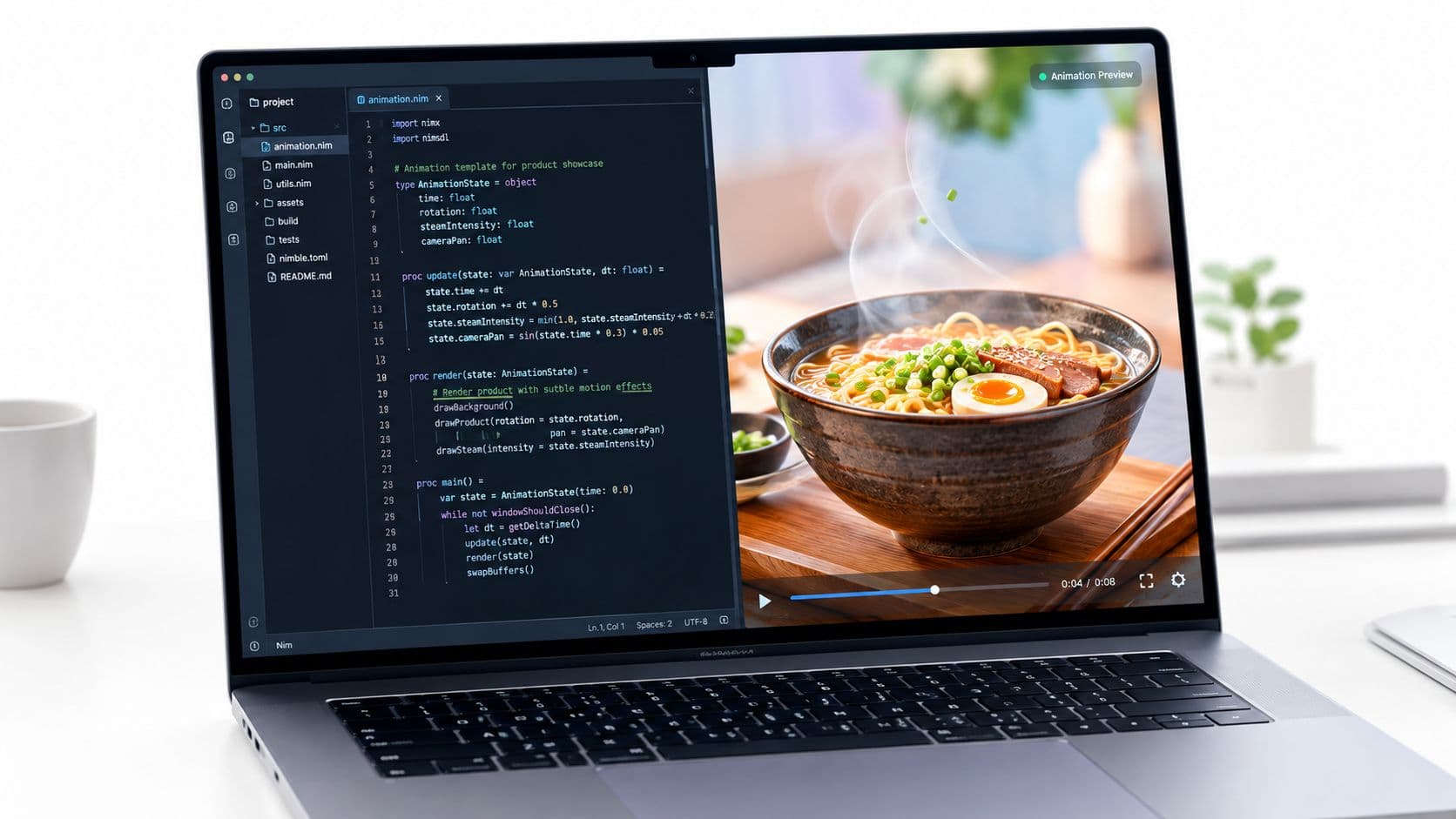
A product photo can be sharp, well-lit, and completely ready for a catalog, yet still disappear in a feed or feel flat on a product page. An image animation maker bridges that gap by turning one still image into controlled motion, without requiring a film crew, 3D model, or complex editing workflow. In Nim, the practical process is simple in principle: prepare a source image, choose a task-specific template, generate the animation, inspect the motion closely, and publish only an output that remains visually credible and accessible.
Why Static Images Limit Your Visual Strategy
A static image communicates appearance, but it can't demonstrate change. A product photo shows the object, while a short animation can suggest assembly, reveal a feature, or guide attention toward a meaningful detail. A property image can show a room, while controlled movement can create a sense of spatial flow. The useful distinction is that animation should clarify the subject, not decorate it with random movement.
The idea has a long web history. CompuServe introduced the Graphics Interchange Format, or GIF, on June 15, 1987, and its support for multiple sequential images allowed browsers to display looping animation without a separate video player. The history of animated GIF explains why simple frame-based motion became practical for banners, indicators, and compact visual effects.
Choose animation for a specific communication job
Before opening a template, define what the movement needs to show:
- Product detail: draw attention to a component, finish, opening mechanism, or assembly sequence.
- Property layout: make a plan or interior image easier to follow as an illustrative walkthrough.
- Ad creative: add restrained movement to an existing visual so the asset has more stopping power without changing the core message.
- Creator content: give a mascot, object, or still scene a deliberate action rather than forcing a full narrative into one image.
A clean source image matters more than an elaborate motion idea. The subject should be visible, edges should be distinct, and important details shouldn't be hidden by clutter. For e-commerce planning, the practical guidance in product images for e-commerce is relevant because an animation can't repair weak product photography. It can only transform the visual information already present.
For clothing brands, a related AI video generator for clothing brand resource can help teams think about how a still garment image might become a short creative asset. The same principle applies more broadly: motion extends an existing visual rather than replacing the need for a clear source.
Understanding Camera Motion Versus Object Motion
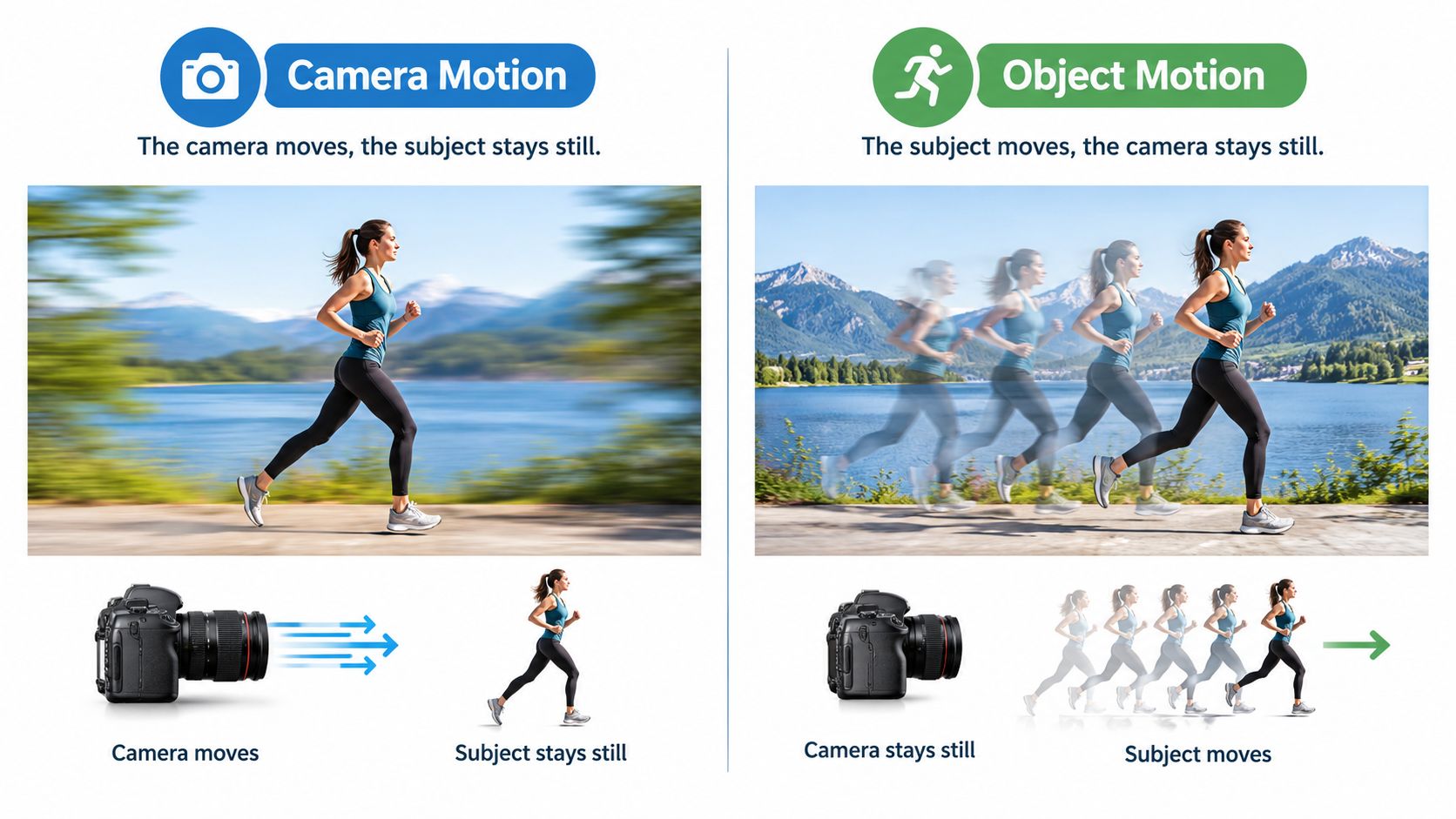
AI image-to-video systems handle two distinct jobs. Camera motion changes the viewer's position relative to a mostly stable scene. Object motion changes the subject itself. Confusing the two is a common reason for warped edges, unstable proportions, and unexpected changes in the background.
A slow push-in, lateral pan, or orbit can work well when the source has a clear foreground and background. Research on camera-aware image-to-video generation describes conditioning motion with visual information such as image edges, depth maps, and optical flow, rather than relying only on a text description of the subject. The camera-aware image-to-video research provides the technical basis for this distinction.
Match the motion to the source
A room image with visible perspective supports a gentle camera move. A floor plan can support an illustrative directional reveal, but it shouldn't be treated as a measured reconstruction. A product with separable parts may support assembly-related motion, although the generated result still needs review for geometry and order.
Object motion is harder because the system must infer how a change should unfold over time. Steam rising from a cup, leaves moving in a scene, or a product assembling each requires different assumptions about shape, depth, lighting, and occlusion. If a single request combines camera rotation, subject movement, hair movement, background parallax, and lighting changes, the system has more opportunities to contradict the source.
Practical rule: choose one dominant movement first. Add complexity only when the source image clearly supports it and the template provides a meaningful way to control it.
A restrained animation usually communicates better than an ambitious one that makes the object bend or drift. For a product, a subtle reveal may be more useful than a simulated orbit. For a property image, a slow camera-like movement may be safer than asking walls, furniture, and windows to move independently.
Executing Core Animation Workflows in Nim
Nim's task-specific templates are more useful when the source image is prepared for the intended outcome. The same upload shouldn't be treated as interchangeable across a talking object, an animated plan, and an assembling product. Each task asks the system to infer something different.
Talking Object
Start with a single object or mascot image where the main subject is unobstructed and its silhouette is easy to read. A simple, front-facing composition gives the system fewer ambiguous edges to reinterpret. Avoid tiny details, heavy overlap, or a background that competes with the subject.
Open the Talking Object template, provide the input requested by that workflow, and generate the result. The output should be reviewed as an expressive visual effect, not as evidence that the physical object has acquired real facial or mechanical behavior. If the subject's shape changes between frames, the source probably doesn't support the chosen motion.
For a broader photo-animation process, how to animate a photo offers a useful preparation reference. The core discipline remains the same: keep the source legible, make the intended action narrow, and reject results that alter the object's identity.
Animated Plan
For an animated plan, use a clean, readable floor plan with strong line contrast and minimal decoration. Labels, room boundaries, doors, and circulation paths should remain visible at the intended viewing size. A cluttered or low-resolution plan gives the animation system less reliable structure to preserve.
Open the Animated Plan template, supply the requested source, and treat the result as an illustrative presentation of spatial flow. It shouldn't be presented as a verified survey, dimensionally accurate reconstruction, or factual record of the property's actual condition. If the plan is used in marketing, describe what the animation illustrates and distinguish that from information confirmed by architectural or property documentation.
Assembling Product
For an assembly animation, choose a product image with separable parts and a clear overall silhouette. Avoid asking the system to infer hidden components that the source doesn't show. An image of a complete object can support an impression of assembly, but it doesn't prove the correct manufacturing sequence.
Use the Assembling Product workflow, provide the input requested there, and inspect whether the parts retain consistent shape and placement. A practical result may help explain how a product is organized, but it shouldn't be described as an exact instructional manual unless the sequence has been independently verified.
Quality Control and Motion Acceptance Testing
Generated animation isn't ready to publish just because the preview looks convincing as a thumbnail. Small facial changes, edge drift, and mid-motion flicker can become obvious when the viewer watches the clip repeatedly or sees it at full size. Quality control should be treated as part of the creation task, not as an optional final glance.
Research involving 229 participants found a strong correlation between familiarity and human-likeness ratings, while facial expression had the strongest effect on perceived humanness. The study on the uncanny wall helps explain why a small facial anomaly can feel more disturbing than a larger defect elsewhere in the image.
Inspect the motion, not just the stills
Use a short acceptance test before delivery:
- Check the source relationship. Compare the opening frame with the original image. Look for changed facial structure, product geometry, text, logos, and room boundaries.
- Inspect the first and last frames. The subject should remain recognizable, and the composition shouldn't drift without a clear reason.
- Review intermediate frames at 100% scale. Temporal failures often appear in the middle, where a thumbnail review hides them.
- Check high-risk regions. Examine faces, hair, thin outlines, flat backgrounds, text, and moving object boundaries.
- Repeat at the intended viewing size. A result that looks clean in a large preview may show flicker or compression artifacts on the destination surface.
For teams documenting a repeatable review process, brand protection with visual QC provides useful context around consistency and inspection. Nim's face change workflow is also relevant when facial identity is part of the task, because face drift should be treated as a rejection reason rather than a minor imperfection.
Validate the delivery file
Generation quality and delivery quality aren't the same. Export a representative clip, create delivery versions appropriate to the destination, and compare the encoded file with the available master. Inspect ringing, mosquito noise, and flicker around outlines, hair, text, and moving edges.
Technical evaluation can include perceptual review alongside objective measures such as PSNR, MS-SSIM, VMAF, and LPIPS. A video-compression benchmark tested approximately 100, 300, 600, 1,000, 2,000, 4,000, and 6,000 kbps, showing why one bitrate recommendation can't suit every type of content. The video-compression benchmark also reports bitrate reductions of up to 65% for certain tested pipelines, but that result is specific to the codec, content, and test conditions. It isn't a guaranteed Nim export result.
Accessibility and Provenance in AI Animation
An animated visual still needs a text explanation. Blind and low-vision audiences may encounter the content through a caption, alt text, or an audio description, so the description should identify the subject and explain the meaningful change. Calling a clip “dynamic” doesn't tell someone what happened.
For a product, describe the action: the lid opens, the parts come together, or the object rotates to reveal its side. For a property, describe the rooms, visible features, and transition while making clear that the animation is illustrative. If audio description is needed, it can be added during optional post-production outside Nim.
Keep the visual claim accurate
Preserve the original source image alongside the generated result. Record whether the output is a creative illustration, a composited animation, or a generated interpretation. This distinction matters for product marketing, property presentations, and any visual that could otherwise be mistaken for a literal recording.
A practical publishing note might say “AI-generated video” or “Modified using AI”, depending on the context and destination. YouTube's guidance addresses disclosure settings for content that meets its requirements, while accessibility guidance recommends pairing a visible label with accessible text. YouTube's official altered-content guidance is the appropriate reference for current platform-specific requirements.
Provenance metadata can help preserve declared information about origin and modifications, but it doesn't establish that every visual claim is true or detect synthetic content after the fact. The responsible workflow is therefore straightforward: retain the source, describe the transformation, label the AI contribution where required, and avoid presenting generated movement as documentary evidence.
Next Steps for Your Animation Projects
A usable animation begins before generation. The source image should be clean, the intended motion should be narrow, and the final file should survive frame-by-frame inspection. Accessibility and disclosure belong in the same workflow because publishing quality includes how people understand and trust the result.
Keep this checklist open while preparing the first asset:
- Select one clear source: Use a product, plan, room, or object with visible structure.
- Define one movement: Choose a camera move or one subject action before adding complexity.
- Choose the matching template: Use the task-specific Nim workflow rather than treating every image animation as identical.
- Inspect the full sequence: Check opening, closing, and intermediate frames at full scale.
- Describe the change: Pair the animation with useful text or optional external audio description.
- Preserve provenance: Keep the original image and label AI-generated or AI-modified content where required.
Choose one static asset from the current content library, prepare it using these rules, and run a test in the Nim template that matches its purpose. Reject the first result if the motion changes the subject's identity, geometry, readability, or factual meaning.
Nim provides task-specific image and video creation workflows for product visuals, animated plans, talking objects, and other creative assets. Visit Nim with one prepared image, choose the closest template, and evaluate the generated motion before adapting it for your final channel.
- image animation maker
- animate images
- AI video creation
- Nim workflows
- moving visuals