Image to Video AI Free: Practical Methods That Work
Turn any image into a video using image to video AI free tools and templates. Covers free-tier workflows, image prep, Nim templates, and export tips for social.
By Nim
"Free" isn't the same as usable. Free image-to-video AI tools can turn a still image into motion, but daily limits, short clips, low resolution, watermarks, and weak image fidelity decide whether the result can ship in a product ad, property listing, or social post.
The better question is simple: can the tool produce enough faithful clips before the allowance runs out? A product logo that bends, a room that changes shape, or a background that flickers can waste a generation even when the render technically completes.
Why “Free” in Image to Video AI Is More Complicated Than It Looks
A free image-to-video generator can produce a clip and still fail the job. The useful test is whether it preserves the source well enough for a product ad, property listing, or paid creative after several attempts. Warped logos, drifting rooms, and changing facial features turn an apparently free workflow into wasted production time.
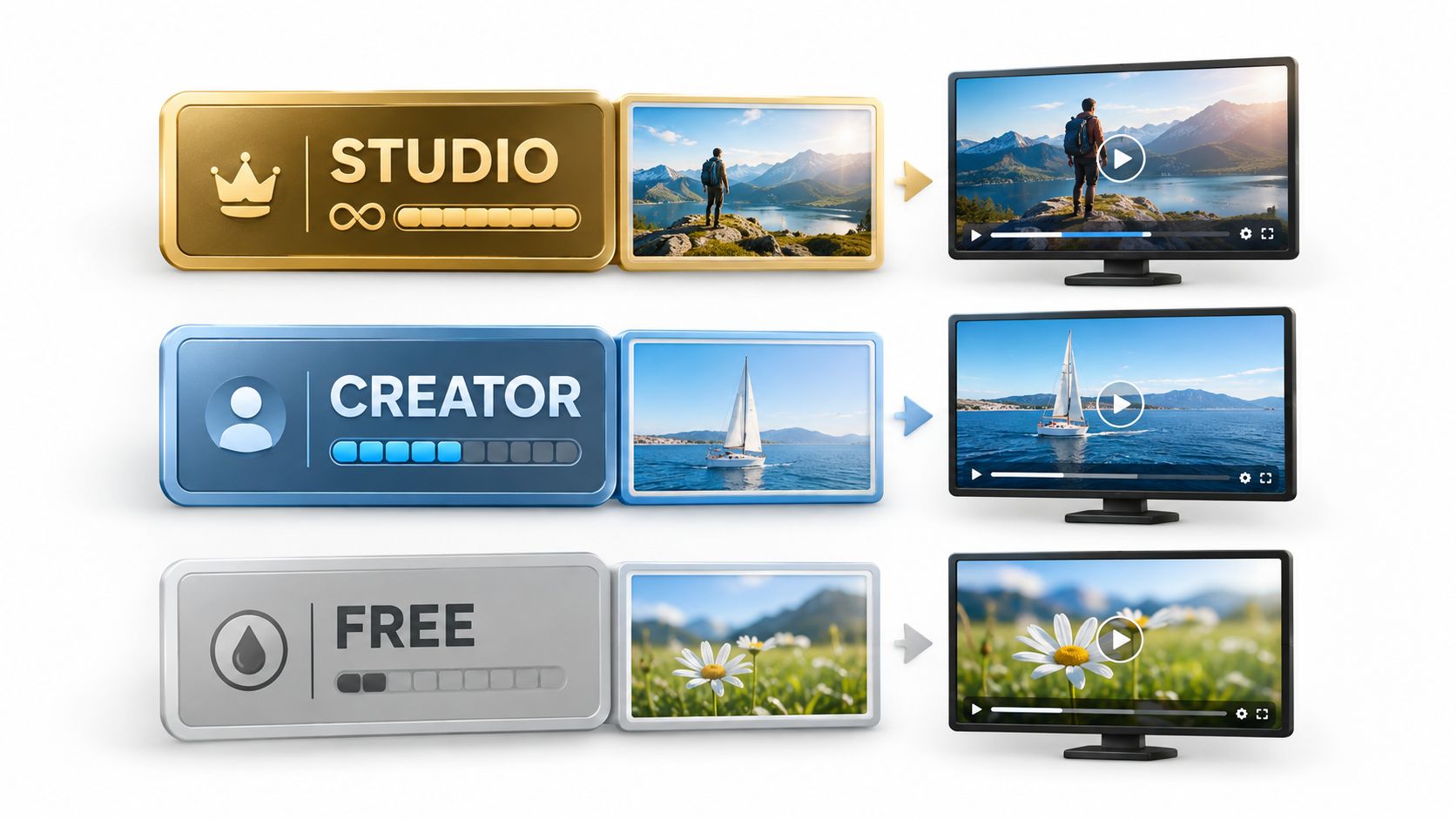
Free access usually comes with several conditions. One documented browser-based option provides 3 generations per day, with each clip lasting 3 seconds, exporting at 480p with a watermark and requiring no sign-up, according to its documented image-to-video offering. Those terms make the trade-off clear: the tool may suit a motion test, but short duration, capped resolution, and branding can block final delivery.
Use that kind of allowance to test one controlled movement. A seller can check a slow push-in on a product image. A marketer can test whether a still works as an ad opening. A property professional can assess subtle motion across an interior. The limit becomes painful when the first render bends packaging, changes the room layout, or introduces unwanted movement, forcing repeated attempts against the same daily allowance.
Free access has two separate costs
The first cost is the generation allowance. A daily reset supports repeated experiments, while one-time trial credits disappear quickly. The second cost is review time. Every failed render still demands inspection, and a clip that cannot preserve a logo, product shape, or defining room detail is not a usable deliverable.
Destination requirements matter too. A watermarked, low-resolution file may work for internal approval but fail as a client-facing asset or paid creative. The quality of the starting image also affects that decision. For background on image-generation choices and their effect on source visuals, see Writingmate's 2026 image model guide.
Practical rule: Treat a free generation as a test slot, not a guaranteed deliverable.
Start with a clean source, request one clear movement, and reject clips that lose recognizable details. If fidelity matters more than novelty, choose a specialized template when available instead of forcing a generic free animator to invent motion around a sensitive subject.
How to Prepare Your Source Image for Better AI Video Results
The source image controls more of the outcome than most free-tool comparisons admit. A cluttered photo gives the generator too many edges, objects, reflections, and depth cues to interpret. A clean image gives motion models a more stable scene to preserve.
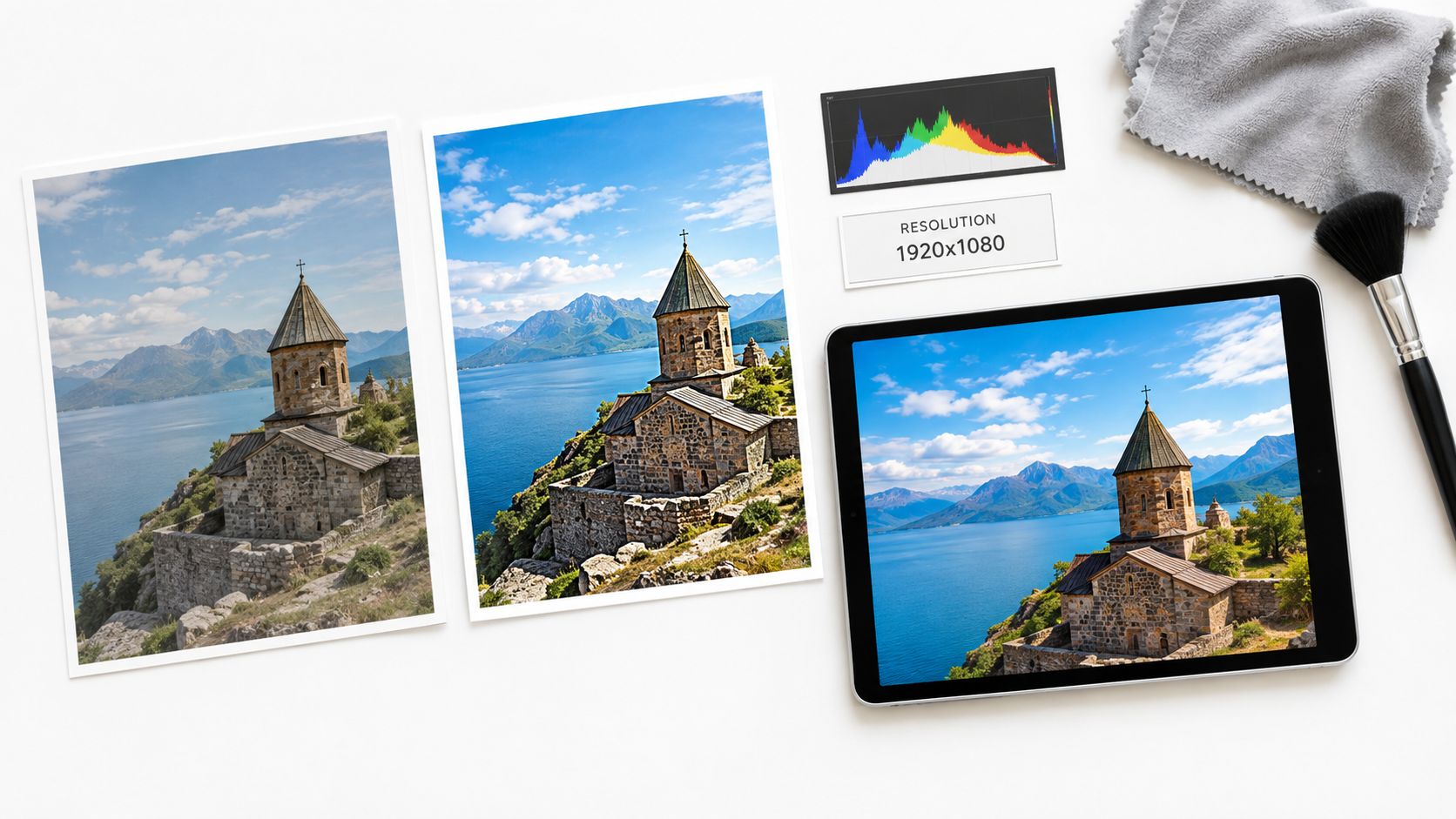
Use a preparation checklist
-
Start with the sharpest available image. Blurry text, soft product edges, and compression artifacts become more visible when the image moves. A clear front-facing product photograph generally gives the model less ambiguity than a dark lifestyle shot with several overlapping objects.
-
Keep the main subject away from the frame edges. A subject pressed against an edge leaves little room for a virtual camera move. Centered or deliberately composed subjects give the generated motion more space without forcing the model to invent missing areas.
-
Reduce background complexity. Plain walls, controlled surfaces, and uncluttered room views are easier to animate than scenes filled with thin wires, repeating patterns, mirrors, foliage, or crowds. This matters for product packaging as well as interiors.
-
Match the image to the intended placement. A vertical source suits a vertical short-form concept, while a wide source suits a widescreen presentation or property scene. Cropping later can remove important details, so composition should be considered before generation.
-
Use one obvious motion idea. “Slow camera push toward the product” is easier to evaluate than a prompt that asks for a push-in, orbit, lighting change, object transformation, and background replacement at the same time.
Check for benchmark failure modes
Independent benchmark research evaluates image-to-video generation across 11 metrics covering alignment, motion effects, temporal consistency, and video quality. Its primary failure modes include subject-background drift and temporal inconsistency, so a clip can complete while the subject warps or the background changes unnaturally, as described in the AIGCBench research.
For a property image, that means checking whether walls, windows, furniture, and floor lines stay coherent. For a product image, it means inspecting the label, cap, handle, and silhouette. A cleaner input won't remove every failure, but it reduces the number of ambiguities the generator must solve.
A workflow such as automated video tour creation can help clarify how a still property image becomes a motion asset. For a Nim-specific image animation workflow, the guide to animating a photo provides a relevant starting point.
Comparing Free Image to Video AI Options by Use Case
“Free” matters less than whether the output can ship. A tool may generate a clip without charging, yet still waste credits on warped logos, drifting rooms, or motion that makes a listing unusable. Choose the workflow around the asset and the failure you can afford.
Some platforms offer daily replenishing allowances instead of one-time trial credits, which supports ongoing experimentation. Others provide a limited batch for initial testing. Check the current allowance, clip duration, watermark rules, and export conditions before building a production workflow.
| Tool / Tier | Free Generations | Clip Length | Watermark | Best For |
|---|---|---|---|---|
| Browser-based free tier | 3 generations per day | 3 seconds per generation | Yes | Quick motion tests |
| Browser-based free tier | Varies by provider | Varies by provider | May apply | Comparing creative directions |
| Recurring free allowance | Replenishes over time | Short clips | Confirm current output conditions before delivery | Repeated image-to-video experiments |
Use the first row for a tightly limited daily test. Treat the second as a category, not a promise, because allowances vary by provider and region. A current WaveGen.ai's AI clip generator review can add context when you assess how a generation method fits your clip workflow.
Choose by the asset, not the headline
For a product hero image, fidelity outranks dramatic motion. A restrained forward movement can add polish, while a warped logo, altered label, or changing bottle shape makes the clip unusable. Start with a clean source and choose a free tier that gives you enough attempts to inspect packaging details.
For a lifestyle or social image, minor inconsistencies may be acceptable during early creative testing. Use the free allowance to see whether movement improves attention before spending time on a polished production. Reject clips where the subject changes enough to confuse the message.
For a property or interior image, structural stability decides whether the result works. Walls, windows, furniture, and room geometry should remain recognizable throughout the clip. If repeated attempts bend architectural lines or replace windows, generate less randomly. Change the source image, simplify the motion request, or select a category designed for that type of scene.
The practical choice is renewable access versus one-time access. Daily generations support repeated testing across product variants, listings, and ad concepts. Trial credits suit a quick proof of concept, but they can run out before a demanding asset set reaches an acceptable result. For paid creative, a specialized template may outperform a generic free animator because it constrains the motion around the image's actual job.
Using Nim Templates to Animate Images with Consistent Results
Generic free animators often apply the same broad motion treatment to every image. A template-based workflow takes a more specific route by matching the input and intended result to a defined creation path.
For broad browsing, Nim's templates gallery is the starting point. A product image can be directed toward Enhance Product Photo or Assembling Product, while interior and property visuals may fit Room Tour or Virtual Staging. These are different creative jobs, so they shouldn't be treated as interchangeable image animators.
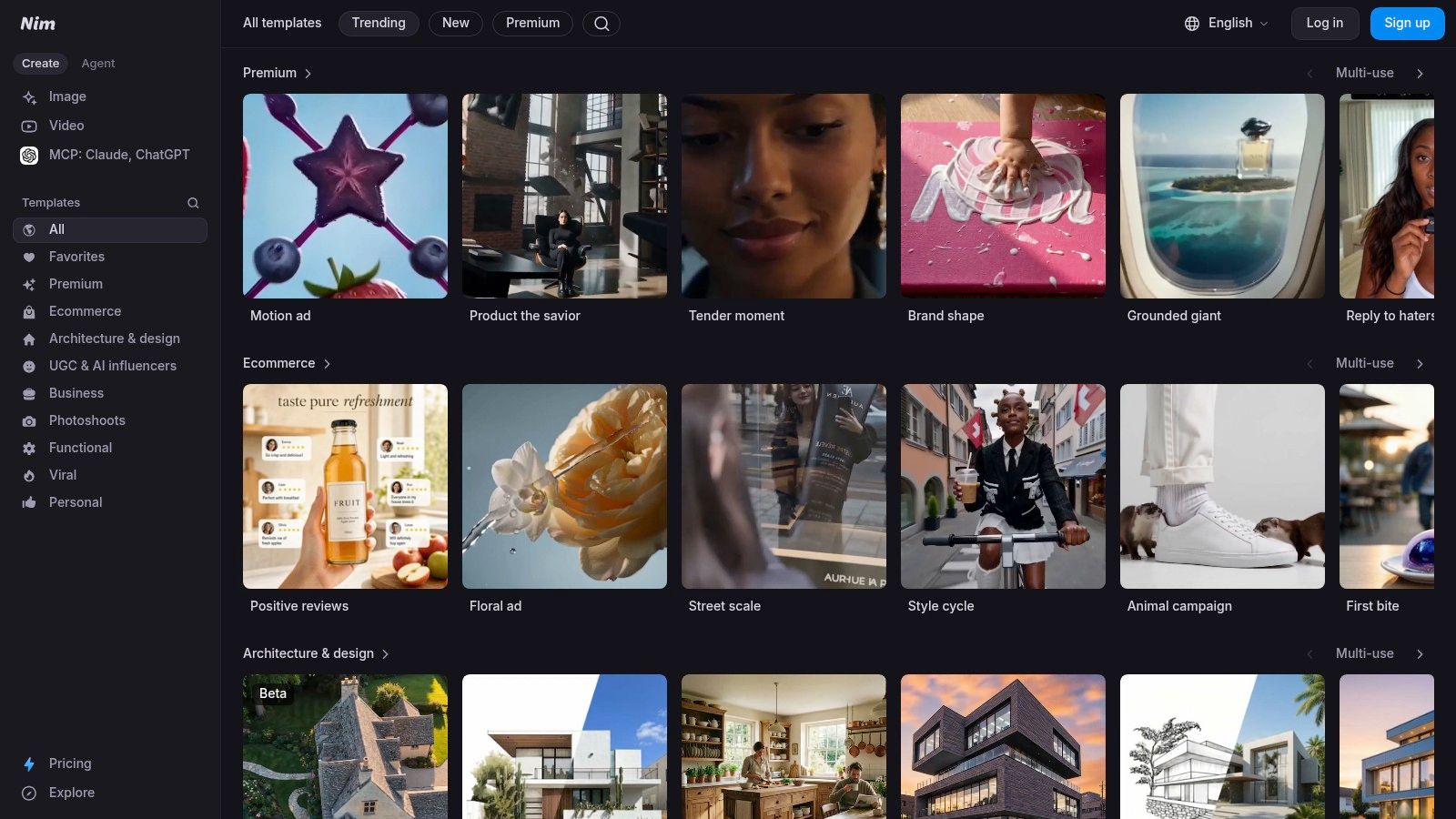
Match the input to the template
A product seller should begin with the image that best represents the item, including its recognizable silhouette and important visual details. A property professional should choose a room or property image that clearly communicates the space rather than a heavily obstructed view.
The high-level workflow is straightforward:
- Open the relevant template.
- Provide the input requested on that template page.
- Generate the result.
- Review whether the output preserves the subject and scene.
- Download the result when it meets the intended use.
The important difference is not merely motion. It's the upfront definition of what the workflow expects, which can reduce blind trial and error. A product animation should be judged by product stability. A room-oriented result should be judged by spatial coherence.
Nim is also relevant when the task involves more than a generic camera move. The product video animation guide gives product-focused context for turning still product material into a motion asset.
For production work, the right template is often more valuable than a larger menu of random effects.
Templates don't guarantee that every generation will be accepted. They do give the creator a clearer starting point and a more relevant review standard. If a free animator repeatedly produces attractive but inaccurate motion, a specialized template can be the more efficient next step.
Building an Accept or Reject Review Loop That Stretches Free Credits
A completed render is only a candidate. In one benchmark run across 60 image-to-video jobs and five models, 58 jobs completed, producing a 96.7% completion rate. The report explicitly notes that it did not score human-acceptable visual quality.
That distinction matters when free generations are limited. A clip can render successfully and still waste an attempt if it bends the subject, changes the background, or ignores the requested movement. Treat every generation as a test with a clear pass or fail condition.
Review every candidate against the source
Check each clip against the original image before using it in an ad, listing, or social post. Focus on three production checks:
- Subject stability: Does the product, person, room, or property remain recognizable from beginning to end?
- Background consistency: Do walls, shelves, floors, windows, and nearby objects stay coherent?
- Motion correctness: Does the camera or subject move in the requested direction without adding distracting action?
Watch the clip at normal playback speed, then pause on frames where the motion changes. A polished preview can still hide a warped label, altered logo, drifting furniture, or a shifting architectural line.
Reject the clip if the defect affects the message. A product ad cannot rely on a logo that changes shape, and a property listing cannot show a room whose walls or layout move between frames.
Know when another attempt is justified
Minor camera drift usually calls for a cleaner source image or a simpler motion instruction. If the subject remains intact but the movement is too strong, reduce the request rather than adding more detail. Controlled motion is more useful than dramatic motion that damages the image.
Logo warping, severe product deformation, and room distortion point to a workflow mismatch. Repeating the same generation with a nearly identical input spends another allowance without changing the cause. Replace the source, simplify the requested action, choose a more suitable workflow, or use a subject-specific template.
Accept the clip only when it works at the size and in the context where the audience will see it, not merely when the preview looks impressive.
This review gate turns free generation into a controlled process. Each attempt tests a specific source, motion request, or workflow. Each rejection tells you what to change instead of prompting another random click.
Exporting and Sizing AI Videos for Social Platforms
A usable animation can still fail after generation if its shape and quality don't match the destination. The source image should be composed with the final placement in mind, and the creator should preserve the highest quality available before a social platform applies its own processing.
Select the frame for the placement
- Vertical short-form video: Use a 9:16 composition when the audience will view the clip full-screen on a phone.
- Feed posts: Use a square 1:1 layout when the asset needs to sit naturally in a general social feed.
- Wide video: Use 16:9 for YouTube-style viewing, presentations, and wide property scenes.
These ratios are production conventions, not guarantees of platform performance. The important point is to avoid forcing a wide room image into a narrow crop that removes the windows, furniture, or architectural feature carrying the visual message.
Export the highest resolution the chosen workflow provides, then let the destination platform downscale where necessary. A low-resolution, watermarked output won't become a polished campaign asset just because it was uploaded to a larger platform. File formats should also be selected for broad compatibility, with MP4 using H.264 as a practical default when the workflow supports that export.
Finish the asset outside generation
Captions and thumbnails remain separate post-production decisions. Captions help communicate the product benefit or property detail when viewers watch without sound, while a strong thumbnail gives the clip a clear entry point in a feed or video library.
For creators turning still images into Instagram content, this guide to making a video from pictures on Instagram provides a relevant Nim-specific next step. The same review discipline still applies: confirm the image remains recognizable, the motion supports the message, and the final crop doesn't remove the important subject.
Nim offers template-based workflows for product visuals, image animation, room tours, and virtual staging, helping creators choose a task-specific path instead of relying on a generic motion effect. Visit Nim to select the template that matches the source image and intended video, then generate and review the result before using it in a campaign or listing.
- image to video AI free
- AI video generator
- image animation
- AI video tools
- free AI video