Product Video for Amazon: How to Make One in Nim
Make a product video for Amazon in Nim: match each clip to the right placement, prepare source images, and check specs before you upload.
By Nim
A seller has a clean set of listing photos, a product shoppers keep asking questions about, and no practical way to film it. The usual response is to make one polished clip and hope it fits everywhere. That rarely works, because a product video for Amazon has to answer a specific purchase question and satisfy the rules of one specific placement.
Most sellers need two cuts from one product, not one master file. A longer demonstration belongs on the detail page, where it can show setup, scale, and use. A short advertising cut needs a different length, frame, and pace. Amazon reports that detail pages with uploaded videos saw a 23.8% increase in sales in internal U.S. data collected from January through June 2024, according to Amazon's guide to shoppable videos. That figure is a benchmark from one period and sample, not a guarantee for every listing. The useful takeaway is narrower. Video earns its place when it removes uncertainty that still photos leave behind.
Amazon Video Formats and Specs at a Glance
Start with the placement, because the placement decides everything else. A product detail page video sits on the listing and can run long enough to demonstrate assembly or walk through a mechanism. An ad placement has seconds, not minutes, and it must land its point almost immediately.
For the detail page, Amazon's Seller Central product video reference lists MOV or MP4 at up to 1080p, a maximum file size of 5 GB, 16:9 or 9:16, and a duration of 1 to 12 minutes. Each video must be associated with at least one ASIN, and the thumbnail must be JPEG, PNG, GIF, or BMP under 5 MB. Copy the exact ASIN before generating anything, since a clip built for the wrong variant creates rework later.
The Spec Lookup
| Placement | Duration | Aspect ratio | Format and resolution | Size and other limits |
|---|---|---|---|---|
| Product detail page video | 1 to 12 minutes | 16:9 or 9:16 | MOV or MP4, up to 1080p | Up to 5 GB; thumbnail under 5 MB; ASIN required |
| Sponsored Brands video | 6 to 45 seconds (20 seconds or less recommended) | 16:9 | MP4 or MOV, 1280x720, 1920x1080 or 3840x2160 | Up to 500 MB; H.264 or H.265 codec |
| Amazon online video ads | 6 to 120 seconds | 16:9; 9:16 in specified inventory | Site-served file at minimum frame size for orientation | Up to 500 MB for site-served files; minimum 1920x1080 horizontal or 1080x1920 vertical |
Online video ads sit apart from both. Amazon's online video advertising specifications set a minimum bitrate of 4 Mbps and recommend 8 Mbps, with exact durations such as 6, 15, 20, 30, or 60 seconds performing more predictably in campaigns. Those are advertising rules, and they don't replace Seller Central requirements.
Practical rule: Read one row, build one cut. A 90-second demonstration won't work as a short ad, and a 6-second clip is too thin to carry a detail page.
The draft itself starts from a clean product image in the E-commerce templates collection. Decide which row the draft serves first, generate only that cut, and treat the table as the reference point before export. Sellers who reverse that order usually end up trimming, reframing, and regenerating work that a five-minute spec check would've prevented.
Preparing a Source Image That Holds Up in Motion
The video is built from the image, so flaws in the photo carry straight into the clip. A soft edge becomes a wobbling edge. A cropped corner stays cropped. A prop sitting beside the product can read as an included accessory once the frame starts moving.
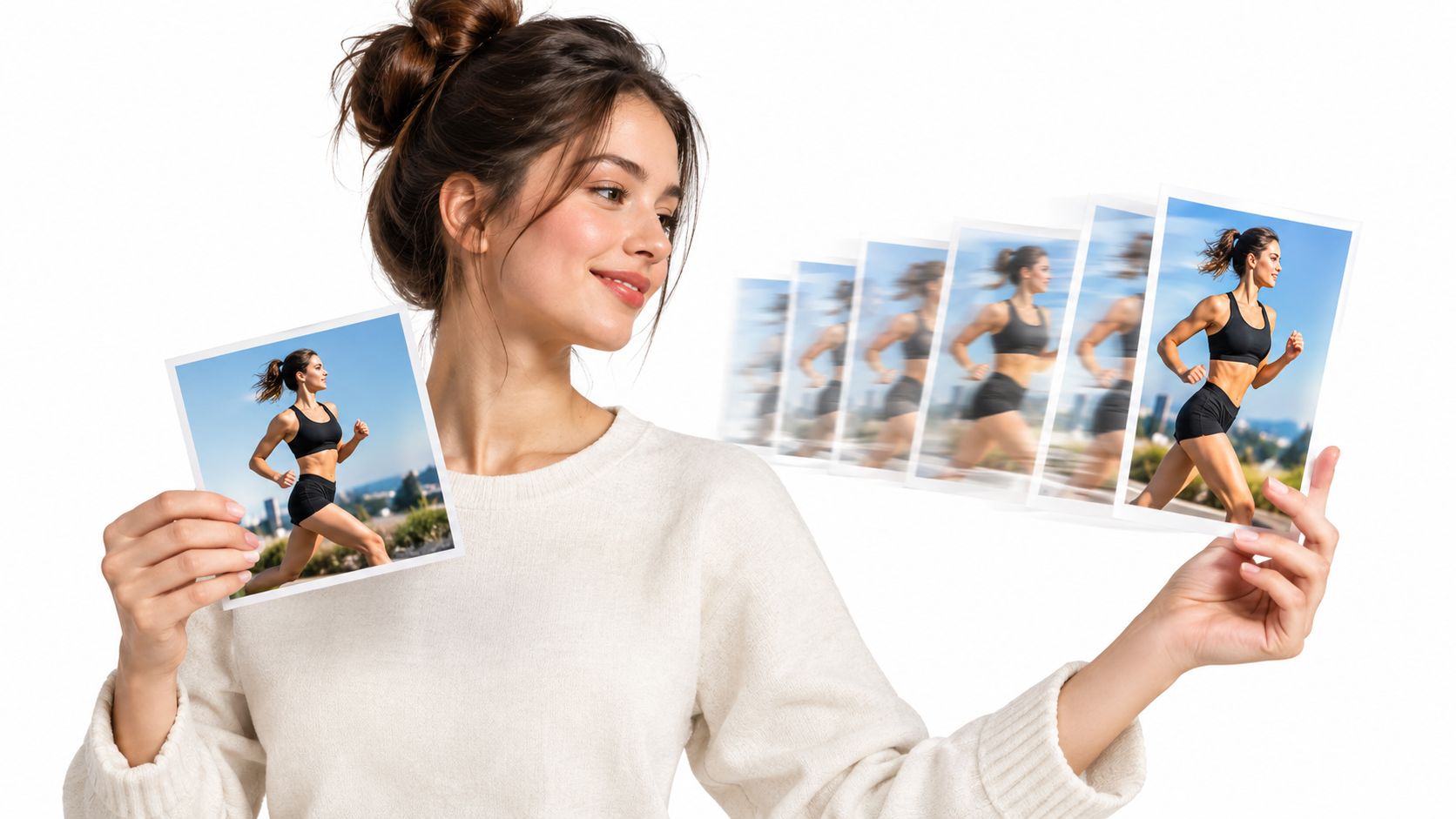
Input Checklist
- One clear subject: The product is the obvious subject, fully in frame with no cropped edges.
- Uncluttered background: Nothing behind the product competes with it or implies extra contents.
- No stray text: Watermarks, badges, and packaging claims that don't belong in the listing stay out.
- Readable detail: The port, hinge, stitching, or label that matters is sharp and large enough to read.
- Correct variant: Colour, size, and finish match the exact listing the video will support.
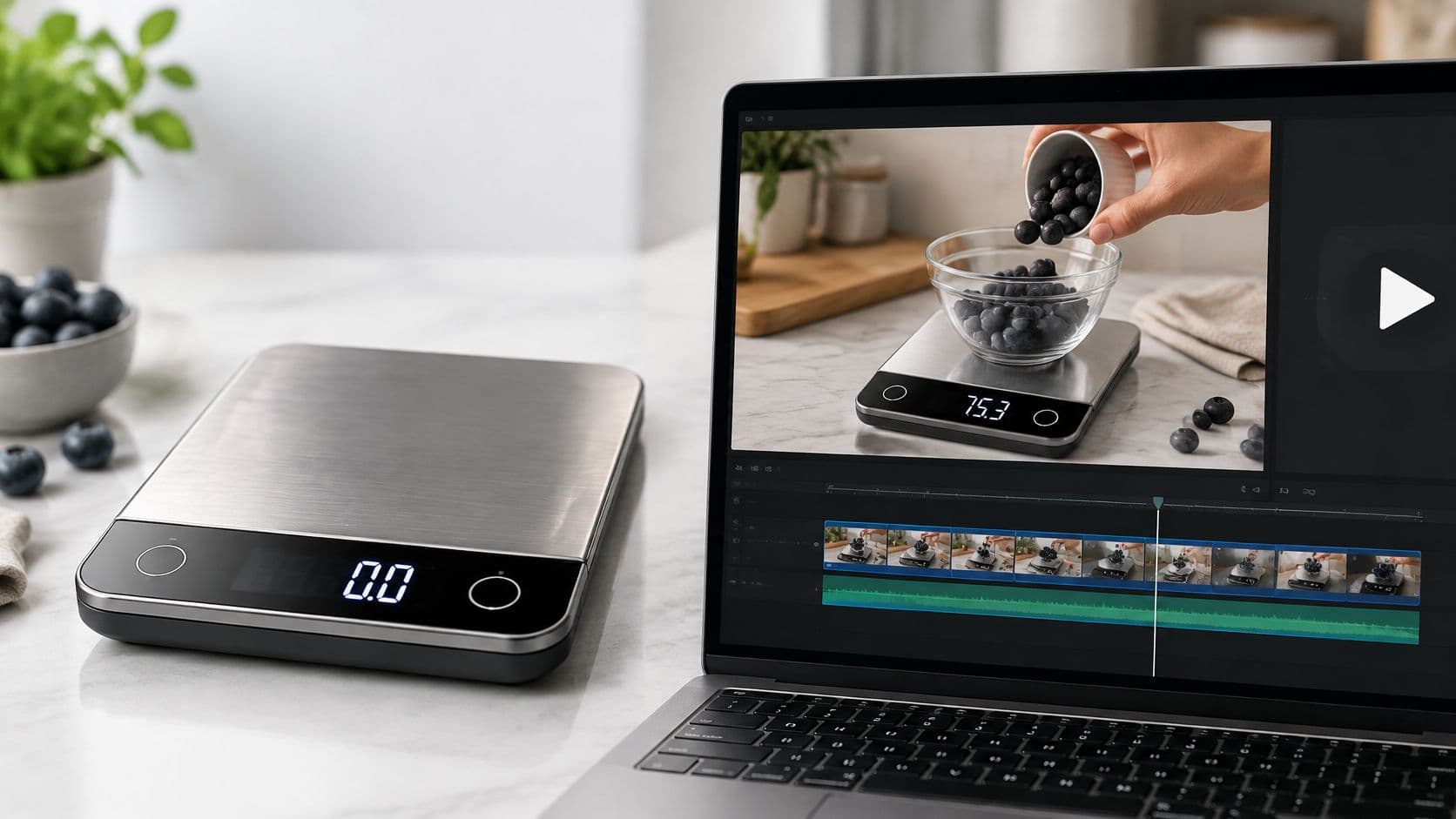
A kitchen scale photographed with its display turned away gives a template nothing useful to show. The same scale with the display visible supports a clear demonstration of a reading changing as items are placed on it. The product hasn't changed. The input has, and the resulting clip is entirely different in usefulness.
Sellers working from soft or dim photos can prepare the image first with Enhance product photo before building the video. Resolution problems in a finished clip are a separate finishing job, handled with Upscale. The broader principles behind strong source photos are covered in this guide to product images with AI.
Use the largest original photo available rather than a compressed copy pulled from an existing listing. Then view it at full size before uploading it anywhere. Defects that look minor in a thumbnail become obvious at full frame, and motion makes them harder to ignore.
Matching the Shopper Question to a Template
Start with the question a shopper will ask, then pick the effect that answers it. A dramatic motion treatment cannot resolve a concern about assembly. Each clip should address one purchase question and suit its intended placement.
| Shopper question | Template to open | Input to prepare |
|---|---|---|
| How does it assemble or set up? | Assembling product | Clean product image and the inputs the template requests |
| What does it look like in real use? | UGC ads | Product image and the inputs shown on the template page |
| What does the product look like overall? | E-commerce templates | Clean product image with the product fully in frame |
Templates can request different inputs. Check the selected template page and prepare only what it asks for. For example, if a template requests a supporting asset as well as a product image, a product photo alone will not meet that input requirement. The product assembly effect prompt offers a related example of matching the prompt to an assembly-focused result.
A wall shelf bracket raises a specific concern: will it install with the included parts? An assembly-focused clip addresses that question. A face serum raises a different one: how much to apply and how it looks going on. An in-use clip is a better fit. If a product has no assembly step, an assembly effect adds little, however striking its preview may look.
If the shopper question can't be stated in one sentence, the template choice isn't ready yet.
A useful clip answers one clear hesitation; decoration alone does not. The store-side discussion of how to improve ecommerce conversion rates also focuses on addressing reasons shoppers hesitate. Keep the template decision tied to the question and the placement. If the source photo is soft, changing templates will not correct it, and a soft finished clip needs a separate finishing step.
How to Build the Draft in Nim Step by Step
Build the draft around one shopper question and one placement. That keeps the clip focused and gives you a clear basis for reviewing whether the result answers the question.
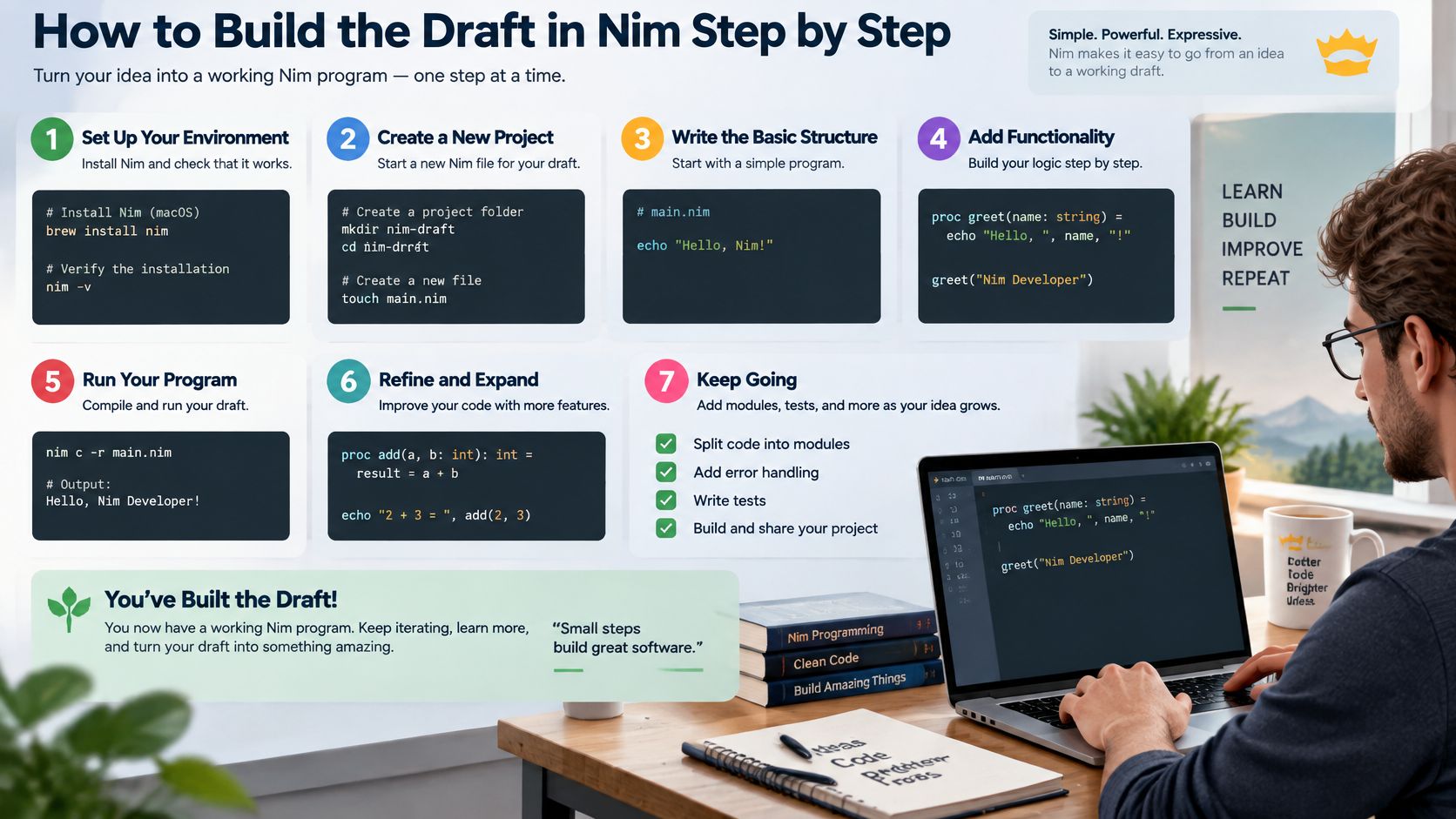
Build Sequence
- State the purchase question. Choose one point a shopper needs to see, such as how the product assembles, how large it looks in a hand, or how a clasp opens. One question per clip keeps the draft easy to assess.
- Check the source image. Confirm it shows the same product variant as the listing, then inspect it at full size. If the product is unclear in the source, motion may make that harder to judge.
- Open the matching template. Choose the template that fits the question, rather than selecting an effect first and trying to find a use for it.
- Provide the inputs the template requests. Templates vary, so follow the specific page. Keep the material consistent with claims the product can support.
- Generate and inspect the opening frame. The product should be identifiable at once, without depending on a later edit to explain what is being shown.
- Review softness before judging the draft. If the result looks soft, use an appropriate finishing step outside the template workflow, then assess whether the demonstration is clear.
- Keep the approved draft distinct from rejected attempts. That makes it easier to identify the version intended for later review and upload.
Make the Opening Answer the Question
Use the first seconds to show the main uncertainty: scale, fit, setup, texture, or mechanism. A product's movement and appearance matter most when they help the shopper judge that specific point.
Amazon's seller presentation on shoppable videos reports that customers who watch videos are 3.6 times more likely to convert than customers who do not. The figure describes an association between viewing and conversion, not proof that adding any video causes the difference. Since shoppers who press play may already be interested, use the opening to show relevant product evidence rather than relying on atmosphere.
Say the product is a compact tool. Showing it in a hand, beside a familiar object, gives the shopper a quick reference for its scale. A slow rotation against a clean background may look polished, but it leaves the size question unanswered. For a clip meant to resolve that doubt, the scale view is the more useful opening.
Pause the draft two seconds in. Can a shopper identify the product and the question the clip addresses? If not, revise the opening so both are clear.
Voiceover, captions, music, and final editing are separate post-production tasks outside the generation step. Uploading happens in Seller Central, not within the template workflow. Review the generated draft against the actual product before treating it as a finished asset.
Cutting Short Ad Clips and Testing Variants
A short ad needs its own cut, built from the approved draft rather than trimmed from a detail page video. The ad must identify the product and answer one purchase question quickly, including for shoppers seeing it for the first time.
Choose one hook. Show the product in the opening, then demonstrate the feature shoppers are unsure about. Cut details that do not support that question, even if they looked good in the longer version.
Sponsored Brands Limits
For Sponsored Brands, 20 seconds or less is highly recommended. That shorter target calls for one hook and one focused demonstration, rather than several features competing for attention. Use the Sponsored Brands video specifications for the remaining placement requirements, and build a cut for that placement instead of assuming the detail page version will fit.
Keep on-screen text simple so the picture carries the point when watched without sound. For practical guidance on structuring a short selling clip, see drive sales with Klap's video playbook. For frame layout choices, use this guide to ad creative design.
Three Variants, One Variable
- In-use variant: Shows the product doing its job in a realistic setting.
- Setup variant: Shows assembly or first use when that step may cause hesitation.
- Benefit variant: Leads with the single outcome the product delivers.
Change one variable at a time across the same product and ASIN. Keep the first frame constant, for example, and swap only the demonstration that follows. This makes the comparison useful: you can assess whether a setup sequence or an in-use sequence better addresses the chosen purchase question.
Compare outcomes in the campaign's ad reporting, and avoid conclusions from a small run. A variant that appears to lead on limited data may not hold up as more impressions arrive. Test focused cuts before regenerating a full set based on an early signal.
Check Each Draft Before You Upload to Seller Central
A colour, size, or part mismatch can make a polished clip misleading. Compare the draft with the product and listing before upload, and check that each cut answers one shopper question in the placement it is intended for.
| Check | What to confirm | If it fails |
|---|---|---|
| Product accuracy | Colour, shape, size, and parts match the listing | Regenerate from a cleaner source image or remove the unsupported detail |
| Demonstrated feature | The main purchase question is visible in the first seconds | Reorder the shots so the feature leads |
| Placement fit | Duration and aspect ratio match one row in the spec table | Trim or re-export for that placement |
| ASIN | The exact ASIN is gathered and the video maps to one product | Confirm the ASIN before upload |
| Thumbnail | JPEG, PNG, GIF, or BMP, under 5 MB | Export a clear frame in a supported format |
| Overlays and claims | No text or claim the product cannot back up | Remove the unsupported text or claim |
How to Run the Review
Compare the draft with the physical product and listing photos side by side. Pause through the first few seconds frame by frame. A colour or part mismatch that flashes past at normal speed is easier to spot on a still frame, especially near the opening, where shoppers first see the product.
Check placement fit against the spec table rather than relying on a template default. The duration and aspect ratio need to match the intended placement. Confirm the thumbnail format and size, along with the ASIN, before preparing the upload. This catches file and product-mapping problems before an upload attempt.
A draft that looks impressive but misrepresents one included part is worse than no video at all.
Fix a failed check at its source. For an accuracy problem, regenerate from a cleaner image; do not cover the error with text. If the opening misses the feature shoppers need to see, reorder the shots so that feature leads. If the cut does not fit its placement, re-export it to match that placement before uploading.
Keep the decision specific to the draft. A clip can show the right product and still fail because its opening hides the useful feature, its format does not fit the placement, or its thumbnail is unclear. Check all six rows, then upload only a version that passes. Keep rejected drafts out of the upload folder to avoid selecting one by mistake.
- product video for amazon
- Amazon product video
- Nim AI video
- Amazon ad video
- product video specs