Product Video for Ecommerce: A Practical Nim Guide
Create a product video for ecommerce with Nim's templates. Practical steps, inputs, and review tips for product demonstration videos that convert.
By Nim
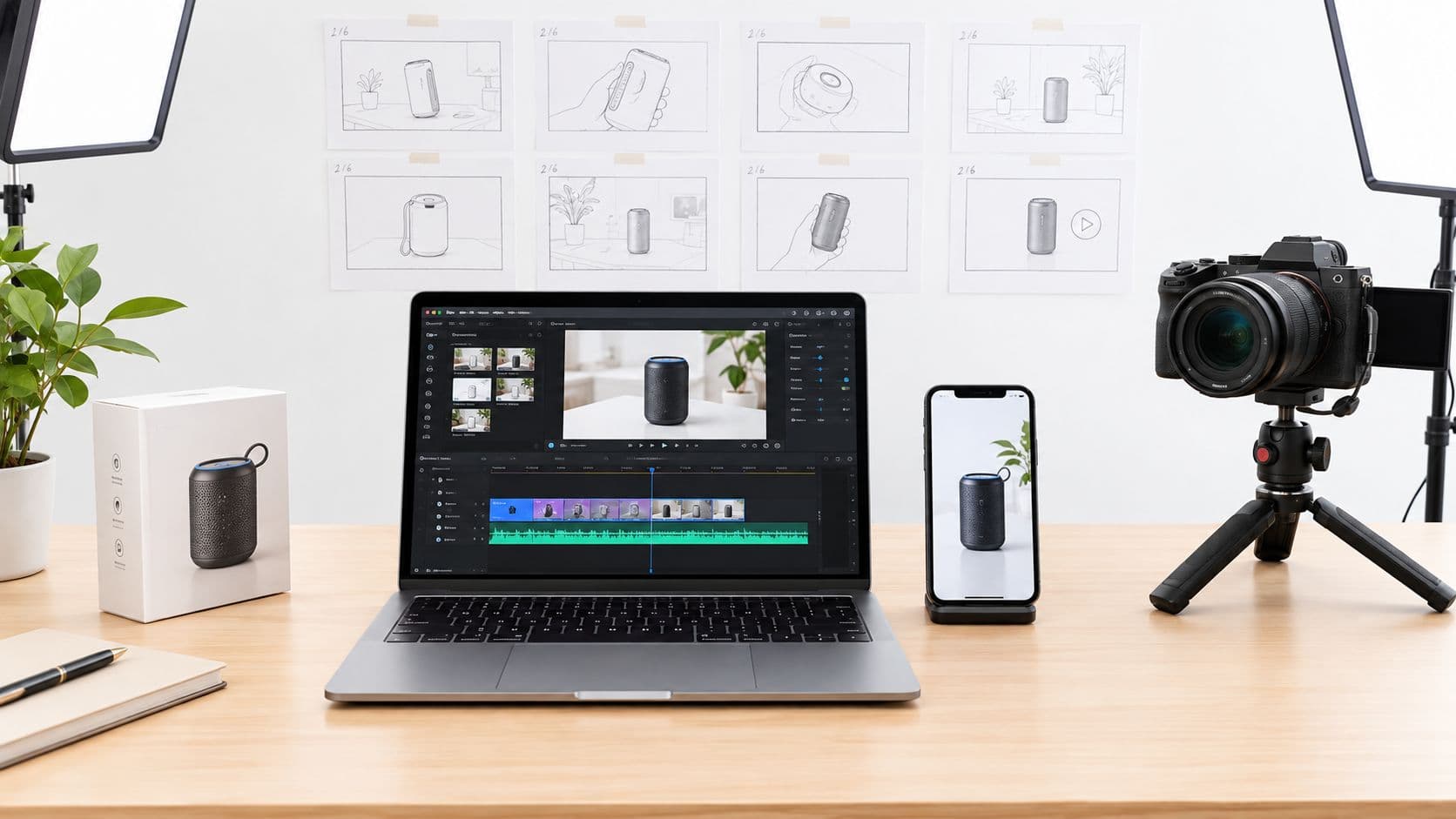
A product listing can have sharp photos and complete copy yet still leave one practical doubt: how does the item open, fit, assemble, or work? The useful answer isn't to add a video for its own sake. It's to choose a clip that resolves one buyer question, using a Nim workflow that matches the asset already available.
Choosing the Right Nim Template Before You Generate
A seller with a finished product listing might expect one general video maker, then find that a generic result doesn't show the detail buyers need. A better starting point is the buyer's question and the input available. Nim's E-commerce templates category is for browsing product-specific options once the item type and task are clear.
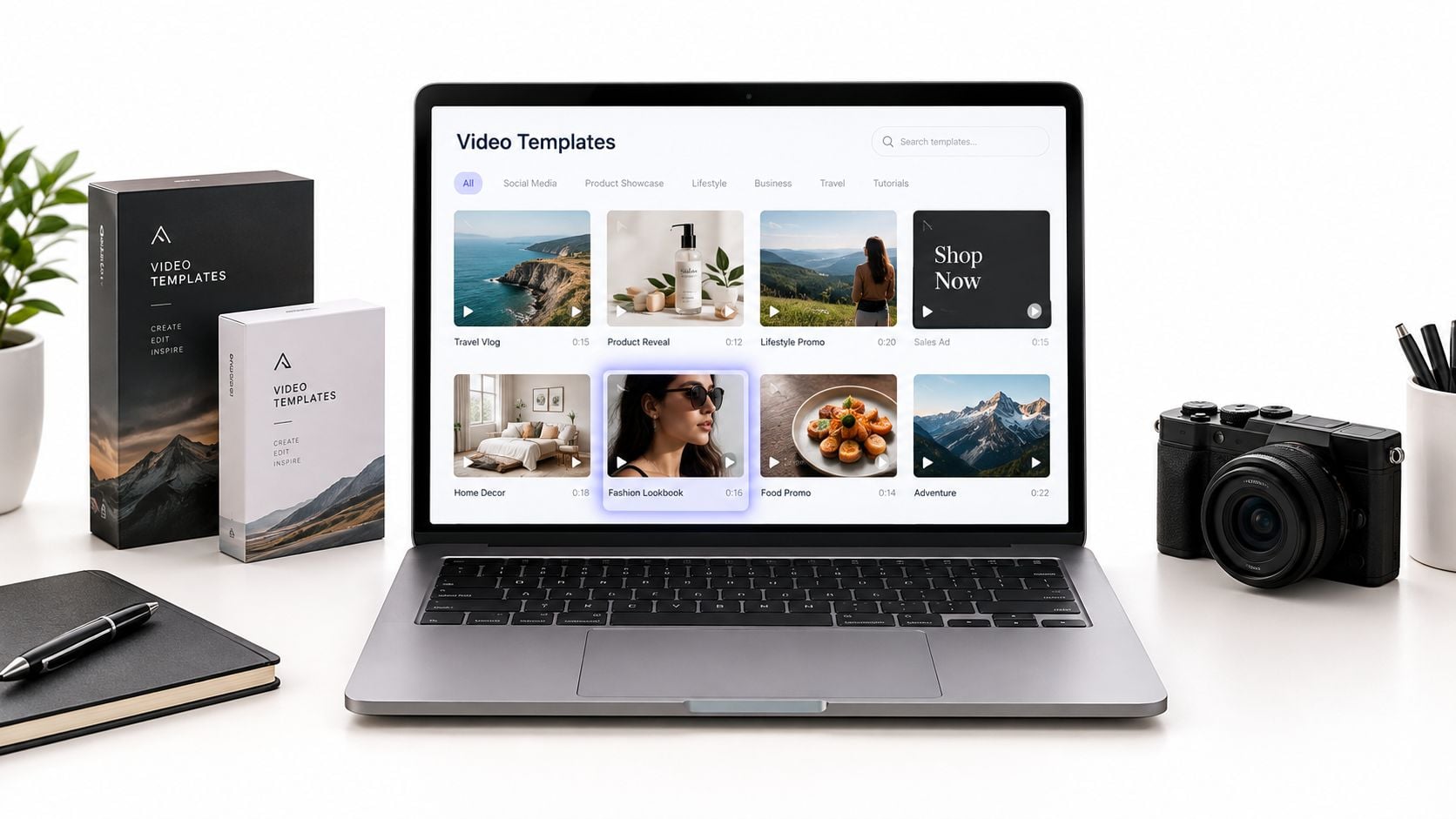
The four workflows have distinct jobs:
- Assembling product starts with a product image and is suited to showing an item opening, coming together, or being unpacked.
- URL to UGC video takes a product page URL and creates a short talking-style ad creative. It's relevant when the listing already explains the product clearly.
- E-commerce templates is the category to browse when the seller knows the product type but hasn't chosen a specific treatment.
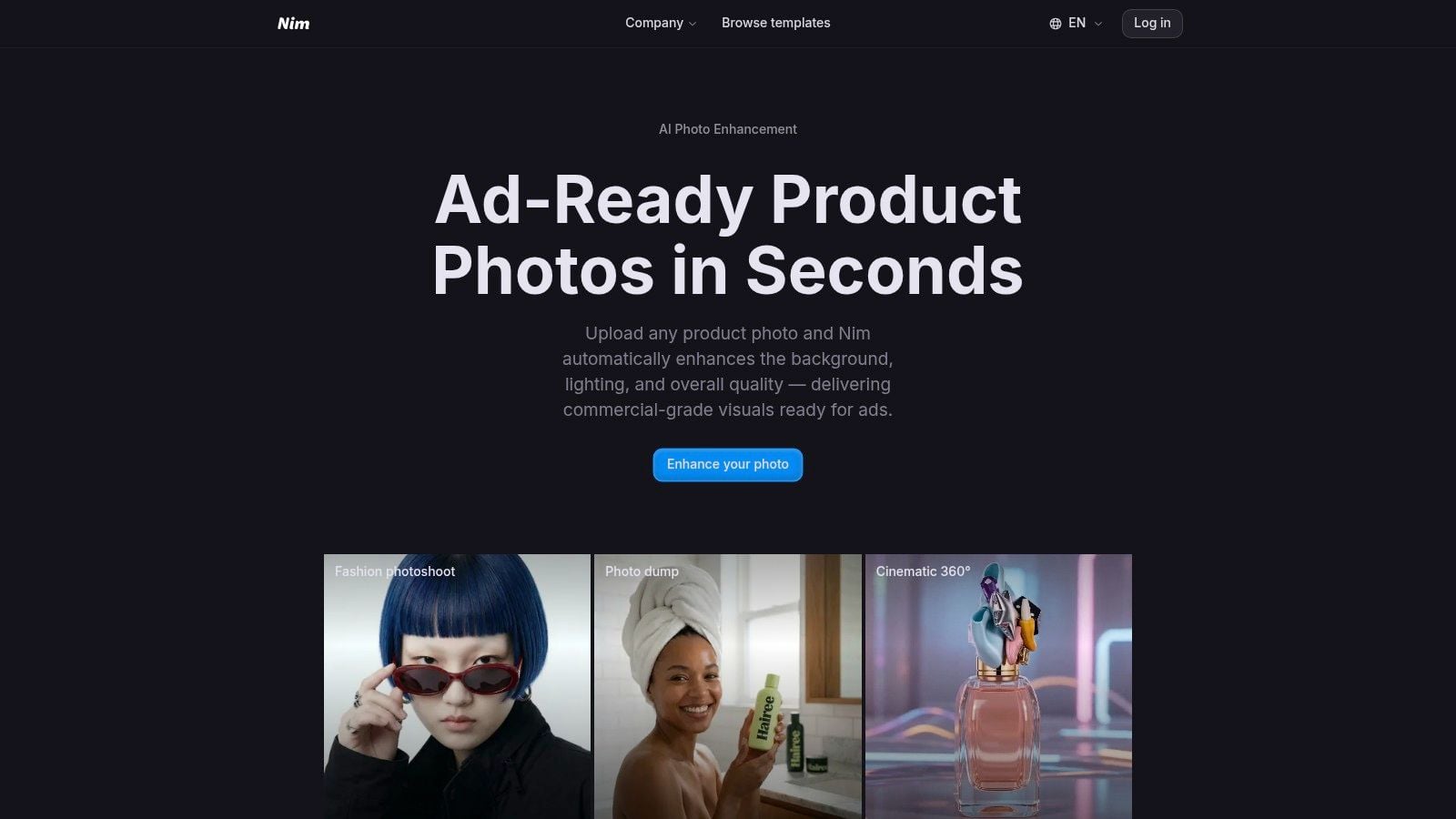
- Enhance product photo works upstream. It prepares a still image that can then be used in another workflow.
These are different routes, not interchangeable versions of one process. A pack shot that needs a motion demonstration calls for a different template from a public product page that can supply information for an ad. Starting with the wrong input often wastes time: sellers may try to solve a weak source image by generating more variations, or browse broadly without knowing what the clip must explain.
Decision rule: Pick the template whose confirmed input matches the asset already in hand, then make the clip answer one buyer question.
For product video for ecommerce, the first useful question might be “How does this fold?” or “What does this look like in use?” Once that question is specific, template choice gets simpler.
Building a Demonstration Clip with Assembling Product
A product still can be enough to start a demonstration when the missing information is about movement. The Assembling product template is suited to turning a static pack shot into an assembly or opening animation. Prepare the source image before opening the template so the generation starts with a clear view of the item.
Prepare the image around the action
Choose a well-lit still with the product easy to distinguish from its background. Frame it for the intended placement, and avoid cropping off the edges or features that need to remain visible during the demonstration. If the clip is meant to show how a foldable item opens, the image should make its overall shape and key moving parts easy to see.
Keep the brief to one action. A clip that tries to show assembly, styling, dimensions, and every feature at once can leave the buyer with no clear answer. For a useful example of the kind of product detail that can matter to a shopper, this page on a foldable helper tower for toddlers shows an item where folding and setup are natural questions.
Review the generated motion
After generation, check whether the product still looks like the item in the listing and whether the movement demonstrates the intended action. Look closely for changed shapes, invented labels, or logos that weren't in the source. If the motion suggests a use or assembly step the listing doesn't support, don't treat a polished appearance as proof that the clip is accurate.
A generation-ready checklist keeps review practical:
- Product identity: Does the item remain recognizable?
- Buyer question: Does the movement show the action the clip is meant to clarify?
- Visible details: Are labels and product features consistent with the source and listing?
- Scope: Does the clip stick to one demonstration instead of implying unverified functions?
If the source image doesn't show a necessary angle or mechanism, a generated animation may not supply reliable detail. Improve the source or choose another buyer question rather than expecting a single still to establish every product fact.
Preparing Source Imagery with Enhance Product Photo
An unclear source image can limit every video that uses it. A compressed marketplace thumbnail, a shadow-heavy hero shot, or a still with indistinct edges gives a downstream template less useful visual information to work from. Enhance product photo is a preparation step, not the final product video.
Improve the still before using it elsewhere
Start with the image intended for the product clip. Use the Enhance product photo template to improve the source still, then use that prepared image in a suitable downstream workflow, such as Assembling product. This is most useful when the object is already present but the photo needs clearer detail or lighting.
Enhancement has limits. It can't provide a missing product angle or replace a photograph that hides the feature the clip needs to show. If the product's hinge, texture, or opening mechanism is absent from the source, the next step is to obtain a better reference image, not to assume an enhancement can recover details that were never visible.
For a broader look at preparing product visuals with AI, see this guide to AI product images. Sellers working on pet-product graphics may also find Nandog Pet Gear's clipart resource list useful when gathering visual references. Keep source assets focused on the actual product when the output needs to support a specific product-page claim.
Source quality sets the ceiling. A clean still makes it easier to review whether a generated clip preserves the item's appearance, while a poor source can send sellers into repeated generations that don't address the underlying problem.
Turning a Product URL into a Short UGC Ad
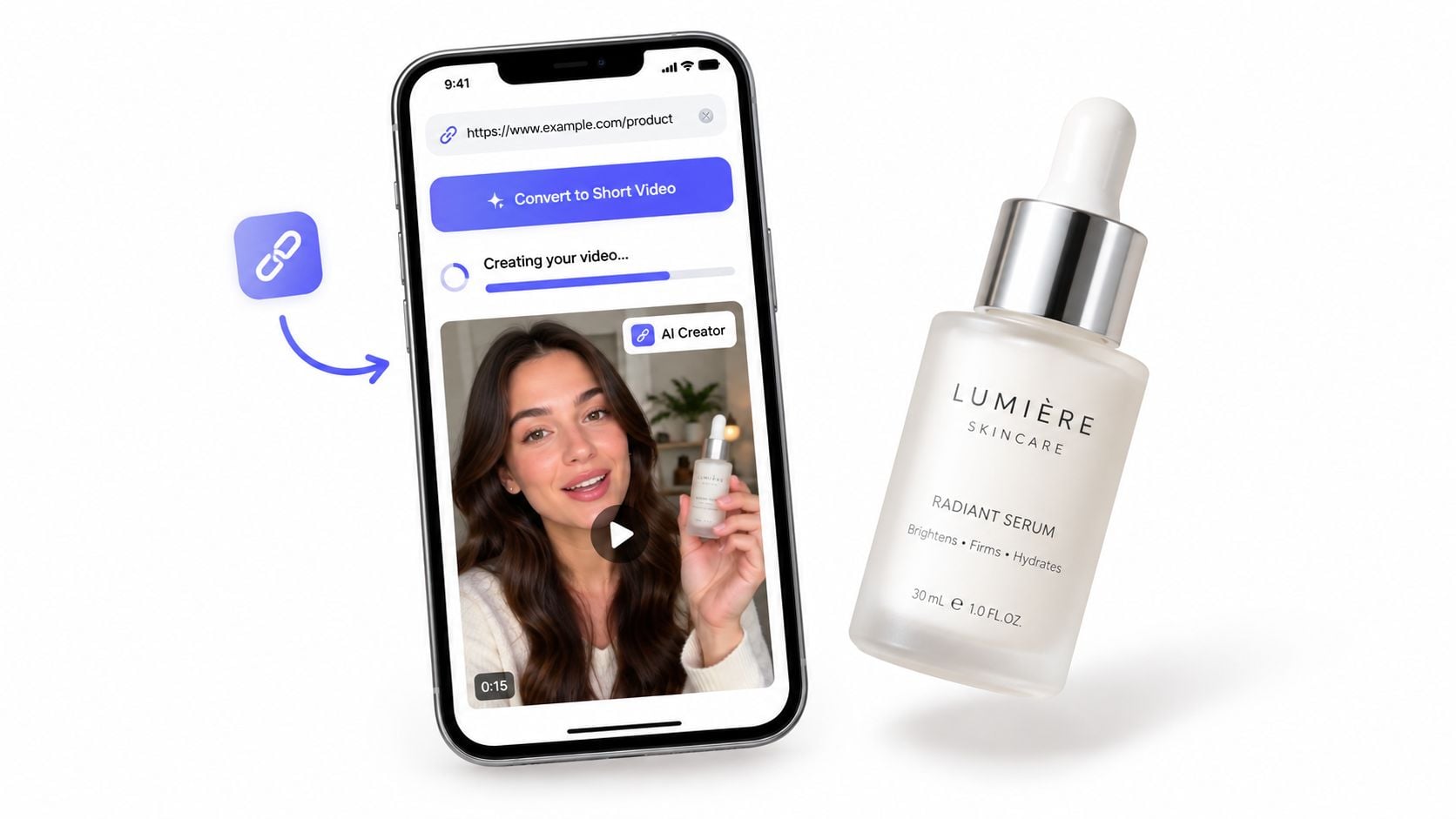
When a product page already has a clear title, hero image, price, and benefit copy, it can serve as the starting input for an ad-style clip. Nim's URL to UGC video template takes a product page URL and creates a short talking-style video. That makes it a distinct route from a photo-led product demonstration.
Use a page that can support the message
Choose a public product page with information that clearly identifies the item and explains its listed benefits. A thin or inconsistent page gives the generated ad little reliable context. Before using the URL, check that the page presents the product the same way the intended campaign should.
Read the first output as a draft, not as verified product copy. Ask whether the presenter describes a benefit stated on the page. Check that the product, price, and any visible claims align with the listing. If the clip invents an effect or makes a stronger promise than the page supports, don't publish it as-is.
Sometimes the source page is the issue. If its title is vague, the main image is unclear, or the benefit copy is missing, fix those gaps before trying another generation. Repeating the same input is unlikely to resolve a missing fact.
The broader UGC ads category is a separate path for browsing related ad templates. Sellers who want a different creative treatment can explore the category rather than assuming every ad workflow takes a product URL. For practical production context on showing a physical product clearly, these car wash video filming tips offer examples of details a demonstration can make visible.
For more on the format, Nim's guide to an AI UGC video generator provides additional context. Whatever route is chosen, factual review matters more than a convincing presenter style.
Matching Buyer Questions to the Right Nim Workflow
A template decision can be made before opening a workflow. Match the buyer's doubt to the task the clip needs to perform, then prepare the input that route accepts. This avoids choosing a format first and searching for a way to make it fit.
| Buyer question the clip must answer | Best Nim template or category | Primary input to prepare |
|---|---|---|
| How does it look in the hand or on a person? | UGC ads category | Product page URL or product photos |
| How does it assemble or open? | Assembling product | Clean product still |
| How do I improve an existing product image first? | Enhance product photo | The source image |
| Where can I browse product video templates together? | E-commerce templates category | Product type to guide browsing |
The first row is broad because an ad creative and a product demonstration serve different purposes. A URL-led UGC ad can draw on a product page, while a photo-based route starts with the product image. The seller's choice depends on whether the clip should present the product through an ad-style treatment or show a particular physical action.
For assembly or opening, start with a clean still. For image improvement, prepare the actual source image rather than a description of the desired result. If the product category is known but the buyer question is not, browse the E-commerce templates category, then narrow the choice to a single task.
A good template choice is one where the input is ready before generation and the intended buyer takeaway can be stated in one sentence.
Reviewing and Refining Your Generated Clip
A clip can look polished and still be a poor product-page asset. The review needs to test accuracy and usefulness, not just whether the motion feels smooth. Start by checking that the product remains recognizable, then verify that the action matches what the listing says it does.
Review at phone size and without sound
Mobile deserves an early review because video-commerce usage is concentrated on phones. One reported benchmark found that 77.3% of widget impressions and 73.3% of video views occurred on mobile; these are figures from that benchmark, not a forecast for every store (benchmark details). Shrink the clip to phone size and check whether the product and its key action are still clear.
Sound is optional for Google Merchant Center product videos, so the main benefit should also make sense visually. For TikTok-style ecommerce ads, its small-business guidance recommends a 9:16 vertical frame exported at 1080 × 1920 or higher, with text and captions placed inside safe zones so interface elements don't cover them (TikTok's video advertising guidance). These are platform requirements and recommendations, not Nim controls.
Check the file and the visible claims
Google says product videos should be sharp and in focus, without black bars along the edges (Google's product-video quality guidance). Review the final composition for blur, letterboxing, and details that could mislead a shopper. Reject invented logos, text, or claims about size and function that the listing doesn't substantiate.
A silent-viewing pass is useful even when a clip has sound. Can a shopper understand what the product does from the visible action alone? If not, the problem may be the source image or the concept. Where captions or other accessibility elements are needed, handle them in a suitable post-production process; don't assume an unverified Nim control.
The point isn't to force every product into a vertical ad frame. It's to review the clip in the format and placement where shoppers will see it, then correct an unclear source or regenerate when the action fails to answer the intended question.
Treating the First Clip as a Product Page Test
A product video should earn its place by helping the listing do its job. Treat the first clip as a controlled test: keep the image-led product page as the control, add one focused video variant, and avoid changing the price, copy, and layout at the same time. That makes it easier to see whether the clip itself is associated with a meaningful change.
Track add-to-cart rate, conversion rate, average order value, time on page, and returns. Compare results by product category, device, traffic source, and new versus returning visitors where the store's measurement setup allows it. Don't judge the creative by views alone; a clip that attracts attention but misrepresents the product can create disappointment after purchase.
A six-month test across 50 Shopify and Shopify Plus stores reported a 14.8% median conversion lift from adding product-page video, with top-quartile stores reporting 32–67%. The same test reported a 4.2% median increase in average order value and a 7.3% decline in return rates (test methodology and results). Treat these as an external benchmark, not a Nim guarantee. For a useful framework for shaping and assessing creative, see this guide to ad creative design.
The practical next step is to open Nim's E-commerce templates category, choose the template that matches the buyer question in the table, and prepare its matching input before generating. Keep the first test focused so the result tells you whether that particular clip belongs on the product page.
Nim offers ecommerce templates for product-focused visuals and video workflows, including image preparation, demonstrations, and URL-led UGC-style ads. Visit Nim to choose a workflow that matches the product question your next clip needs to answer.
- product video
- ecommerce video
- Nim templates
- AI product demo
- UGC ads