Room Tour Video in Nim: How to Make One from a Photo
Create a room tour video in Nim from an interior photo: open the Room Tour template, generate, review and download, plus what to check before publishing.
By Nim
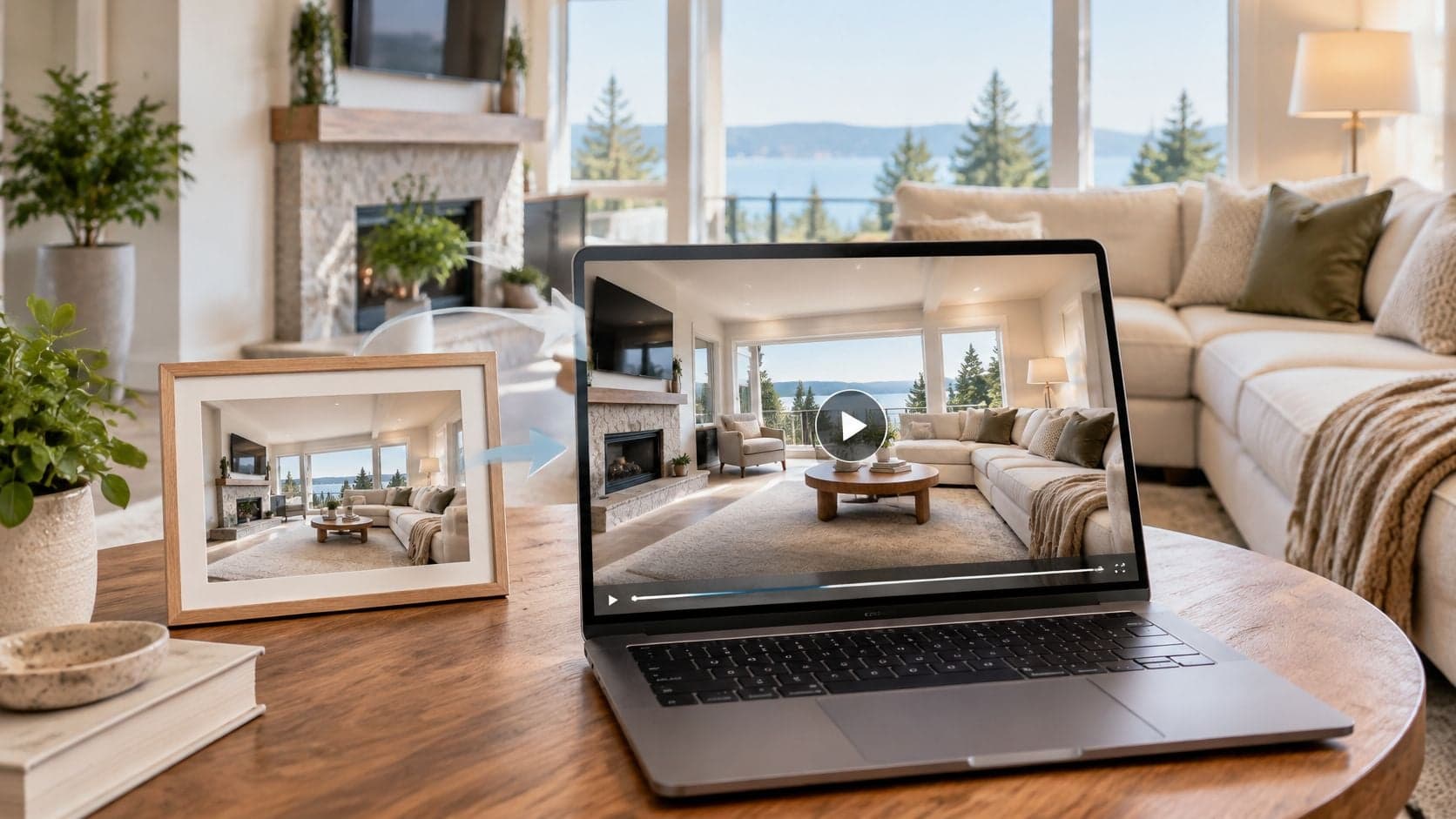
Open the Room Tour template, provide the requested room photo, and generate the clip. Review it against the original before downloading. Label it as a visual presentation and pair it with a floor plan and listing photos so buyers can distinguish what the video shows from details they still need to verify.
A moving view can make a room's visible arrangement easier to follow. Keep the clip faithful to the photo, and use the floor plan for layout and dimensions.
What a Nim Room Tour Actually Produces
The Room Tour template in Nim turns a supplied interior photograph into a walkthrough-style video presentation. Once the generated sequence passes review, the result can be downloaded for use alongside other property materials.
The file is a visual presentation derived from a photograph, not a measured survey, a floor plan, or an inspection record. Generated movement interprets the visible scene. It doesn't establish what exists outside the frame, confirm room dimensions, or prove that furniture will fit through a doorway.
The distinction matters in listing marketing. In the National Association of REALTORS® 2023 Profile of Home Staging, buyers' agents considered listing photos important or very important to clients in 77% of cases, compared with 42% for virtual tours.
Match the clip to a useful job
- Listing supplement: Give viewers a moving impression of an interior while retaining clear still photos and factual property descriptions.
- Presentation asset: Use a room clip in a sales presentation or social post where movement helps explain the visible arrangement.
- Design concept: Present how a proposed or staged interior could feel, with its illustrative status made explicit.
A bedroom clip might show the apparent relationship between a bed, desk, and window. It can't confirm whether a larger bed would leave sufficient clearance around the wardrobe.
Before generation, write down the audience's main question. If answering it requires exact dimensions, the publishing package needs a verified floor plan or measurements alongside the video.
Prepare the Room Photo and Generate the Tour
The input decides how much usable visual information the generator has. A sharp image with readable boundaries gives it a stronger starting point than a dark photograph that shows mostly furniture and leaves the walls unclear.
Input qualities to check before opening the template
| Input quality | Why it matters | Check before uploading |
|---|---|---|
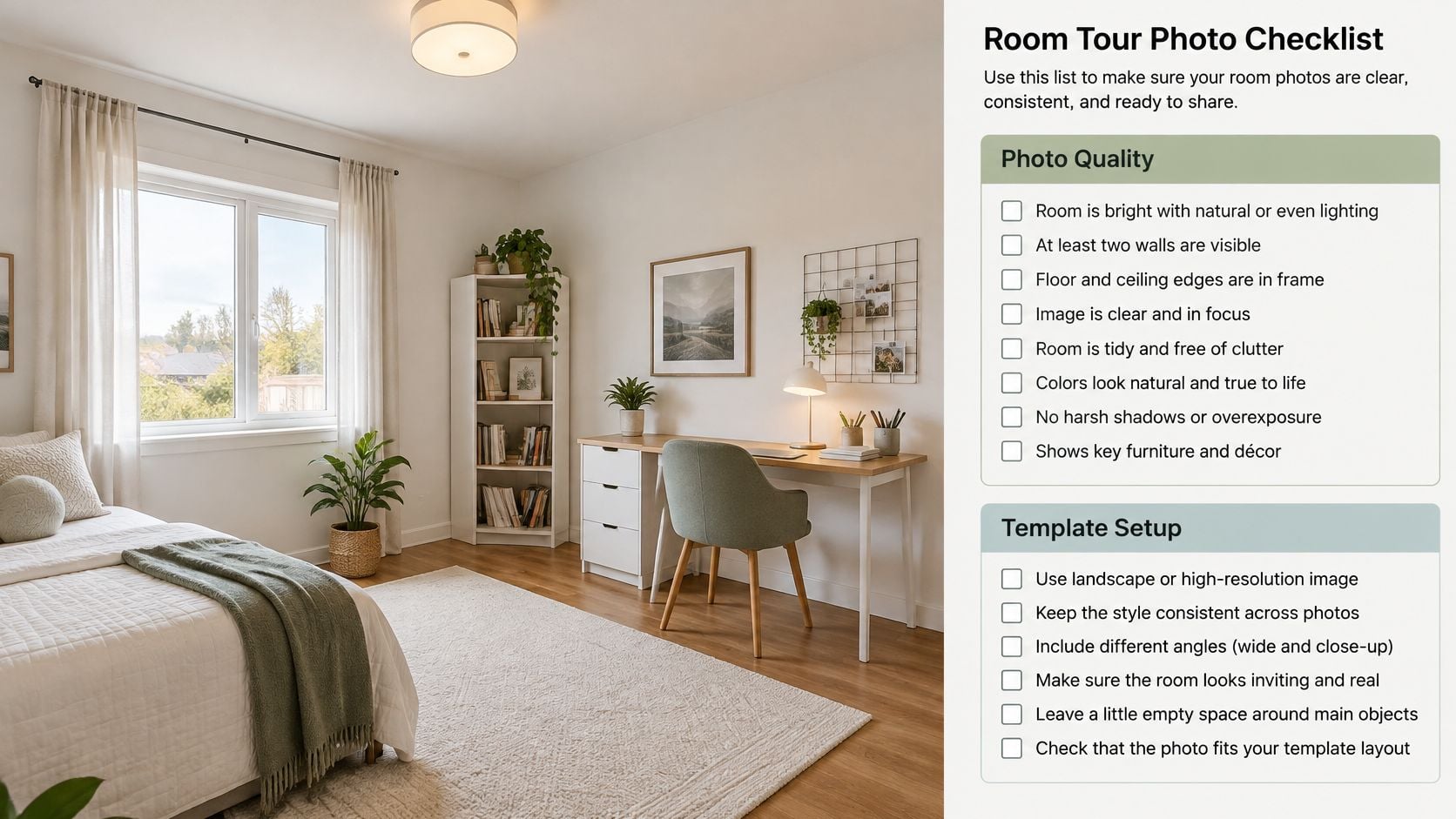
| Full room extent | The tour has to infer room boundaries from the frame | At least two walls and the floor and ceiling edges are visible |
| Bright, even light | Dark rooms give weak detail and unclear depth | Daylight or studio light, no deep shadow pockets |
| Level camera | Tilted frames bend vertical lines | Walls and door frames look upright in the viewfinder |
| Corner or doorway viewpoint | Shows how walls meet and how the room connects | Camera is in a corner or doorway, not mid-wall |
| Decluttered floor | Keeps furniture relationships readable | Loose items removed, fixed furniture kept |
Nim's Room Tour guide recommends sharp, well-lit source photographs with broad room coverage and clear natural or studio lighting. It also identifies heavily distorted wide-angle images, dark interiors, and unclear geometry as weak inputs.
The illustration below shows the kind of organized interior and preparation checklist that supports this task. It isn't a verified generated result.
Prepare the room without changing its story
Remove laundry, loose cables, delivery boxes, and small objects that interrupt the visible floor area. Keep permanent fixtures and the furniture relationships that explain how the room is used. Decluttering should make the scene readable, not conceal a problem.
For a bedroom with a desk, preserve the gap between the chair and bed rather than photographing only the decorative corner. That gap helps viewers understand the apparent circulation path. A beautifully styled close-up is a poor source if it leaves the room's boundaries outside the frame.
Seasonal styling also needs restraint. Homes By Carmen's guide to prepare your house for autumn showings offers context for making a home feel welcoming before photography; any decorative additions should leave doorways, windows, and walking routes visible. The home staging tips guide provides additional preparation ideas for interiors intended for visual presentation.
If the photo is too dark to distinguish a chair from the wall behind it, reshoot before generation. Increasing brightness afterward won't reliably recover missing edges or clarify geometry.
Generate a room clip
-
Open the Room Tour template. Read the source input it requests before uploading. The displayed form, rather than a memorized sequence, determines the applicable controls and requirements.
-
Supply the prepared photograph of the intended room. Check the image itself, not just its filename. Similar bedroom photographs or older staging versions can easily lead to the wrong source being used.
-
Complete text fields only if the form requests them. Follow the fields displayed and leave unrelated controls alone. Don't assume that a prompt or a particular setting is required.
-
Generate the tour and allow it to finish. Work on each room separately so that every result has a clear source photograph for comparison. This is a review method, not a claim about template input limits.
-
Compare the generated sequence with the original image. Use the publishing checklist below to inspect perspective, object placement, lighting, and any movement that reveals unsupported features.
-
Download only after the clip passes review. Keep rejected results out of the publishing folder so they aren't accidentally included in a listing or presentation.
The common mistakes happen before or after generation: choosing the wrong room image, overlooking poor light, or downloading an attractive result without checking it. Completing this process leaves a reviewed clip for the room, ready for use or for repeating the task with another interior.
Plan the Room Order for a Multi-Room Tour
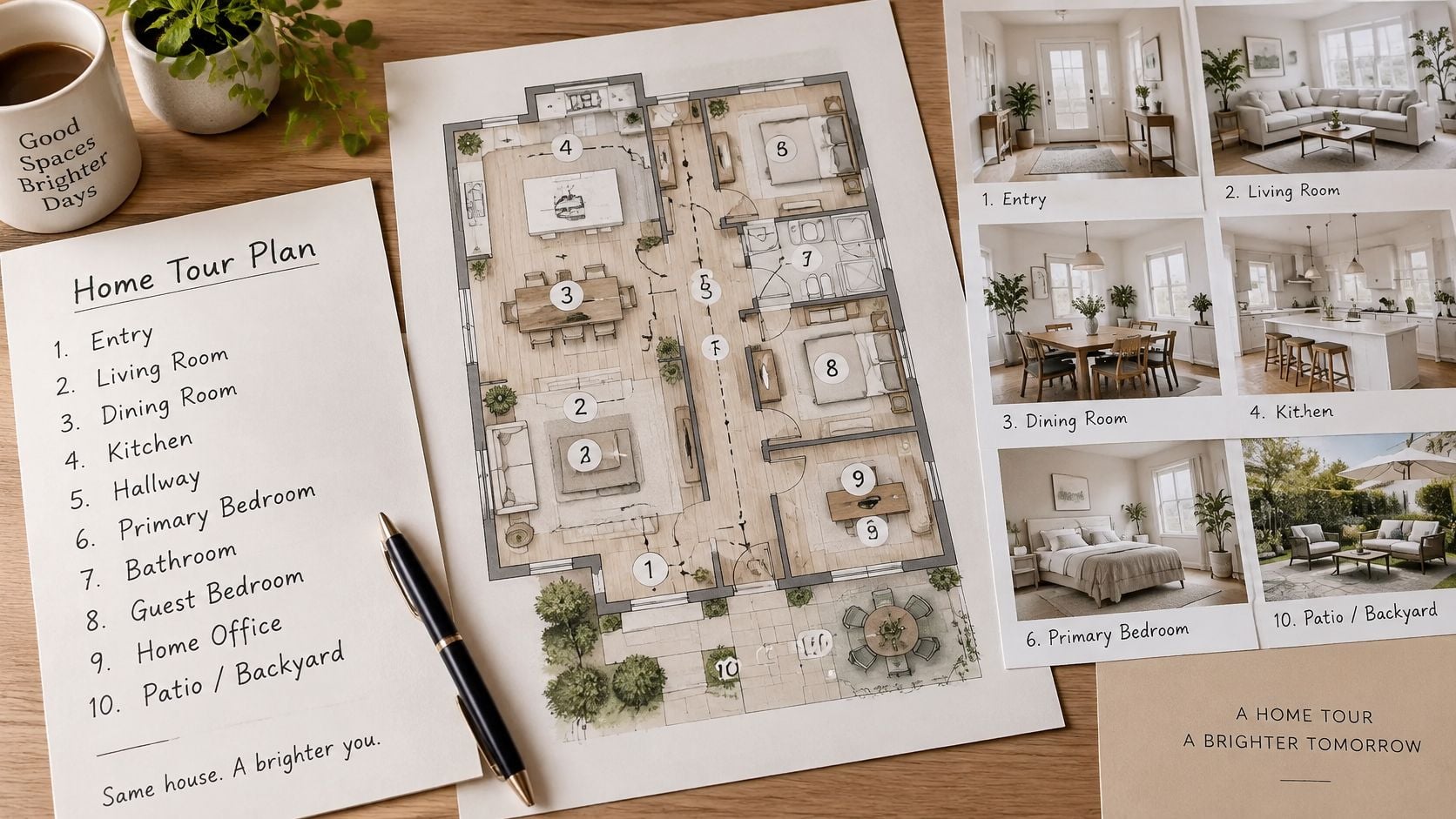
A visitor enters a home, reaches the main living spaces, and then moves toward more private rooms. A multi-room presentation should follow that route rather than jump between unrelated attractive views.
For example, a two-bedroom flat could have five selected clips arranged as entry, living room, kitchen, hallway, and bedroom. That's an editorial selection, not proof that the video documents every room. If another bedroom or bathroom isn't included, the listing materials should still make those spaces available through photographs or plans.
This planning illustration shows how room photographs can be organized around a floor plan before clips are generated.
Build the route before assembling the media
- Write the path a visitor would take, beginning at the entrance. A typical sequence is entry, living area, kitchen, hallway, bedrooms, then bathroom.
- Collect a clean source photograph for each selected room. Keep camera height and lighting broadly consistent so adjacent views don't feel unrelated.
- Generate each room separately with the Room Tour template, following the input requirements displayed there.
- Compare neighboring clips for light, colour temperature, and apparent ceiling height. Check that each room remains recognizable rather than trying to force identical lighting across different spaces.
- Arrange the reviewed downloads in visitor-path order. Joining them into a film is a separate editing task outside the room-generation workflow.
The Colibri Real Estate photography guide recommends a room-by-room shot list, walkthrough ordering, and interior capture with the camera roughly four to five feet above the floor. Its advice to begin with a strong exterior image works for the listing sequence as a still photograph; it doesn't establish that the Room Tour template accepts exterior inputs.
An editorial cut between rooms is clearer than a fabricated doorway that pretends to connect them.
For a broader presentation, the real-estate virtual walk-through guide provides context for planning property media. Confirm template input limits on the actual page, and budget separately for clip assembly.
Review Each Result Before You Publish
Run the generated clip beside the original photograph. Pause during movement, especially where furniture edges, doorways, and windows change perspective. An attractive opening frame doesn't establish that the rest of the sequence is suitable for publication.
The Northwest Multiple Listing Service photography guide identifies curved walls or doorways, stretched furniture, and disproportionately large windows or fixtures as warning signs of wide-angle distortion. Those same features deserve close inspection when evaluating movement derived from an interior image.
Run the comparison checks
- Straight verticals: Walls and door frames should remain upright without leaning or bowing.
- Furniture proportions: Sofas, beds, and tables shouldn't stretch, shrink, or change shape during movement.
- Windows and fixtures: Compare their apparent size with the source, particularly near the frame edges.
- Object placement: Furniture and other visible items should stay in the relationships established by the photograph.
- Transitions: Movement must not invent doors, rooms, or openings that the source doesn't show.
- Lighting: The clip shouldn't suggest a different time of day or materially different brightness.
- Defects and fixed features: Stains, damage, and permanent fixtures must not disappear or become obscured.
Failed results and what to do next
| Symptom in result | Likely cause | Next action |
|---|---|---|
| Walls or door frames lean or bow | Tilted camera or wide-angle distortion | Reshoot level from a corner or doorway |
| Sofas, beds or tables look stretched or shrunk | Lens distortion in the source | Reshoot with less wide-angle coverage |
| Windows or fixtures look oversized | Perspective exaggeration | Reshoot from a farther corner |
| Items move from where the photo placed them | Generation drift | Regenerate; if it persists, reshoot |
| Doors, rooms or openings appear that the photo does not show | Invented transitions | Reject the result and do not publish |
| Lighting suggests a different time of day | Altered light | Regenerate with matched source light |
| Stains, damage or fixed features removed | Over-editing | Reject; reshoot or disclose |
| Room looks clearly more spacious than the photo | Distortion or over-editing | Treat as a failed review |
Decide whether to regenerate or reshoot
The likely causes in the table are diagnostic starting points, not certainties. If the source looks sound but an object drifts, regeneration may produce a usable result. If the original already contains bent lines or exaggerated proportions, use the input-quality table to guide a reshoot rather than repeatedly generating from the same weak image.
Persistent failures warrant a new photograph. Reject unsupported architectural transitions outright; a caption won't make an invented opening acceptable as property evidence. Disclosure also doesn't justify hiding a defect.
Before publication, compare any visual suggestion of size with verified dimensions or a floor plan. The AI real-estate videos guide offers additional context for preparing generated property media.
Keep the unedited original with the approved clip. A result that looks noticeably more spacious than the actual room is a failed review, not a marketing success.
Label Your Tour and Start With the Room Tour Template
Label the room tour as a visual presentation generated from a room photograph. Don't describe it as measured, inspected, or captured by a camera moving through the property when that isn't how it was made.
HousingWire's guidance on avoiding marketing misrepresentation explains that editing becomes problematic when the overall impression suggests a property differs from reality. Substantial staging or alteration therefore needs explanation, while original photographs should remain available for comparison.
Publish the missing answers alongside the clip
A label establishes provenance, but it doesn't answer practical buyer questions. The listing package needs separate evidence for layout, scale, condition, and sensory details.
What the room tour shows and what to add separately
| Viewer question | Room tour can show | Add separately |
|---|---|---|
| How the rooms connect | Sequence and visible sightlines across selected room views, not verified connections | Floor plan with room placement |
| How big a room is | Relative proportion only, not measured size | Measured dimensions from a verified source |
| What condition it is in | Only what the source photo captured | Written notes or an inspection report |
| What it sounds or smells like | Not shown | Written notes or an in-person visit |
| How it looks at other times of day | One lighting moment from the source photo | Note the time of day the photo was taken |
A suitable caption can state that the video uses AI-generated motion derived from an interior photograph and direct viewers to separate layout and measurement information. If the source includes virtual staging, identify that too. Keep those explanations with the published media rather than relying on a note hidden elsewhere.
Disclosure should clarify the presentation's limits, not excuse a misleading depiction of the property.
For layout questions, begin with a clearly legible floor plan with strong wall lines. Nim's dedicated Plan Walkthrough workflow is the relevant direction for plan-based presentation, subject to confirmation of its current availability and displayed input requirements. Don't infer connections or dimensions from a room photograph alone.
Check applicable local MLS and legal disclosure requirements before publishing. Retain source photographs, disclose substantial alterations, and never use generated motion to conceal defects, remove permanent fixtures, or change the apparent view through a window.
Start with a prepared room photograph in the Room Tour template, taking that single clip through comparison review before expanding the presentation.
Nim offers a Room Tour template for turning supplied interior imagery into a walkthrough-style visual. Visit Nim to begin a room clip with a clear source photograph, keeping verified plans and property facts alongside the finished presentation.
- room tour
- room tour video
- interior design video
- virtual room tour
- AI room video