3D Architect Render from Plans and Sketches
Turn plans and sketches into a 3D architect render in Nim: prepare inputs, generate, check geometry and label outputs for client presentations.
By Nim
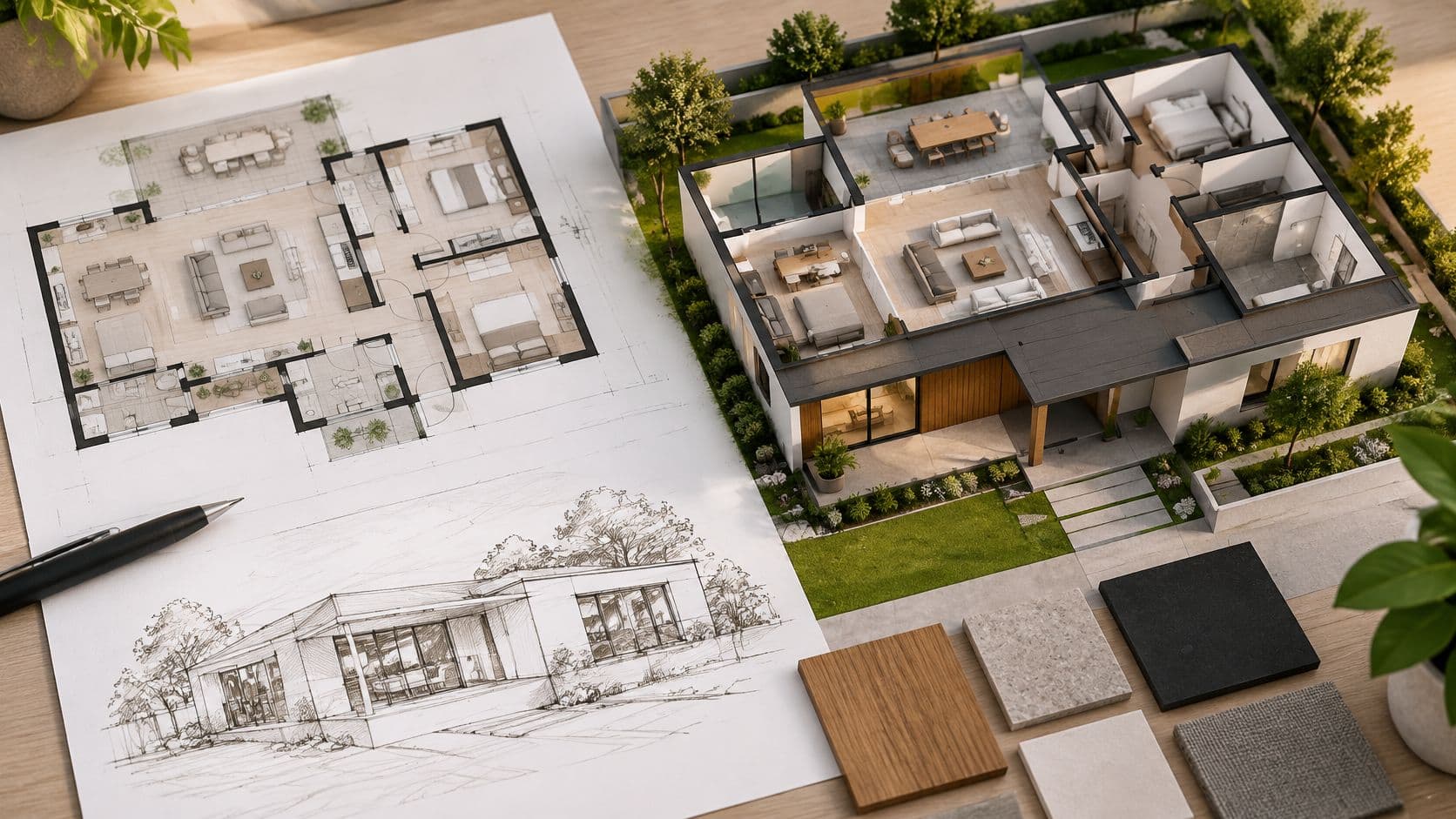
The popular advice says a more photorealistic 3D architect render is a more trustworthy one. That's backwards. Polish can hide a moved window, a wrong stair, or a material that was never specified, and the viewer can't tell where the design ends and invention begins. A render earns trust when its source is current, its geometry survives comparison with that source, and its caption states plainly what remains illustrative.
Match Your Source Material to the Right Nim Template
Send a 2D floor plan to Plan to Render, a concept sketch to Sketch to Render, and an approved still that needs motion to Architectural Animated Render. Plan to 3D fits when a plan is the starting point for a 3D presentation visual. Before choosing, open each template page to confirm the input it accepts, because Plan to 3D and Plan to Render both start from a plan and the page states which one fits a given file.
| Source material | Nim template | Supply with it | Check before generating |
|---|---|---|---|
| 2D floor plan | Plan to Render | Current plan with readable walls, openings and stairs | Doors and windows match the approved drawing |
| Plan for a 3D presentation visual | Plan to 3D | Current plan image in the form the template requests | Room boundaries match the plan |
| Concept sketch | Sketch to Render | Sketch showing massing, openings and intended materials | Proportions match the intended design |
| Approved still render | Architectural Animated Render | Clean still with stable edges and openings | Edges and openings stay continuous in motion |
| Site photo or context image | No direct template; keep as reference | Notes on surroundings and material colour | Neighbouring buildings and landscape match the site |
The exact input fields appear inside each template, so don't assume one route accepts what another does.
Where sketches and site photos mislead
A sketch carries its own uncertainty. If it leaves openings or massing undecided, the render will decide them for you, and that invented detail can look settled to a client. Settle those questions in the sketch first, even with rough marks, so the output reflects a choice rather than a guess.
Site photos aren't a template input in this routing. Keep them as reference notes for surroundings, neighbouring massing, and material colour, then use those notes when you review context later. That separation also helps when a still later becomes a walkthrough sequence, a use case covered in the related guide to a virtual house tour workflow.
Routing rule: use the most detailed source you have that's current and approved, not the prettiest file in the folder.
An outdated plan produces a polished render of the wrong building. A current but sparse sketch produces a concept image, and it should be described that way. Matching the template to the source is the first accuracy decision, and it costs nothing.
Prepare Your Plan or Sketch Before Generating
A polished render can make an uncertain design look decided. Treat the source file as the record of what is approved, and the image as a communication asset whose certainty must match that source.
Before opening a template, identify the exact input it accepts. This workflow uses a plan image, a sketch, or a reviewed still, depending on the template. Keep site photographs and material references as review notes unless the selected template requests them. Record the source filename and revision label so your team can trace the output to the right design.
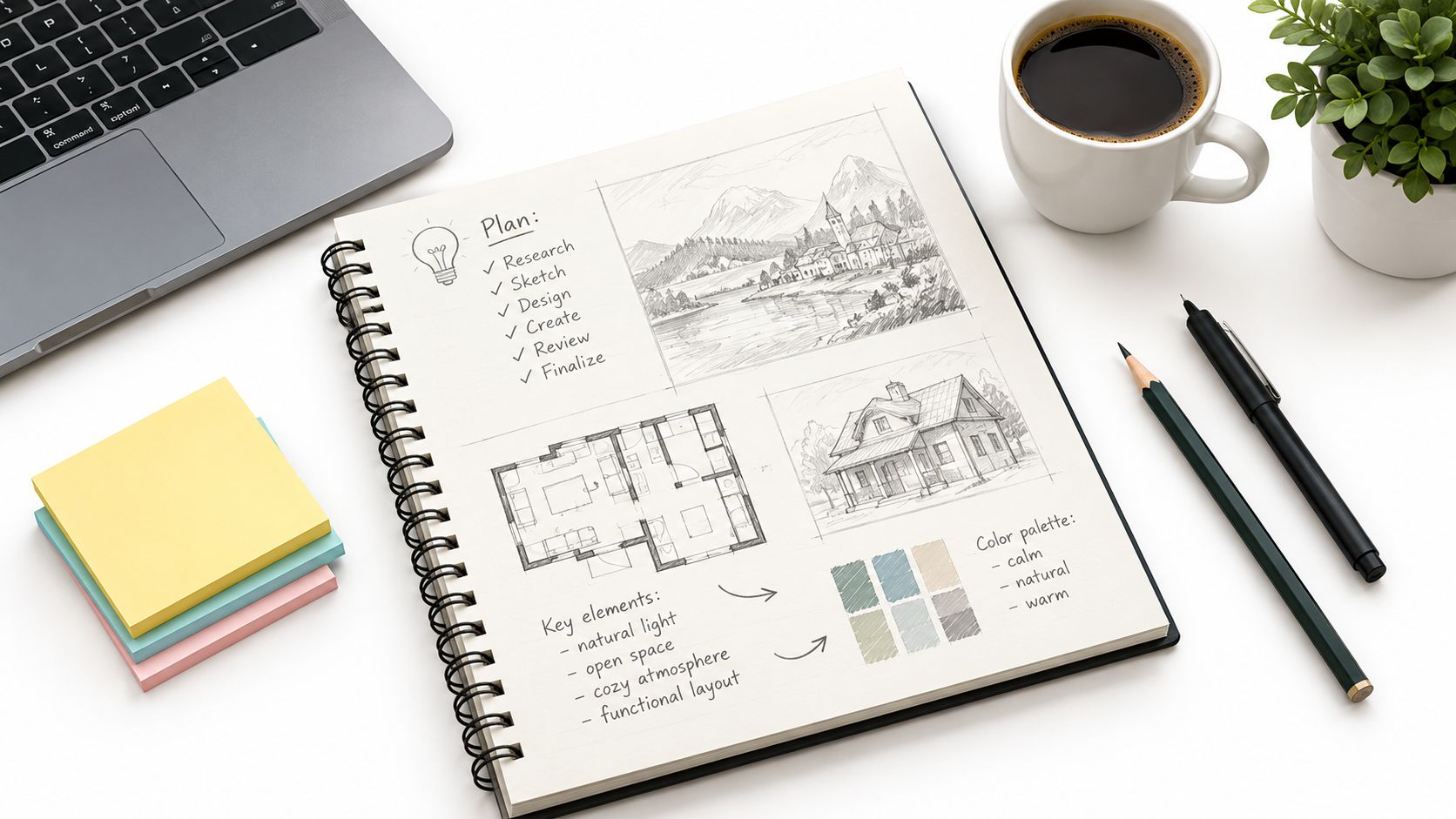
Six preparation checks
- Use only the current revision. Match its date or revision label to the project file. If the source is outdated, the render may accurately depict the wrong design.
- Export for legibility. Check that walls, openings, and stairs remain clear at the size you will upload. Faint lines can leave room for the image to imply geometry that the drawing does not establish.
- Crop to the area in scope. Remove unrelated marks and surrounding content that could be interpreted as part of the design.
- Note the scale or one known dimension. Use it later to check proportions against the source, rather than relying on appearance alone.
- Write material intent in plain words. Identify materials such as concrete, timber, brick, glass, or metal. Keep one reference image for each material you need to check.
- Name the audience and the limit. State who will see the render and what it cannot confirm. That boundary should guide the caption and prevent a concept image from being presented as a settled specification.
A sketch with undecided openings or massing needs those choices marked before generation. Otherwise, the render may fill gaps with details that look approved. Rough annotations are enough to distinguish a design decision from an unresolved point.
If the template provides a text field, enter material or mood words from your notes. If it does not, keep them with the source file for review. Have a second reviewer compare the output with the same source and notes, so assumptions are visible and the image does not claim more certainty than the design supports.
How to Generate a Render From a Plan or Sketch
A polished render can still misstate the design. Treat each generation as a communication asset: keep its source clear, make one controlled change at a time, and use the review checks to identify what the image actually supports.
The seven steps
- Open the template that matches the source. Choose Plan to Render for a plan, Sketch to Render for a concept sketch, or Architectural Animated Render for a reviewed still that needs motion. This selects the workflow; it does not verify the resulting geometry.
- Provide the requested source. Check the template page for its accepted input and supply that file. The Openings and Stairs and circulation rows in the review table later check whether those details remain consistent.
- Add notes only in an available field. Enter material or mood descriptions where the template provides a field. Otherwise, keep them with your review notes. Use the Material scale row to check whether the visual result matches your references.
- Keep the source unchanged during generation. That makes it clear which file produced the result. The Camera framing row then checks whether the selected view shows the intended parts of the project.
- Review the output against the source before sharing it. Work through the review table's rows, from camera framing and openings to stairs, materials, and light. A visually convincing result still needs those checks.
- Correct the input when a check fails. Revise the plan, sketch, or notes that relate to the failed row, then generate again. Repeating a run with unchanged inputs gives you no specific correction to assess.
- Use animation only after reviewing the still. Take a reviewed image into the animated route and inspect each transition. Shifting edges or openings can become harder to assess in motion, so the Openings and Camera framing checks still apply.
A worked example
Consider a hypothetical single-storey studio plan with one entrance door and a north-facing window band. The current file has a revision label, and the render uses a view from the entrance. The output shows two doors.
Start by checking the source for a stray line or an outdated revision. If the source is wrong, correct it and generate again. If it is clean, revise the relevant view or material notes and rerun the render. Painting out the second door would leave the wall, threshold, and circulation still wrong underneath. The image needs a source correction, not a cosmetic repair.
For each run, change either the source or the notes, then compare the result. Changing several inputs together obscures which adjustment affected the output. That makes it harder to judge whether the render is a reliable representation of the intended design.
Review Each Render Against the Source Plan
A polished image can still misstate the design. Review the camera first, then check the visible geometry and site context against the approved sources. Confirm camera position, height, field of view, composition, and which parts of the project appear in frame. Materials and lighting can draw attention away from a framing error, so keep those decisions secondary until the view is approved.
Compare the render with the current plan, elevations, and site information. Check the building form, openings, floor levels, boundaries, neighbouring buildings, and planting. A convincing image is not evidence that these details match. Review the source beside the render, not from memory.
| Check | Compare against | Failure sign | Fix |
|---|---|---|---|
| Camera framing | Intended view and key elevations | Key facade cut off or view too close | Reframe the view and regenerate |
| Openings | Doors and windows on the approved plan | Windows move, change size or change count | Correct the source, then regenerate |
| Stairs and circulation | Stair position, landings and routes between rooms | Stairs shift or a route disappears | Correct the source, then regenerate |
| Material scale | Your material reference images | Brick, timber or glazing grain looks too large or too small | Regenerate with clearer material notes |
| Shadows and light | Sun direction and intended time of day | Shadows fall against the sun direction | Regenerate; do not retouch the shadow to hide it |
| Animation continuity | Entrances, corners and repeated facade bays across frames | Edges shimmer or openings change between frames | Shorten the camera move or regenerate |
| Context | Site boundary, neighbouring buildings and planting | Neighbouring building added, removed or moved | Regenerate from corrected site notes or label as illustrative |
Use the table as a review sheet, checking one row at a time. The failure signs identify what to inspect, and the fixes indicate whether the source, view, or material notes need attention. A pass should mean the render has been compared with its reference, not that it looks plausible at thumbnail size.
Checking motion and light
For animation, inspect entrances, corners, stairs, and repeated facade bays frame by frame. These fixed edges are easy to track as the camera moves. If a mullion pattern changes rhythm mid-shot, the image is showing a facade that differs from the design. Shorten the camera move or regenerate when the sequence cannot hold those details consistently.
Check light against the intended sun direction and time of day. Decide how sunlight in the home should behave in the scene, then compare that expectation with the shadows in the render. If the image supports a client decision, keep lens effects, glow, and dramatic skies restrained. Heavy effects can obscure the edges and junctions the reviewer needs to assess.
Record what each check establishes. The camera review confirms the chosen view, while comparison with the plan checks visible design features. If the site information does not establish a neighbouring building or planting arrangement, label that context as illustrative rather than implying it is verified. This keeps the image useful for discussion without presenting uncertain details as confirmed design information.
What a Render Can and Cannot Prove
A polished 3D architect render can communicate a design without confirming that the design is geometrically correct. Diffusion systems generate likely-looking images rather than reading a specific design model, so spatial relationships can drift and architectural details can appear where the intended building has none. The study of AI-generated architectural imagery and geometric accuracy describes this limitation. Treat the image as a communication asset, and state what its source supports.
Resolution is another limit. Diffusion-generated images may lack the fine edge detail needed for large-format print, even when they look clear on screen. Check the output at its intended display or print size before using it on a presentation board or in a brochure. Enlargement can soften edges, and added detail may look more precise than the source warrants.
The claims split
A render can support atmosphere, material direction, a furniture concept, and an indicative walkthrough. A render cannot support measured dimensions, code compliance, structural feasibility, faithful documentation of an existing property, or proof of site conditions.
Keep design intent separate from verified facts. A render can help a client consider whether timber and off-white suit the intended mood. It cannot establish that a corridor meets a dimensional requirement; confirm that against the measured plan or relevant project documentation.
Before public use, check the image's visible relationships against its source, including doors, windows, stairs, wall continuity, and object placement. This matters even when the stated purpose is only to communicate atmosphere or material direction. A viewer may read a convincing room as evidence that its layout is settled, although the image may not preserve the plan.
Do not cite a dimension by reading it off the rendered image. The image may communicate the design direction, but dimensions must come from the project's measured documents.
Label Each Render Before You Share It
A polished image can still misstate the design. Label each render with a plain caption that identifies it as a concept visualization, names the source plan and its revision date, says it is not to scale or a measured or construction document, and lists what remains illustrative. Common examples include final materials, furniture, and landscaping.
For example: Concept visualization based on [named plan] at [revision date], not to scale and not a construction document. Materials, furniture, and planting are shown for indication only. This wording tells viewers what the image represents and which details they should not treat as settled.
Match the disclaimer to the audience
Listings need clear limits because buyers may mistake an image for evidence of a property's actual condition. In a client pitch, name the design intent and make clear that the project is unbuilt and the image supports discussion of direction. Apply the same caution when a still becomes motion in an architectural animated render, where movement can make an illustrative scene feel surveyed.
Keep a record for every published render: source file, revision, reviewer, date, and the claims approved for that image. A human reviewer should check each render before client or listing publication. Deadlines do not change what the image can prove.
Open Nim with the current approved plan, then compare the output against that source before writing its caption. Choose the template that matches your strongest current source, whether that is a plan, a sketch, or a reviewed still ready for motion. Share the render only after review, with a caption that states its limits.
- 3D architect render
- architectural rendering
- plan to render
- sketch to render
- architecture visualization