AI Architecture Render Workflows in Nim: A Practical Guide
Learn practical steps for AI architecture render workflows in Nim, from plan to render to sketch to render and render to real. Includes template selection
By Nim
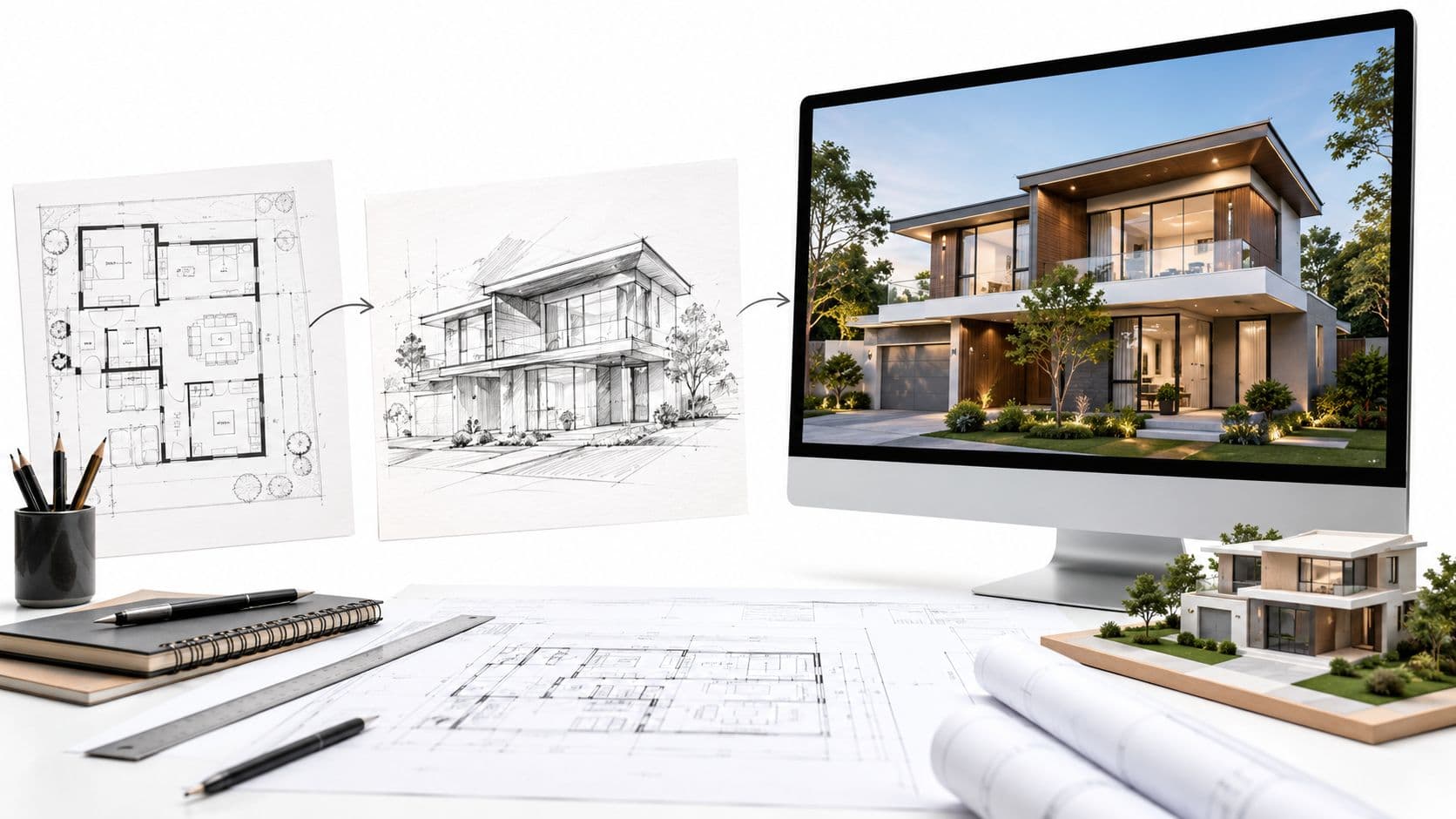
A client needs to see how a rough plan might feel as a finished space, or a property listing needs a stronger visual than the current sketch can provide. An AI architecture render can turn a plan, sketch, or existing image into a concept visual, but it can also change the design. The reliable workflow is to start from a clear reference, choose the template that fits it, and check the result against the source before sharing it.
What an AI architecture render does in a project
An AI architecture render turns an architectural reference into a presentation image or motion concept. A team can use it to explore materials, atmosphere, and visual direction, or to give a client a more legible view of an early idea. A polished image proves nothing about dimensions or buildability. CAD and BIM remain the record of the design.
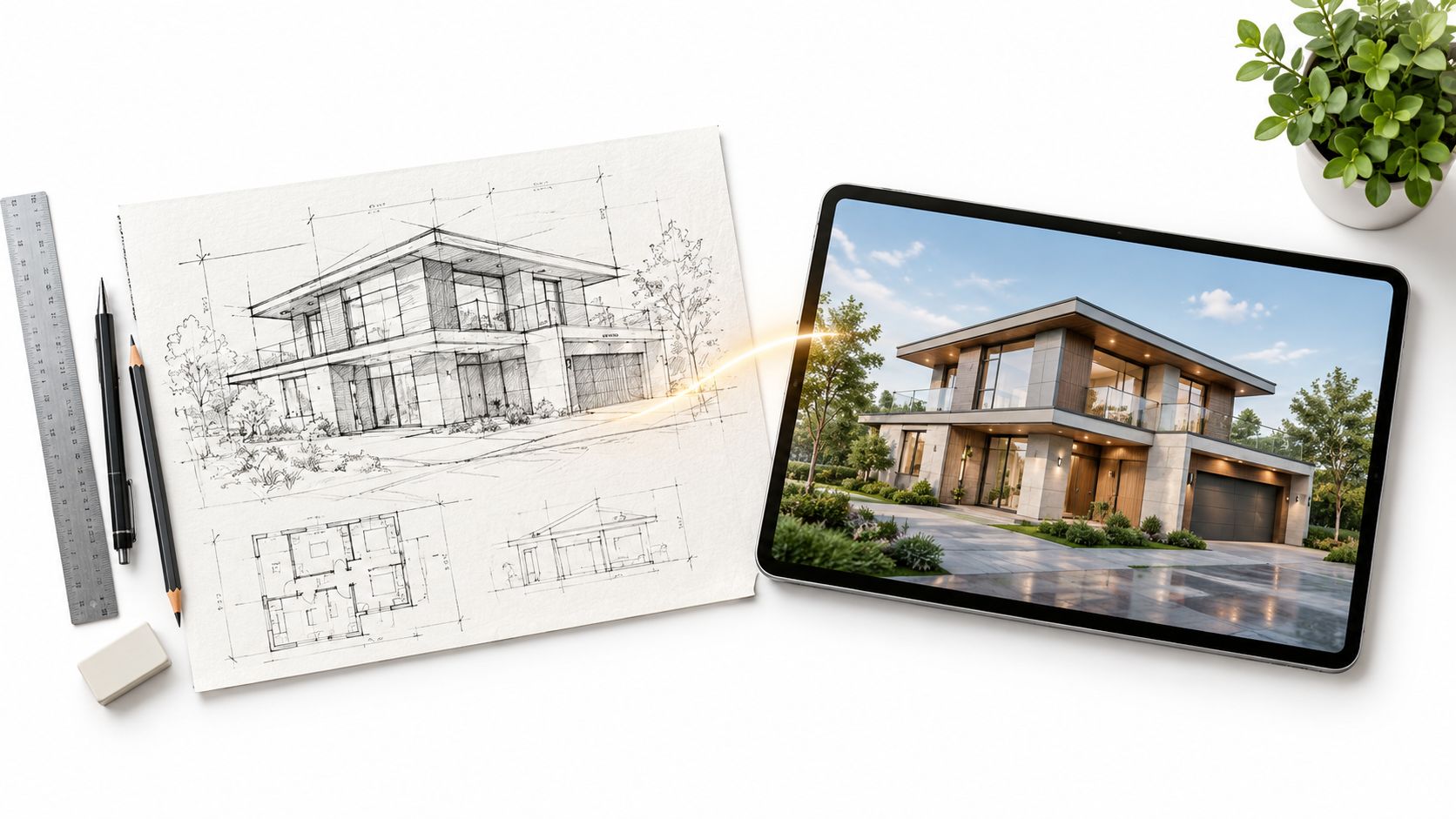
Nim's templates cover the common starting points: Plan to render for floor plans, Architectural animated render for motion built on an existing visual, Sketch to render for line sketches, and Render to real for a more photographic finish on CGI. The right choice depends on the asset in hand. A poor pairing produces drift before the first client review.
Put the render at the right point in the project
BIM established a structured digital workflow across architecture, engineering, and construction. Reported industry adoption rose from 28% in 2007 to 71% in 2012, with implementation recorded among architects, engineers, and contractors in the 2012 breakdown (BIM adoption research). That history sets a useful boundary for AI visualization: the verified plan or model anchors the project, and the generated image sits on top of it as a communication aid.
Treat the render as illustrative until it passes a deliberate check. I compare openings, room relationships, and proportions against the source drawing before anything reaches a client or a listing, because a convincing image can shift a window or merge two rooms. For a sense of how visual previews help people read a proposed outdoor space, see 3D design previews from Task Masters Inc.. Label the output as a concept, discuss it as a concept, and keep the verified plan as the reference of record.
Choosing the right Nim template for your starting asset
Pick the template by the evidence the source can support. A floor plan gives reliable spatial structure and weak material cues. A sketch gives intent and massing with little precision. An existing render already carries a camera, lighting mood, and surface guesses, so the safer job is refinement, with less pressure to reinvent the scene.
| Template | Strongest input | What it tends to preserve | Where it can drift |
|---|---|---|---|
| Plan to render | Dimensioned plan or clean floor plan | Circulation, adjacency, opening positions | Vertical proportions, façade depth, finish realism |
| Architectural animated render | Resolved still or model view | Camera language and overall composition | Frame-to-frame consistency, shadows, small details |
| Sketch to render | Legible concept sketch | Massing, roofline, gesture | Exact geometry, scale cues, joinery |
| Render to real | Existing CGI or draft render | Viewpoint and scene layout | Over-polishing, texture invention, context changes |
Let the asset make the decision
The wrong pairing usually fails in predictable places. Plan-derived images often keep the plan readable while inventing height, glazing depth, or materials that were never decided. Sketch-derived images keep the idea lively, then round off corners or relocate openings when the original line is ambiguous. Animation magnifies small errors because a detail that looks acceptable in one frame can wander across the sequence. Render-to-real work can hide a weak model under photographic grain, so I treat a prettier surface as a separate question from whether the geometry is still honest.
When two assets exist, use the more verified one as the reference of record and let the other guide style only. If a verified plan conflicts with a moody sketch, the plan wins for layout and the sketch wins for tone. Before client or listing use, compare the output against that reference and keep it labeled as a concept until the check is done.
Selection rule: choose the template that matches the strongest evidence in the input, then state the change you want in plain terms. If the source cannot support that change, fix the reference or narrow the request.
For outdoor structures, it can help to browse modern pergola designs to settle the intended architectural language before preparing a reference. Keep the precedent as taste guidance; the source asset still decides the template.
Preparing a clean plan, sketch, or reference render
Input preparation happens before opening a template. A clean reference helps the generated image follow the design's main structure; a cluttered or ambiguous one gives the process more room to guess. The aim isn't to make a drawing production-ready for AI. It's to make the important visual information easy to distinguish.
For a plan
Use a flat, legible export where walls and openings don't disappear into background graphics. Keep line weight reasonably consistent, and retain useful room labels or scale cues when they help explain the layout. Remove decorative backgrounds, notes that obscure geometry, and unrelated sheets from the image. If someone reviewing the reference can't quickly identify the perimeter, internal divisions, and openings, the input needs cleaning first.
A plan is a useful spatial starting point, but it doesn't communicate every vertical or material decision. If the project's appearance depends on elevations, sections, reflected-ceiling information, finish notes, or marked-up changes, keep those references available for human review. A guide for franchise operators on drawings can help readers unfamiliar with construction drawings understand what different sheets communicate.
For a sketch or existing render
A sketch should make the intended walls, openings, roofline, and major volumes distinct. Loose shading can suggest atmosphere, but it shouldn't obscure the shape the image is meant to preserve. If only one sketch is available, remove surrounding marks that could be mistaken for part of the design and make the intended viewpoint clear.
With an existing render, decide what should change and what should remain stable. For example, a project might need warmer exterior materials or softer evening light while retaining its massing, window arrangement, and camera view. State the desired visual direction only where the template accepts a description, and avoid asking the image process to infer the geometry already visible in the reference. These are preparation choices outside Nim, not claims about in-app controls.
Running a Plan to render or Architectural animated render session
A practical session starts with a clean plan-derived image and a clear decision about whether the client needs a still concept or a motion-oriented presentation. The plan provides the visual starting point; the render helps communicate a possible direction. For related context on moving from a floor plan toward a three-dimensional presentation, see this guide to turning a floor plan into a 3D concept.
From reference to first output
Open Plan to render when the desired result is a still visualization, or Architectural animated render when the goal is motion. Supply the input requested by the selected template. The exact form determines what information or assets are needed, so don't assume extra upload fields, settings, or prompt controls that aren't presented there.
If the template accepts a brief description alongside the image, keep it focused on changes the drawing doesn't specify. For example, a concise direction might ask for pale stone, restrained planting, and soft daylight. Re-describing the floor plan in prose is less useful than making the intended materials, atmosphere, or setting explicit.
Generate the result, then inspect it before using it in a presentation. For a still, compare the overall layout and visible openings with the reference. For motion, check the building's appearance across the sequence and watch for changes in shape or detail. If the output is implausible, return to the source and clarify it rather than treating photorealism as evidence of accuracy.
The handoff matters
Once the image or motion concept is suitable for its intended discussion, download it for the presentation or review process. Generative iteration can take time and effort, so define what the output needs to communicate before requesting more variations.
A Plan to render output is a presentation concept, not a measured drawing. An Architectural animated render output is a motion concept, not evidence of actual site conditions or technical compliance. Keep the source plan available so reviewers can compare the image with the design intent.
Running a Sketch to render or Render to real session
These templates start from different kinds of visual evidence. Sketch to render interprets line work; Render to real works from an image that already contains a visualized design. Choosing between them is straightforward once the source is identified.
When the source is a sketch
Open Sketch to render for a hand-drawn or digital conceptual sketch that needs a fuller visual treatment. Before providing the reference, make the principal lines easy to read. Clear wall edges, openings, rooflines, and major volumes give the output a stronger basis than a drawing dominated by loose shading or ambiguous marks.
Provide the input requested by the template, generate, and review whether the result follows the sketch's essential form. A colorful image may communicate atmosphere well while still changing the composition. If the generated result adds elements that weren't intended, treat that as a reason to revisit the source or reject the image, not as permission to revise the design by implication.
When the source is already a render
Choose Render to real when the project already has a CGI or sketch render and needs a more photographic appearance. Preserve the reference's geometry and camera context, and focus any optional direction on the change that matters, such as materials, lighting, or atmosphere. Asking for too many changes at once makes it harder to tell whether the output has retained the design.
In either workflow, generate the result and review it before downloading for use. Neither turns an image into a verified reconstruction of an actual building or property. For an image-conditioned architectural render, research has found that a reference can help preserve structural fidelity better than relying on text alone, but generated results can still vary (research on architectural aerial renderings). The image remains an illustration of design intent, not a substitute for checking the source.
Reviewing the render so it stays a concept, not a misrepresentation
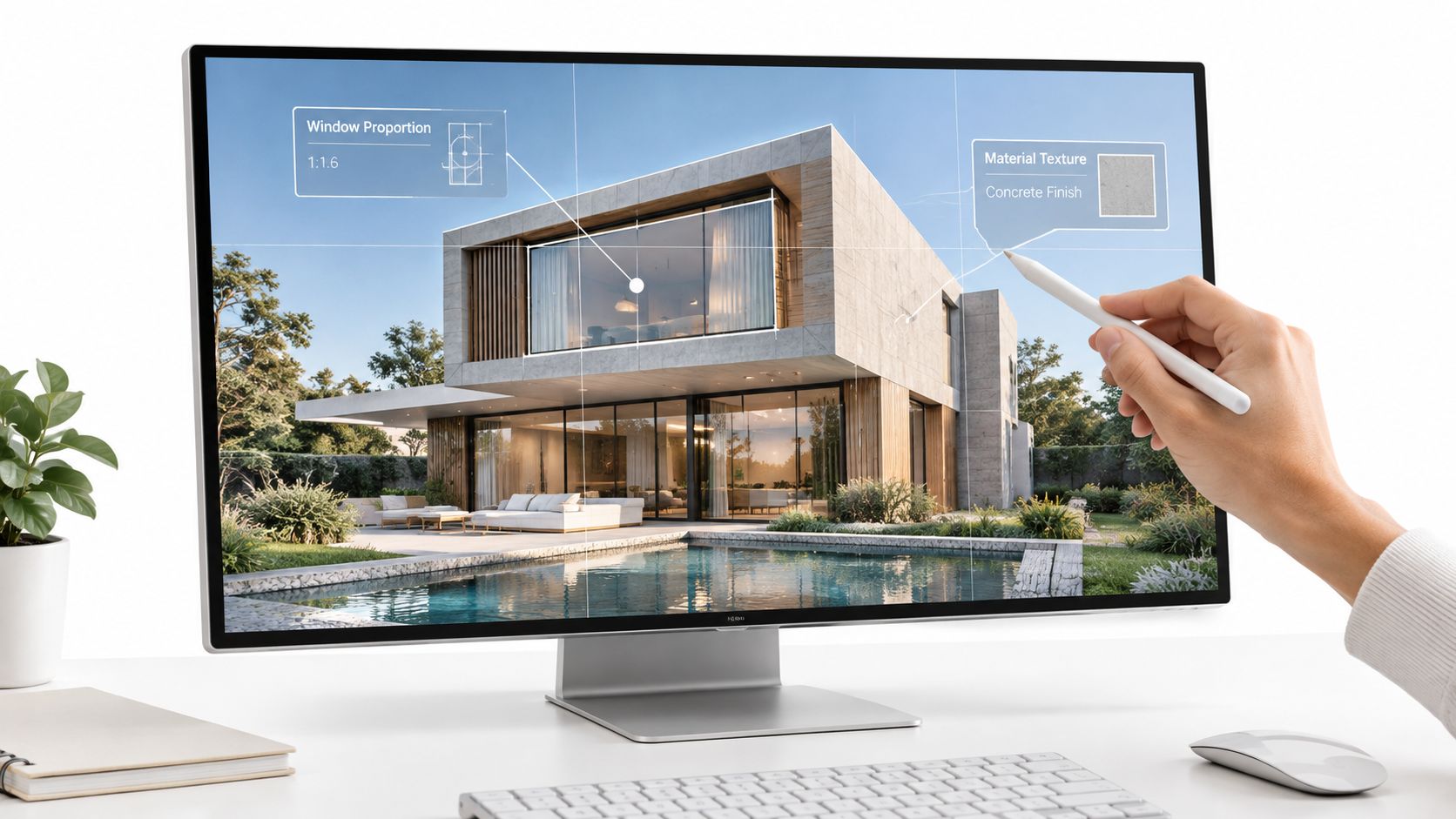
A photorealistic image can be wrong in ways a viewer won't notice at first glance. Review is therefore part of the rendering task, not a finishing formality. Research involving architects found that generative tools could produce visually credible but infeasible proposals and struggle with precise requirements and accurate plans (study of generative tools in architectural design). That makes professional comparison with the source essential.
A review checklist before sharing
- Compare the layout: Check wall continuity, room adjacency, circulation, and openings against the source plan or sketch.
- Look for visual drift: Flag invented windows, shifted massing, changed floor counts, distorted entrances, or details that appear in one view but disappear in another.
- Question buildability: Confirm that the depicted structure makes sense for the building type. A plausible-looking image doesn't establish structural logic or regulatory compliance.
- Check light and context: Compare daylight direction and the building's relationship to its site with the project information available. Don't let an attractive sky or surrounding scenery imply conditions that haven't been verified.
- Review motion frame by frame: If the result is animated, inspect changes through the sequence, especially where walls, roofs, openings, or site features seem to shift.
Practical rule: If a viewer could mistake an invented feature for an approved design decision, correct the image, label it clearly, or leave it out.
AI architecture renders are useful for early design exploration, client communication, marketing visuals, and motion-based presentations. They aren't permit drawings, construction documents, verified reconstructions, or faithful property records. That distinction also matters in adjacent visual work: a virtual staging image, for example, should be treated as a presentation of a possible arrangement, not a record of the property's actual condition. Nim's guide to virtual staging with AI is relevant when furnishing or styling an interior image.
Post-export polish and where to take the workflow next
After downloading a render or animation, a separate post-production pass can make it easier to use in a client deck, listing, or meeting. A clean crop, restrained color adjustment, or clear label can improve presentation without changing the design being communicated. Keep edits transparent: don't use polish to disguise a geometry mismatch or make an unverified detail look approved.
The next step depends on what the audience needs to understand. A still render can support a design conversation; a motion piece can help communicate spatial character or a proposed sequence. For another construction-related visual format, Nim's construction timelapse video guide offers a related workflow to consider when the subject is construction progress rather than an architectural concept.
The useful handoff is simple: keep the source, retain the rendered concept, and tell viewers what the image does and doesn't establish. To choose a suitable follow-on workflow, open Nim's architecture templates and select one that matches the next presentation task.
Open Nim and choose the architecture template that matches the plan, sketch, or render already in hand. Prepare a clear reference, generate a concept, and check it against the source before sharing it with a client or using it in a listing.
- ai architecture render
- plan to render
- architectural animated render
- sketch to render
- nim