How to Make Product Videos with Nim Templates
Learn how to make product videos in Nim by matching a template, preparing one product image, generating the clip, and reviewing it before you publish.
By Nim
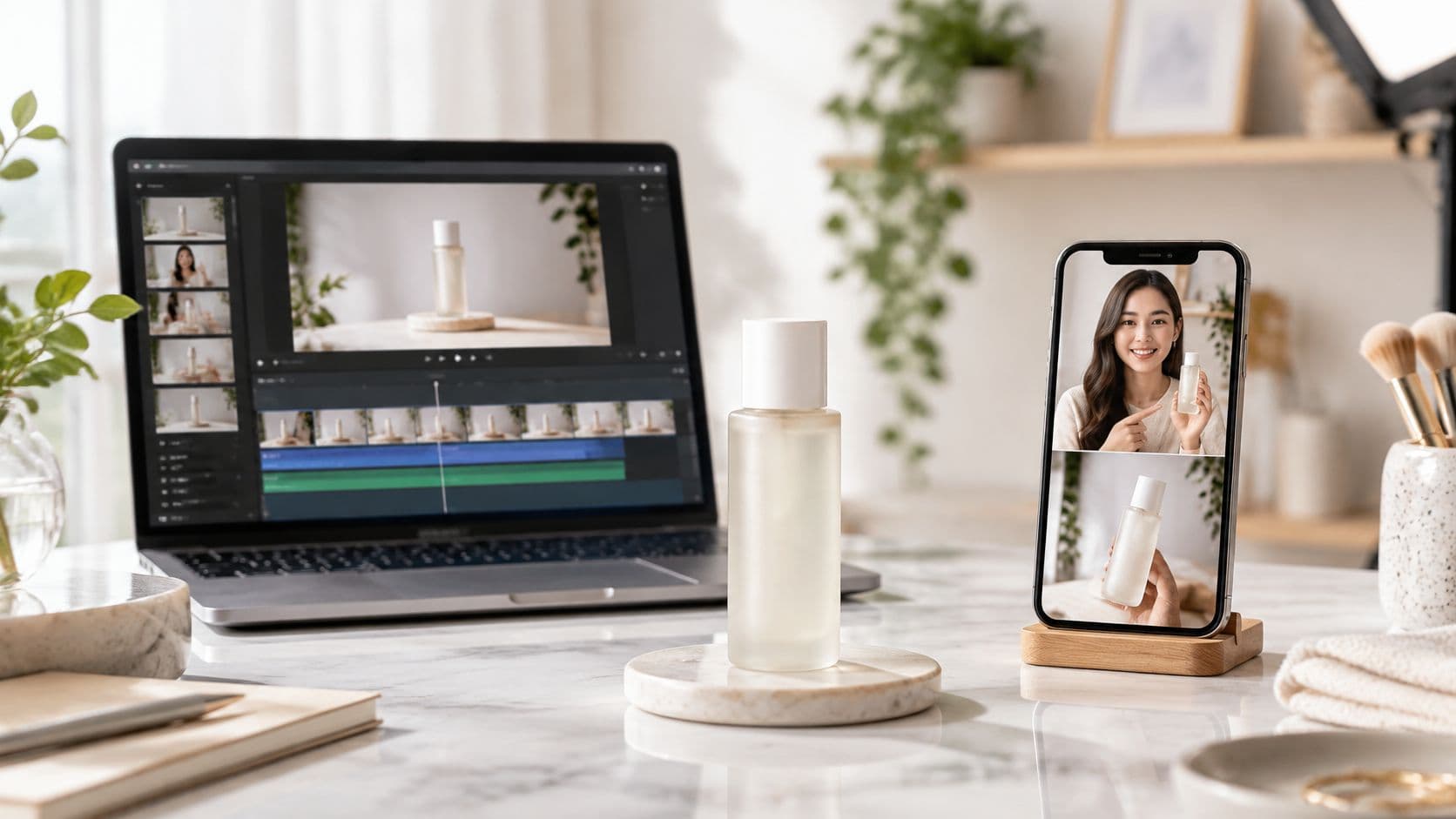
A seller has a usable product photo but no clear video concept: a creator-style recommendation, a shot of the item coming together, or a cleaner presentation of the product itself. The practical answer to how to make product videos is to choose the buyer question first, open the matching template, supply its requested input, and review the generated clip before adding captions and publishing.
The useful result isn't necessarily the most elaborate animation. It's the clip that makes the product easier to understand without changing what the seller sells.
Pick the Nim Template for the Product Job
Which Nim template matches the product video
| Video job | Open this | Start with |
|---|---|---|
| Creator-style product ad | UGC ads templates | The input that template requests |
| Product page turned into a UGC-style clip | URL to UGC video | A product URL if that template asks for one |
| Item shown coming together | Assembling Product | A clear product image if requested |
| Weak product still before any motion | Enhance Product Photo | The product photo |
| Distracting setting around a good product | Background Replace | The product image and the replacement the template requests |
| No single job above fits | E-commerce templates | Browse and pick one product template |
A creator-style ad suits a short recommendation or explanation framed around a buyer's concern. The UGC category provides a place to browse those options; the distinction between a creator-style advertisement and genuine customer evidence matters more than the presence of a presenter.
A product-page workflow makes sense when the available starting material is a listing rather than a prepared image. The selected template still determines whether a URL is accepted and what else must be supplied.
Choose the question, not the effect
An assembly presentation suits a kit, modular item, or product whose components are difficult to understand in a flat photograph. Its job is to make the relationship between parts visible, not to establish that a real assembly procedure has been tested.
Photo enhancement is preparation when the source still is too weak to support a useful clip. Background replacement addresses a different problem: an otherwise legible product surrounded by an unsuitable setting.
Broader e-commerce browsing is useful when neither a presenter nor assembly answers the buyer's uncertainty. A simple product-detail treatment may communicate more clearly than a complicated scene.
Selection rule: Choose the least complicated visual treatment that answers the buyer's question.
For sellers deciding whether a recommendation format fits, the guide to UGC ads explains the format before production begins. A recommendation-style treatment shouldn't be mistaken for permission to invent a customer experience.
Nim provides template-based options for these different jobs, but the selected page governs the workflow. Open the template that matches the claim and supply only the input it requests. Templates don't necessarily share a prompt field, upload count, aspect ratio, or editor.
Prepare the Image and the One Claim
Write the buyer question before collecting files: how does it work, what does it contain, how does it fit, or what changes during use? Convert that question into a single factual claim that the product's specifications can support.
For a bottle, the question might concern the closure rather than the material, capacity, and styling together. A compact tool may need scale explained; a kit may need its included parts made unmistakable.
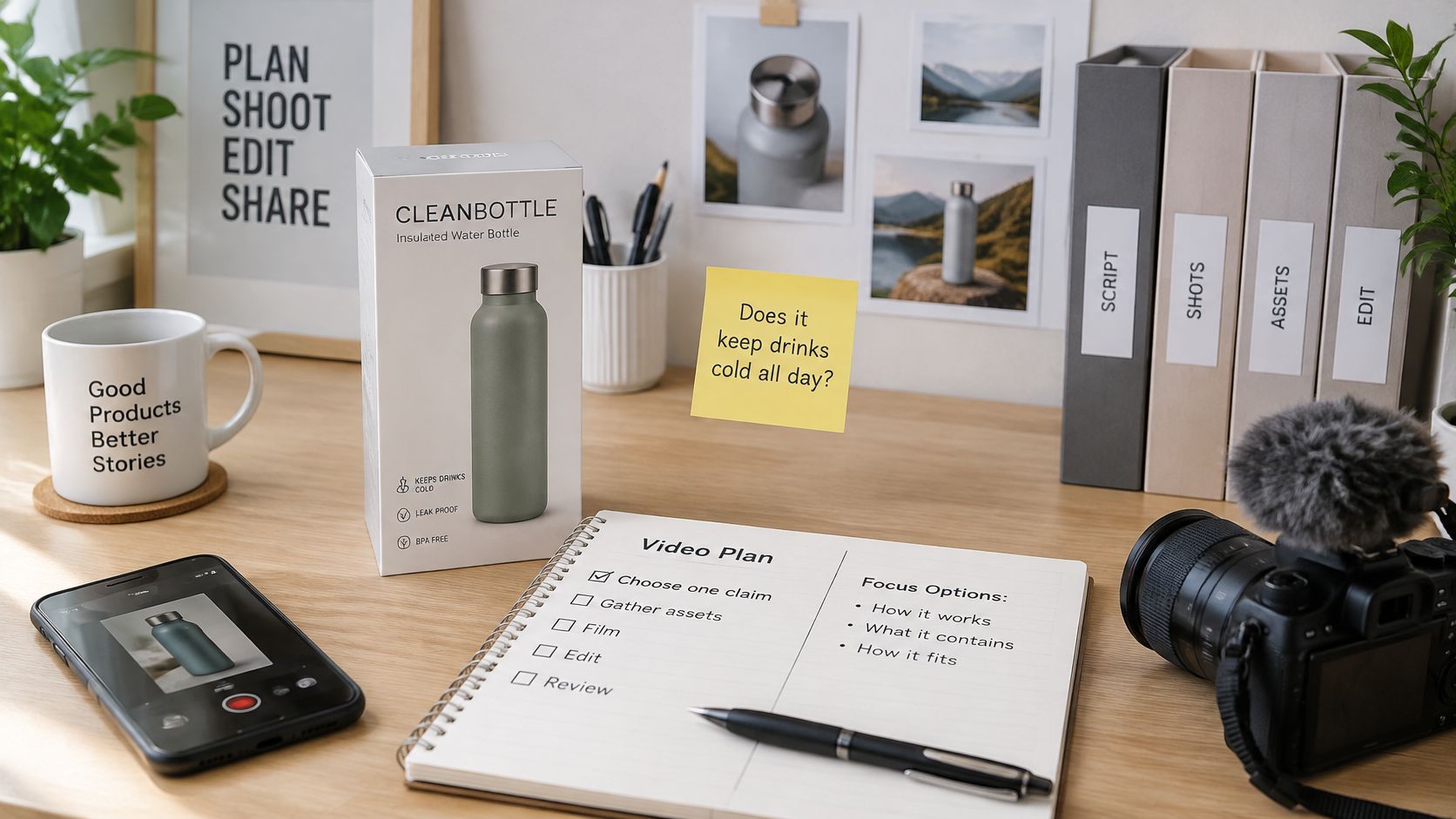
Illustrative product-planning scene, not a verified template output.
Make the source unambiguous
The source image should make the silhouette, label, and important parts legible. Remove glare, obstructing props, and reflections that could be mistaken for components; a decorative cord beside a kit can become a misleading visual detail.
If the label is muddy, improve the still with Enhance Product Photo before attempting motion. If the product is already clear but the setting is distracting, use Background Replace as preparation rather than expecting a new background to repair missing detail. The guide to AI product images offers related preparation guidance.
The purpose is comprehension: 70% of online shoppers said video helps them understand products better, according to the survey reported by Spiceworks. That supports showing the angle that resolves uncertainty rather than adding movement for its own sake.
Separate the product brief from distribution planning
The generated result is a promotional demonstration, not proof of performance or a replacement for specifications. Any later wording must remain consistent with verified product information.
For channel planning, PostPulse's social publishing statistics can serve as a separate reference while the asset brief stays focused on the product.
Before generation, check the essentials:
- Claim: A specific answer to the buyer's question.
- Input: A clean image or the URL requested by the chosen template.
- Contents: No extra objects that could be read as included components.
Plan a Silent-First Shot List Before You Generate
A silent viewer should understand the clip without waiting for narration. In 2025, Bazaarvoice reported that 46% of shoppers preferred short-form videos for product discovery and evaluation, while 23% actively sought product-demo videos.
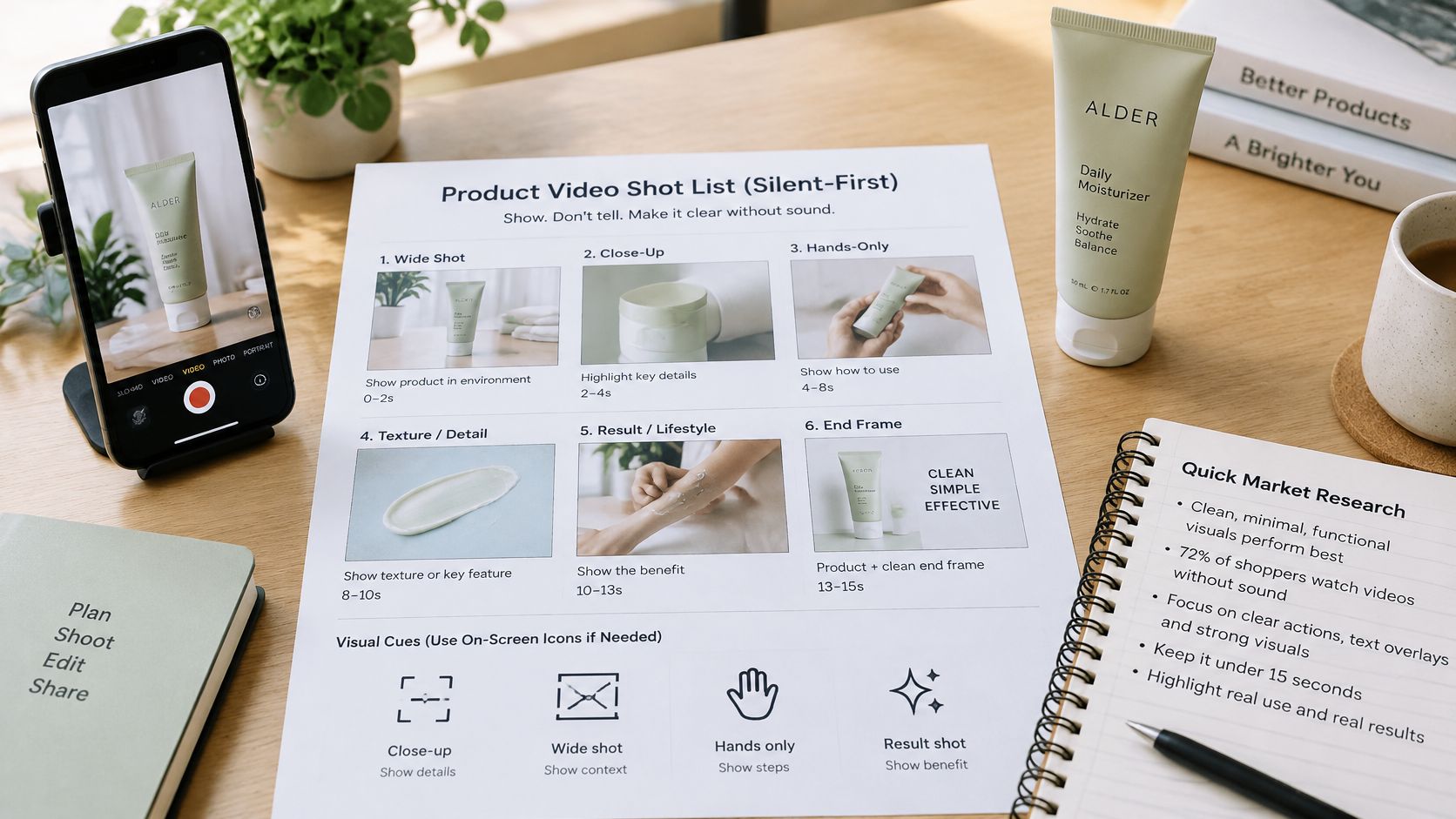
Illustrative shot-planning setup, not a verified template output.
Draft a short visual sequence before opening the template:
- Establish the item. Show the whole product with readable packaging.
- Answer the question. Show the relevant action, such as a cap being pressed closed with a hand, only where that action matches the actual product.
- Clarify context. Show the item beside a familiar object when scale matters.
Each shot should carry a clear piece of information. A fast montage fails when viewers can't follow the action without an explanation, so hold the important movement long enough to read in silence.
Sound can reinforce a visible benefit. It shouldn't be needed to identify what happened.
Keep packaging and key details away from extreme frame edges. For standard YouTube placement, YouTube's resolution guidance identifies 16:9 as the standard computer aspect ratio; check the finished result on desktop and mobile.
Place meaningful product imagery early in the file. This visual brief also supports localized versions because the core action needn't depend on a single spoken language.
Generate the Clip from the Template You Opened
Generation works better when the brief is settled before inputs are supplied. The template you opened serves the one buyer question the video must answer, so any new benefit or story idea that surfaces mid-production belongs in a different clip.
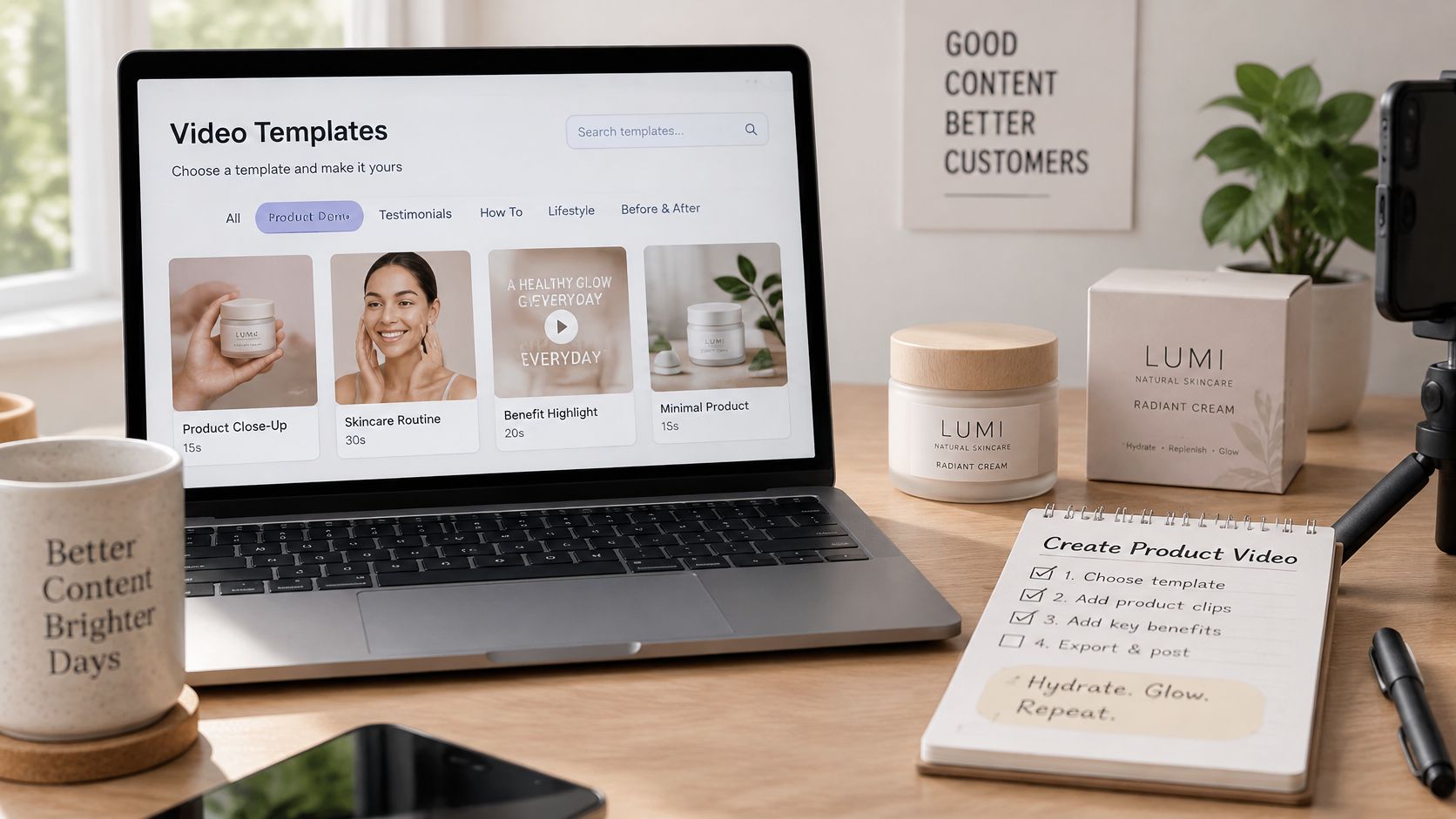
Illustrative content-creation workspace, not a verified interface screenshot.
Follow the selected template
-
Restate the claim in a few words. A brief such as "shows the kit assembled" defines a visible outcome. "Makes the product exciting" offers no acceptance test.
-
Open the matching page: UGC ads, URL to UGC video, Assembling Product, or the chosen e-commerce template. Check its requested inputs before preparing additional files.
-
Provide only what the page requests. Don't invent a prompt step or assume that additional images can be supplied. If a required input isn't available, resolve that gap first; an unrelated asset will produce an unrelated clip.
-
Generate the clip using the selected workflow. Keep the source material and the claim together so the result can be checked against the same brief.
-
Pause for a structural review. Play the clip once with the sound off and look for an identifiable product, the intended action or transformation, and a clear view of the item afterward. This pause stops an attractive but irrelevant sequence from passing because its motion looks smooth.
-
Download the accepted result when that option is available in the template. A result that still needs product corrections isn't ready for finishing.
Open on the finished product. A logo animation or slow setup delays the one thing a viewer needs first, which is recognizing what's being offered before an assembly or transformation makes sense.
A practical shape is finished product, most important use, then a supporting detail. Give the closing view enough visual clarity that the item connects to the next action you want, such as visiting the listing.
Keep the edit proportional to the question
For the primary cut, 51% of surveyed respondents identified 30–60 seconds as optimal for marketing videos, while 91% preferred videos shorter than two minutes, according to SocialPilot's statistics roundup. Treat these as editorial targets for the finished cut, separate from whatever time the template spends generating.
A narrow product question may need less material than a broad explanation. Stretching a clear demonstration to fill a preferred runtime weakens it, and compressing an essential action until it can't be read in silence does the same damage from the other direction.
An alternate opening gives you a second version without a second claim. A bottle clip could start with the whole bottle in one version and a close view of its closure in another, with both explaining the same verified closure feature.
Keep the claim fixed and vary the entry point.
Voiceover, music, captions, timeline assembly, and publishing belong in separate post-production unless the selected template explicitly shows those capabilities. If the planned sequence needs several shots that the template doesn't supply together, assemble the accepted clips in an external editor. Treat the shot list as an editorial brief: a template offers a multi-shot timeline only where its page shows that control.
Review Fidelity Before You Publish
Compare the clip with the actual product image and listing, pausing wherever the item changes angle or moves. Check label text, logo, color, silhouette, part count, and the physical plausibility of every interaction.
A warped label isn't harmless decoration. Neither is an accessory that appears during a transition and disappears before the closing frame.
What to do with a flawed product clip
| What you see | Risk | Decision |
|---|---|---|
| Label or logo distorted | Buyer cannot trust packaging or brand | Reject or regenerate from a clearer still |
| Extra or missing parts | Clip invents the product | Reject |
| Color or shape shifted | Item no longer matches the listing | Reject |
| Impossible motion | Implies a function the product may not have | Do not use as a demo |
| Setting changed, product intact | Creative context, not evidence | Allowed if labeled as illustration |
| Claim on screen the product cannot support | Turns a visual into a false spec | Remove the claim |
Distinguish presentation from evidence
A fictional kitchen setting can provide creative context if the product remains intact and the scene is labeled as illustrative. A bottle apparently surviving a drop, a tool cutting a material, or a seal preventing a leak implies performance that generated imagery cannot establish.
Don't publish those implications with a small caption intended to excuse them. Remove the misleading sequence or replace it with genuine evidence of the claimed function.
Authenticity matters beyond visual accuracy. A January 2025 Bazaarvoice survey of more than 8,000 consumers across the United States, United Kingdom, Germany, France, Australia, and Canada found that 52% considered real customer reviews the strongest purchase factor, 35% trusted real-life photos or videos, 52% distrusted creator content that felt overly promotional, and 43% associated authenticity with creators acknowledging advantages and disadvantages.
Use the least misleading treatment
For a UGC-style template, a recommendation format doesn't make an invented speaker a customer. Avoid fabricated reactions, invented tests, and statements that imply someone used the item.
- Show supplied attributes. Keep visible details tied to the actual item and its documented features.
- Preserve genuine evidence. Pair creative visuals with real reviews where available and permitted, without suggesting the generated scene depicts the reviewer.
- Reduce unnecessary simulation. A restrained product-detail animation is more credible than a synthetic testimonial when no genuine user account exists.
The clip must not be presented as a customer result or a verified reconstruction. If a buyer could learn a false specification from the frames, the clip isn't ready.
Add Captions and Disclosures After Download
Post-production should happen in the seller's editor or publishing tool unless the selected template explicitly supports the required task. Accessibility and endorsement disclosure are separate checks, even when both involve on-screen text.
Check captions and visual descriptions
For prerecorded content containing speech or meaningful audio, W3C's caption guidance explains that captions include speech, speaker identification when needed, and important sounds, synchronized with the visuals. Automatically generated captions need a human review.
- Product names: Correct brand names, model terms, and technical vocabulary against the listing.
- Timing: Keep captions aligned with the relevant speech and action.
- Meaningful sounds: Include non-speech audio when it affects understanding.
Silent-first planning doesn't make the video accessible to people who can't see it. Following W3C's audiovisual accessibility guidance, provide an accessible description that identifies the product, explains the feature shown, and includes important on-screen wording.
Disclose endorsement relationships
For endorsements involving a material connection, the FTC's influencer disclosure guide says disclosure should appear in the video itself, not only in its description, and is more noticeable in both audio and video. State the relationship plainly, such as payment, employment, or receipt of the product, rather than relying on an unexplained platform label.
Finish by watching the silent file on a phone and the captioned file with sound. Correct errors before publishing; don't introduce unrelated creative changes during this final check.
Open One Template and Publish One Version
The whole workflow comes down to one decision: open the template that answers your one unanswered buyer question, and publish a single finished version before trying a second approach. One clip that settles a real doubt teaches you more than three that answer nothing clearly. For a marketplace-specific placement, the guide to product video for Amazon provides a focused next reference once that first version is live.
Keep the first release interpretable
- Finish the accepted version. Generate from the shot brief, complete the fidelity check, and add captions and any required disclosure in the editor. A clip that skips the phone check without sound goes out unfinished.
- Hold distribution conditions steady. Keep the landing page, offer, and audience fixed when testing a later opening, demonstration, or call to action, so a change in results traces to the video rather than the page around it.
- Delay another template. Watch the completed version on a phone with sound off before starting another approach. A clip that explains itself without words earns the right to a second variant.
Visit Nim to open the workflow that matches your unanswered buyer question, check its requested input, and create a version ready for fidelity review.
- how to make product videos
- product videos
- Nim templates
- UGC ads
- e-commerce video