How to Make Viral Videos with Nim Templates
Learn how to make viral videos with Nim: pick a template, prepare a clean source image, generate, review and test variations for short-form platforms.
By Nim
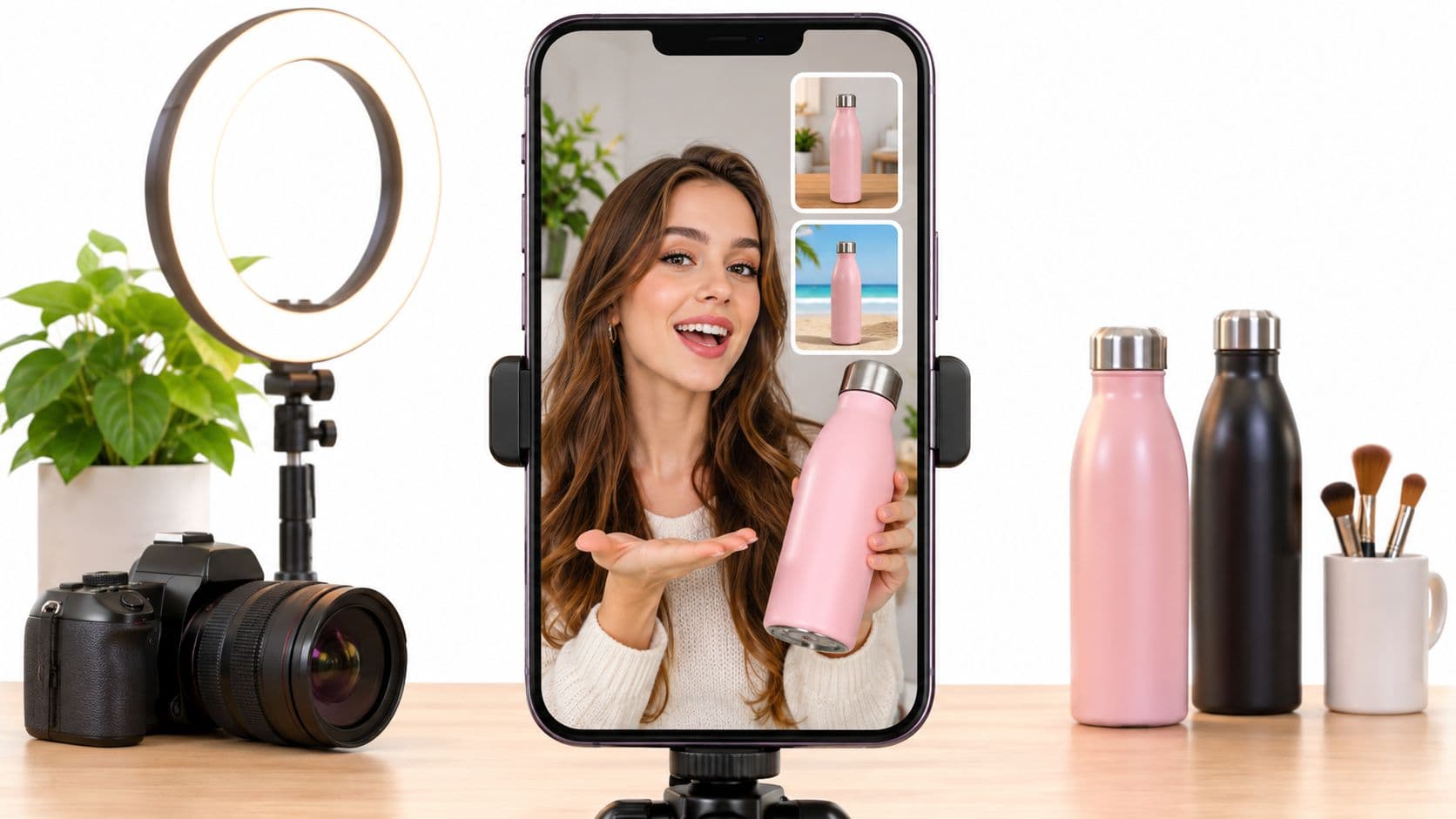
A seller has a clean product photo, a phone full of room pictures, or one strong before image. The clip still stalls because the opening needs explaining. Learning how to make viral videos starts with the opposite approach. Pick one visible payoff, match it to the template whose input is already available, then test the opening frame against documented platform signals.
Match Your Video Format to a Nim Template
Pick the format first, then pick the template whose requested input is already on hand. That order prevents the common mistake of forcing a product photo into a speaker format or a room photo into an ad format. The first frame should show the subject and its action without a caption doing rescue work.
A product demonstration needs the product visible immediately. A room change needs the messy and cleared states to read as the same space. A spokesperson clip needs a face that viewers can read at phone size. Those are different inputs, not interchangeable versions of the same task.
Viral-style formats and the Nim template to start from
| Format | Nim template | Input to prepare | Check before generating |
|---|---|---|---|
| Product demo or UGC-style ad | UGC ads | Product image | Product is fully visible and recognisable |
| Ad built from a product page | URL to UGC video | Product page URL | Confirm the URL input on the template page |
| Talking reaction or spokesperson | Lip sync | Speaker footage or image the template requests | Subject faces the camera clearly |
| Object that speaks | Talking object | Clear photo of the object | One short line the object can deliver |
| Before and after room change | Room declutter | Room photo | Same camera angle for before and after |
| Subject on a new background | Background replace | Subject photo with clear edges | Hair and object edges are not blended into the background |
| Product photo upgrade before animating | Enhance product photo | Product photo | Labels and packaging remain readable |
Choosing Between Close Options
A seller with only a product page should start from the URL-based route rather than recreating assets manually. A seller with a strong packshot has more control starting from the image. Reading an explanation of UGC advertising formats helps separate a creator-style demonstration from a polished product montage before generation begins.
Property content follows the same rule. A single room photo suits a declutter transformation, while a subject that needs relocation suits background replacement. Don't use either format to imply dimensions, finishes, or details that the source photo doesn't show.
Practical rule: If the payoff can't be described in one short sentence, the format is probably carrying too many claims.
Finished clips can also become source material for later posts. The video repurposing advice from ContentBuck is useful for planning how one strong visual idea can be recut for another placement without starting from a blank page.
Template pages remain the final check because input requirements differ between templates. Confirm the requested image, URL, footage, or other asset there before preparing files around an assumed workflow.
How to Make a Viral Video in Nim, Step by Step
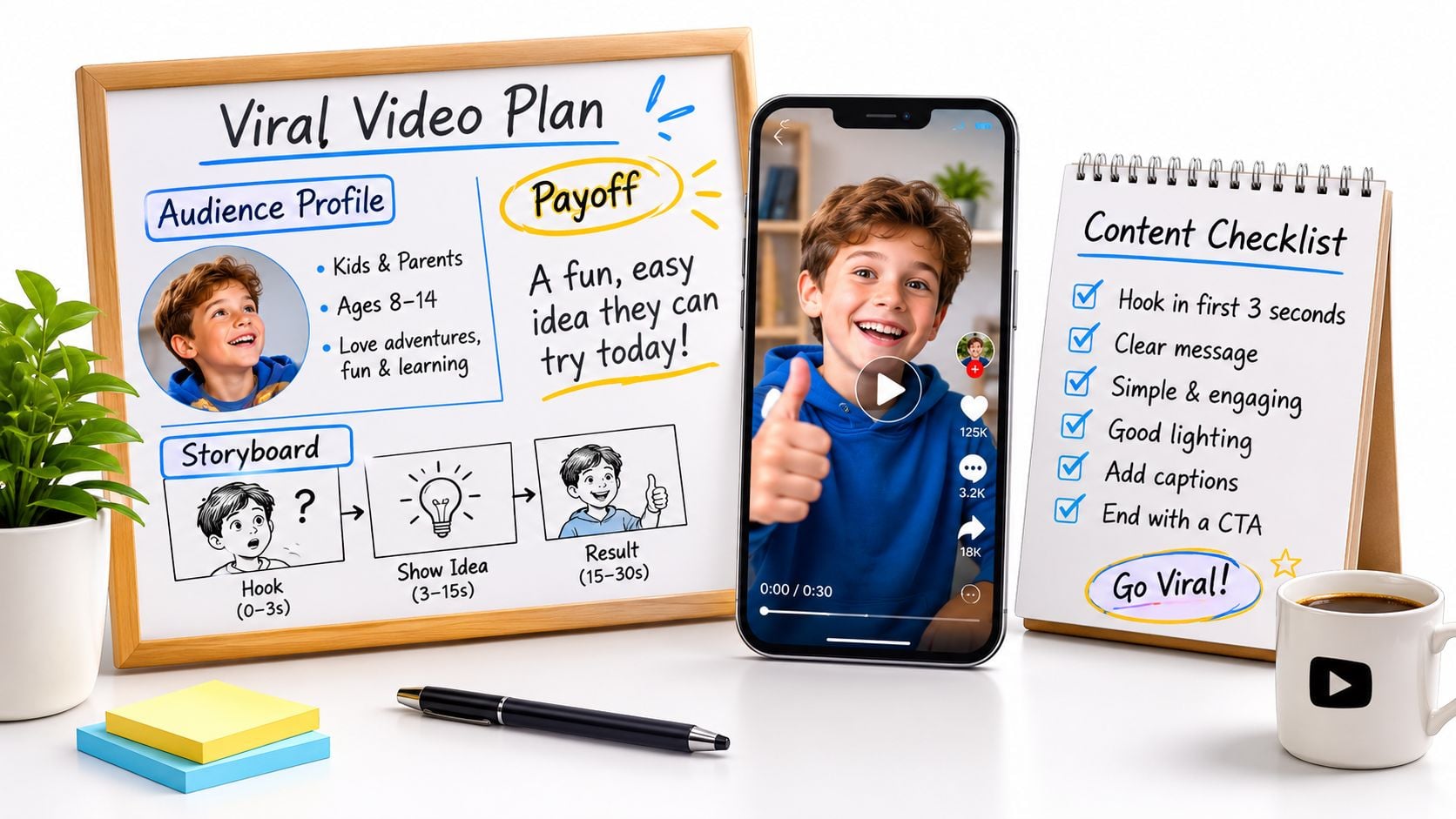
A product video, room transformation, and creator-style demonstration each need a different opening and payoff. Before generating, decide what the viewer should understand from the clip and choose a Nim template that can show it.
Steps 1 to 3 Define the Clip
- Choose one audience and one payoff: For a leash video aimed at dog owners, the payoff might be seeing how the leash fits during use. Keep the opening focused on that, rather than mixing in materials, colours, and shipping claims.
- Match the format to the payoff: Select a template that can show the result clearly. A UGC-style clip, a product animation, and a room transformation set different expectations, so choose the format that fits the visual evidence you have.
- Prepare the source asset: Check that the subject is complete, well lit, and easy to distinguish from its surroundings. This gives you a clearer basis for reviewing the generated result.
Steps 4 to 6 Generate and Review
- Open the template and provide its requested input: Use the asset specified on that template page. Add a prompt only if the template requests one, because inputs differ between templates.
- Review the opening frame first: Can viewers recognise the subject immediately? Then check the result against the source for altered labels, changed details, distorted proportions, or missing features.
- Review the result before using it elsewhere: Choose the version that shows the intended payoff with fewer distractions. If you want music, captions, trimming, or publishing controls, handle those as separate tasks outside Nim unless the selected template confirms them.
For a product or property clip, describe visible details only as the source supports them. If a generated result changes a feature or adds one, treat it as an illustration rather than a faithful record.
- Create one controlled alternative: Change one element, such as the opening image, while keeping the rest of the approach consistent. Compare the versions using the testing method below.
A useful first result has a recognisable subject, one visible action, and a payoff that arrives before the clip feels long.
Judge the draft by whether the action and result are easy to follow. A straightforward demonstration can communicate assembly, use, or transformation without relying on a montage.
Preparing Source Images for Short-Form Video
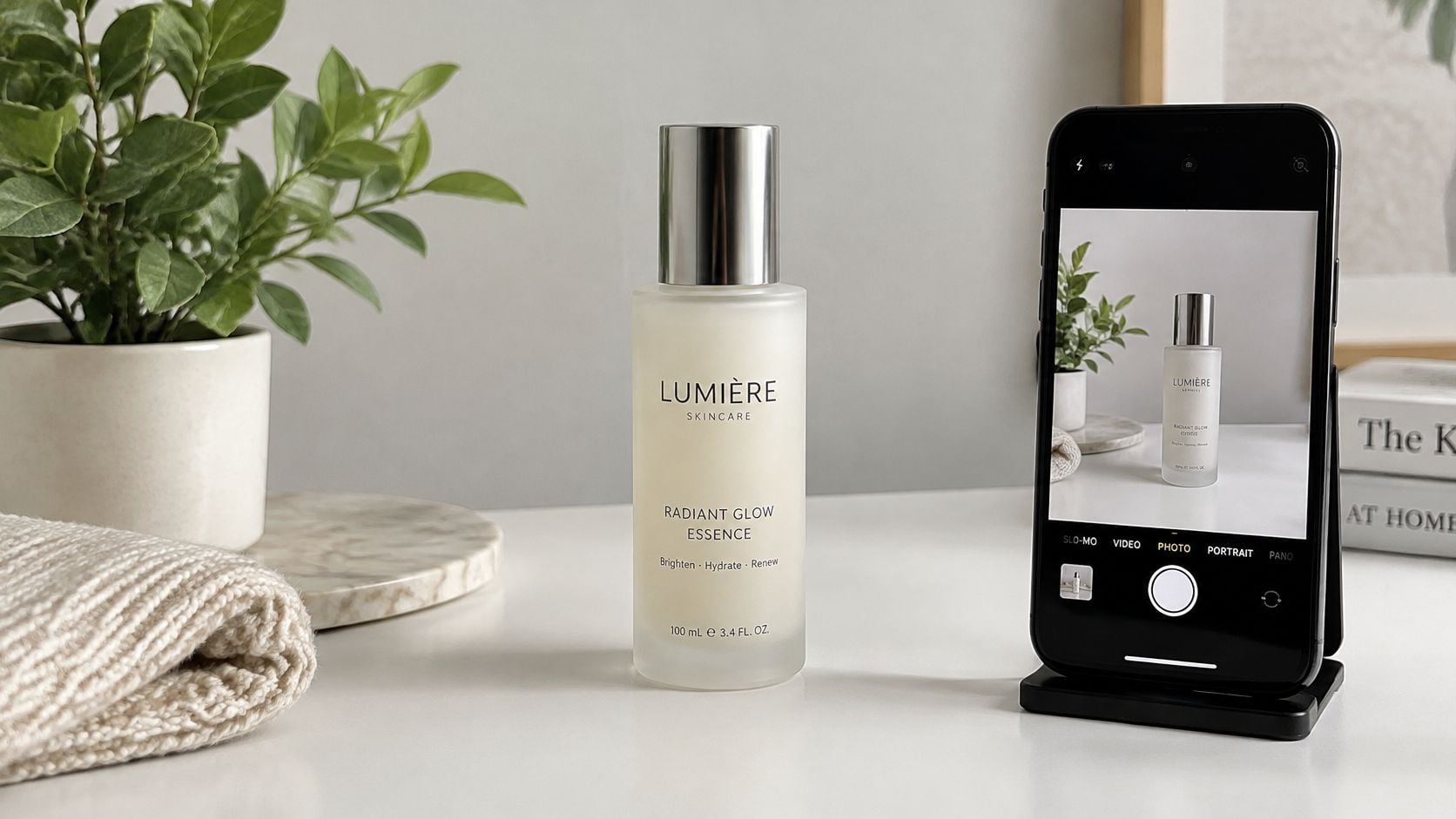
A source image that reads clearly in a phone-sized preview gives the generated clip a stronger starting point. Vertical framing helps keep the main subject prominent, while image details that look clear on a desktop may become hard to read in a feed.
According to HubSpot's video consumption research, 75% of viewers watched short-form video content on mobile devices in 2024. Check your image at feed-preview size: packaging, faces, and room features should remain recognisable.
Source Checks by Subject
- Product: Use a photo that shows the details viewers need to assess, such as packaging or a feature being demonstrated.
- People: Choose lighting that separates hair and facial features from the background.
- Rooms: Base property content on the actual room image. Don't add details that aren't visible in the source.
- Speakers: For speaker-based templates, provide source material with a clear face and any requested audio.
- Background replacement: Simple backgrounds are generally easier to work with than busy ones, where subject edges can blend into the new setting.
Longer recordings can also provide stills or short moments for new clips. The 2026 podcast content repurposing guide offers context for turning a recording into smaller assets; choose source moments that remain clear when viewed on a phone.
Set Your Opening and Length by Platform Signals
Design around the signals each platform documents, not an invented universal threshold. YouTube's Shorts guidance names percentage of viewers who choose to watch, average view duration, and average percentage viewed.
Documented ranking signals by platform
| Platform | Documented signals | Clip decision |
|---|---|---|
| YouTube Shorts | Share of viewers who choose to watch, average view duration, average percentage viewed | Open on the subject and end on a payoff that earns a rewatch |
| TikTok For You | Likes, shares, follows, comments, captions, sounds, hashtags | Write a caption that describes the actual transformation and choose sound deliberately |
| Instagram Reels | Accounts followed, recently watched Reels, trend participation, library or original audio, vertical filming | Compose vertically and use library or original audio |
TikTok's For You explanation supports truthful captions, sounds, and hashtags that match the actual clip. Trend research can inform subject choice, and the TikTok trend examples for 2026 provide context, but unrelated trend terms won't fix weak relevance. For vertical exports, Instagram Reels resolution guidance helps with presentation checks.
Length isn't a fixed target. A third-party TikTok length dataset reports average completion falling from 32.1% for videos under seven seconds to 0.6% for videos longer than 25 seconds, while noting performance varies by format and hook quality. Test a compact cut against an extended cut instead of treating either as the winner in advance.
Testing Variations Before You Post
Change one element at a time. A variation that changes the opening image, text, pacing, and caption together can't reveal which change caused a different result. Controlled variation turns posting into a repeatable test rather than a fresh guess.
Create several versions of the same product or ad concept before selecting the first post. The cleanest early test changes only the opening image or the first line of on-screen text. Keep the payoff, subject, and broad sequence stable so the comparison stays interpretable.
According to Keywords Everywhere's summary of industry statistics, in 2025, 60% of marketers measured video-marketing success through video engagement. That supports generating multiple visual variations and comparing engagement after publishing rather than judging a clip only by internal preference.
Reading the Result
- Opening response: Compare how many viewers chose to watch each version.
- Retention: Compare average view duration and average percentage viewed.
- Engagement quality: Read comments and shares for evidence that viewers understood the payoff.
- Creative notes: Record the opening image, text, length, and caption beside each result.
Total views alone can mislead. A clip may receive broad initial distribution but lose viewers immediately, while a smaller test may hold a more relevant audience. Score each variation against the platform signals that match the destination.
Useful creative analysis also connects the result to the original ad idea. The principles in ad creative design guidance can help assess whether hierarchy, contrast, and message clarity supported the opening or competed with it.
Keep the opening that held the right audience, replace the one that didn't, and build the next variation from the same source.
Results remain specific to audience, subject, and platform. A winning opening for a skincare demonstration doesn't become a benchmark for a property reveal. Repeatability comes from the testing discipline, not from copying another clip's numbers.
Common Problems and How to Fix Them
A generated clip can look polished yet fail as an ad: the logo leads, the subject appears late, or the opening promises a result the video never shows. Diagnose whether the problem is in the source image or in the sequence. That distinction determines what to remake.
Symptoms, causes and fixes for generated short videos
| Symptom | Likely cause | Fix |
|---|---|---|
| Product looks different from the photo | The source does not clearly show a key detail | Use a source that preserves the detail viewers need to recognize |
| Opening frame is slow to read | Logo, setup or several claims appear before the subject | Start with the subject and one visible action |
| Text is unreadable at phone size | Text is too small or competes with the image | Shorten the wording and increase its size |
| Background edges look rough | Subject edges blend into the background | Choose a simpler composition with clearer separation |
| Viewers leave early | The hook promises more than the clip shows | Match the opening promise to the visible payoff and cut the delay |
Deciding What to Remake
Return to the source when an output changes a label, removes a product edge, or invents a room feature. One new source may fix the underlying problem; repeated generations from the same image cannot restore missing information. Reject outputs that alter packaging, dimensions, or property details in ways viewers could mistake for fact.
Change the sequence when the source remains accurate but the opening is slow or unclear. Put the strongest recognizable frame first, remove branding or setup that delays the payoff, and test a simpler order. If viewers leave before the clip delivers its promise, shorten the sequence around the point where attention drops.
Choose Your First Template and Test It
Start with the template matching the product, room, or subject already available. For most sellers, UGC ads is the natural starting point for a product-led clip. Other formats should wait until the first test shows whether the subject and payoff hold attention.
Generate two or three variations that differ only in the opening image. Review each first frame at phone size, check the product or property against the source, and download the strongest version. Finish captions, music, and trimming in an external editor or on the platform unless the template confirms those steps.
Keep a real product or real property as the visual anchor. Disclose AI-generated visuals where they show details absent from the source. Nim is an app for AI video production, with categories including UGC, Keyframes, Motion transfer, Animations, Cinematic, and Timelapse, but the first task should stay narrow.
Browse the full Nim template library only if none of the named options fits the available input. The action for this week is specific. Choose one template, create three opening variations, post the strongest vertical version, and compare viewer response before making the next concept.
Open Nim, choose the template that matches an existing product or room asset, and generate three versions with different opening frames. Nim's AI video templates support product demonstrations, UGC-style ads, image animation, and property visuals without turning the first attempt into a full production. Post the clearest version, measure retention and engagement, and let that result decide the next variation.
- make viral videos
- short-form video
- UGC ads
- talking object
- product video