Real Estate Animated GIF: Make the Motion First
Plan a real estate animated gif for a listing, verify the file you can download, and disclose AI motion before it goes live.
By Nim

A real estate animated GIF is useful when one brief motion makes a property detail easier to understand. For example, a floor plan can highlight how rooms connect. Before calling the result a GIF, check the downloaded file's format: a video file with a different label may not be a GIF.
Keep the motion focused. A slow pan can show a room's layout; a before-and-after can suggest how furnishings change its appearance. Combining several ideas in one loop can make each harder to follow, especially on a phone. A polished animation is still an illustration, so label any added or implied details clearly.
Prepare one source image, choose a Nim video template that fits the motion, and confirm the actual download before sharing it.
Choose One Property Motion Before You Export
Every listing has four or five moments worth showing, and the first instinct is to cram them into a single file: exterior, kitchen, view, plan, then a day-to-night flip. That loop does several jobs badly. A real estate animated GIF earns its place when it settles one decision a buyer is already trying to make, and stills plus a full tour cover everything else.
The clearest signal about which decision to serve comes from space. Zillow's Consumer Housing Trends Report, as reported by Curb Appeal Photography, found that in 2024 77% of prospective buyers said a dynamic floor plan connecting photos to rooms would help them decide whether a home was right for them. Layout is the doubt. A plan resolving into space answers it; a spinning camera in a hallway doesn't.
Read the download before promising a format
The table matches each job to a Nim template, and the right-hand column is the one that matters most. These templates are described as real-estate creation tools that produce video-style output. Nothing in that description promises a GIF, a set duration, or a fixed resolution. Open the template, look at what it asks for and what it returns, and only then decide what to tell a client.
| Motion | Use it when | Template to open | Confirm before sharing |
|---|---|---|---|
| Plan highlight or plan-to-space move | Buyers need layout more than atmosphere | Animated Plan or Plan to 3D | Accepted plan input and actual download type |
| Lifestyle or room move | One room or a lived-in path is the story | Lifestyle Walkthrough or Room Tour | Whether motion stays inside the supplied photo |
| Sunlight or day to night | Light is the point, not new architecture | Sunlight or Day and Night | That the result isn't a claim about a precise hour |
| Staging contrast | Furniture or decluttering will be added or removed | Virtual Staging or Room Declutter | Label and the unaltered source photo |
| Construction sequence | The story is site to finished structure | Construction Timelapse | That no drone or site footage is implied |
The honest benchmark is a tour, not a GIF
Search results are full of confident claims about GIF conversion rates, and no credible figure sits behind them. The strongest published benchmark lives one step up the ladder. An analysis of 143,575 MLS listings across four U.S. markets found that listings with 3D tours sold for 4% to 9% more and, depending on market, up to 31% faster, as reported by SofaBrain. Read that as evidence that rich spatial media helps a listing, then treat the loop as a teaser that pushes people toward the walkthrough rather than a replacement for it.
The one-line brief: pick the single motion a buyer needs, name the template that produces it, and write down the file extension before the asset goes anywhere near an MLS.
If the download turns out to be a video file, publish it as video where the channel accepts video. Converting to a GIF is a separate step in your own editor, done after the file exists and after you've watched it end to end. Renaming an .mp4 to .gif produces a broken file, not a loop. However clean the result looks, it stays a marketing illustration: not measured area, not proof of condition.
Where the animation lives matters as much as what it shows. A short exterior or seasonal loop works harder when it sits inside a broader property-content plan, and real estate posts from Pine Country covers the curb-appeal and presentation angles that pair naturally with a window, siding, or entry sequence. For the channel mix around the file, the Nim guide to real estate video marketing walks through where motion belongs in a listing campaign.
Before moving on, write two things down: the motion chosen, and the file type still to be confirmed. Everything that follows depends on both.
How to Animate a Floor Plan in Nim
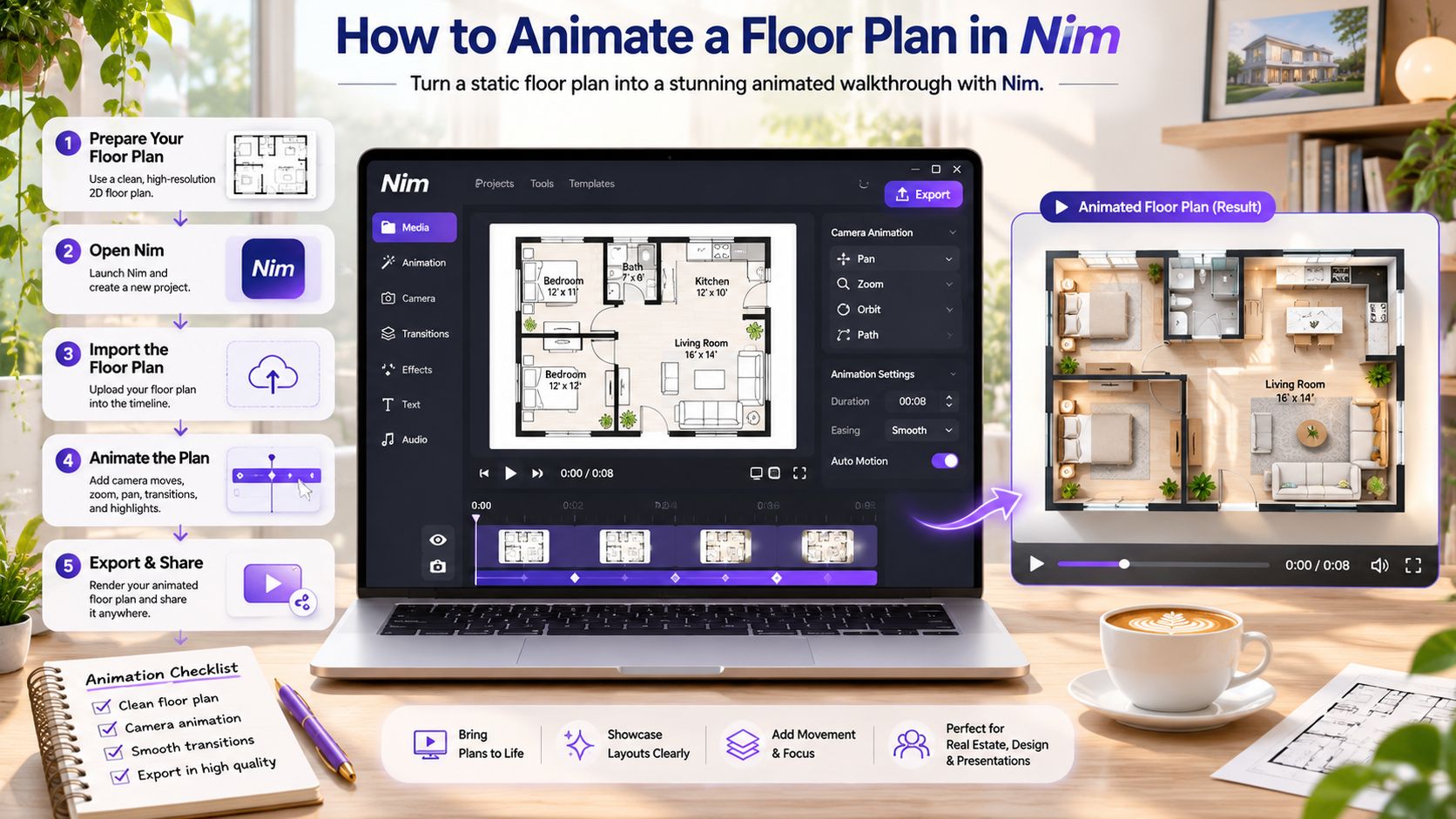
A floor-plan animation can suggest how a home might feel to move through, but it can also add details the drawing never showed. Choose one clear motion, prepare a legible source image, and compare the result with the original before sharing it.
- Choose the right template. Nim is an app for AI video production. Its Animated Plan template is intended for an animated plan. A walkthrough concept is a different task, covered by Floor Plan to Video Walkthrough, which has different inputs.
- Prepare the drawing outside Nim. Use a clear image with walls and openings easy to distinguish at phone size. If a busy plan is hard to read, consider preparing a single level. Remove markup you do not want reflected in the result.
- Provide the input the template requests. Add a written prompt only if that template includes a prompt field. Templates can differ, so follow the requirements shown for the one you choose.
- Generate and compare. Check the main rooms, openings, and apparent route against the source. If the animation adds a wing, window, or furniture that is not in the drawing, do not present those details as facts about the property.
- Check the downloaded file. Confirm its actual extension before deciding where it can be used. A video file renamed with a
.gifextension will not become a GIF. If a listing destination accepts only still photos, you can use a representative frame there and place the moving file on a channel that supports it.
The National Association of Realtors' 2025 profile of home buyers and sellers reports that 52% of buyers found the home they purchased through the internet. Among buyers who used the internet, 57% valued floor plans, while 81% considered property photographs very useful. Those figures support using plans alongside photographs, not treating an animation as a substitute for either.
A polished loop is still an illustration. It can show a suggested sequence and how rooms relate, but it does not verify square footage, ceiling height, or whether a wall shown in the animation exists.
Keep the Loop Short and the Details True
A floor-plan GIF works best when one small detail moves and the rest stays still. The format's limits help explain why. GIF debuted through CompuServe in 1987; a 1989 revision added multiple frames, frame delays, and transparent background colors, as a documented history of the format records.
Each frame uses an indexed palette of up to 256 colors. Transparency is binary rather than partial alpha, and delays are stored in hundredths of a second, so a stored value of 8 means 0.08 seconds, according to the GIF file format reference. These constraints make large, detailed changes harder to keep smooth and consistent from frame to frame.
Animate a region, not a room
- Crop first. Settle the placement, whether it is a wide listing card or a phone-width crop. Changing the crop later means reworking the loop.
- Pick one moving region. Use a floor-plan highlight, a sunlight direction, a short camera push, or a room-label emphasis.
- Hold the background still. Keep walls, openings, and the rest of the room fixed so the motion stays easy to follow.
- Limit frames and colors. A smaller frame sequence and tighter palette can reduce visible artifacts.
- Inspect at mobile size. Check the result at the size viewers are likely to see, not only in a full-screen desktop preview.
Photographic gradients are difficult to represent cleanly. Skies, foliage, and soft interior shading can turn into banding, dithered speckle, or colors that shift between frames. The same issue can affect a floor plan with a photographic wood texture.
A subtle move across an unchanged room is safer than a dramatic change that adds a view, hides a defect, or implies a measured width.
Check the file's size and loading behavior before placing it on a page where performance matters. If the loop becomes too heavy, consider showing it in a video player instead of embedding it as an image.
Match Size Loop and Flash Limits
Start from the largest clean source available and compress last, once the destination spec is confirmed. Listing platforms publish their own targets, and the figures below are still-photo guidance rather than universal GIF rules. Treat them as input preparation: size the source generously, then verify the requirement with the receiving board, site, or channel.
| Destination note | Reported target | Use for this animation |
|---|---|---|
| Rightmove advice as reported | Horizontal at least 1024 × 683 | Start from a horizontal source no smaller than this |
| Zillow guidance as commonly reported | 2048 × 1536 | Keep full source resolution before cropping |
| MLS photo limits as reported | About 3 MB to 10 MB per photo | Confirm the board; a GIF may not fit the same ceiling |
| Channel that accepts only stills | One representative frame | Publish the loop where motion is permitted |
A comparative guide on real estate listing photo sizes reports Rightmove's advised minimum for horizontal images, commonly reported Zillow guidance of 2048 × 1536, and MLS photo limits that can run roughly 3 MB to 10 MB per file. Two habits follow. Export wide-format sources so the crop has room to work, and hold full resolution until the crop is final. If a slot accepts only stills, upload one representative frame and place the animation where motion is allowed.
One second is the test that catches bad loops
Preview the finished loop at normal playback speed, never as a still. WCAG 2.2 states that a page must not contain content flashing more than three times in any one-second period, and that rule covers short clips that loop, as the W3C guidance on three flashes sets out. A before-and-after room cut, a day-to-night jump, or a high-contrast plan blink can cross that threshold without anyone noticing on the editing timeline.
The fix is redesigning the transition itself. Slower fades, gentle pans, and clearly separated scenes carry the same information while staying under the threshold. Check the whole loop, because the test is a full second at playback speed; a single frame or the first pass alone won't catch it.
Count a full second: watch the worst second of the loop three times before publishing, not the frames you're proudest of.
Five seconds, then rest
Accessibility guidance recommends that animation stop after five seconds or that the viewer get a way to switch it off, as the DAISY knowledge base on animated images explains. That fits a listing loop built around one feature: a short camera move, a plan-to-3D transition, or a light change, then stillness. If the page would force an endless loop with no control, publish the still.
Where the loop heads for a social feed rather than a listing page, the Nim guide to Instagram Reels resolution covers how a platform's sizing expectations diverge from an MLS slot.
Views prove nothing on their own. Compare otherwise similar listings with and without the teaser across the same market period, and track saves, qualified inquiries, and tour requests rather than impressions. Record sample size, price band, channel, device mix, and exposure window. Without those controls, an apparent lift may just reflect property quality or placement.
Disclose AI Motion Before the Listing Goes Live

A polished loop can look like recorded footage even when it began as a still photograph. Label the asset beside the image or video, and keep the original available so viewers can distinguish captured property details from motion or furnishings added for presentation.
California's AB 723, effective January 1, 2026, requires a reasonably conspicuous disclosure for digitally altered real-estate images and access to the original, unaltered image, including when visible property elements such as furniture, landscaping, or views are changed, according to HousingWire's report on AI listing video disclosure. Requirements can also vary by state and listing service. Check the rules that apply to the property before publishing.
Use wording that describes the actual asset, for example: “AI-animated video created from a property photograph. No drone or walkthrough footage was captured.” If an animation adds furniture or changes a view, say so directly. A label should not imply that a generated scene documents the property's actual condition.
What the label has to say
Example: AI-animated video created from a property photograph; no drone or walkthrough footage was captured.
If a loop moves from an empty room to a furnished version, identify the furnished scene as virtually staged. Keep the untouched photo with the listing materials. A moving image may suggest depth or continuity, but it cannot verify a property's dimensions, structure, or condition.
The same care applies to short-term rental listings, where photos shape a guest's expectations before booking. The Miami short term rental hosting guide covers presenting a property accurately to prospective guests.
For an animation that includes added furnishings, the guide to virtual staging explains how to distinguish a staged visual from a record of the property. Pair it with unaltered photos when the listing rules or platform call for them.
Open the Animated Plan Template Next
Planning stops here. The motion is chosen, the source is prepared, and the disclosure line is written, so the next move is a single generation from the right template rather than another round of comparison.
For a plan loop, open Animated Plan, supply the plan image the form requests, generate, and download the file it returns. If the job is a furnished room, a light change, or a build sequence instead, switch once to the matching template and stop shopping. The full set sits at real estate templates.
Nim is an AI video app whose creation styles include Animations and Timelapse, alongside categories such as UGC, Keyframes, Motion transfer, Cinematic, Celebrity selfie, and Fashion videos. Animations and Timelapse are where this task belongs, which is another reason the template choice matters more than the label on the file.
Three things to do after the download
- Write the extension into the filename note. The file type is part of the asset record, and it's what stops a video from being described as a GIF in a listing email.
- Place the disclosure beside the player. The label travels with the asset, not with the person who generated it.
- Keep the unaltered source with the listing file. The original plan or photograph is the evidence behind the illustration.
Some of what a plan can't show has to be handled elsewhere in the listing, and outdoor space is the usual gap. Preview your yard with AR covers how an augmented preview changes what buyers expect from the rest of a property's visuals.
The next action is one generation from the correct template, followed by a side-by-side review against the original plan or photo. Nothing about that review turns the output into a survey, and nothing about the download turns it into a GIF unless the file says so.
Nim turns a prepared floor plan or property photograph into a short moving sequence through templates built for real estate, including animated plans, plan-to-3D transitions, room tours, sunlight changes, and staged or decluttered versions of the same room. Pick the one motion the listing needs, download the file the template gives you, and label the result for what it is. Visit Nim to open a real-estate template and run the first generation.
- real estate animated gif
- animated floor plan
- listing video
- AI property visual
- staging disclosure