Social Media Video Templates for Product Ads in Nim
Choose social media video templates in Nim for UGC-style ads and product demos, with the input to prepare and TikTok video specs to check first.
By Nim
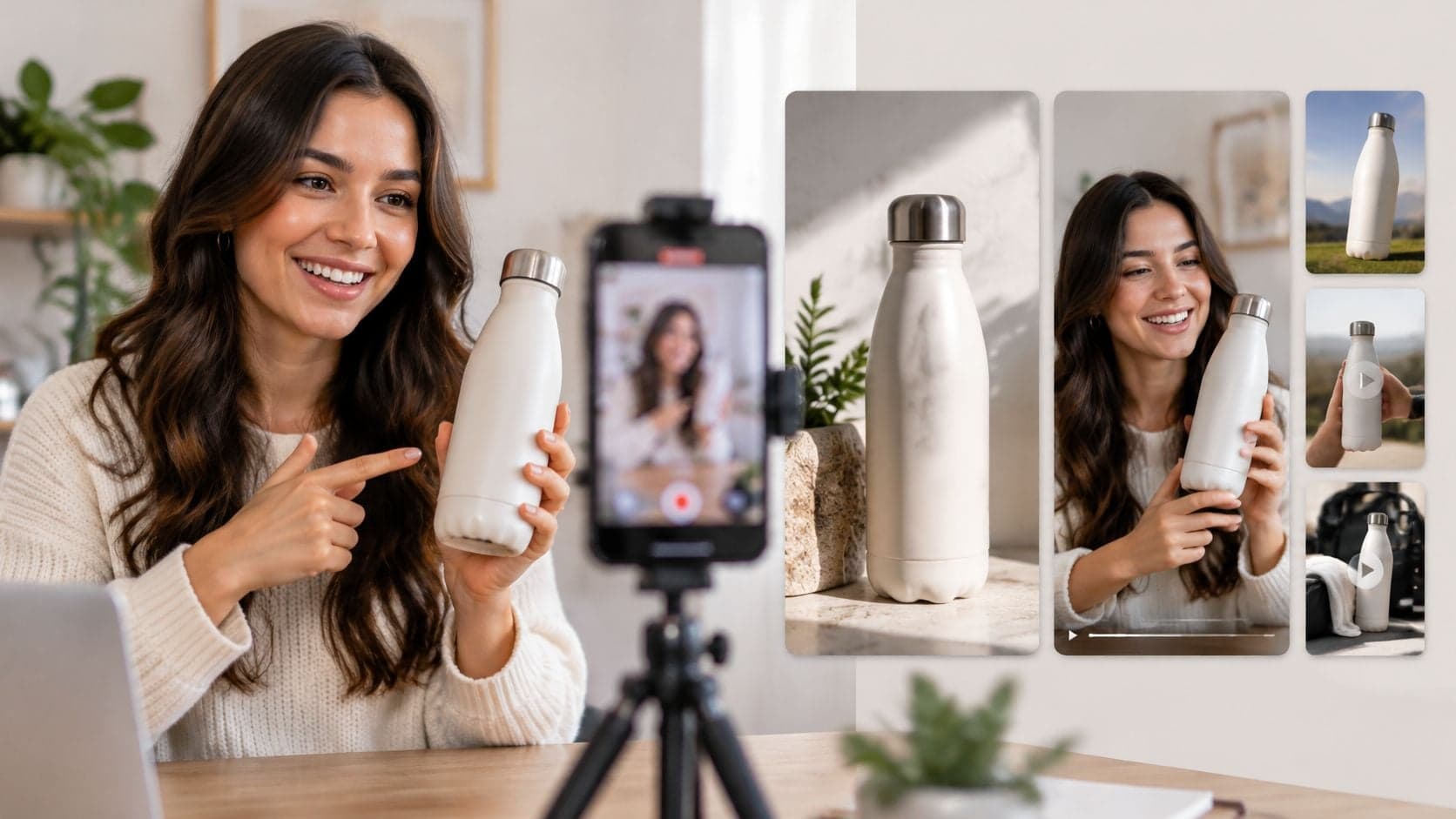
You have a product photo ready and a social ad due tomorrow. The clip has to feel like a short ad, and the product, the label, and the offer still have to be readable when it ends. Social media video templates earn their place when those facts survive the runtime. Motion obscuring the product is a failed ad, even when the animation looks busy.
Start from the file you already hold. A clean product still points toward assembly or a photo cleanup. A product page points toward a creator-style clip. A subject that needs a new setting points toward a background swap. Match the length to the placement before you publish.
Match Each Social Video Task to a Nim Template
Pick the route from the asset, not from the effect you wish you had. The table below pairs common social jobs with the Nim template built for that job.
| Social content task | Nim template | Intended use |
|---|---|---|
| UGC-style product ad | UGC ads | Creator-style ad for one product |
| Product page to walk-and-talk video | URL to UGC video | UGC-style clip from a product page, if the template takes a link |
| Product image to assembly sequence | Assembling product | Showing how a product is put together |
| Product still for a feed post | Enhance product photo | Cleaning up a product still before posting |
| Playful product hook | Talking object | Short, attention-getting concept for a product |
| Changed setting behind a subject | Background replace | Swapping the background of a clip |
| Browsing a full catalogue | E-commerce templates | Finding templates by product category |
Choose from the file in front of you
A product photo points to assembling or enhance. Use assembling when the viewer should see parts come together. Use enhance when the still itself is the post and colour or edges need a cleanup first.
A product page or a short script points to the UGC route. Open URL to UGC video only when that template accepts a link. If you only have a photo, stay on UGC ads instead of forcing a page URL into a photo workflow.
A subject that needs a new room, street, or studio points to background replace. A joke or a one-line product personality points to talking object. If you do not have a finished asset yet, browse e-commerce templates by category before you shoot or export anything.
The template page lists the input it asks for. That list is the last check before you generate. Supply that input, and skip controls the page does not show.
TikTok Video Specs to Check Before You Generate
Placement comes before generation. A vertical in-feed ad and a Global App Bundle ad do not share one recommended length, so locking the placement first stops you from trimming a finished clip into a worse composition.
| Placement | Aspect ratio | Minimum size | Allowed duration | Recommended duration |
|---|---|---|---|---|
| In-feed, vertical | 9:16 | 540 × 960 px | 5–60 seconds | 15 seconds |
| In-feed, square | 1:1 | 640 × 640 px | 5–60 seconds | 15 seconds |
| In-feed, horizontal | 16:9 | 960 × 540 px | 5–60 seconds | 15 seconds |
| Global App Bundle, vertical | 9:16 | 720 × 1280 px | 5–60 seconds | 21–30 seconds |
TikTok's in-feed ad specifications set the vertical 9:16 minimum at 540 × 960 pixels, with square 1:1 at 640 × 640 and horizontal 16:9 at 960 × 540 also supported, and allow 5–60 seconds with 15 seconds as the recommended length. TikTok's Global App Bundle video-ad guidance asks for vertical 9:16 at a minimum of 720 × 1280 pixels, allows the same 5 to 60 second window, and recommends 21–30 seconds. The allowed window is identical across both tables; the recommended column is where they split.
Why the two recommendations differ
The placements are different buys, so the recommended cut differs with them. That recommendation is the runtime your product facts have to survive, which is why it shapes the script before you touch a template.
Treating the shorter in-feed figure as universal will undershoot a bundle buy. Treating the bundle band as universal overshoots an in-feed placement that TikTok wants tighter. Pick the buy, then write to that length.
If the same idea also needs a Reels cut, check Instagram Reels resolution as its own export with its own spec sheet.
Four checks before you generate
- Design vertically first: Build the 9:16 frame as the master, even if a square or horizontal in-feed size is also allowed.
- Protect the safe area: Keep the product, the price badge, and any on-screen text in the central area so mobile controls do not cover them.
- Fit the message to the recommendation: The shorter in-feed cut and the bundle's longer band need different scripts. A claim that fills one will feel padded or cramped in the other.
- Review the render at 9:16: Crop a 16:9 master down to vertical and watch what leaves the frame. A price badge pinned to the lower corner or a product name running along the top edge can fall outside the 9:16 safe area even though both sat comfortably inside the wide timeline.
When one concept runs in several placements, keep the original high-quality vertical source and check each export against its destination. Automatic resizing is not a spec check.
Practical rule: Placement, ratio, duration, safe area, message length.
How to Make a UGC-Style Product Ad in Nim
This is the route for turning one product image into a UGC-style ad after you have chosen the UGC ads template.
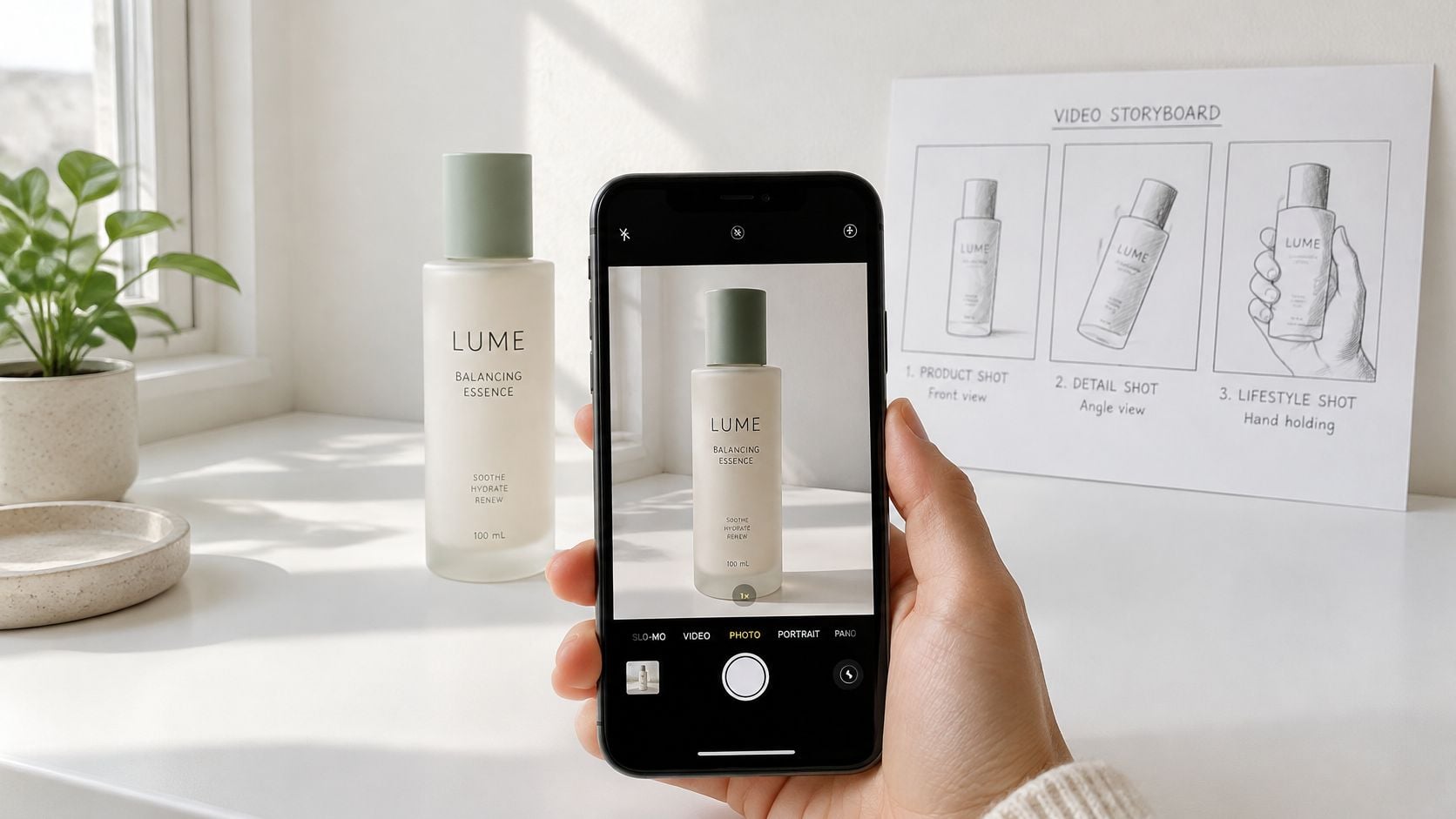
- Prepare the source photo. Use one product, clear framing, and an uncluttered background. Use only images you have rights to. The rights check sits at the end of this guide.
- Open the UGC ads template page and read the input it lists.
- Supply only that input. If the template accepts a text prompt, write one sentence that names the product and one benefit. Do not stack a second claim into the same line.
- Generate the video from that input.
- Review the first two seconds. The product should be recognizable, and its shape, colour, and labels should still match the item. If they do not, prepare a cleaner source and generate again.
- Check the length against the placement you already chose. A clip that ignores that window will get cut in the wrong place.
Why the first frame carries the ad
A clear first frame matters more than a late reveal. Vidyard's benchmark of approximately 943,000 business videos found a 65% completion rate for videos shorter than one minute, compared with 20% for videos longer than 20 minutes. That is a directional benchmark for business video, not a guaranteed result for TikTok or any Nim output. Use it to compare short outputs by completion, and keep the main subject recognizable throughout.
Captions, audio, and publishing sit outside this route. Finish the visual first, then handle those in a separate step.
Steps for the Other Nim Routes
A route earns its keep when the output still matches the asset you fed it and the finished product. Pick by starting asset, then check the failure that route is most likely to hide.
- Enhance product photo. Feed it the still you plan to post, then compare the cleaned version with the original file. Pass only if colour, label text, and surface texture stayed honest; a brighter pack that turns navy into black fails.
- Assembling product. Supply the clearest product image the page accepts and judge the generated order against the actual build. Reject any sequence where a cap, lid, or fastener lands before the part it belongs to exists.
- Background replace. Start where the subject is already separate from the scene. After the swap, inspect the edges once: fringe, shadow loss, or a silhouette swallowed by the new room means the product stopped being the subject.
- Talking object. Keep the line to one benefit tied to the product. If a joke, extra claim, or second beat pulls attention from the item, cut that line and generate again.
- E-commerce templates. Use a category when the asset is not finished yet. Read the requested input before preparing files so the first generation is not built from guesses.
Run the same discipline across all five: prepare only what the page asks for, generate, then compare the result with the source and the physical item. The useful question is narrow: did this route keep the product intact while doing its one job?
Fitting Product Facts Into a Short Video
A short template has room for only a few facts. Decide which ones the viewer must receive before you add another transition. A 2025 study of 372 consumers found that usefulness, ease of use, and entertainment all influence trust and purchase intention, and it warns that short-video time limits can leave people without enough information to decide.
Five slots, one benefit per beat
Assign these slots on purpose:
- The product itself: Show the item early, large enough to name.
- One proof point: A material, a result, or a visible feature, not three at once.
- One use case: Where or how someone uses it.
- The price or offer: Only if there is one, and only if the figure is final.
- A next action: What the viewer should do after the clip.
One benefit per beat works better than stacked effects. Motion that races past the label hides the information the buyer needs. Extra sparkle does not replace a missing price or a missing use.
The compression test
After you generate, ask which product facts survive the template's visual compression. Compare versions on that question, not on which cut looks more polished. Keep essential information out of tiny decorative type. A badge in the corner is not a proof point if nobody can read it.
A strong still is the raw material for that test. Product photography is where shape, colour, and label get settled before any template moves them.
Finalised copy, prices, and offer terms are usually written and checked outside Nim, then added to the post. Do not treat a generated line as an approved price.
Run this in ten seconds: Can you name the product? Can you name one proof point? Can you name the next action? If any answer is no, the template compressed too hard. Generate again from a clearer source or a shorter claim.
Captions and Multilingual Text Outside Nim
Captions are part of the ad for viewers who are deaf or hard of hearing, and for anyone watching in a second language. They are not a style overlay you add because the feed looks empty.
The W3C Web Accessibility Initiative defines captions as text covering spoken words, speaker identification when needed, and important audio such as music, laughter, and other sounds. Captions should be available for prerecorded and live video, and automatically generated captions often need editing.
Three layers to write
- Spoken words: Every line a person or a talking product says.
- Speaker identification: A name or role when more than one voice matters.
- Meaningful sound: Music, a laugh, or another sound that carries meaning, not every rustle in the room.
A short review before you publish
Check names, product terms, numbers, and timing. A wrong shade name or a shifted price is worse than no caption. Correct errors before publishing. Make sure the text does not cover the product or the key action. If the caption box sits on the label, move it.
A line written for one language can fail in another reading direction or with a cultural reference that does not travel. Have a native reader check any translated text before posting. Do not ship an automatic translation of a product name, a claim, or a joke.
If captioning is not part of the Nim step you use, add captions in a separate tool. Treat that as optional post-production, not as a control on the template. The visual can be finished while the words are still unverified.
Confirm Rights and Test Your First Ad
A clean render does not clear a logo you do not own. Before you publish, verify the source images you uploaded, any people who appear, brand logos and packaging, and music or other third-party elements. Get permission where you need it.
AI output raises a second question: who owns the result. The U.S. Copyright Office says copyright does not extend to purely AI-generated material, or to material where human control over expressive elements is insufficient. Human contributions may be protected, including creative selection, arrangement, coordination, or modification of AI-generated material. Applicants registering a work with more-than-minimal AI-generated content must disclose that material, briefly describe the human contribution, and exclude the AI-generated portion from the claim.
Keep a record of the human decisions behind the final asset: the source images chosen, the sequence, the written copy, the edits, and the compositing. Do not promise a client that a Nim output is automatically copyright-protected or commercially cleared.
Nim is an app for AI video production, and it offers video styles and creation categories including UGC, Keyframes, Motion transfer, Animations, Cinematic, Timelapse, Celebrity selfie and Fashion videos. Whichever category your clip starts from, the same rights check applies to every input and every element in the final cut.
A first test worth running
Once the rights are cleared, run one controlled comparison before you commit to a version. Make two cuts of the same product ad. Open the first on the product itself. Open the second on a stronger effect.
Show both to someone who has not seen the item before and ask them to name it. That is the true test of a social video template: whether the product facts survive the runtime. If the effect swallows the label, or the opening frame could belong to any product in the category, the plainer cut is the better ad. For a wider look at ad variations, see this guide to an AI ad creative generator.
Visit Nim and start from the template that matches the asset you already have.
- social media templates
- UGC ad templates
- product video ads
- TikTok video specs
- AI video templates