Image to 3D from a Floor Plan Guide
Learn image to 3d from a floor plan in Nim: choose Plan to 3D, prepare a legible plan, review rooms, and skip survey claims.
By Nim
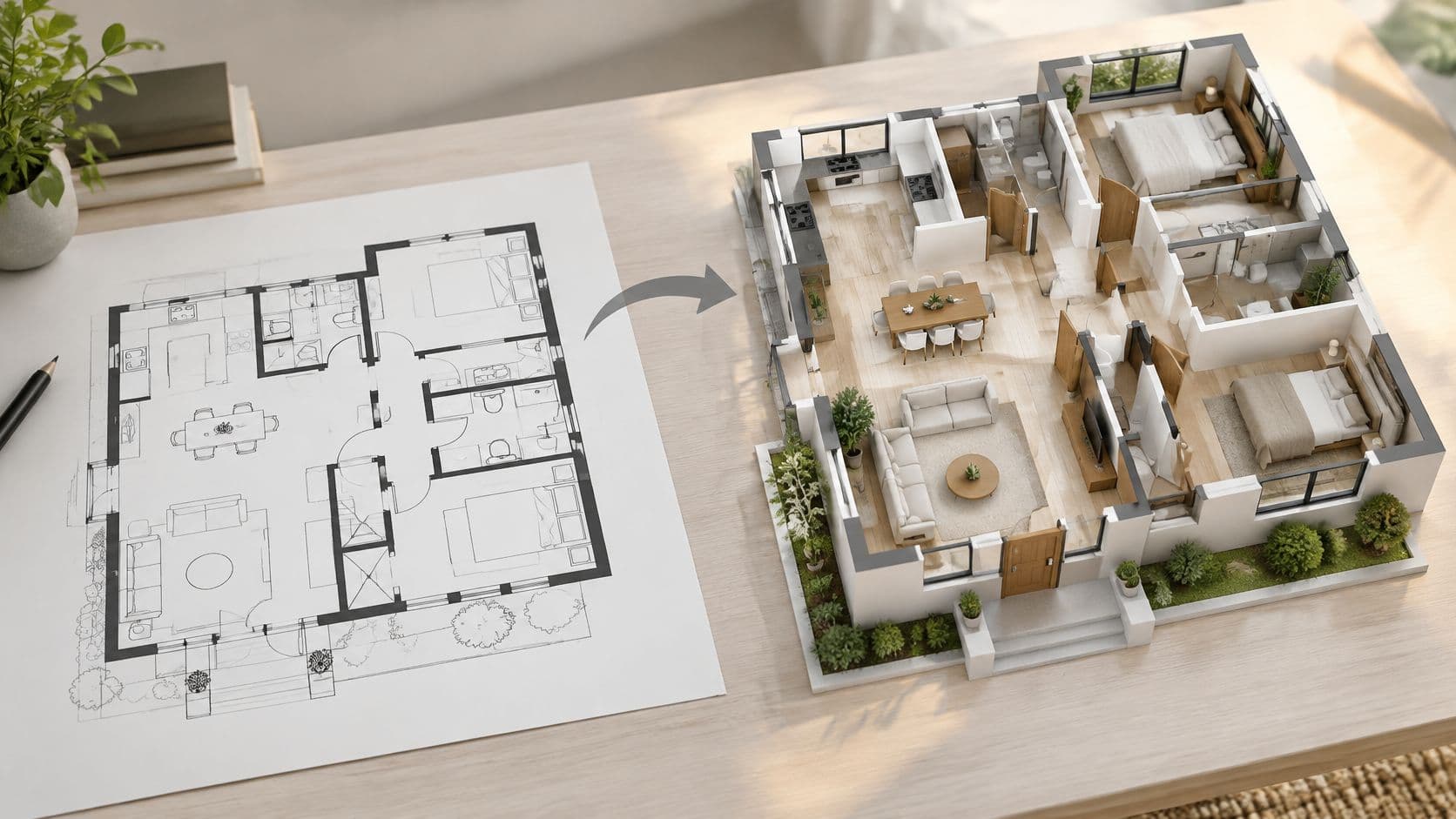
A designer has a PDF floor plan open, a client meeting coming up, and a search bar with Image to 3D typed into it. The expectation is usually a model that can spin, orbit, and settle every question about the layout. That expectation is where the confusion starts, because a floor plan, a room photo, and a product shot don't contain the same information, and they don't lead to the same kind of result.
Match the Image to 3D Intent First
For a planar architectural plan, the matching Nim route is the Plan to 3D template, also reached through the Plan to 3D page. That's the path for turning plan information into a visual 3D reading of a layout. It isn't a route to a measured mesh, and it doesn't convert any single photograph into an engineering model.
Which Image to 3D Path Fits the File in Hand
| Source on hand | Closest Nim path | Use it for | Do not treat it as |
|---|---|---|---|
| Floor plan image | Plan to 3D | A visual 3D reading of the plan | Measured CAD, BIM, or a survey |
| Floor plan when the goal is a moving tour | Plan Walkthrough | A presentation walkthrough | An as-built model |
| Hand sketch of a space or concept | Sketch to Render | A rendered concept from the sketch | Construction documentation |
| Architectural plan aimed at a still render | Plan to Render | A rendered view of the plan | An engineering drawing |
| One product photo, face, or object shot | No verified single-image mesh template | Flag the mismatch | Photogrammetry, a product CAD model, or a dimensioned spec |
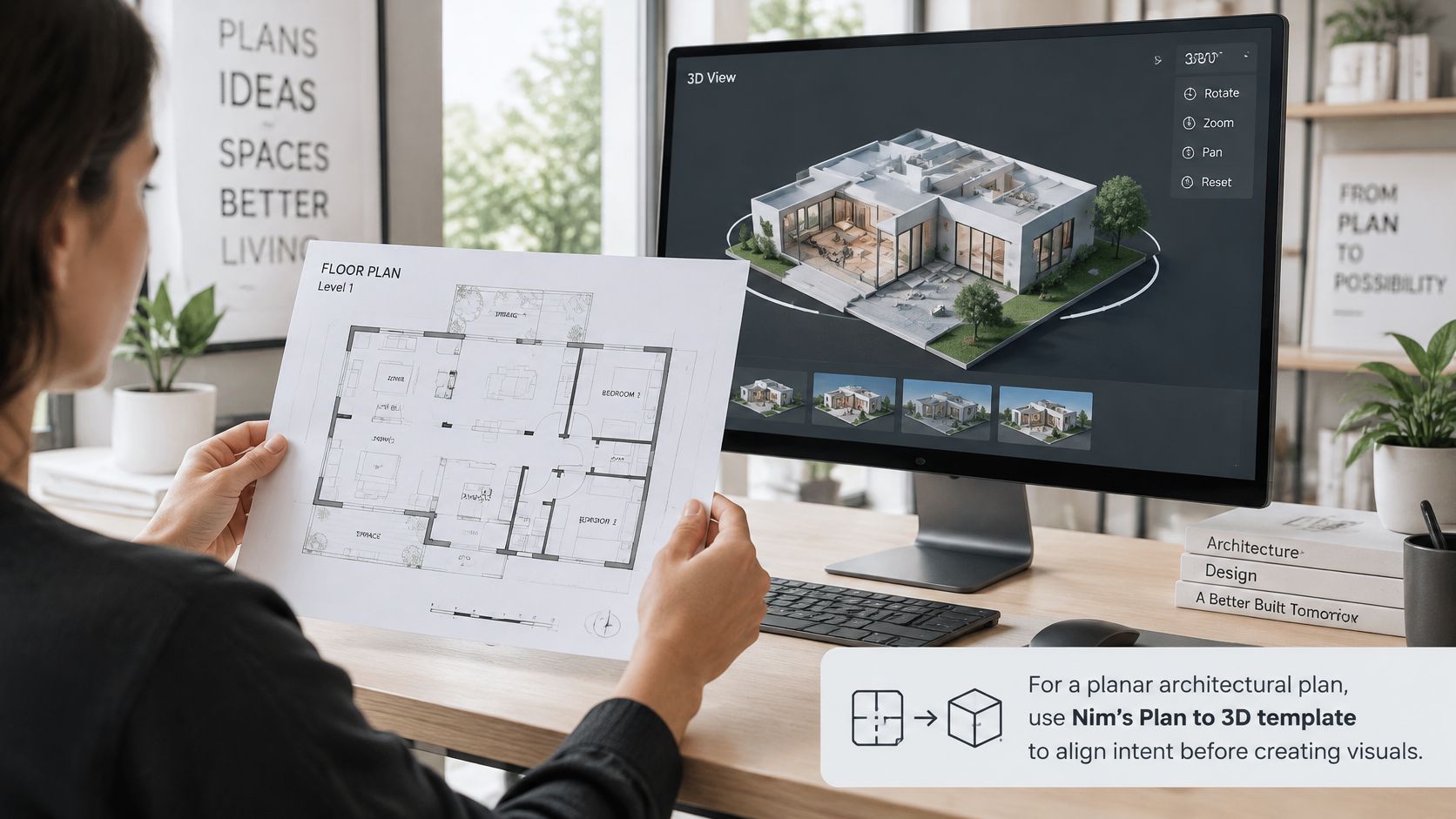
The rows matter because each source answers a different question. A floor plan already states where rooms sit, so a plan-based visual can help readers grasp adjacency and flow. A hand sketch states intent more loosely, so Sketch to Render fits better than forcing that sketch through a plan template. It produces a rendered concept, not a set of instructions for building the space.
Motion changes the destination again. A floor plan paired with a wish for a camera path belongs to Plan Walkthrough, which produces a video walkthrough rather than a still 3D study. A plan aimed at one polished still can go to Plan to Render instead. Those are different outputs, so picking between them is the first creative decision, not a formatting preference.
The mismatch rows deserve equal weight. A single product photo, a face, or a request for a metric mesh, a glTF file, or a survey-grade model isn't a confirmed Nim Image to 3D workflow, and no substitute workflow should be invented for it. Readers wanting background on how architectural renders differ from plan studies can read about AI architecture rendering approaches, but the practical step stays simple. The row that matches the file already on the desk gets picked first, before anything gets prepared.
Prepare the Plan Before You Generate
Preparation happens on the file, not through settings inside Nim. A useful source is a clean, high-contrast plan where walls, doors, and windows stay legible at a glance. Furniture symbols shouldn't bury the wall lines, and no room should be cropped at the edge of the image, because a cut-off room forces the result to guess at a boundary the drawing never showed.
Multi-storey sets need one complete level per image. Stacking two floors into a single picture gives the visual two layouts to reconcile, and the reconciliation rarely helps either one. A north arrow or scale bar can stay as a human reference for the people reviewing the result, but the template isn't claimed to measure from it, so nobody should read dimensions off the output because a scale bar was present in the input.
Why One Plan Has Limits
One plan is a single view, so it can't reveal hidden wall heights or exact scale. Reliable reconstruction historically depends on multiple overlapping views that expose different surfaces, and a history of photogrammetry and remote sensing notes the guidance that at least 60% overlap between photograph pairs is ideal for avoiding unnecessary post-processing. A flat plan offers none of that overlap, which is why ceiling heights and materials in the result remain inferred rather than measured.
Certain inputs should stop the process early:
- A photo of a crumpled printout: Shadows and creases bend straight walls.
- A plan covered in redlines: Markup competes with the actual room boundaries.
- A perspective sketch passed off as a plan: Slanted lines aren't plan geometry.
- A cluttered listing photo: Furniture hides the layout instead of describing it.
A genuine hand sketch belongs with Sketch to Render, not with Plan to 3D. Anyone reworking an older home's layout before drawing the plan can also look at kitchen layout ideas for older homes for planning context, and readers comparing render styles can see how a 3D architect render differs from a plan study.
The Four Checks Before Opening the Template
- Full plan in frame: Nothing essential touches the image edge.
- Walls readable: Openings and boundaries are clear without zooming.
- One level: A single floor occupies the image.
- No critical room cut off: Every named room appears complete.
All four boxes get ticked before the template opens.
Turn a Floor Plan into a 3D Visual
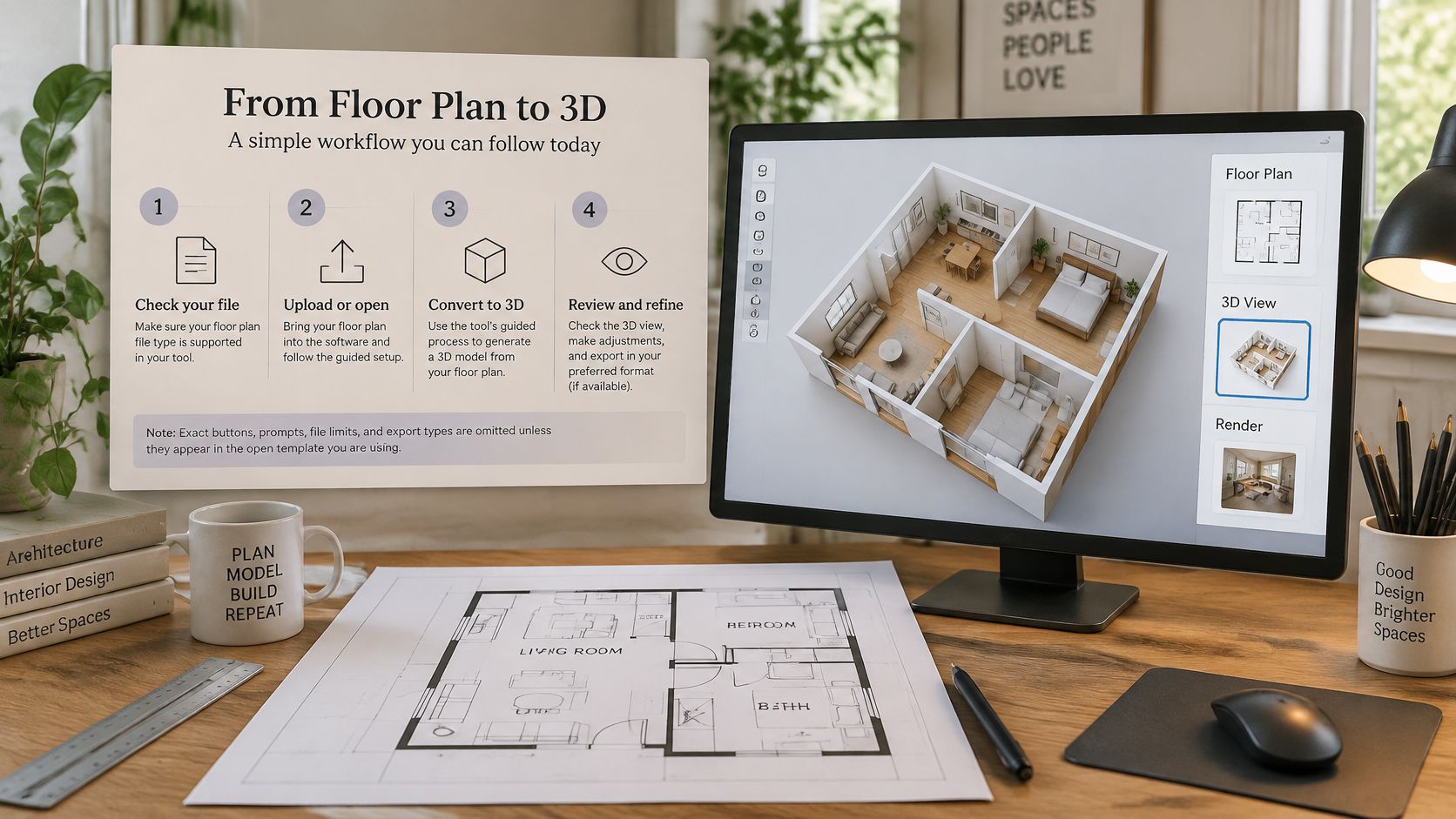
A two-bedroom apartment plan can become a client concept through Nim's Plan to 3D template. The output is a visual interpretation of the drawing, not a measured model. Provide the input requested by that template, generate the result, then review it before sharing. Download it only if the template offers that option.
- Confirm the source: Use a floor plan, not a room photo or product shot.
- Open Plan to 3D: Choose the template made for floor plans.
- Provide the requested input: Supply only what that template asks for. Don't assume room labels, style menus, or aspect-ratio settings.
- Generate the visualization: Treat the result as a visual reading of the plan.
- Review the result: Check it against the drawing before sharing.
- Download if available: Use a download option only if the template provides one.
Why a Plan Is a Stronger Starting Point
A floor plan shows layout relationships directly. Walls, openings, and room connections are drawn, while a single interior photo shows only one camera angle. Use the drawing to judge the layout; treat the render's finishes as visual choices, not evidence.
For the apartment concept, check the kitchen opening against the plan before judging the cabinetry. If the plan includes a small bathroom or another wet area, explore online bathroom planning tools for layout ideas that relate to that opening and the surrounding rooms.
Check the drawn walls before judging finishes. A review of single-view 3D reconstruction reports intersection-over-union scores of 0.38 to 0.47 for representative methods, with performance varying across examples from 35% to 50%. A plausible-looking image can still differ from the space it depicts.
Working distinction: The plan provides layout evidence. Anything it doesn't draw, such as height or material, is a visual interpretation.
If you also have interior photos and want motion, use the separate Plan Walkthrough route, which accepts a floor plan and interior photos for a presentation-oriented walkthrough. Review a still concept for layout clarity and a walkthrough for whether its camera path respects the same layout.
Check the Visual Before You Share It
A review pass aimed at view consistency catches more problems than one aimed at making the first frame prettier. For a residential plan, each room's adjacency gets compared against the drawing first. The kitchen should sit next to the rooms the plan places beside it, and the hall should connect what the plan connects.
Then the details that migrate get checked. Doors that changed swing, windows that jumped to a different wall, and corridors that shortened all signal a result drifting from its source. Furniture deserves the same suspicion, because a sofa or table can imply a room width the plan never showed. For a commercial or retail plan, circulation from the entry to the back of house matters most, since a smooth camera move can invent a route through a wall.
Signs the Result Should Not Ship
- Blank walls that grew openings: A doorway appears where the plan draws none.
- Repeated patterns that smear: Tiles, shelving, or slats blur into texture.
- Glossy or textureless areas that look melted: Plain surfaces lose their edges.
- Thin elements that vanish: Railings, frames, and handles drop out.
- A second angle that disagrees: The room no longer matches the first view.
That last sign has a known cause. A CVPR 2025 paper on image-to-3D generation identifies inconsistent generated views as a central limitation, and related 2025 work notes that methods relying on generated multi-view images cannot guarantee 3D consistency when the viewing direction changes. In practice, a result that looks correct head-on can collapse once the viewpoint moves. Attractive camera motion can also imply spatial continuity that the source image never established, so a walkthrough-style clip needs the same layout check as a still.
Two routing corrections belong in the review. If interior photos exist and the goal is motion, Plan Walkthrough is the right destination rather than judging Plan to 3D as a failed tour. If the input was a photo of a furnished room and the goal is a styled look, Virtual Staging is a different task with a different source. Judging each output against its own task keeps the review honest.
Keep the visual only when newly seen areas still agree with the source.
Decide What the Result May Claim
A floor-plan visual can help a buyer discuss a possible layout. It cannot establish room dimensions. Treat the image as a communication aid, and make sure the claims around it match what the source can support.
When an Image to 3D Visual Is Enough
| Decision | Visualization enough | Still required outside Nim |
|---|---|---|
| Client concept of layout and mood | Yes, if labeled as a visual | The original plan for any stated size |
| Marketing or listing preview | Yes, as an illustration | Independent check of rooms, openings, and condition claims |
| Staging or finish idea | Yes, as a concept | A separate staging workflow if the input is a photo of an existing room |
| Room dimensions, rentable area, or product size | No | A measured drawing or manufacturer spec |
| Permit, structural, or as-built record | No | Professional documentation and survey |
| Downloadable engineering mesh | No | A CAD or photogrammetry pipeline that states its format and accuracy |
A visual is useful when it gives people something concrete to discuss: a possible room flow, a labeled listing concept, a staging idea, or a pitch slide. A sofa can look right while sitting in a room whose width nobody measured.
Claims about room sizes, rentable area, product dimensions, permits, structural details, or a property's current condition need evidence beyond the image. An MDPI review of reconstruction challenges describes persistent problems including occlusion, textureless areas, lighting changes, scale ambiguity, and domain shift. It also notes that learning-based systems may infer depth from patterns in training data rather than from the image itself.
If a sentence needs a number, a legal condition, or the words “as built,” get an independent measurement.
The strongest use of this workflow is controlled visual communication for concepts and discussion. Label illustrative results as illustrations when sharing them in a listing, deck, or social post. Treat file formats and engineering accuracy as separate requirements: promise them only when the specific workflow states what it provides.
Open the Template That Fits the Source
For a floor plan, open Nim's Plan to 3D template with the checked plan file. Generate a visual reading of the layout, then compare its doors, proportions, openings, and circulation with the drawing before sharing it.
Label the visual as a concept whenever you share it. A generated image can support a discussion about a space, but it does not establish measurements or document the property's actual condition. For a moving tour rather than a still visual, see the 3D floor plan walkthrough.
If your source is a sketch, product photo, or another type of image, use the matching route in the path table from the first section. A real-estate template is not a substitute for a workflow suited to a different source.
For neighboring real-estate tasks, browse the real-estate templates after deciding what you want to create. Start with the checked floor plan and Plan to 3D.
- image to 3d
- floor plan
- Plan to 3D
- architectural visualization
- Nim